Inquire: Call 0086-755-23203480, or reach out via the form below/your sales contact to discuss our design, manufacturing, and assembly capabilities.
Quote: Email your PCB files to Sales@pcbsync.com (Preferred for large files) or submit online. We will contact you promptly. Please ensure your email is correct.
Notes: For PCB fabrication, we require PCB design file in Gerber RS-274X format (most preferred), *.PCB/DDB (Protel, inform your program version) format or *.BRD (Eagle) format. For PCB assembly, we require PCB design file in above mentioned format, drilling file and BOM. Click to download BOM template To avoid file missing, please include all files into one folder and compress it into .zip or .rar format.
How to Install Vivado on Windows 11: Step-by-Step Tutorial
Introduction: Running Xilinx Vivado on Windows 11
If you’ve recently upgraded to Windows 11 and need to set up your FPGA development environment, you might be wondering whether Xilinx Vivado Windows 11 compatibility is solid. The short answer is yes—Vivado runs well on Windows 11, though AMD’s official documentation sometimes lags behind in explicitly listing it as supported.
I’ve been running Xilinx Windows 11 setups in our lab for over a year now, and while there are a few quirks to be aware of, the installation process is straightforward once you know the steps. This guide walks you through everything: from downloading the right installer to configuring cable drivers and troubleshooting common issues.
Whether you’re a student setting up your first FPGA toolchain or an engineer migrating from Windows 10, this tutorial covers the practical details that matter.
System Requirements for Xilinx Vivado on Windows 11
Before downloading anything, verify your system meets Vivado’s requirements. This isn’t lightweight software—synthesis and implementation of complex designs demand serious resources.
Windows 11 Hardware Requirements for Vivado
Component
Minimum
Recommended
Operating System
Windows 11 64-bit
Windows 11 Pro 64-bit
Disk Space
60 GB free
100+ GB SSD
RAM (7-Series)
8 GB
16 GB
RAM (UltraScale+)
16 GB
32+ GB
Processor
x86-64 (Intel/AMD)
8+ cores, 3GHz+
Important note: ARM-based Windows 11 devices (like Surface Pro X) are NOT supported. Vivado requires x86-64 processors only.
Pre-Installation Steps for Xilinx Windows 11 Setup
Before launching the installer, prepare your Windows 11 system to avoid common issues:
Create an AMD/Xilinx Account
You’ll need an AMD account to download Vivado. Visit xilinx.com/registration and create an account. You’ll also need to complete a US export compliance form—this is required for all users regardless of location.
Prepare Your System
Disable real-time antivirus scanning temporarily: Windows Defender can interfere with the installation. Re-enable after installation.
Plan your installation path: Use a short path like C:\Xilinx to avoid Windows’ 260-character path limit issues.
Avoid spaces in paths: Don’t install to folders with spaces in the name (like ‘Program Files’).
Free up disk space: The installation can temporarily require 80+ GB during extraction.
Close unnecessary applications: Free system resources for smoother installation.
Downloading Vivado for Windows 11
AMD offers multiple download options. For Xilinx Vivado Windows 11 installations, I recommend the Web Installer—it’s smaller and lets you select only the components you need.
Step-by-Step Download Process
Navigate to xilinx.com/support/download.html
Select the latest Vivado version (2024.2 or 2025.1 as of this writing)
Click ‘AMD Unified Installer for FPGAs & Adaptive SoCs: Windows Self Extracting Web Installer’
Sign in with your AMD account credentials
Complete the export compliance form
Save the installer (approximately 230 MB for the Web Installer)
Installing Xilinx Vivado on Windows 11: Complete Walkthrough
Now for the main event. Follow these steps carefully for a successful Xilinx Windows 11 installation.
Running the Vivado Installer
Right-click the installer and select ‘Run as administrator’: This is essential—don’t skip it.
Allow Windows Defender firewall access: Click ‘Allow’ when prompted to let the installer communicate.
Enter your AMD credentials: Same email and password from account creation.
Select ‘Download and Install Now’: The Web Installer will fetch files as needed.
Choose ‘Vivado’ as the product: Not Vitis, unless you need embedded software development.
Select ‘Vivado ML Standard Edition’: This is the free version—no license required.
Customizing Your Installation
On the installation options screen, you can significantly reduce disk usage by selecting only what you need:
Device families: Only check the FPGA families you’ll actually use (Artix-7, Zynq-7000, etc.)
Install Cable Drivers: Keep this checked if you’ll be programming physical hardware
DocNav: Optional documentation browser—can be skipped to save space
Completing the Installation
Accept license agreements: Check ‘I Agree’ for both EULA sections.
Set destination directory: Use C:\Xilinx (avoid long paths with spaces).
Review summary and click Install: Installation typically takes 1-2 hours depending on your selections and internet speed.
Wait for completion: Don’t interrupt the process—let it finish completely.
After installation, connect your FPGA board and check Device Manager. You should see entries under ‘Programming cables’ or ‘Universal Serial Bus devices’ for Digilent or Xilinx cables. If drivers aren’t working:
Navigate to C:\Xilinx\Vivado\<version>\data\xicom\cable_drivers\nt64
Run install_drivers.bat as Administrator
Unplug and replug your FPGA board
First Launch and Verification
Launch Vivado from the Start Menu. Create a test project to verify synthesis works:
Click ‘Create Project’ → Next
Name your project and select a location
Choose ‘RTL Project’
Select a target device from a family you installed
If the project opens without errors, your installation is successful
Problem: Installer won’t launch or crashes immediately
Solution: Right-click → ‘Properties’ → ‘Compatibility’ tab → Check ‘Run this program as administrator’. Also try compatibility mode for Windows 10 if issues persist with newer Vivado versions.
Problem: FPGA board not detected in Hardware Manager
Solution: Reinstall cable drivers manually from the installation directory. In Device Manager, if you see unknown devices, right-click and update drivers pointing to C:\Xilinx\Vivado\<version>\data\xicom\cable_drivers\nt64.
Problem: Path too long errors during synthesis
Solution: Move your project to a shorter path (e.g., C:\FPGA\proj1 instead of C:\Users\YourName\Documents\FPGA Projects\MyFirstProject). Windows 11 still has the 260-character path limitation that affects Vivado.
Problem: Vivado runs slowly or freezes
Solution: Check RAM usage during synthesis. If you’re hitting memory limits, close other applications or reduce design complexity. SSDs dramatically improve compile times compared to HDDs.
Useful Resources for Xilinx Vivado on Windows 11
Essential links for your Xilinx Windows 11 development setup:
1. Is Xilinx Vivado officially supported on Windows 11?
AMD’s documentation primarily lists Windows 10, but Xilinx Vivado Windows 11 works reliably in practice. Many users (including our lab) run Vivado 2023.x and 2024.x on Windows 11 without issues. The core functionality is identical to Windows 10. AMD has not officially announced Windows 11 as unsupported.
2. Which Vivado version should I install on Windows 11?
For new installations, use the latest stable version (2024.2 or 2025.1). These have the best compatibility with modern systems. If you’re working with legacy projects or specific board support packages, match the version specified in your project documentation. You can install multiple versions side-by-side.
3. Do I need to pay for Vivado to use it on Windows 11?
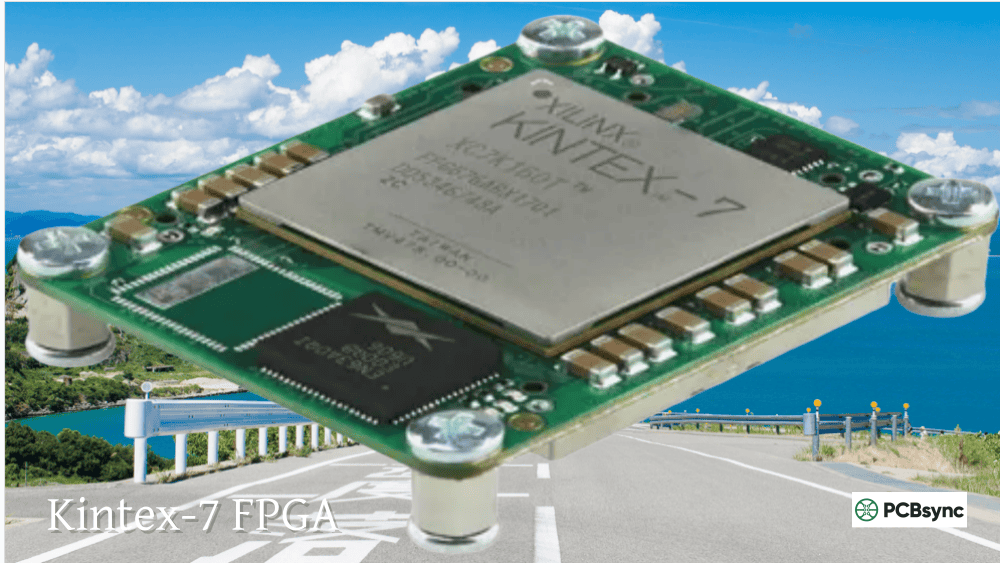
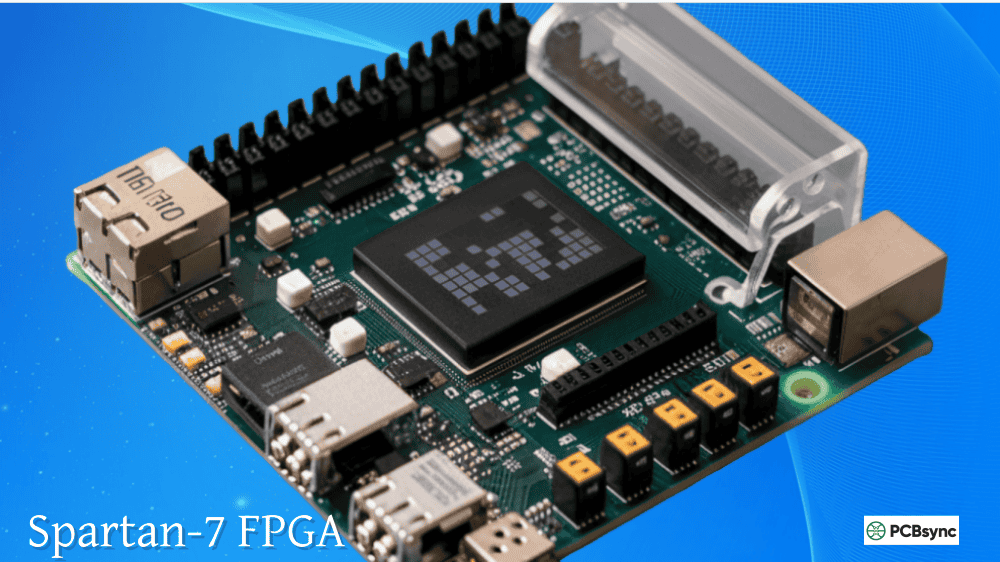
No. Vivado ML Standard Edition is completely free and supports Spartan-7, Artix-7, selected Zynq-7000, and some Kintex-7 devices. This covers most hobbyist and educational boards like Basys 3, Arty, and Nexys. You only need the paid Enterprise Edition for UltraScale+, Virtex, and Versal devices.
4. Why is my Digilent/JTAG cable not working on Windows 11?
Cable driver issues are the most common problem with Xilinx Windows 11 setups. First, ensure drivers were installed during Vivado installation (or run install_drivers.bat manually). If the cable still isn’t recognized, try different USB ports, use a USB 2.0 port instead of USB 3.0, and check Device Manager for driver conflicts. Some users report success after disabling USB selective suspend in Power Options.
5. Can I run Vivado on Windows 11 ARM (Surface Pro X)?
No. Vivado requires x86-64 processors and does not support ARM-based Windows 11 devices. If you have an ARM-based computer, your options are using a cloud-based development environment or accessing a remote x86 workstation. There are no current plans from AMD to support ARM Windows.
Conclusion: Starting Your FPGA Development on Windows 11
Setting up Xilinx Vivado Windows 11 is straightforward when you follow the right steps. The key points: run the installer as administrator, use short installation paths without spaces, install cable drivers properly, and verify your setup with a test project.
While AMD’s official documentation may not always explicitly list Windows 11, the practical reality is that Vivado works well on this platform. I’ve been running Xilinx Windows 11 setups for complex FPGA projects without significant issues.
With your installation complete, you’re ready to dive into FPGA development. Whether you’re implementing digital signal processing, creating custom peripherals, or learning hardware description languages, Vivado on Windows 11 provides all the tools you need.
Inquire: Call 0086-755-23203480, or reach out via the form below/your sales contact to discuss our design, manufacturing, and assembly capabilities.
Quote: Email your PCB files to Sales@pcbsync.com (Preferred for large files) or submit online. We will contact you promptly. Please ensure your email is correct.
Notes: For PCB fabrication, we require PCB design file in Gerber RS-274X format (most preferred), *.PCB/DDB (Protel, inform your program version) format or *.BRD (Eagle) format. For PCB assembly, we require PCB design file in above mentioned format, drilling file and BOM. Click to download BOM template To avoid file missing, please include all files into one folder and compress it into .zip or .rar format.