Inquire: Call 0086-755-23203480, or reach out via the form below/your sales contact to discuss our design, manufacturing, and assembly capabilities.
Quote: Email your PCB files to Sales@pcbsync.com (Preferred for large files) or submit online. We will contact you promptly. Please ensure your email is correct.
Notes: For PCB fabrication, we require PCB design file in Gerber RS-274X format (most preferred), *.PCB/DDB (Protel, inform your program version) format or *.BRD (Eagle) format. For PCB assembly, we require PCB design file in above mentioned format, drilling file and BOM. Click to download BOM template To avoid file missing, please include all files into one folder and compress it into .zip or .rar format.
Running Xilinx ISE on Windows 10/11: Compatibility Guide
If you’ve worked with Spartan-6 or Virtex-6 FPGAs, you’ve probably faced the frustrating reality that Xilinx ISE for Windows 10 requires some workarounds to function properly. Despite being discontinued in 2013, ISE 14.7 remains essential for thousands of engineers maintaining legacy designs or working with budget-friendly FPGA development boards. This guide covers everything you need to know about getting Xilinx ISE Windows 11 and Windows 10 compatibility working smoothly.
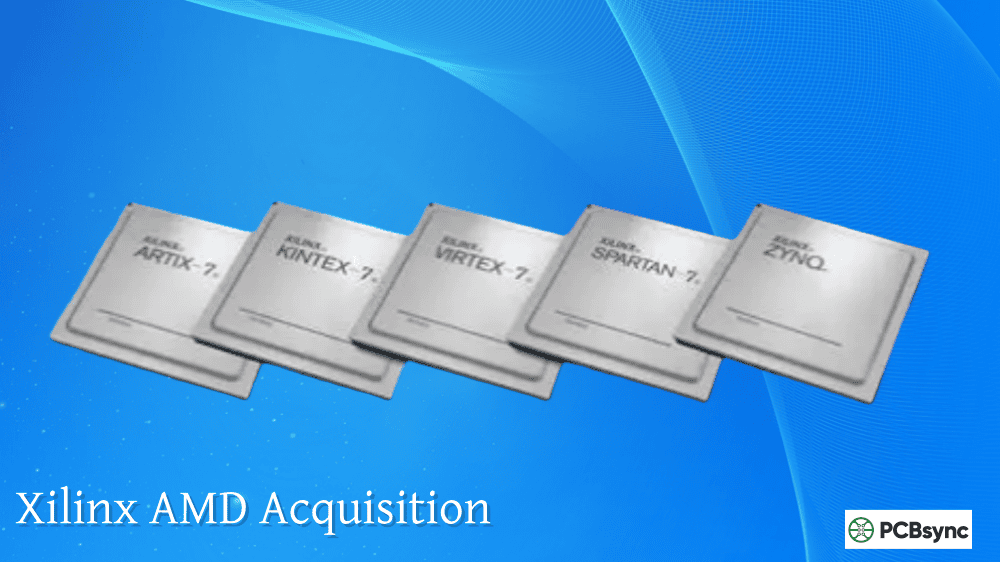
Here’s the thing many newcomers don’t realize: Vivado doesn’t support older device families. If your project uses Spartan-3, Spartan-6, Virtex-4, Virtex-5, Virtex-6, or any CoolRunner CPLD, you’re stuck with ISE. There’s no alternative from AMD (formerly Xilinx).
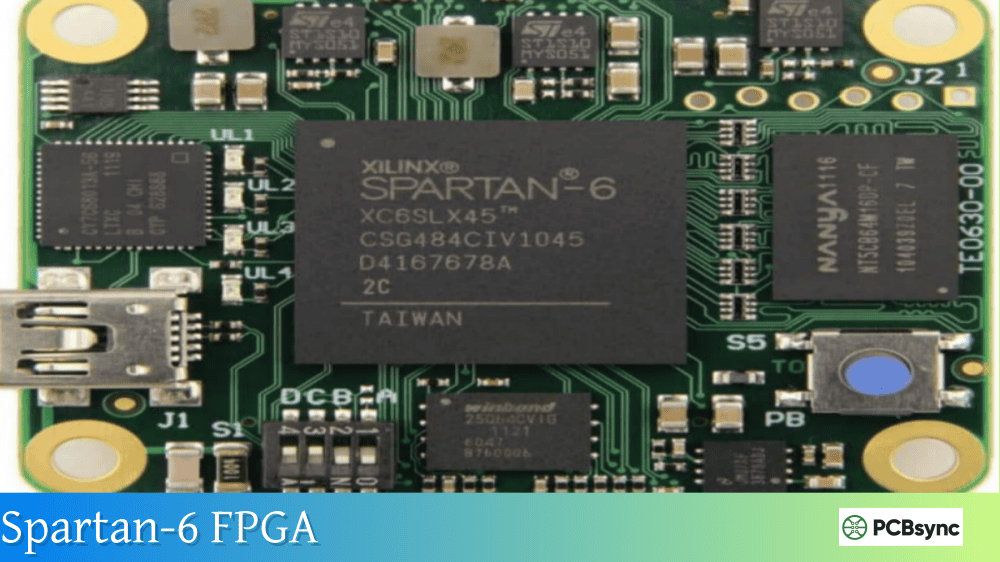
The Spartan-6 family alone still ships in millions of units annually. Educational institutions, hobbyist boards like the Mojo and Papilio, and countless industrial systems rely on these proven devices. When your boss hands you a decade-old design that needs modifications, you’ll need ISE running on your modern Windows machine.
Understanding Xilinx ISE 14.7 Windows 11 Compatibility Options
AMD offers two distinct paths for running ISE on modern Windows systems. Understanding the difference saves considerable headaches down the road.
Method 1: Native Installation with Patches
The original ISE 14.7 (October 2013 release) was designed for Windows 7 and XP. It installs directly on Windows 10 but crashes when opening file dialogs due to a SmartHeap memory library conflict. A straightforward DLL replacement fixes this issue permanently.
Best for: Windows 10 users who want maximum performance and native USB programmer support.
Method 2: Virtual Machine Package
AMD released an official ISE 14.7 Windows 10 VM package that runs ISE inside an Oracle VirtualBox Linux virtual machine. This approach works on both Windows 10 and Windows 11 without modifications.
Best for: Windows 11 users or anyone wanting a guaranteed working setup without manual patching.
Native ISE Installation on Windows 10
This method delivers the best performance and most straightforward USB cable detection. I’ve used this approach on multiple engineering workstations without issues.
System Requirements for Native Installation
Component
Minimum
Recommended
Operating System
Windows 10 (any edition)
Windows 10 Pro 64-bit
RAM
4 GB
8 GB or more
Storage
20 GB free
50 GB SSD
Display
1280 x 1024
1920 x 1080
Step-by-Step Native Installation Process
Download the installer from the AMD website. Navigate to ISE Archive and select version 14.7 (not the Windows 10 edition). Grab the “Full Installer for Windows 7/XP/Server” package. Yes, this older package works better for native installation than the VM package.
Extract and run the installer. Use 7-Zip to unpack the TAR/GZIP archive. Launch xsetup.exe and select ISE WebPACK Edition unless you have a full license. Uncheck WinPCAP driver installation during setup.
Apply the libPortability.dll fix. This critical step prevents the crash when ISE tries to open file dialogs. Navigate to your installation folder and make these changes:
The “NOSH” version disables SmartHeap, which conflicts with newer Windows memory management. This change doesn’t affect synthesis or implementation performance.
Fixing the VC2008 Runtime Warning
If you see Visual C++ 2008 warnings on startup, add a system environment variable:
Access this through Control Panel → System → Advanced System Settings → Environment Variables → New (under System variables).
Installing Xilinx ISE 14.7 Windows 11 via Virtual Machine
Windows 11 users generally can’t run the native installation reliably. The VM approach provides official AMD support and consistent behavior.
Prerequisites for VM Installation
Download and install Oracle VirtualBox 6.1 or later from virtualbox.org before downloading the ISE package. Install the VirtualBox Extension Pack matching your VirtualBox version to enable USB 2.0 and 3.0 passthrough.
VM Package Download and Setup
From the AMD ISE Archive page, select “14.7 Windows 10 and Windows 11” and download the complete 15.52 GB package. This includes the pre-configured Oracle Linux virtual machine with ISE already installed and licensed for single-user development.
Extract all downloaded files to a single folder. Run the installer, which automatically imports the VM into VirtualBox and creates Start Menu shortcuts for common ISE tools.
The default VM configuration uses host-only networking, meaning no internet access inside the VM. For license server connections or updates, change the network adapter to NAT mode:
Open Oracle VM VirtualBox Manager
Select ISE_14.7_VIRTUAL_APPLIANCE
Click Settings → Network → Adapter 1
Change “Attached to” from Host-only Adapter to NAT
Click OK and restart the VM
Create a shared folder for your project files. The installer prompts for a share location during setup. Store all HDL source files and project directories in this shared folder for easy access from both Windows and the Linux VM.
VM Login Credentials
The default credentials AMD provides:
Account
Username
Password
Standard User
ise
xilinx
Root Access
Use sudo
No password required
USB Programming Cable Setup
Getting your Platform Cable USB or third-party programmer working requires proper driver configuration on both installation methods.
Native Windows 10 USB Setup
For native installations, the USB drivers install automatically with ISE. If your cable isn’t detected, reinstall the drivers manually:
Navigate to C:\Xilinx\14.7\ISE_DS\common\bin\nt64
Open an Administrator command prompt
Run: wdreg -inf windrvr6.inf uninstall
Run: wdreg -inf xusbd install
Reconnect your programming cable
Digilent JTAG-HS2 and HS3 users need the Digilent Adept runtime installed separately for native Windows operation.
VM USB Passthrough Configuration
In the VirtualBox VM, USB devices must be explicitly passed through to the guest OS:
Right-click the USB icon in the VirtualBox window footer
Select your programming cable from the list
The cable should now appear in iMPACT’s device scan
For persistent USB passthrough, create a USB filter in VirtualBox Settings → USB for your specific programmer.
Common Xilinx ISE Windows 10 Issues and Solutions
Installation Hangs at 91% (Enabling WebTalk)
The installer sometimes freezes during WebTalk configuration. Open Task Manager, find the xwebtalk process, and end it. Installation continues normally afterward.
Project Navigator Crashes on File Open
This indicates the libPortability.dll fix wasn’t applied to all locations. Search your Xilinx installation for all instances of libPortability.dll and replace each one with the NOSH version.
PlanAhead Segmentation Fault
PlanAhead requires 32-bit mode on modern systems. Edit your shortcut to add -m32 to the target:
Windows Subsystem for Linux creates network shares that ISE tries to enumerate at startup. If ISE hangs indefinitely, either temporarily disable WSL or apply the community-developed network enumeration patch available on GitHub.
Memory Integrity Blocks iMPACT USB
Windows 11’s Memory Integrity feature (HVCI) conflicts with the older Xilinx USB drivers. Temporarily disable this feature in Windows Security → Device Security → Core Isolation when programming FPGAs.
Supported Device Families in ISE 14.7
Understanding what ISE supports helps you choose the right tool for your project.
Device Family
ISE Support
Vivado Support
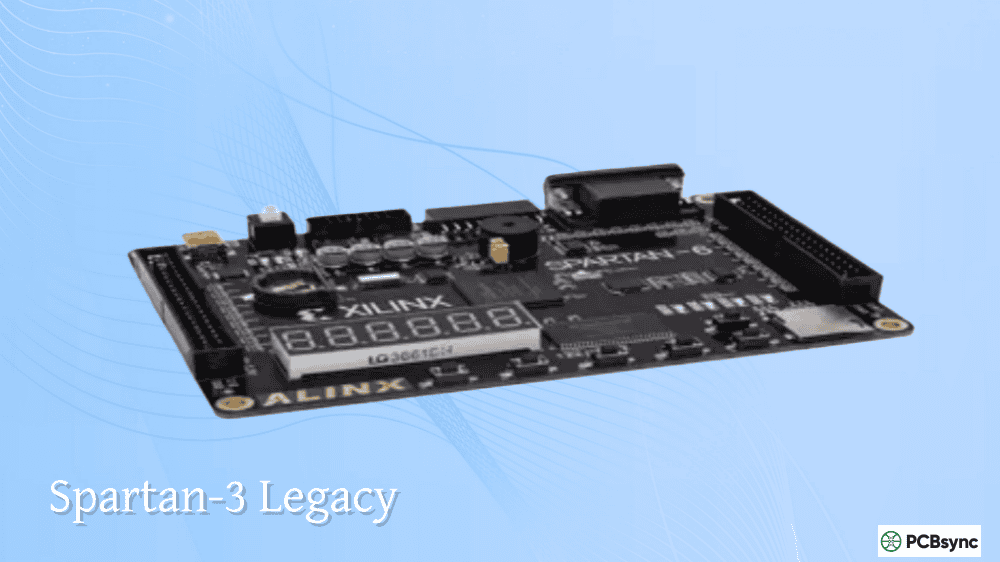
Spartan-3/3E/3A/3AN/3A DSP
Full
None
Spartan-6
Full
None
Virtex-4
Full
None
Virtex-5
Full
None
Virtex-6
Full
None
CoolRunner-II
Full
None
Artix-7
Partial
Full
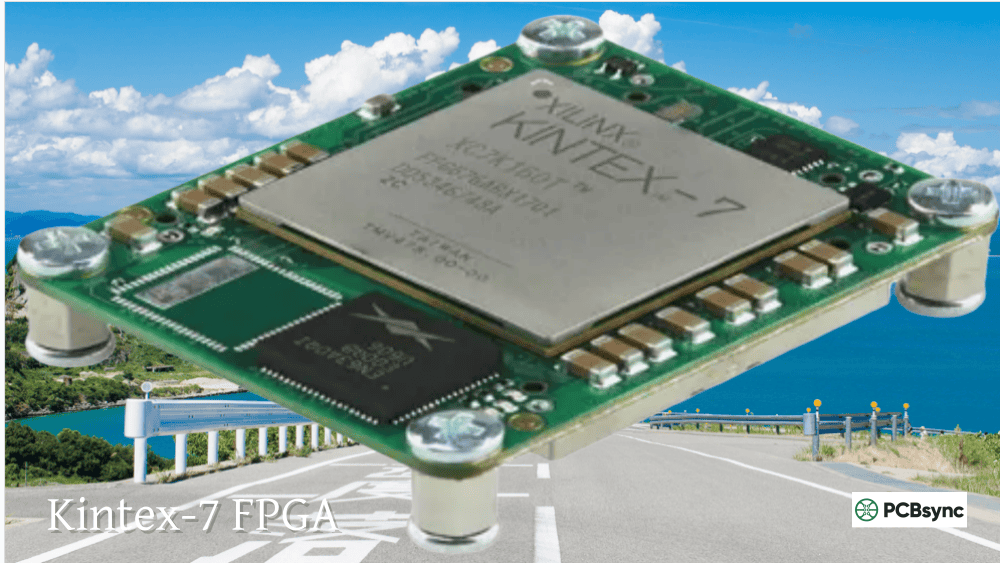
Kintex-7
Partial
Full
Virtex-7
Partial
Full
Zynq-7000
Partial
Full
For 7-series devices, Vivado provides better optimization and modern features. Use ISE only when specifically required for legacy compatibility.
Official AMD answer record on Windows compatibility
EEVblog Forums
Active community discussions on ISE troubleshooting
License Information
ISE WebPACK is free and supports all Spartan, CoolRunner, and smaller Virtex devices. Generate your license at xilinx.com/getlicense after creating a free AMD account.
FAQ: Xilinx ISE Windows Compatibility
Can I run Xilinx ISE on Windows 11 without a virtual machine?
Technically possible but unreliable. The native installation often fails on Windows 11 due to driver compatibility issues. The official VM approach provides consistent results and receives AMD support.
Does the libPortability.dll fix affect synthesis performance?
No measurable impact exists. The NOSH library simply disables SmartHeap memory allocation, which modern Windows handles more efficiently through its native memory management anyway.
Why does AMD still maintain ISE instead of adding legacy device support to Vivado?
The architectural differences between pre-7-series and 7-series FPGAs would require substantial engineering effort to support in Vivado. Maintaining ISE in a VM wrapper costs significantly less while keeping existing designs functional.
Can I use ISE and Vivado on the same machine?
Absolutely. Many engineers maintain both tools. Just ensure you source the correct settings script before running either tool from command line, as they set conflicting environment variables.
How do I transfer projects between native ISE and the VM version?
Use the shared folder feature in VirtualBox. Point both installations at the same project directory. The project files are fully compatible between native and VM installations.
Final Thoughts
Getting Xilinx ISE 14.7 Windows 11 and Windows 10 working takes some initial effort, but the process is well-documented and reliable. For Windows 10 users with programming cables that need native USB support, the patched native installation works excellently. Windows 11 users should embrace the VM approach as the path of least resistance.
Whatever method you choose, ISE remains a capable tool for legacy FPGA development. The synthesis and implementation engines still produce efficient results for supported devices, and the integrated simulation environment handles most verification needs. While the interface feels dated compared to modern tools, the underlying functionality continues serving thousands of active designs worldwide.
Inquire: Call 0086-755-23203480, or reach out via the form below/your sales contact to discuss our design, manufacturing, and assembly capabilities.
Quote: Email your PCB files to Sales@pcbsync.com (Preferred for large files) or submit online. We will contact you promptly. Please ensure your email is correct.
Notes: For PCB fabrication, we require PCB design file in Gerber RS-274X format (most preferred), *.PCB/DDB (Protel, inform your program version) format or *.BRD (Eagle) format. For PCB assembly, we require PCB design file in above mentioned format, drilling file and BOM. Click to download BOM template To avoid file missing, please include all files into one folder and compress it into .zip or .rar format.