Inquire: Call 0086-755-23203480, or reach out via the form below/your sales contact to discuss our design, manufacturing, and assembly capabilities.
Quote: Email your PCB files to Sales@pcbsync.com (Preferred for large files) or submit online. We will contact you promptly. Please ensure your email is correct.
Notes: For PCB fabrication, we require PCB design file in Gerber RS-274X format (most preferred), *.PCB/DDB (Protel, inform your program version) format or *.BRD (Eagle) format. For PCB assembly, we require PCB design file in above mentioned format, drilling file and BOM. Click to download BOM template To avoid file missing, please include all files into one folder and compress it into .zip or .rar format.
Introduction to Xilinx Vivado for FPGA Development
If you’re getting started with FPGA development, Vivado is the tool you’ll be spending most of your time with. AMD’s (formerly Xilinx) Xilinx Vivado Design Suite is the primary development environment for modern AMD FPGAs and adaptive SoCs, and getting it installed correctly is crucial before you can start any serious design work.
I’ve installed Vivado on more systems than I can count over the years—from dedicated workstations to virtual machines to university lab computers. The installation process has improved significantly since the early days, but there are still plenty of gotchas that can trip up both newcomers and experienced engineers.
This guide covers everything you need to know: system requirements, edition selection, step-by-step installation procedures, license configuration, cable driver setup, and the troubleshooting steps that will save you hours of frustration. Whether you’re targeting Xilinx Vivado FPGA designs on Artix-7, Zynq, UltraScale+, or Versal devices, this guide has you covered.
Understanding Vivado Editions: Standard vs Enterprise
Before downloading anything, you need to understand which edition of Xilinx Vivado suits your needs. AMD offers two main editions, and choosing the wrong one can mean either unnecessary expenses or blocked access to the devices you need.
Vivado ML Standard Edition (Free)
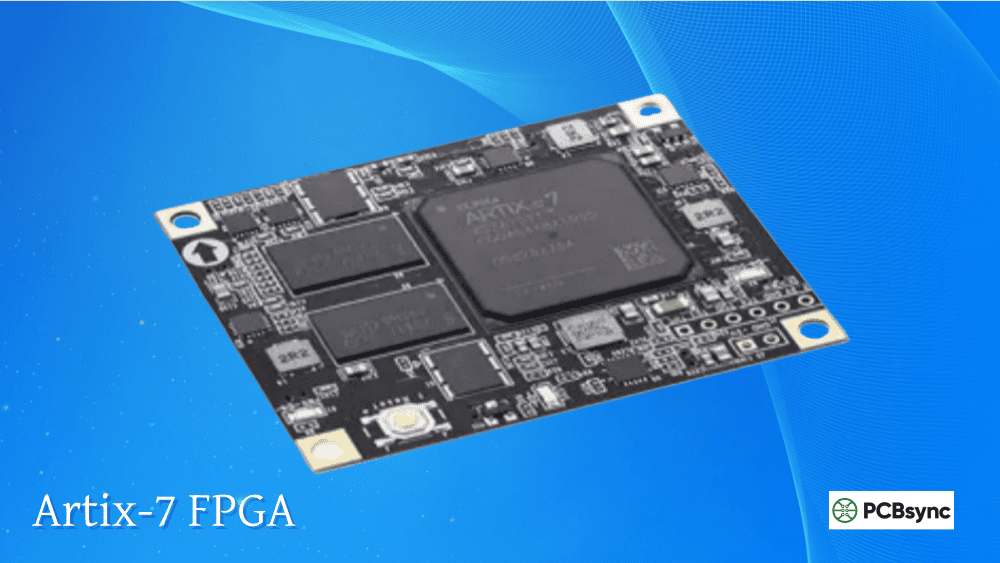
The Vivado ML Standard Edition (formerly WebPACK) is completely free and requires no license. This is what most hobbyists, students, and engineers working with entry-level devices should start with. It supports a substantial range of devices including Artix-7, Spartan-7, selected Zynq-7000, and some Kintex-7 devices.
Vivado ML Enterprise Edition (Paid License)
The Enterprise Edition is the full-featured version supporting all AMD devices, including Kintex UltraScale+, Virtex UltraScale+, and Versal adaptive SoCs. If you’re working with high-end development boards like the Genesys 2 (which uses a Kintex-7) or any UltraScale+ platform, you’ll need Enterprise. Licenses run approximately $2,995 for a node-locked license.
Vivado Edition Device Support Comparison
Device Family
Standard (Free)
Enterprise
Spartan-7
✓ Full Support
✓ Full Support
Artix-7
✓ Full Support
✓ Full Support
Kintex-7
Limited Devices
✓ Full Support
Zynq-7000
Selected Devices
✓ Full Support
Virtex-7
✗ Not Supported
✓ Full Support
Kintex UltraScale+
✗ Not Supported
✓ Full Support
Virtex UltraScale+
✗ Not Supported
✓ Full Support
Versal
✗ Not Supported
✓ Full Support
Vivado System Requirements: RAM, Disk Space, and OS
Before you download Vivado, make sure your system can handle it. This isn’t a lightweight tool—synthesis and implementation of complex designs demand serious computational resources.
Minimum and Recommended System Specifications
Component
Minimum
Recommended
Disk Space
60 GB
100+ GB (SSD)
RAM (7-Series)
8 GB
16 GB
RAM (UltraScale)
16 GB
32 GB
RAM (Versal)
32 GB
64+ GB
CPU
x86-64 processor
8+ cores, high clock
Supported Operating Systems for Xilinx Vivado
Vivado officially supports the following operating systems:
Windows: Windows 10 (64-bit) with updates 1809, 1903, 1909, or 2004
Red Hat Enterprise Linux: RHEL 7.4 through 7.9, RHEL 8.1 through 8.4
CentOS: 7.4 through 7.9
Ubuntu: 18.04 LTS, 20.04 LTS (unofficially works on newer versions with minor tweaks)
A practical note: While AMD only officially supports specific Ubuntu LTS versions, Vivado generally works fine on newer distributions like Ubuntu 22.04 or 24.04. You may need to install compatibility libraries like libtinfo-dev and libncurses-dev.
Getting the Vivado installer requires an AMD account. If you don’t have one, you’ll create it during the download process.
Creating an AMD Account and Accessing Downloads
Navigate to the AMD/Xilinx Downloads page (xilinx.com/support/download.html)
Select the Vivado version you need (2024.1 is current as of this writing)
Choose the Web Installer for your OS (Windows or Linux)—it’s much smaller than the full package
Sign in or create an AMD account when prompted
Complete the export compliance form (required for US export regulations)
Download the installer executable
Important tip: Use the Web Installer rather than downloading the full 80+ GB tarball. The Web Installer lets you select only the components and device families you need, saving significant disk space and download time.
Installing Vivado on Windows: Complete Walkthrough
Pre-Installation Preparation
Before launching the installer, prepare your system:
Disable antivirus temporarily: Some AV software interferes with the installation
Run as Administrator: Right-click the installer and select ‘Run as Administrator’
Check path lengths: Windows has a 260-character path limit; use short installation paths like C:\Xilinx
Close other applications: Free up system resources for the installation
Windows Installation Steps for Xilinx Vivado
Launch the installer: Double-click the downloaded .exe file
Enter credentials: Log in with your AMD account and select ‘Download and Install Now’
Select product: Choose ‘Vivado’ (not Vitis, unless you need embedded software development)
Choose edition: Select ‘Vivado ML Standard’ for the free version or ‘Vivado ML Enterprise’ if you have a license
Customize installation: Select only the device families you need (reduces installation size significantly)
Enable cable drivers: Check ‘Install Cable Drivers’ if you’ll be programming FPGAs
Accept licenses: Agree to the EULA and third-party licenses
Set destination: Keep the default C:\Xilinx or choose a short path
Install: Click Install and wait (can take 1-2 hours depending on selections and internet speed)
Installing Vivado on Linux: Ubuntu and RHEL Guide
Linux Pre-Installation Requirements
On Linux, you’ll need to install some dependencies first. For Ubuntu:
sudo apt install libtinfo-dev libncurses-dev
Make the installer executable and run it:
chmod +x Xilinx_Unified_*_Lin64.bin
./Xilinx_Unified_*_Lin64.bin
Setting Up Environment Variables on Linux
After installation, you need to source the settings script before using Vivado. Add this to your ~/.bashrc:
source /opt/Xilinx/Vivado/2024.1/settings64.sh
export XILINX_VIVADO=/opt/Xilinx/Vivado/2024.1
Important: After sourcing settings64.sh, you may want to unset LD_LIBRARY_PATH if you’re running other tools. Vivado bundles old versions of some system libraries that can interfere with modern software.
Installing JTAG Cable Drivers for Xilinx Vivado FPGA Programming
To program your Xilinx Vivado FPGA designs onto actual hardware, you need functioning cable drivers. This is straightforward on Windows but requires manual steps on Linux.
Linux Cable Driver Installation
The Vivado installer on Linux does NOT automatically install cable drivers, even if you checked the option. You must run the installation script manually:
cd /opt/Xilinx/Vivado/2024.1/data/xicom/cable_drivers/lin64/install_script/install_drivers/
sudo ./install_drivers
This installs udev rules for Digilent and Xilinx cables. After installation, you’ll see confirmation messages for each driver type. Unplug and replug your cable for the changes to take effect.
Adding Users to the dialout Group
For serial terminal access (USB-UART), add your user to the dialout group:
sudo usermod -a -G dialout $USER
Log out and back in for the group change to take effect.
Configuring Vivado Licenses: Node-Locked and Floating
If you’re using the Standard Edition, no license is required—you can skip this section. For Enterprise Edition users, here’s how to configure your license.
Using the Vivado License Manager
Launch the Vivado License Manager from the Start Menu (Windows) or by running ‘vlm’ from the command line. The License Manager provides several functions:
Get License: Connect to AMD’s licensing portal to generate or retrieve licenses
Load License: Import a .lic file you’ve already downloaded
View License Status: Check which licenses are available to your machine
Manage License Search Paths: Configure where Vivado looks for licenses
Setting the XILINXD_LICENSE_FILE Variable
For floating licenses or custom license locations, set the XILINXD_LICENSE_FILE environment variable:
Node-locked license: Point to the .lic file location
After installation, verify everything works before starting a real project.
Launching Vivado and Creating a Test Project
Launch Vivado: Start from the Start Menu (Windows) or type ‘vivado’ in terminal (Linux)
Create a new project: Select ‘Create Project’ from the Quick Start menu
Select a target device: Choose a device from a family you installed (e.g., xc7a35t for Artix-7)
Verify synthesis: Add a simple Verilog file and run synthesis to confirm the tools work
Testing Hardware Connection
Connect your FPGA board and open Hardware Manager (Flow Navigator → Program and Debug → Open Hardware Manager). Click ‘Auto Connect’—if your cable drivers are correctly installed, Vivado should detect your board and display the device in the hardware tree.
Problem: Installation fails with extraction errors
Solution: Use 7-Zip to extract the installer on Windows. The built-in Windows extractor sometimes fails with large archives. Also ensure the installation path has no spaces or special characters.
Problem: “No devices found” in Hardware Manager
Solution: On Linux, run the cable driver installation script. On Windows, check Device Manager for driver issues. Try unplugging and replugging the cable after driver installation.
Problem: License not found
Solution: Verify XILINXD_LICENSE_FILE is set correctly. For floating licenses, ensure the license server is reachable and the firewall allows port 2100. Use ‘vlm’ to check license status.
Problem: Vivado crashes on Linux with library errors
Solution: Unset LD_LIBRARY_PATH after sourcing settings64.sh, or create a wrapper script that cleans the environment. Vivado’s bundled libraries can conflict with system libraries.
Frequently Asked Questions About Vivado Installation
1. Is Xilinx Vivado free to use?
Yes, Vivado ML Standard Edition is completely free and requires no license. It supports Spartan-7, Artix-7, selected Zynq-7000, and some Kintex-7 devices. For UltraScale+, Virtex, and Versal devices, you need the paid Enterprise Edition. The Standard Edition is sufficient for most hobbyists, students, and many professional applications.
2. How much disk space does Vivado need?
A minimal Xilinx Vivado installation with one device family requires about 60 GB. A full installation with all device families and Vitis can exceed 100 GB. Using an SSD significantly improves compilation times. You can save space by installing only the device families you actually need—the installer lets you select these individually.
3. Can I install multiple Vivado versions simultaneously?
Yes, you can install multiple Vivado versions side by side. Each version installs in its own directory (e.g., Vivado/2023.2 and Vivado/2024.1). This is useful because some projects or IP cores require specific versions. Just source the appropriate settings script for the version you need before launching.
4. Why doesn’t Vivado detect my FPGA board on Linux?
The most common cause is missing cable drivers. On Linux, Vivado does NOT automatically install them even if you selected the option during installation. Navigate to /opt/Xilinx/Vivado/<version>/data/xicom/cable_drivers/lin64/install_script/install_drivers/ and run ‘sudo ./install_drivers’. Then unplug and replug your cable.
5. What’s the difference between Vivado and Vitis?
Vivado is for FPGA/SoC hardware design—HDL synthesis, implementation, bitstream generation, and hardware debugging. Vitis is a broader platform that includes Vivado plus tools for embedded software development (C/C++ for ARM processors in Zynq), high-level synthesis (HLS), and AI/ML acceleration. If you’re only doing pure FPGA logic design, Vivado alone is sufficient. If you’re working with Zynq embedded applications, you’ll need Vitis.
Conclusion: Getting Started with Your Xilinx Vivado FPGA Projects
Installing Xilinx Vivado correctly is the foundation for all your FPGA development work. While the process has its quirks—especially on Linux where cable drivers need manual installation—once you’ve got it set up properly, Vivado is a capable and feature-rich environment.
The key points to remember: choose the right edition for your device (Standard is free for most 7-Series and selected Zynq), allocate sufficient disk space and RAM for your target devices, and don’t forget the cable drivers on Linux. With these fundamentals in place, you’re ready to dive into Xilinx Vivado FPGA design.
Whether you’re building your first blinking LED or implementing complex DSP pipelines, Vivado provides the synthesis, implementation, and debugging tools you need. The learning curve is steep, but the documentation is extensive and the AMD support community is active. Take the time to explore the GUI, learn the Tcl command interface, and understand the design flow—it will pay dividends throughout your FPGA development career.
Good luck with your installation, and happy designing!
Inquire: Call 0086-755-23203480, or reach out via the form below/your sales contact to discuss our design, manufacturing, and assembly capabilities.
Quote: Email your PCB files to Sales@pcbsync.com (Preferred for large files) or submit online. We will contact you promptly. Please ensure your email is correct.
Notes: For PCB fabrication, we require PCB design file in Gerber RS-274X format (most preferred), *.PCB/DDB (Protel, inform your program version) format or *.BRD (Eagle) format. For PCB assembly, we require PCB design file in above mentioned format, drilling file and BOM. Click to download BOM template To avoid file missing, please include all files into one folder and compress it into .zip or .rar format.