Inquire: Call 0086-755-23203480, or reach out via the form below/your sales contact to discuss our design, manufacturing, and assembly capabilities.
Quote: Email your PCB files to Sales@pcbsync.com (Preferred for large files) or submit online. We will contact you promptly. Please ensure your email is correct.
Notes: For PCB fabrication, we require PCB design file in Gerber RS-274X format (most preferred), *.PCB/DDB (Protel, inform your program version) format or *.BRD (Eagle) format. For PCB assembly, we require PCB design file in above mentioned format, drilling file and BOM. Click to download BOM template To avoid file missing, please include all files into one folder and compress it into .zip or .rar format.
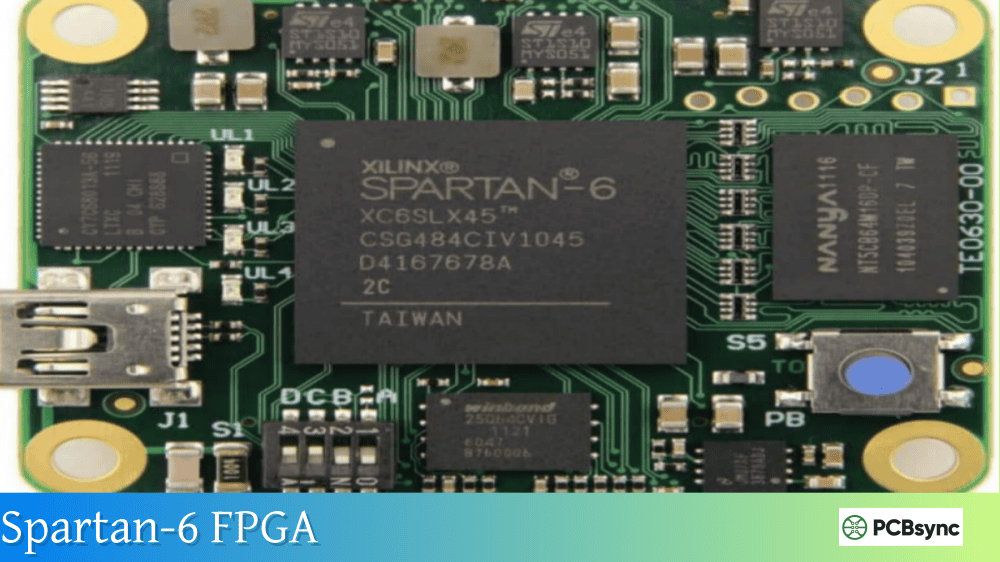
If you’re working with older FPGA families like the Spartan-6 or Virtex-6, getting Xilinx ISE running on Linux is pretty much a necessity. I’ve spent countless hours fighting with cable drivers and library conflicts on various distros, and I’m going to save you that headache. This guide covers everything you need to know about installing Xilinx ISE on Linux systems, specifically Ubuntu and CentOS.
Before we dive into the installation process, let’s talk about why Linux is often the better choice for Xilinx ISE. The Windows version of ISE officially supports only Windows 7, and while Xilinx offers a “Windows 10 version,” it’s actually just a pre-configured virtual machine running Linux anyway.
Running Xilinx ISE on Linux natively offers several advantages:
Better stability during long synthesis runs (I’ve seen fewer crashes compared to Windows 7)
Faster synthesis times (approximately 10% improvement in my testing)
Native integration with command-line tools like GHDL and GtkWave
No virtualization overhead if you’re already on Linux
The trade-off is that Xilinx only officially supports Red Hat Enterprise Linux and SUSE Enterprise. However, with the workarounds covered in this guide, Ubuntu and CentOS work reliably.
System Requirements for Xilinx ISE Linux Installation
Before downloading that 7+ GB installer, make sure your system meets these specifications:
Requirement
Minimum
Recommended
RAM
4 GB
8 GB or more
Disk Space
20 GB
40 GB (for full installation)
Processor
64-bit x86
Intel i5/i7 or AMD equivalent
Display
1024×768
1920×1080
OS (Tested)
Ubuntu 18.04 / CentOS 6.5
Ubuntu 20.04 / CentOS 7.6
Important Note: Xilinx ISE is an x86-only application. It will not run on ARM-based systems like Raspberry Pi, even though you might find guides suggesting otherwise.
Downloading Xilinx ISE Design Suite
The first step is obtaining the ISE 14.7 installer from AMD (formerly Xilinx). Here’s how to get it:
Visit the official AMD/Xilinx download page
Create a free Xilinx account if you don’t have one
Navigate to the ISE Design Suite archives
Download the “Full Installer for Linux” (approximately 7.78 GB)
The file you need is named Xilinx_ISE_DS_Lin_14.7_1015_1.tar. If your connection is unstable, Xilinx also offers split installers in four parts that you can download separately and combine.
Installing Xilinx ISE on Ubuntu
Ubuntu isn’t officially supported, but with a few tweaks, it works great. Here’s my battle-tested installation process.
Step 1: Install Required Dependencies
Open a terminal and install the necessary packages:
Navigate to your download location and extract the tarball:
mkdir ~/xilinx_installer
tar -xvf Xilinx_ISE_DS_Lin_14.7_1015_1.tar -C ~/xilinx_installer
Step 3: Handle the Qt Plugin Path Issue
If you’re running KDE, the installer will crash because of Qt version conflicts. Before running the installer, unset the QT_PLUGIN_PATH:
unset QT_PLUGIN_PATH
Also, if you’re using Noto fonts (common in GNOME), you might encounter a segmentation fault. Temporarily switch to Ubuntu fonts before running the installer.
Step 4: Run the Xilinx ISE Linux Installer
Execute the setup script:
cd ~/xilinx_installer/Xilinx_ISE_DS_Lin_14.7_1015_1
sudo ./xsetup
During installation:
Accept the license agreements
Select “ISE WebPACK” for free license use, or choose full edition if you have a license
Uncheck “Install Cable Drivers” (these fail on modern systems; we’ll install them manually)
Keep the default installation path /opt/Xilinx/14.7
Step 5: Fix Ownership and Permissions
After installation, set proper ownership:
sudo chown -R $USER:$USER /opt/Xilinx
sudo chown -R $USER:$USER ~/.Xilinx
Installing Xilinx ISE on CentOS
CentOS is closer to Red Hat, so installation is slightly smoother. However, CentOS 7 and later require additional steps.
Post-Installation Configuration for Xilinx ISE Linux
After installation, several fixes are required to make everything work properly.
Fix the libstdc++ Library Conflict
This is the most common issue. Xilinx bundles an outdated libstdc++ that causes segmentation faults on modern systems. Replace it with symlinks to your system library:
Can I install Xilinx ISE on Ubuntu 22.04 or 24.04?
Yes, but it requires additional work. The main challenges are library dependencies that have been updated or removed. You’ll need to obtain older versions of libpng, libfreetype, and libcairo. Many engineers opt to run ISE in a virtual machine with Ubuntu 18.04 or 20.04 to avoid these compatibility headaches.
Is Xilinx ISE WebPACK completely free?
Yes, the WebPACK edition is free and does not require purchasing a license. It supports all Spartan-6, Virtex-6, and CoolRunner devices with some size limitations on the largest parts. For most hobbyist and many professional applications, WebPACK is sufficient.
Why does Impact crash when I try to program my board?
This is almost always a cable driver issue. The built-in driver installation fails on modern Linux systems. Use the alternative libusb-based driver from Michael Gernoth’s repository as described in this guide. Also verify your udev rules are correctly configured and that your user has permission to access the USB device.
Can I run Xilinx ISE on a Raspberry Pi or other ARM system?
No. Xilinx ISE is compiled exclusively for x86_64 architecture. There is no ARM version available, and attempts to run it through emulation are not practical due to the computational requirements. If you need portable FPGA development, consider using a thin client setup where the heavy lifting happens on an x86 server.
Should I use ISE or Vivado for new projects?
If your target device is Spartan-6, Virtex-6, or older, you must use ISE as Vivado does not support these families. For Artix-7, Kintex-7, Virtex-7, and all newer devices, use Vivado. ISE entered sustaining mode in 2013 and receives no new feature updates.
Final Thoughts
Getting Xilinx ISE running on Linux requires some patience, but once it’s set up, it’s remarkably stable. I’ve been running ISE 14.7 on Ubuntu for years now, and after applying the fixes in this guide, it’s been reliable through multiple projects.
The key points to remember: replace the bundled libstdc++, install the alternative USB driver for cable programming, and make sure your udev rules are in place. With those three things sorted, you’ll have a rock-solid Xilinx ISE Linux development environment.
If you’re just starting out with FPGA development on Linux, I’d also recommend looking into open-source tools like GHDL and GtkWave for simulation. They integrate nicely with ISE and can actually provide a better debugging experience than the built-in iSim for many use cases.
Good luck with your projects, and may your synthesis runs be error-free.
Inquire: Call 0086-755-23203480, or reach out via the form below/your sales contact to discuss our design, manufacturing, and assembly capabilities.
Quote: Email your PCB files to Sales@pcbsync.com (Preferred for large files) or submit online. We will contact you promptly. Please ensure your email is correct.
Notes: For PCB fabrication, we require PCB design file in Gerber RS-274X format (most preferred), *.PCB/DDB (Protel, inform your program version) format or *.BRD (Eagle) format. For PCB assembly, we require PCB design file in above mentioned format, drilling file and BOM. Click to download BOM template To avoid file missing, please include all files into one folder and compress it into .zip or .rar format.