Inquire: Call 0086-755-23203480, or reach out via the form below/your sales contact to discuss our design, manufacturing, and assembly capabilities.
Quote: Email your PCB files to Sales@pcbsync.com (Preferred for large files) or submit online. We will contact you promptly. Please ensure your email is correct.
Notes: For PCB fabrication, we require PCB design file in Gerber RS-274X format (most preferred), *.PCB/DDB (Protel, inform your program version) format or *.BRD (Eagle) format. For PCB assembly, we require PCB design file in above mentioned format, drilling file and BOM. Click to download BOM template To avoid file missing, please include all files into one folder and compress it into .zip or .rar format.
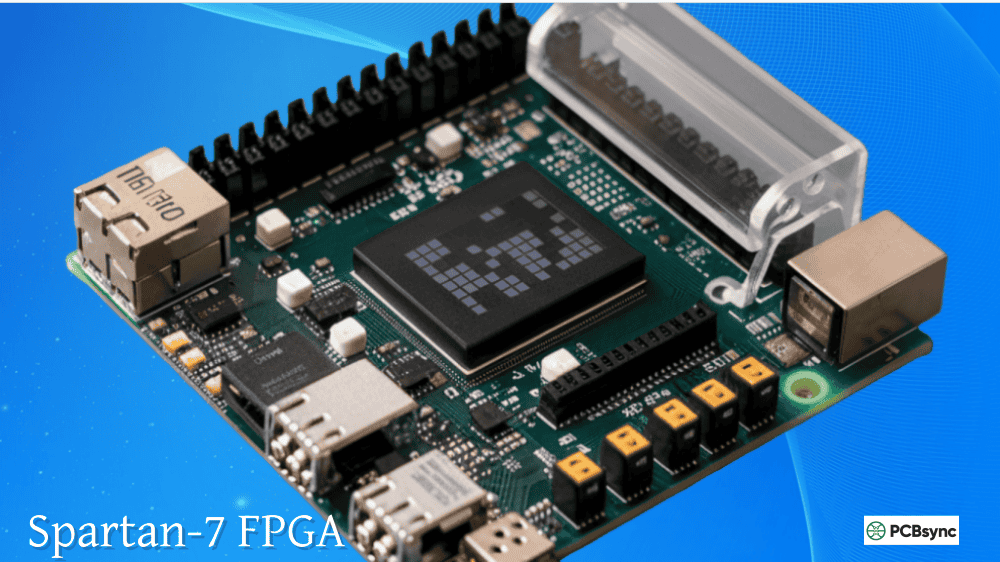
If you’re looking to get into FPGA development without breaking the bank, the Spartan 7 development board options available today offer an excellent entry point. I’ve spent considerable time working with these boards in various prototyping and production scenarios, and the combination of modern 28nm technology with accessible pricing makes them hard to beat for embedded applications.
In this guide, I’ll walk you through the main Spartan-7 development board options, with a detailed focus on the Arty S7 from Digilent—arguably the most popular choice for hobbyists and professional engineers alike. We’ll cover hardware features, software setup, and practical tips to get your first project running.
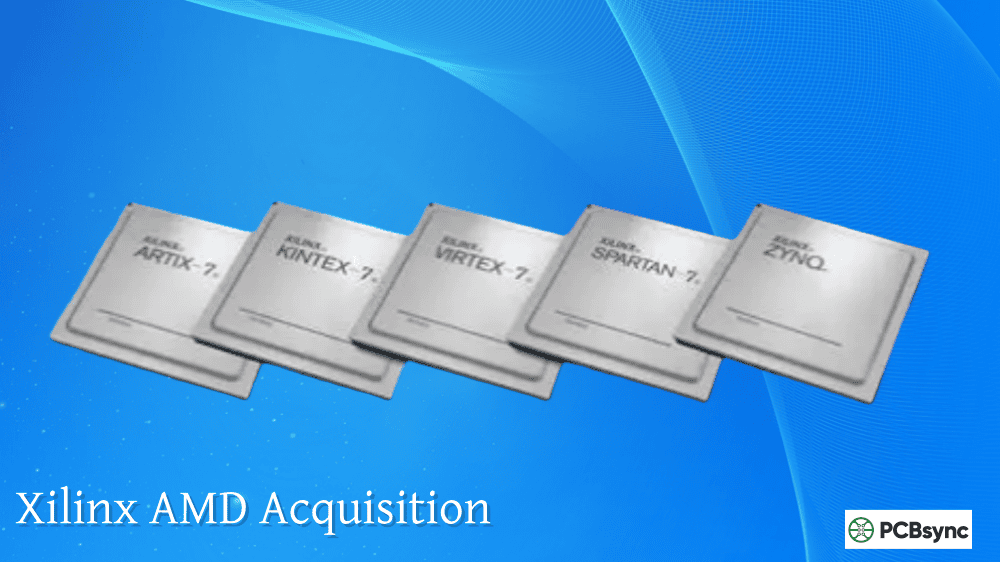
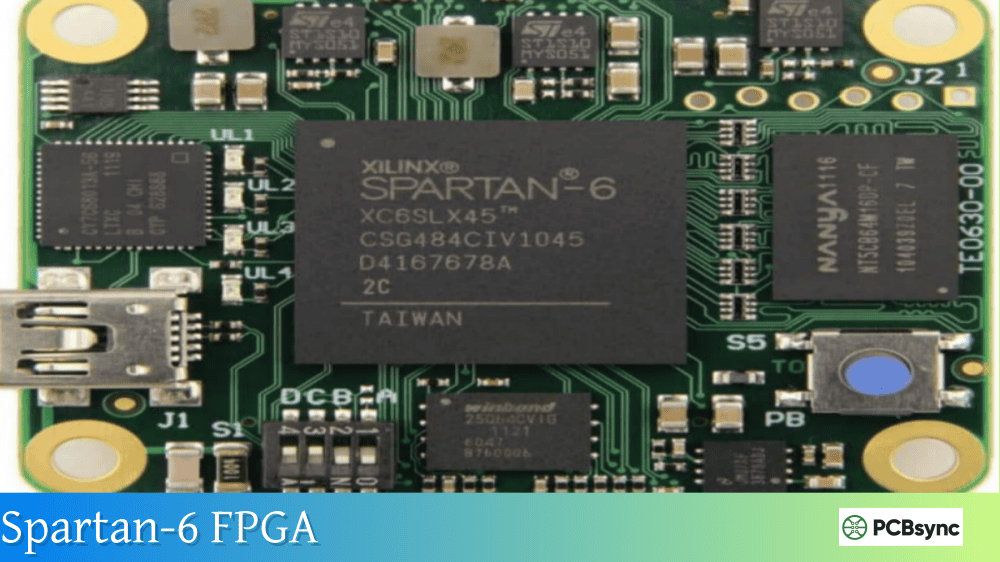
The Spartan-7 family represents AMD/Xilinx‘s cost-optimized FPGA lineup built on 28nm technology. Compared to older Spartan-6 devices, you get roughly 50% lower power consumption, 30% better performance, and full compatibility with the modern Vivado Design Suite. That last point matters more than you might think—the legacy ISE tools for Spartan-6 are no longer updated, which makes Spartan-7 the clear choice for new designs.
What makes a Spartan 7 development board particularly attractive:
Advantage
Why It Matters
28nm Process
Lower power, better performance than older families
Vivado Support
Modern toolchain with free WebPACK license
Integrated XADC
Dual 12-bit ADCs built into every device
Long Availability
Supported through 2040
Q-grade Options
Extended temperature range for industrial use
For engineers transitioning from microcontrollers to FPGAs, or those needing programmable logic for sensor fusion, motor control, or protocol bridging, these boards provide everything you need to prototype and validate designs before committing to production.
Spartan-7 Development Board Comparison
Several manufacturers offer Spartan-7 based development platforms. Here’s how the main options stack up:
The Arty S7 variants hit the sweet spot for most users—enough resources for serious projects, DDR3 memory for frame buffers or MicroBlaze code, and excellent expansion options. The Xilinx SP701 is the professional choice when you need the largest Spartan-7 device and industrial-grade connectivity like dual Gigabit Ethernet and FMC expansion.
Arty S7 Hardware Overview
The Arty S7 comes in two variants that share the same PCB design but differ in FPGA size. Digilent did a nice job making this board both beginner-friendly and capable enough for professional prototyping.
Arty S7 50 Specifications
The Arty S7 50 is the more capable variant and the one I’d recommend for most users:
Feature
Specification
FPGA
XC7S50-1CSGA324C
Logic Cells
52,160
Block RAM
2,700 Kb
DSP Slices
120
DDR3 Memory
256 MB (16-bit, 667 MHz)
Flash Memory
128 Mb Quad-SPI
Clock Source
12 MHz crystal
User I/O
4 switches, 4 buttons, 4 LEDs, 2 RGB LEDs
Expansion
Arduino headers + 4x Pmod connectors
Programming
USB-JTAG (Micro-B)
Power Options
USB or external 7-15V DC
The Arty S7 50 provides roughly 2x the logic resources of the S7-25 variant for about $30 more. Unless you’re certain your design will fit in the smaller device, the extra headroom is worth it—especially when you start adding MicroBlaze soft processors and peripherals.
Arty S7 25 vs Arty S7 50
Here’s the direct comparison to help you decide:
Specification
Arty S7-25
Arty S7-50
Logic Cells
23,360
52,160
CLB Slices
3,650
8,150
Block RAM (Kb)
1,620
2,700
DSP Slices
80
120
CMTs
3
5
Price
~$90
~$120
The boards are physically identical, which means designs developed on one will generally work on the other (resource permitting). This gives you a cost optimization path—prototype on the Arty S7 50, then evaluate whether the S7-25 can handle your final design.
Key Hardware Features
DDR3 Memory Interface: The 256 MB DDR3 SDRAM runs at 667 MHz (DDR3-1333) with a 16-bit interface. This is essential for MicroBlaze designs that need more memory than the FPGA’s block RAM can provide. The Memory Interface Generator (MIG) handles the complex DDR3 timing automatically.
Quad-SPI Flash: The 128 Mb flash stores your bitstream for automatic configuration at power-up. There’s also room for MicroBlaze program storage if your code exceeds the on-chip block RAM.
XADC Analog Input: The Spartan-7’s integrated dual 12-bit ADC is accessible through a dedicated header. You get 1 MSPS sampling with up to 17 auxiliary analog inputs—useful for sensor interfaces without external ADC chips.
USB-UART Bridge: A built-in FTDI chip provides both JTAG programming and a UART interface. This means one USB cable handles programming, debugging, and serial communication.
For professional development requiring the full Spartan-7 feature set, the Xilinx SP701 is the official evaluation platform from AMD. It’s significantly more expensive than the Arty S7, but includes features that justify the cost for industrial applications.
SP701 Key Features
Feature
Specification
FPGA
XC7S100-2FGGA676C
Logic Cells
102,400
DSP Slices
160
Block RAM
4,320 Kb
DDR3L Memory
512 MB (4 Gb)
Ethernet
Dual 10/100/1000 Tri-speed PHY
Video
MIPI-CSI, MIPI-DSI, HDMI 1.4 output
Expansion
Low-pin count FMC + 4x Pmod
Flash
1 Gb Quad-SPI
The Xilinx SP701 targets sensor fusion applications where you need multiple high-speed interfaces. The dual Gigabit Ethernet support is particularly useful for industrial networking protocols like EtherCAT or PROFINET. The MIPI camera and display interfaces make it suitable for embedded vision prototyping.
When to Choose SP701 Over Arty S7
The SP701 makes sense when:
You need the XC7S100 (largest Spartan-7 device) for logic density
Dual Ethernet is required for your application
You’re evaluating MIPI camera or display interfaces
FMC expansion is needed for high-speed daughter cards
For learning, hobbyist projects, or designs that will use smaller Spartan-7 devices, the Arty S7 offers better value.
Getting Started with Arty S7
Now let’s get practical. Here’s how to go from unboxing to running your first design on the Arty S7.
What You’ll Need
Before starting, gather these items:
Arty S7 board (either variant)
Micro-USB cable (included with some purchases)
Computer with Windows or Linux
At least 50 GB free disk space for Vivado
Reliable internet connection for downloads
Step 1: Install Vivado Design Suite
Download Vivado from AMD’s website. The free WebPACK edition supports all Spartan-7 devices. A few tips from experience:
Installation Notes:
Download size is approximately 16 GB
Installed size reaches 30-40 GB depending on options
Install to a secondary drive if your system drive is limited
The download can be paused and resumed
Expect 1-2 hours for installation on most systems
During installation, select at minimum:
Vivado Design Suite
Spartan-7 device support
Install Cable Drivers (important!)
Step 2: Install Digilent Board Files
Vivado needs board definition files to recognize the Arty S7. Without these, you’ll have to manually specify the FPGA part and pin constraints.
Download board files from Digilent’s GitHub repository
Extract to: <Vivado Install Dir>/data/boards/board_files/
Restart Vivado
With board files installed, you can select “Arty S7-50” or “Arty S7-25” directly when creating a new project, and Vivado will automatically configure the correct FPGA part.
Step 3: Download Constraint Files
Constraint files (XDC format) map your HDL signal names to physical FPGA pins. Digilent provides master constraint files for each board:
Arty-S7-50-Master.xdc for the S7-50
Arty-S7-25-Master.xdc for the S7-25
Download these from Digilent’s digilent-xdc GitHub repository. Keep the original files untouched and copy them into your projects—you’ll uncomment and modify the pins you actually use.
Step 4: Create Your First Project
Let’s build a simple LED control design to verify everything works:
Launch Vivado and click “Create Project”
Name your project (no spaces in the path)
Select “RTL Project”
Skip adding sources for now
Under “Boards,” select your Arty S7 variant
Click “Finish”
Now add a Verilog source file:
module led_switch(
input [3:0] sw,
output [3:0] led
);
assign led = sw;
endmodule
Add your constraint file and uncomment the lines for switches (sw[0] through sw[3]) and LEDs (led[0] through led[3]).
One of the most powerful features of the Arty S7 is MicroBlaze support. MicroBlaze is a soft-core processor that you instantiate within the FPGA fabric, giving you the flexibility of an FPGA with the programming model of a microcontroller.
Basic MicroBlaze System
A typical MicroBlaze system on the Arty S7 50 includes:
Component
Resource Usage
Function
MicroBlaze Core
~8,000 LUTs
32-bit RISC processor
Local Memory
Block RAM
Instruction/data storage
AXI Interconnect
~2,000 LUTs
Bus infrastructure
MIG DDR3 Controller
~3,000 LUTs
External memory interface
UART
~500 LUTs
Serial communication
GPIO
~200 LUTs
LED/switch control
This leaves plenty of room in the Arty S7 50 for custom accelerators or additional peripherals. The S7-25 can also run MicroBlaze, but you’ll have less headroom for custom logic.
Development Tools for MicroBlaze
AMD provides the Vitis IDE (formerly Xilinx SDK) for MicroBlaze software development. It includes:
Arty-S7-50-GPIO – LED, button, RGB LED demo (GitHub)
Arty-S7-50-XADC – Analog input demonstration
Arty-S7-50-base – MicroBlaze reference design
Community Resources
Digilent Forum – Official support forum
AMD/Xilinx Forums – Broader FPGA community
FPGA subreddit – r/FPGA for general discussion
Common Issues and Solutions
After working with dozens of Arty S7 boards, here are the issues I see most frequently:
Board Not Detected: Usually a USB cable issue. Use a short, data-capable cable—some USB cables are charge-only. The original cable that comes with the board works reliably.
Vivado Won’t Recognize Board: Install the Digilent cable drivers. On Windows, run install_digilent.exe from <Vivado>/data/xicom/cable_drivers/.
Design Won’t Fit: The synthesis report shows utilization. If you’re over 80% on any resource, consider the larger S7-50 or optimize your design. Block RAM and DSP slices often run out before LUTs.
DDR3 Timing Failures: Use the MIG wizard and Digilent’s board files—they include validated DDR3 timing parameters. Don’t try to configure the memory interface manually unless you really know what you’re doing.
Frequently Asked Questions
What’s the difference between Arty S7 and Arty A7?
The Arty S7 uses Spartan-7 FPGAs (cost-optimized, no transceivers), while the Arty A7 uses Artix-7 FPGAs (higher performance, includes GTP transceivers). If you need high-speed serial interfaces like SATA or PCIe, choose the A7. For most embedded applications, the S7 offers better value.
Can I run Linux on the Arty S7?
Technically yes, using MicroBlaze and PetaLinux. However, the Arty S7 lacks Ethernet, which severely limits Linux usefulness. For Linux development, consider the Arty A7 (has Ethernet) or Zynq-based boards with hard ARM processors.
Is the Xilinx SP701 worth the extra cost over Arty S7?
The Xilinx SP701 is worth it if you specifically need: the XC7S100 device, dual Gigabit Ethernet, MIPI camera/display interfaces, or FMC expansion. For learning or applications using smaller Spartan-7 devices, the Arty S7 provides much better value.
What programming languages can I use with Arty S7?
For FPGA logic, you’ll use Verilog, SystemVerilog, or VHDL. For MicroBlaze software, you can use C or C++. Vivado HLS also allows C/C++ to be synthesized directly into hardware accelerators, though this requires more expertise.
Do I need to reprogram the Arty S7 every time I power it on?
Only if you program via JTAG directly to the FPGA. To make your design persistent, program the configuration flash memory instead. The board will then automatically load your design at power-up. See the “Store Design in Flash” section above.
Conclusion
The Spartan 7 development board ecosystem offers excellent options for FPGA development at every level. The Arty S7 stands out as the best all-around choice for hobbyists, students, and engineers needing a capable prototyping platform without unnecessary complexity. The Arty S7 50 specifically provides enough resources for serious embedded designs including MicroBlaze processors, while remaining affordable enough for personal projects.
For industrial applications requiring the largest Spartan-7 device and professional-grade interfaces, the Xilinx SP701 delivers the complete package. And for space-constrained prototypes, the Cmod S7 brings Spartan-7 capability to a breadboard-friendly form factor.
Whichever board you choose, the combination of modern Vivado tools, free WebPACK licensing, and long-term device availability (through 2040) makes Spartan-7 a solid foundation for your FPGA projects. Start with the getting started steps in this guide, work through the example projects, and you’ll be building custom digital systems in no time.
Inquire: Call 0086-755-23203480, or reach out via the form below/your sales contact to discuss our design, manufacturing, and assembly capabilities.
Quote: Email your PCB files to Sales@pcbsync.com (Preferred for large files) or submit online. We will contact you promptly. Please ensure your email is correct.
Notes: For PCB fabrication, we require PCB design file in Gerber RS-274X format (most preferred), *.PCB/DDB (Protel, inform your program version) format or *.BRD (Eagle) format. For PCB assembly, we require PCB design file in above mentioned format, drilling file and BOM. Click to download BOM template To avoid file missing, please include all files into one folder and compress it into .zip or .rar format.