Inquire: Call 0086-755-23203480, or reach out via the form below/your sales contact to discuss our design, manufacturing, and assembly capabilities.
Quote: Email your PCB files to Sales@pcbsync.com (Preferred for large files) or submit online. We will contact you promptly. Please ensure your email is correct.
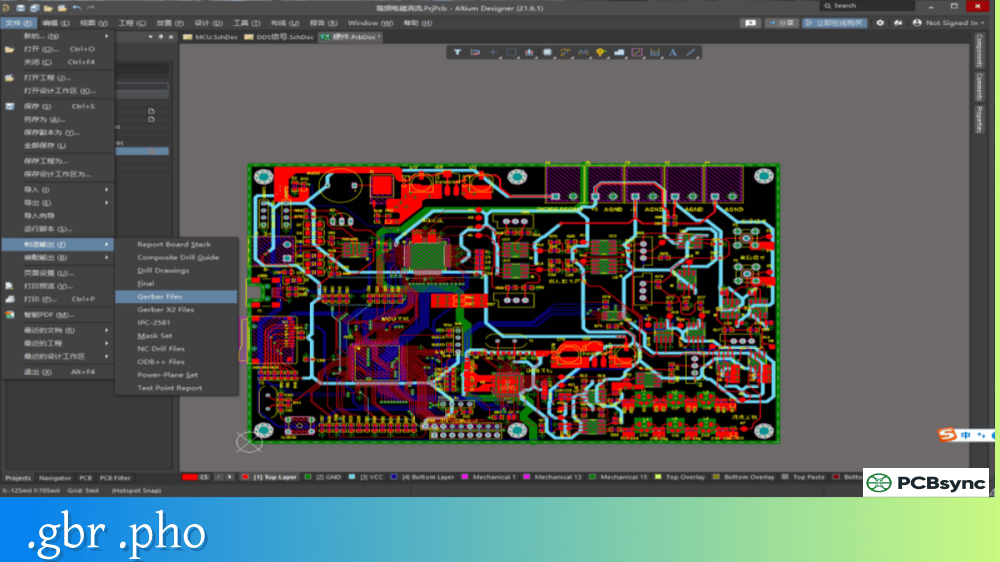
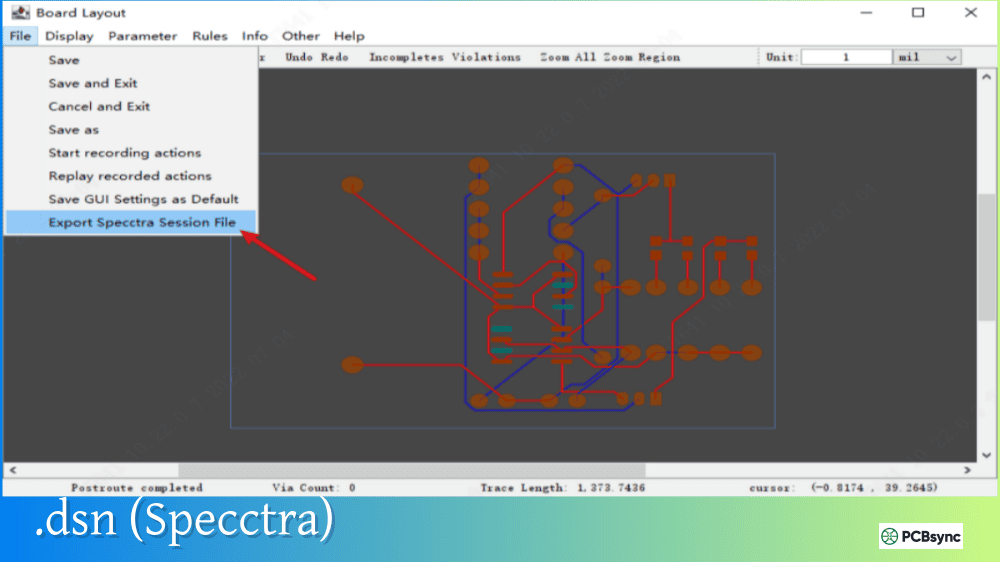
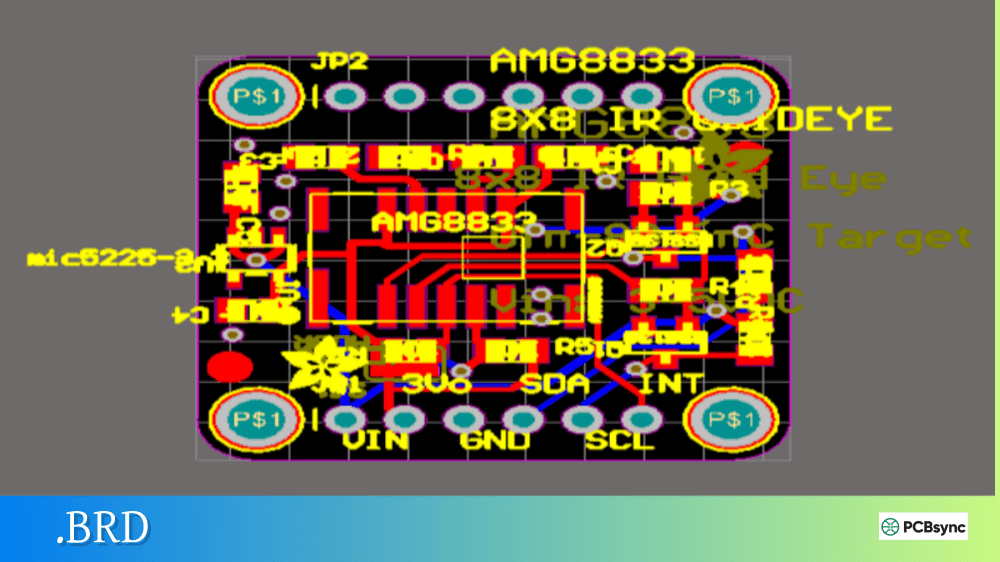
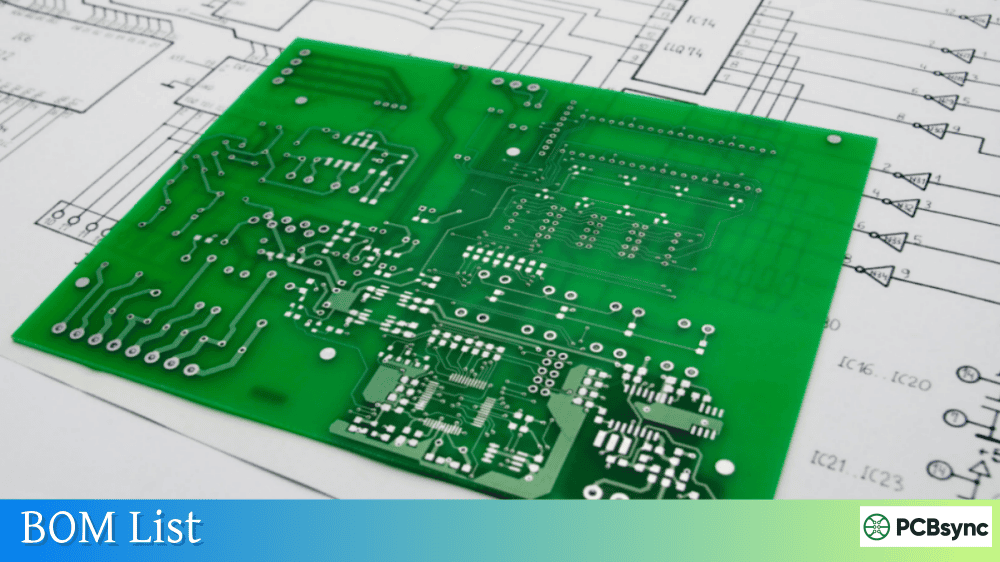
Notes: For PCB fabrication, we require PCB design file in Gerber RS-274X format (most preferred), *.PCB/DDB (Protel, inform your program version) format or *.BRD (Eagle) format. For PCB assembly, we require PCB design file in above mentioned format, drilling file and BOM. Click to download BOM template To avoid file missing, please include all files into one folder and compress it into .zip or .rar format.
What is VRML in PCB? 3D Visualization Format Guide
If you’ve worked with KiCad or other PCB design tools, you’ve likely encountered .wrl files when setting up 3D models for your components. VRML (Virtual Reality Modeling Language) has been a staple format for PCB visualization for decades, and despite being somewhat dated, it remains widely used in electronics design workflows. Understanding how VRML works and when to use it can significantly improve your 3D PCB visualization and collaboration capabilities.
This guide explains what VRML is, how it’s used in PCB design, and when you might want to choose other formats instead.
VRML stands for Virtual Reality Modeling Language. It’s a text-based file format for representing 3D interactive graphics, standardized under ISO/IEC 14772. VRML files use the extension .wrl (short for “world”) or .wrz for compressed versions.
The format was originally developed by Silicon Graphics, Inc. (SGI) in the mid-1990s, evolving from their Open Inventor software. VRML 1.0 was specified in November 1994, followed by VRML 2.0 (also called “Moving Worlds”) in August 1996. The final version, VRML97, became an ISO standard in December 1997.
Unlike CAD-focused formats like STEP or IGES, VRML was designed primarily for web-based 3D graphics and visualization. This heritage makes it particularly well-suited for real-time rendering in PCB design tools, even though it lacks some of the precision required for mechanical engineering applications.
What Can VRML Files Store?
VRML files store 3D model data using a node-based hierarchical structure:
Data Type
Description
3D Geometry
Polygonal meshes, including vertices, edges, and faces
Colors and Materials
Diffuse colors, shininess, transparency, and reflectivity
Textures
UV-mapped image textures for realistic appearances
Lighting
Light source definitions and ambient settings
Hierarchy
Parent-child relationships between objects
Animations
Time-based transformations and behaviors
Interactivity
Clickable links and event triggers
For PCB applications, the most relevant capabilities are geometry, colors, and textures. These allow component models to display with realistic appearances in your design tool’s 3D viewer.
How VRML is Used in PCB Design
VRML plays several important roles in the PCB design workflow, particularly for visualization and presentation purposes.
3D Component Models
Many PCB design tools use VRML as their native or preferred format for component 3D models. KiCad, for example, historically relied heavily on .wrl files for its 3D viewer. Component libraries often include VRML models that display realistically with proper colors and textures when viewing your board in 3D.
The lightweight nature of VRML meshes makes them ideal for real-time rendering. You can spin your board around, zoom in on components, and check clearances without the performance penalty that higher-fidelity formats might impose.
PCB Assembly Visualization
When you need to see how your completed board will look, VRML provides excellent visual fidelity. The format supports:
Realistic material appearances: Component bodies can show accurate colors, from the black of IC packages to the metallic shine of connectors.
Texture mapping: Manufacturer logos, pin 1 markings, and other surface details can be displayed using image textures.
Board visualization: The PCB substrate, solder mask, silkscreen, and copper can all be rendered with appropriate colors and finishes.
Exporting for Presentations and Documentation
VRML export allows you to share 3D representations of your PCB with stakeholders who don’t have access to your EDA software. The files can be opened in various 3D viewers, converted to other formats, or rendered into high-quality images for documentation.
VRML Support in PCB Design Software
Different PCB design tools handle VRML in various ways. Here’s how the major platforms work with .wrl files:
PCB Software VRML Capabilities
Software
VRML Import
VRML Export
Primary 3D Format
Notes
KiCad
Yes
Yes
WRL/STEP
Uses VRML for 3D viewer, STEP for MCAD export
Altium Designer
Yes
Yes
STEP
Supports WRL import for component bodies
DipTrace
Yes
Yes
WRL/STEP
Exports boards to VRML 2.0
OrCAD/Allegro
Yes
Yes
STEP
Supports VRML component models
EAGLE
Yes
Yes
STEP
Fusion 360 integration available
Proteus
Yes
Yes
STEP/IGES
Comprehensive 3D export options
KiCad and VRML
KiCad deserves special mention because VRML has historically been central to its 3D visualization system. The 3D viewer renders component models from .wrl files, displaying the board with impressive visual quality. When exporting, KiCad offers both VRML and STEP options:
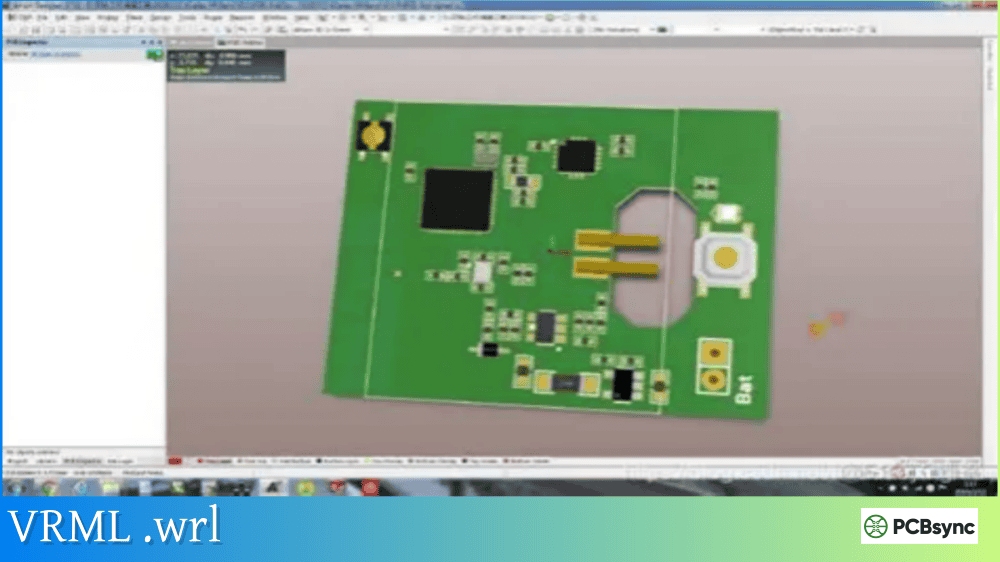
VRML export: Produces a complete visual model of the board suitable for presentations and rendering in tools like Blender.
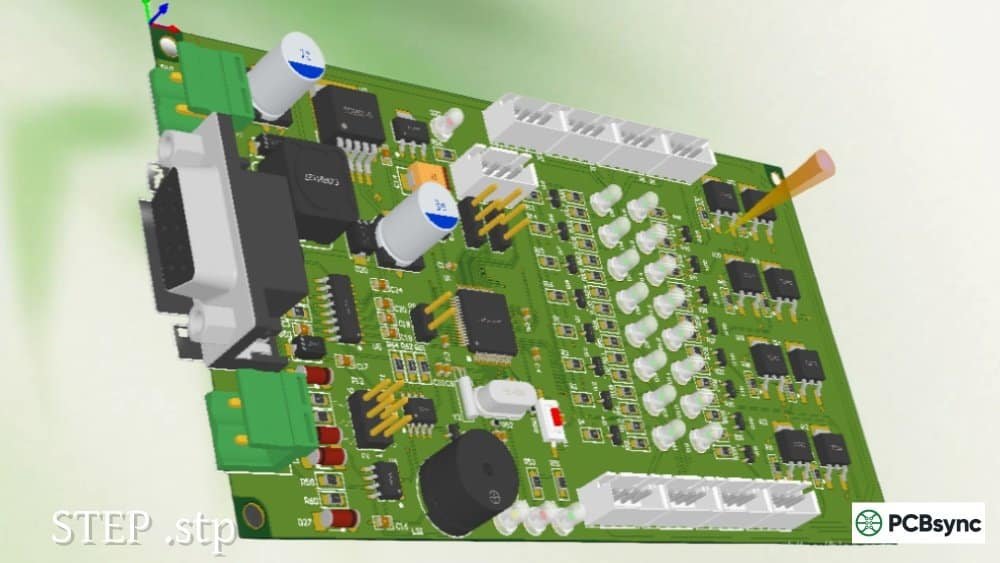
STEP export: Creates a geometrically accurate model for mechanical CAD integration, though it may not include all visual details.
For the best workflow, many KiCad users maintain both .wrl files (for visualization) and .step files (for MCAD export) in their component libraries.
VRML vs STEP: When to Use Each Format
The choice between VRML and STEP depends on your intended use case. Here’s how they compare:
Format Comparison for PCB Applications
Feature
VRML (.wrl)
STEP (.step, .stp)
Primary Purpose
Visualization
Engineering data exchange
Geometry Type
Polygon meshes
Solid/surface models
Visual Quality
Excellent with textures
Basic (geometry only)
Color Support
Full color and textures
Limited color data
File Size
Generally smaller
Generally larger
Rendering Speed
Fast
Slower
Mechanical Accuracy
Lower
High
MCAD Compatibility
Limited
Excellent
Editing Capability
Difficult
Full CAD editing
Use VRML When You Need:
Fast visualization: VRML’s mesh-based approach renders quickly, making it ideal for real-time 3D previews during design.
Realistic appearances: Textures and materials make VRML models look more like actual components.
Presentation output: When creating images or videos of your PCB for documentation or marketing.
Lightweight models: VRML files are typically smaller than equivalent STEP files.
Use STEP When You Need:
Mechanical integration: STEP is the standard for sharing designs with mechanical engineers.
Dimensional accuracy: STEP preserves precise geometry for clearance checking and enclosure design.
CAD manipulation: Mechanical CAD programs can fully edit STEP models.
Manufacturing data: STEP can carry additional product information beyond geometry.
Converting VRML Files
You’ll often need to convert between VRML and other formats. Here are the common conversion scenarios:
VRML to STEP
Converting .wrl to .step allows you to use visualization models in mechanical CAD workflows. Tools for this conversion include:
FreeCAD: Open the WRL file and export as STEP. The KiCad StepUp workbench simplifies this process.
Blender: Import X3D/WRL and export using add-ons or external converters.
Online converters: Services like CAD Exchanger can convert between formats.
Note that VRML-to-STEP conversion typically loses texture and color information, and the resulting geometry may not be as precise as a native STEP model.
STEP to VRML
Converting in this direction is useful when you have STEP models but need VRML for your PCB tool’s 3D viewer:
FreeCAD: Import STEP, apply materials, export as VRML.
Commercial CAD software: Most mechanical CAD tools can export to VRML format.
When converting, you may need to manually add colors and textures to achieve good visual quality.
Here are practical tips for effectively using VRML in your PCB design process:
Organizing Your 3D Libraries
Keep VRML models organized alongside your footprints. Many designers maintain a folder structure where each component has associated .wrl and .step files. This ensures both visualization and MCAD export capabilities are always available.
Aligning Models to Footprints
VRML models must be properly aligned with your component footprints. The model origin should match your footprint origin, and the orientation must be correct. Most PCB tools provide offset and rotation parameters to adjust model placement without editing the source file.
Optimizing for Performance
Large assemblies with many high-polygon VRML models can slow down 3D rendering. Consider using simplified models during design and switching to detailed versions only for final visualization. Some tools allow you to toggle 3D model display on and off to improve performance.
Frequently Asked Questions About VRML
What’s the difference between .wrl and .wrz files?
Both are VRML files. The .wrl extension indicates a standard uncompressed VRML file stored as plain text. The .wrz extension indicates a gzip-compressed VRML file, which is smaller and faster to transfer but contains identical content. Most software that opens .wrl files can also handle .wrz files automatically.
Can I 3D print directly from a VRML file?
Not directly. 3D printers typically require STL or other mesh formats. However, you can convert VRML to STL using tools like FreeCAD, Blender, or online converters. VRML files that include color and texture information can be converted to formats like OBJ for color 3D printing.
Why do some VRML models look wrong in my PCB software?
VRML compatibility issues usually stem from version differences (VRML 1.0 vs VRML97), scale mismatches, or unsupported features. Try opening the file in FreeCAD or Blender to check for problems. You may need to rescale the model, convert between VRML versions, or simplify complex features.
Is VRML still relevant, or should I only use STEP?
VRML remains relevant for visualization in PCB design, particularly with KiCad and other tools that use it for 3D preview. STEP is essential for mechanical integration. Ideally, maintain both formats in your component libraries to support all workflow requirements.
How do I create custom VRML models for my components?
You can create VRML models using 3D modeling software like Blender or FreeCAD. Model the component geometry, apply appropriate materials and colors, then export as VRML. Alternatively, start with a STEP model from the manufacturer and convert it to VRML while adding visual details.
Conclusion
VRML has earned its place in PCB design workflows by providing lightweight, visually rich 3D models that render quickly and look realistic. While STEP has become the standard for mechanical data exchange, VRML remains valuable for real-time visualization, presentations, and documentation.
The practical approach is to use both formats where appropriate. Keep VRML models for your PCB tool’s 3D viewer and presentation needs, while maintaining STEP versions for mechanical engineering collaboration. With tools like FreeCAD and the KiCad StepUp workbench, converting between formats is straightforward when needed.
Understanding VRML’s strengths and limitations helps you make better decisions about 3D models in your PCB projects. Use it for what it does best—fast, attractive visualization—and you’ll get excellent results from this venerable format.
Inquire: Call 0086-755-23203480, or reach out via the form below/your sales contact to discuss our design, manufacturing, and assembly capabilities.
Quote: Email your PCB files to Sales@pcbsync.com (Preferred for large files) or submit online. We will contact you promptly. Please ensure your email is correct.
Notes: For PCB fabrication, we require PCB design file in Gerber RS-274X format (most preferred), *.PCB/DDB (Protel, inform your program version) format or *.BRD (Eagle) format. For PCB assembly, we require PCB design file in above mentioned format, drilling file and BOM. Click to download BOM template To avoid file missing, please include all files into one folder and compress it into .zip or .rar format.