Inquire: Call 0086-755-23203480, or reach out via the form below/your sales contact to discuss our design, manufacturing, and assembly capabilities.
Quote: Email your PCB files to Sales@pcbsync.com (Preferred for large files) or submit online. We will contact you promptly. Please ensure your email is correct.
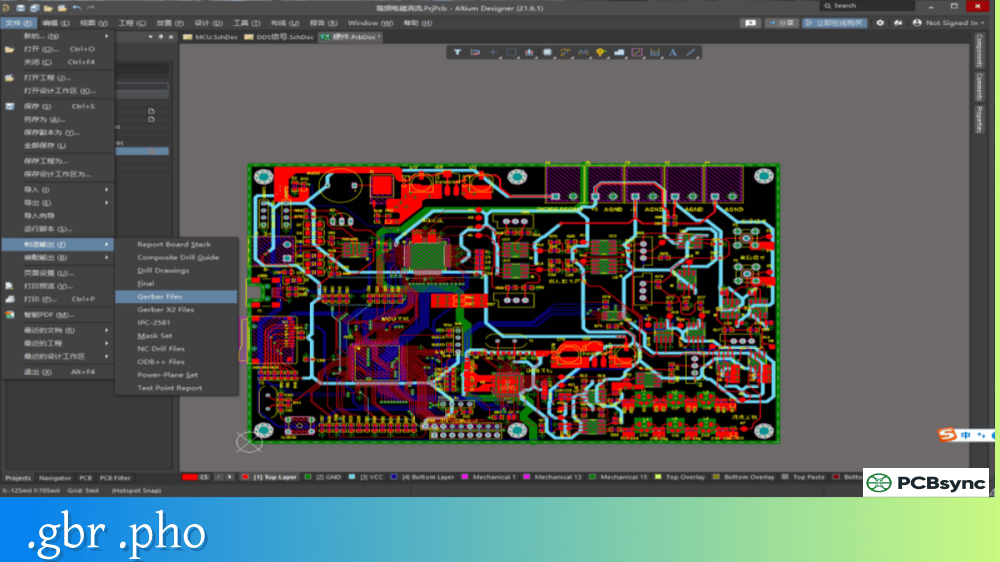
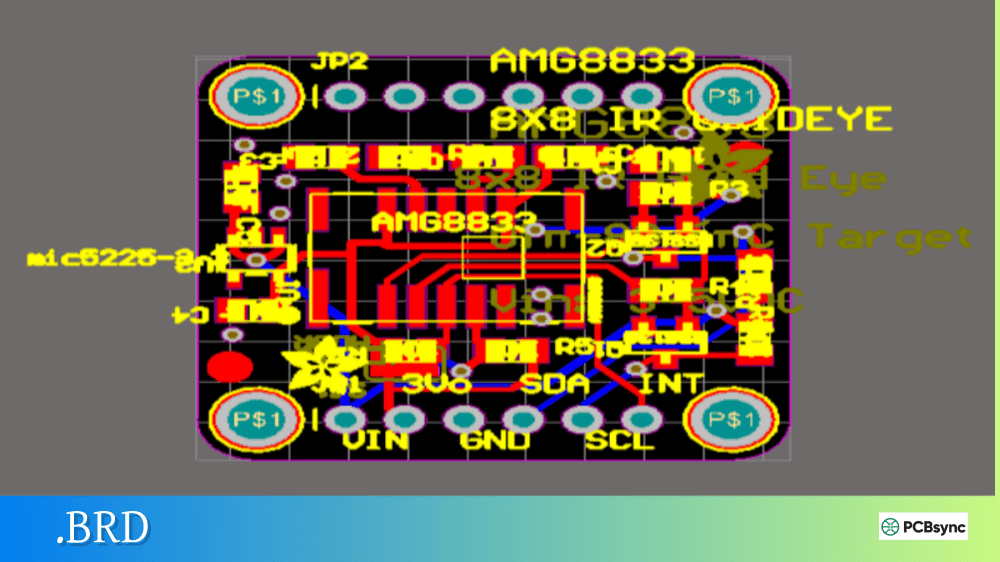
Notes: For PCB fabrication, we require PCB design file in Gerber RS-274X format (most preferred), *.PCB/DDB (Protel, inform your program version) format or *.BRD (Eagle) format. For PCB assembly, we require PCB design file in above mentioned format, drilling file and BOM. Click to download BOM template To avoid file missing, please include all files into one folder and compress it into .zip or .rar format.
What is a .SES File? Complete Specctra Session File Guide for PCB Engineers
If you’ve ever worked with PCB autorouting software, you’ve probably encountered the .SES file format. As a PCB engineer who has spent countless hours routing boards both manually and with autorouters, I can tell you that understanding this file format is essential for an efficient design workflow. In this guide, I’ll walk you through everything you need to know about .SES files and how to use them effectively in your PCB projects.
A .SES file (Specctra Session File) is a specialized data interchange format used in printed circuit board (PCB) design. The .SES file contains the routing results generated by an external autorouter and serves as the bridge to transfer those completed traces back into your PCB design software.
The format was originally developed by Cooper & Chyan Technology (CCT) in 1989 and later acquired by Cadence Design Systems in 1997. Today, it has become an industry-standard format supported by numerous EDA tools and autorouters worldwide.
How the .SES File Fits into PCB Design Workflow
The .SES file works in tandem with the .DSN (Specctra Design) file. Here’s how the typical workflow operates:
You export your unrouted PCB design as a .DSN file
The autorouter reads the .DSN file and performs automatic trace routing
The autorouter exports the routing results as a .SES file
You import the .SES file back into your PCB design software
Your board now displays the completed routing
The beauty of this system is that the .SES file contains only the incremental changes (the new traces and vias) rather than the entire board design. This makes it efficient and reduces the risk of data corruption during the transfer process.
Technical Structure of .SES Files
The .SES file uses an s-expression (symbolic expression) format, which is essentially a text-based, human-readable structure similar to LISP programming syntax. This makes it possible to open and inspect .SES files with any text editor if troubleshooting is needed.
Key Components Stored in a .SES File
Component
Description
Session Header
Contains metadata about the routing session and version information
Resolution
Defines the coordinate system units (typically mils or microns)
Routes
Contains all wire/trace path coordinates for each routed net
Vias
Specifies via locations and types used in the routing
Layer Information
References to PCB layers where traces are placed
Net Names
Identifies which electrical nets each route belongs to
.SES File Syntax Example
When you open a .SES file in a text editor, you’ll see nested parenthetical structures like this:
The .SES file format enjoys broad support across the PCB design industry. Whether you’re using professional commercial tools or open-source alternatives, you’ll likely find .SES import/export capabilities.
PCB Design Software with .SES Support
Software
.SES Export
.SES Import
Notes
KiCad
Yes
Yes
File → Import → Specctra Session
Autodesk EAGLE
Via ULP
Via ULP
Requires User Language Program scripts
EasyEDA / JLCPCB EDA
Yes
Yes
Built-in support in Pro version
Altium Designer
Yes
Yes
Specctra interface included
OrCAD PCB Editor
Yes
Yes
Native Cadence support
Target3001!
Yes
Yes
Direct integration available
pcb-rnd
Yes
Yes
Full Specctra support since v3.0
DipTrace
Yes
Yes
Export/Import from File menu
Autorouters That Generate .SES Files
Autorouter
License Type
Key Features
Freerouting
Open Source (GPL)
45-degree and free-angle routing, Java-based GUI
Specctra (Allegro PCB Router)
Commercial
Shape-based routing, industry standard
ELECTRA
Commercial
High completion rates, push-and-shove capability
TopoR
Commercial
Topological routing, arc-based traces
DeepPCB
Research
AI/RL-based experimental router
How to Work with .SES Files in Popular EDA Tools
Let me share the practical steps for using .SES files with the most commonly used PCB design software.
Using .SES Files with KiCad
KiCad has excellent native support for the Specctra format, making it straightforward to use external autorouters.
Exporting from KiCad:
Open your board in PCB Editor (Pcbnew)
Navigate to File → Export → Specctra DSN
Save the .DSN file to your project directory
Importing .SES Back to KiCad:
After autorouting completes, return to KiCad PCB Editor
Go to File → Import → Specctra Session
Select your .SES file
Click Yes if prompted to reload board connectivity
Your routed traces will appear on the board
Using .SES Files with Freerouting
Freerouting is the most popular free autorouter that works with .SES files. Here’s the complete workflow:
Launch Freerouting and click “Open Your Design”
Select your exported .DSN file
Click the Autorouter button (magic wand icon)
Wait for routing to complete (monitor the pass count)
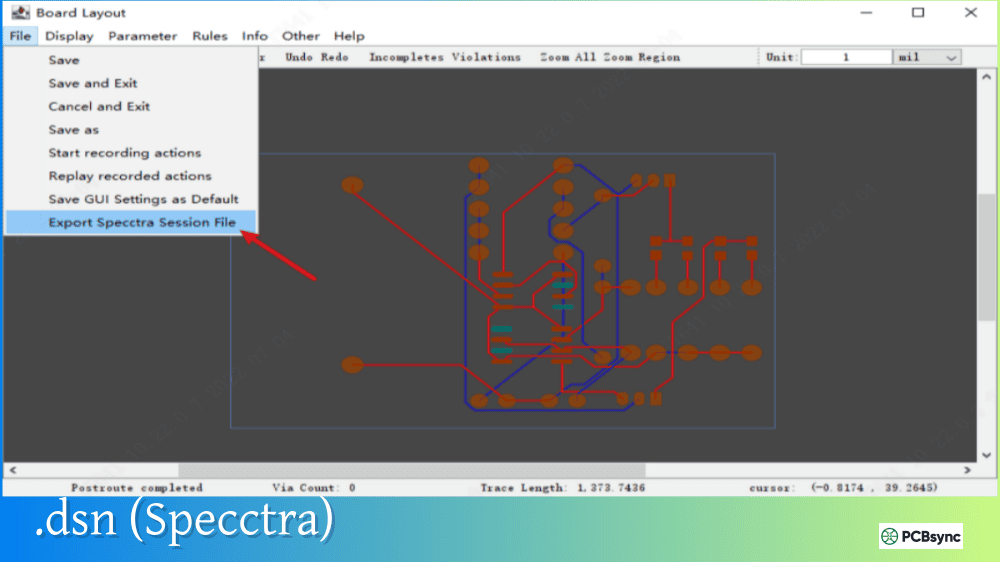
Go to File → Export Specctra Session File
Save the .SES file
Import the .SES file back into your PCB software
Pro Tip: Always wait for the autorouter to report 100% completion before exporting. Saving the session prematurely often causes PARSE_ERROR messages when importing back into your design tool.
Using .SES Files with EasyEDA Pro
Open your PCB design
Export via Top Menu → Export → Auto Routing (DSN)
Open the .DSN in Freerouting or another compatible autorouter
Complete the routing process
Export the session as .SES
Import via Top Menu → File → Import → Auto-Routing (SES)
Comparing .SES and .DSN File Formats
Understanding the relationship between these two formats helps clarify their roles in the autorouting process.
Characteristic
.DSN File
.SES File
Full Name
Specctra Design File
Specctra Session File
Purpose
Input to autorouter
Output from autorouter
Content
Complete board design
Only routing changes
Contains Traces
Existing traces only
New autorouted traces
File Size
Larger (full design)
Smaller (incremental)
Direction
PCB software → Router
Router → PCB software
Editable
Reference only
Reference only
Common .SES File Issues and Troubleshooting
Over the years, I’ve encountered numerous problems with .SES file imports. Here are the most common issues and their solutions.
Parse Errors During Import
Symptom: Error message stating “Expecting ‘(‘ in input/source” or “PARSE_ERROR”
Causes and Solutions:
Premature export: Wait for autorouting to fully complete before saving
Mismatched component IDs: Ensure no schematic changes occurred between export and import
Software version incompatibility: Update both your PCB software and autorouter
Routes Not Appearing After Import
Symptom: Import completes without errors but no traces visible
Solutions:
Check that layer names match between .DSN and .SES files
Verify coordinate resolution settings match
Confirm no components were moved between export and import
Incomplete Routing Results
Symptom: Some nets remain unrouted after import
Solutions:
Review autorouter completion percentage before export
Check design rule constraints may be too restrictive
Consider manual routing for remaining connections
Verify net class assignments are correct
Best Practices for Error-Free .SES File Workflow
Lock your design before exporting .DSN – Don’t modify components or connectivity
Remove unnecessary vias and partial routes before exporting
Use consistent coordinate units throughout your workflow
.SES files in the Specctra format can be opened and imported by PCB design software including KiCad, Altium Designer, OrCAD, EasyEDA, DipTrace, Target3001!, and pcb-rnd. Note that the .SES extension is also used by other unrelated software like Adobe Audition (audio sessions) and MSC Patran (FEA sessions), so context matters when identifying the correct application.
Can I edit a .SES file manually?
Technically yes, since .SES files are plain text using s-expression syntax. However, manual editing is not recommended because even small syntax errors can corrupt the file and cause import failures. If you need to modify routing, it’s better to re-run the autorouter or make changes in your PCB software after import.
Why does my .SES file import fail with no error message?
Silent import failures typically occur when there’s a mismatch between the original .DSN export and the current board state. This happens if you modified component positions, changed net names, or updated footprints between exporting the .DSN and importing the .SES. Always keep your design unchanged during the autorouting cycle.
How do I convert .SES files to other formats?
.SES files themselves aren’t typically converted to other formats directly. Instead, you import the .SES into your PCB software, which integrates the routing data into your native design file (such as .kicad_pcb for KiCad). From there, you can export to other formats like Gerber, ODB++, or IPC-2581.
Is the .SES file format proprietary or open?
The Specctra DSN/SES format was originally proprietary to Cadence Design Systems. However, the format specification has been published and is now supported by numerous open-source and commercial tools. The format is considered a de-facto industry standard for autorouter data interchange.
Conclusion
The .SES file format remains an essential component of modern PCB design workflows, particularly when leveraging external autorouters to speed up the routing process. Understanding how to properly export, generate, and import these session files can save you significant time on complex board designs.
Whether you’re using commercial tools like Altium or open-source solutions like KiCad and Freerouting, the .SES file provides a reliable bridge between your design software and autorouting tools. By following the best practices outlined in this guide and using the troubleshooting tips when issues arise, you’ll be well-equipped to make the most of this powerful interchange format.
The key to success with .SES files lies in maintaining consistency throughout your workflow: keep your design locked during the autorouting cycle, use matching software versions, and always verify your results with a thorough DRC check afterimport.
Inquire: Call 0086-755-23203480, or reach out via the form below/your sales contact to discuss our design, manufacturing, and assembly capabilities.
Quote: Email your PCB files to Sales@pcbsync.com (Preferred for large files) or submit online. We will contact you promptly. Please ensure your email is correct.
Notes: For PCB fabrication, we require PCB design file in Gerber RS-274X format (most preferred), *.PCB/DDB (Protel, inform your program version) format or *.BRD (Eagle) format. For PCB assembly, we require PCB design file in above mentioned format, drilling file and BOM. Click to download BOM template To avoid file missing, please include all files into one folder and compress it into .zip or .rar format.