Inquire: Call 0086-755-23203480, or reach out via the form below/your sales contact to discuss our design, manufacturing, and assembly capabilities.
Quote: Email your PCB files to Sales@pcbsync.com (Preferred for large files) or submit online. We will contact you promptly. Please ensure your email is correct.
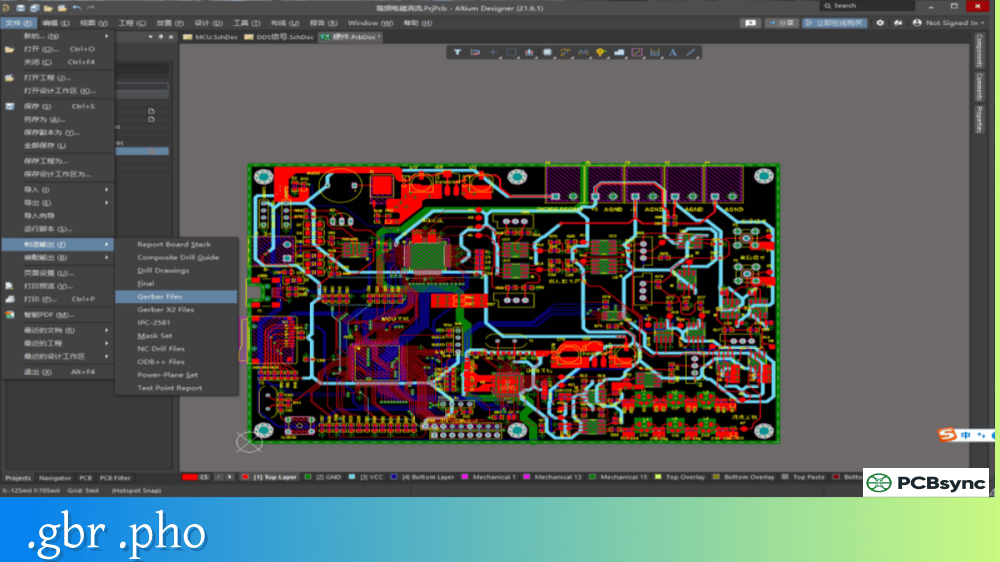
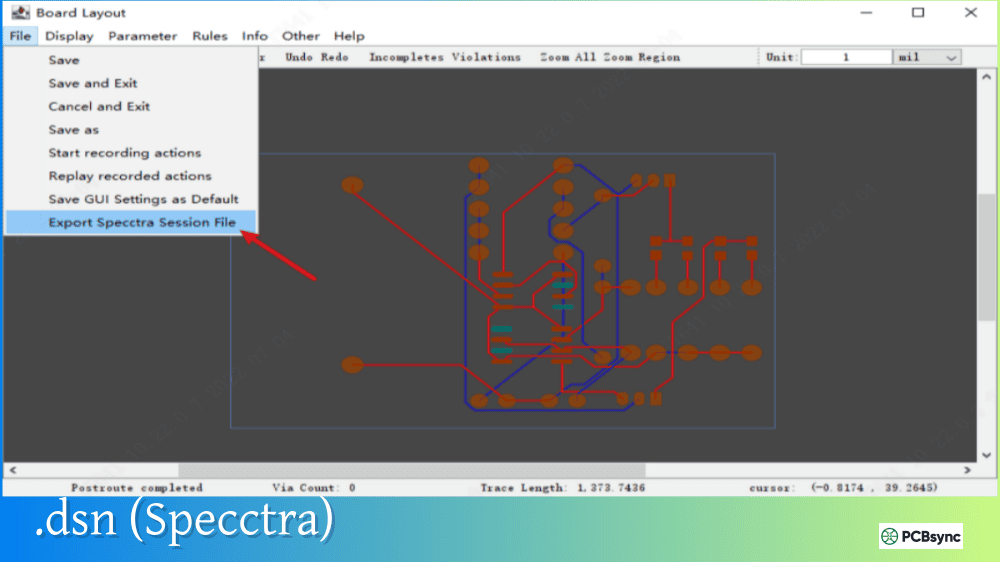
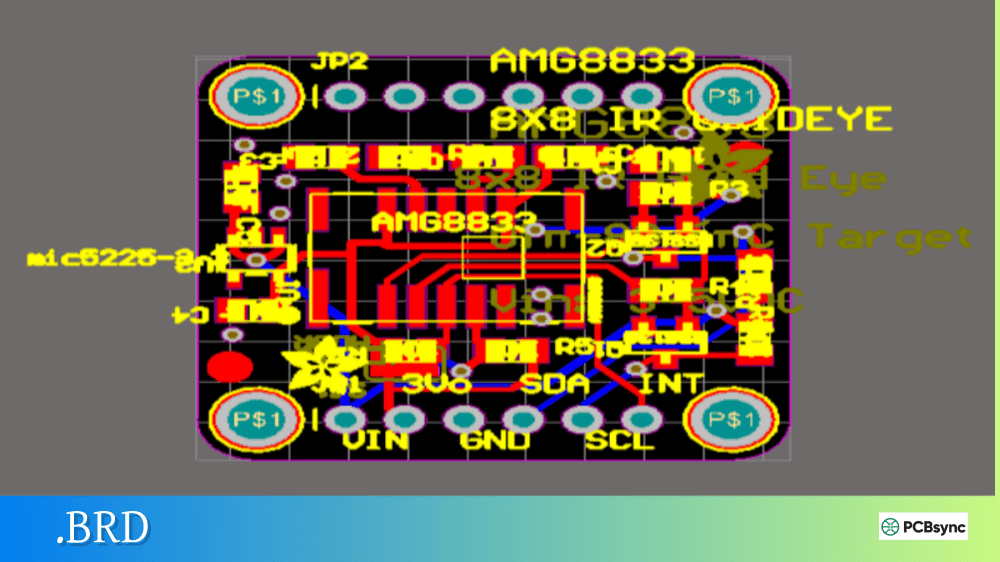
Notes: For PCB fabrication, we require PCB design file in Gerber RS-274X format (most preferred), *.PCB/DDB (Protel, inform your program version) format or *.BRD (Eagle) format. For PCB assembly, we require PCB design file in above mentioned format, drilling file and BOM. Click to download BOM template To avoid file missing, please include all files into one folder and compress it into .zip or .rar format.
If you’ve downloaded reference designs from semiconductor vendors, received design files from contractors, or inherited projects from other engineers, you’ve likely encountered .SchDoc files. This is Altium Designer’s native schematic document format—the file that captures your circuit’s logical design before it becomes a physical PCB.
Understanding the .SchDoc format matters whether you’re an Altium user managing projects, a KiCad user trying to import legacy designs, or someone evaluating design files from suppliers. This guide explains what .SchDoc files contain, how they’re structured, and your options for opening, converting, and working with them.
A .SchDoc file is a schematic document created by Altium Designer, the professional PCB design software from Altium Limited. Each .SchDoc file represents one sheet of an electronic circuit schematic, containing component symbols, electrical connections, net labels, power ports, and design parameters.
The .SchDoc format has been Altium’s standard schematic file type since the Protel DXP days (early 2000s), evolving from the older .SCH format used in Protel 99 SE and earlier versions. Despite format updates across Altium releases, the .SchDoc extension has remained consistent, making it immediately recognizable to anyone working with Altium designs.
.SchDoc File Identification
Property
Description
File extension
.SchDoc
Full name
Schematic Document
Format type
OLE Compound Document (binary) or ASCII
Developer
Altium Limited
Primary application
Altium Designer
Also supported by
CircuitStudio, CircuitMaker
Altium Project File Structure
A .SchDoc file doesn’t exist in isolation—it’s part of an Altium Designer project that includes multiple file types working together.
Essential Altium Project Files
File Extension
Description
Purpose
.PrjPcb
PCB Project file
Master project definition
.SchDoc
Schematic document
Circuit schematic sheet
.PcbDoc
PCB document
Physical board layout
.SchLib
Schematic library
Component symbols
.PcbLib
PCB library
Component footprints
.IntLib
Integrated library
Combined symbols + footprints
.OutJob
Output Job file
Manufacturing output configuration
When working with Altium designs, you typically need both the .PrjPcb project file and all associated .SchDoc files to open and compile a complete design. The project file references which schematic sheets belong to the design and defines their hierarchical relationships.
Inside the .SchDoc File Format
The .SchDoc format uses Microsoft’s OLE (Object Linking and Embedding) Compound Document structure—the same container format used by older Microsoft Office files (.doc, .xls). This makes the binary format somewhat accessible to reverse engineering efforts, which has enabled third-party import tools.
.SchDoc Internal Structure
Stream
Contents
FileHeader
Main schematic data (components, wires, text)
Storage
Embedded images and icons
Additional
Supplementary data (not always present)
Inside the FileHeader stream, schematic objects are stored as records with pipe-delimited properties. Each record has a RECORD type identifier that determines what kind of object it represents.
Common Record Types in .SchDoc Files
Record Type
Description
RECORD=1
Component (schematic symbol)
RECORD=2
Pin
RECORD=4
Label
RECORD=6
Polyline
RECORD=13
Power port
RECORD=14
Port
RECORD=17
Net label
RECORD=25
Sheet symbol
RECORD=27
Wire segment
RECORD=31
Sheet (document properties)
RECORD=34
Designator
RECORD=41
Parameter
Properties within each record are encoded as name=value pairs, with coordinates stored in units of 1/100 inch (10 mils). This text-based property encoding makes the format relatively straightforward to parse once you extract it from the OLE container.
Binary vs ASCII .SchDoc Files
Altium Designer can save .SchDoc files in two formats: the default binary (OLE Compound Document) format and an ASCII text format. This distinction matters significantly for interoperability.
Format Comparison
Aspect
Binary .SchDoc
ASCII .SchDoc
Default format
Yes
No (explicit save required)
File size
Smaller
Larger
Human readable
No
Yes
Version control friendly
No
Yes
Third-party import
Limited
Better support
Altium menu option
Standard Save
File → Save As → Advanced Schematic ASCII
Many EDA tools that import Altium files require the ASCII format specifically. If you’re sharing designs with users of EasyEDA, DipTrace, or using conversion tools, saving as ASCII .SchDoc improves compatibility significantly.
How to Save ASCII .SchDoc in Altium Designer
Open your schematic in Altium Designer
Select File → Save As
In the “Save as type” dropdown, choose “Advanced Schematic ASCII (*.SchDoc)”
Save the file with your desired name
The resulting file is plain text that you can open in any text editor to inspect the contents—useful for debugging import issues or understanding what changed between versions.
Multi-Sheet and Hierarchical Designs
Complex designs often span multiple .SchDoc files organized in flat or hierarchical structures. Understanding this organization is essential when working with larger Altium projects.
Design Structure Types
Structure
Description
Sheet Connections
Flat
All sheets at same level
Ports connect directly between sheets
Hierarchical
Tree-like parent/child structure
Sheet symbols reference child sheets
In hierarchical designs, a top-level .SchDoc contains sheet symbols that represent lower-level schematic sheets. Each sheet symbol’s filename property points to another .SchDoc file. Sheet entries on the symbol connect to ports on the child sheet, creating the electrical connectivity between hierarchy levels.
Sheet Symbol Properties
Property
Purpose
Filename
References the child .SchDoc file
Designator
Unique identifier for the sheet instance
Sheet Entries
Connection points matching child sheet ports
When importing hierarchical Altium designs into other tools, you typically need to select the top-level .SchDoc file, and the import process should automatically pull in referenced sub-sheets.
How to Open .SchDoc Files
The primary way to open .SchDoc files is with Altium Designer, but several alternatives exist depending on your needs.
Software That Opens .SchDoc Files
Software
Platform
Cost
Notes
Altium Designer
Windows
Commercial
Native application, full editing
Altium 365 Viewer
Web
Free
View only, no editing
CircuitStudio
Windows
Commercial
Altium’s mid-range tool
CircuitMaker
Windows
Free
Community-based, limited features
KiCad 7+
Cross-platform
Free
Import via File → Import
EasyEDA
Web/Desktop
Free
Requires ASCII format
DipTrace
Cross-platform
Commercial/Free
Requires ASCII format
Opening in Altium Designer
Double-click the .SchDoc file if Altium is installed and associated with the file type, or:
Launch Altium Designer
Open the associated .PrjPcb project file
Double-click the schematic in the Projects panel
Opening individual .SchDoc files without their project can work for viewing, but you’ll lose connectivity information and may see warnings about missing libraries.
Viewing Without Altium
Altium offers a free web-based viewer at Altium 365 that can display .SchDoc files without requiring a license. Simply upload your file to view the schematic, though editing capabilities are not available.
For command-line or programmatic access, several open-source projects can parse .SchDoc files:
Tool
Language
Capability
python-altium
Python
Parse and convert to SVG
altium2kicad
Perl
Convert to KiCad format
altium_js
JavaScript
Browser-based parser and renderer
Converting .SchDoc Files
Converting .SchDoc files to other formats is a common requirement when migrating between EDA tools or collaborating with engineers using different software.
Import Support (From .SchDoc)
Target Software
Import Method
Notes
KiCad 7+
File → Import Non-KiCad Project → Altium
Direct import, hierarchical supported
KiCad 9.0.3+
Import .PrjPcb directly
Includes flat schematics
EasyEDA
File → Open
Requires ASCII .SchDoc
DipTrace
File → Import
Requires ASCII .SchDoc
OrCAD
Import Wizard
Limited support
Converting to KiCad
KiCad 7 and later versions include native Altium import capability:
For hierarchical designs, KiCad automatically imports sub-sheets
Map layers as prompted
Review and verify the imported design
For older KiCad versions or problem files, the altium2kicad online converter (www2.futureware.at/KiCad) provides an alternative approach, though results may require manual cleanup.
Working with .SchDoc files from various sources often presents challenges. Here are solutions to common problems.
Troubleshooting Guide
Issue
Cause
Solution
File won’t open
Version mismatch
Try newer Altium version or convert via ASCII
Missing symbols
Library not included
Obtain original libraries or remap to available symbols
Garbled text/Chinese characters
Encoding mismatch
Open ASCII file, convert to UTF-8 encoding
Import fails silently
Binary format
Save as ASCII .SchDoc in Altium first
Hierarchical links broken
File paths changed
Update sheet symbol filename references
Components not aligned to grid
Unit/grid mismatch
Set grid to 100mil, use Snap to Grid function
Version Compatibility
.SchDoc files from newer Altium versions may not open correctly in older versions. When sharing designs, confirm the recipient’s Altium version and consider saving in a compatible format. ASCII format tends to be more backward-compatible than binary.
.SchDoc vs Other Schematic Formats
Understanding how .SchDoc compares to other schematic formats helps when evaluating design files or choosing tools.
Schematic Format Comparison
Format
Tool
Open Format
ASCII Option
Hierarchical
.SchDoc
Altium Designer
No
Yes
Yes
.kicad_sch
KiCad
Yes
Native
Yes
.sch (Eagle)
Eagle/Fusion 360
No
XML
Yes
.dsn
OrCAD
No
ASCII export
Yes
.asc
LTspice
Yes
Native
Limited
Altium’s .SchDoc format offers good functionality but remains proprietary. For maximum interoperability, save ASCII versions when sharing outside your organization.
Useful Resources for .SchDoc Files
Official Documentation
Resource
URL
Description
Altium Documentation
altium.com/documentation
Official reference
Altium 365 Viewer
altium.com/viewer
Free online viewer
Altium Forum
forum.live.altium.com
Community support
Conversion Tools
Resource
URL
Description
Altium2KiCad Online
www2.futureware.at/KiCad
Online converter
altium2kicad GitHub
github.com/thesourcerer8/altium2kicad
Perl conversion scripts
python-altium
github.com/vadmium/python-altium
Python parser and SVG export
altium_js
github.com/gsuberland/altium_js
Browser-based parser
Component Libraries
Resource
Description
Altium Content Vault
Manufacturer-verified components
Ultra Librarian
Free component models for Altium
SnapEDA
Schematic symbols and footprints
SamacSys
Component library with Altium export
Frequently Asked Questions About .SchDoc Files
Can I open .SchDoc files without Altium Designer?
Yes, several options exist. Altium 365 Viewer (free, web-based) lets you view .SchDoc files without a license. KiCad 7+ can import .SchDoc files directly through its import wizard. EasyEDA and DipTrace can import ASCII-format .SchDoc files. For programmatic access, open-source parsers like python-altium can extract and convert the contents. However, for full editing capability with guaranteed fidelity, you need Altium Designer or CircuitStudio.
How do I convert .SchDoc to KiCad format?
In KiCad 7 or later, go to File → Import Non-KiCad Project → Altium Project and select your .SchDoc file. KiCad will import the schematic and create native .kicad_sch files. For hierarchical designs, select the top-level schematic and KiCad pulls in sub-sheets automatically. If the direct import fails, try saving the file as ASCII format in Altium first, or use the altium2kicad online converter as an alternative. Always verify the converted design carefully, as some elements may not translate perfectly.
What’s the difference between binary and ASCII .SchDoc files?
Binary .SchDoc files use Microsoft’s OLE Compound Document format—compact but not human-readable. ASCII .SchDoc files store the same information as plain text with pipe-delimited properties. Binary is the default when you save normally in Altium; ASCII requires explicitly choosing “Advanced Schematic ASCII” when saving. ASCII files are larger but work better with version control systems (Git), are easier to debug, and are required by several third-party import tools like EasyEDA.
Why won’t my .SchDoc file import into EasyEDA or DipTrace?
These tools require ASCII-format .SchDoc files, not the default binary format. Open the file in Altium Designer, then use File → Save As and select “Advanced Schematic ASCII (*.SchDoc)” from the format dropdown. Also check for encoding issues—files from older Altium versions may use GBK2312 encoding instead of UTF-8, causing garbled characters. Open the ASCII file in a text editor and resave as UTF-8 if needed.
How do I handle hierarchical designs with multiple .SchDoc files?
Hierarchical Altium designs consist of multiple .SchDoc files linked through sheet symbols. The top-level schematic contains sheet symbols that reference child schematics via their filename properties. When importing into other tools, always start with the top-level .SchDoc file—most importers automatically discover and process the linked sub-sheets. If links are broken (common when files are moved), you’ll need to update the filename references in the sheet symbols to point to the correct paths.
Conclusion
The .SchDoc format has served as Altium Designer’s schematic standard for over two decades, making it one of the most common proprietary schematic formats in professional electronics design. While the binary format isn’t open, the availability of ASCII export and the OLE-based structure have enabled reasonable interoperability through import tools and converters.
Whether you’re working natively in Altium, importing legacy designs into KiCad, or evaluating reference designs from semiconductor vendors, understanding the .SchDoc format helps you work effectively with these files. The key practical takeaway: when sharing .SchDoc files outside your organization or importing into non-Altium tools, always save as ASCII format first. This simple step solves most compatibility issues and makes troubleshooting much easier.
As KiCad and other tools continue improving their Altium import capabilities, working with .SchDoc files becomes increasingly accessible even without an Altium license—though for production work in Altium environments, there’s still no substitute for the native application.
Inquire: Call 0086-755-23203480, or reach out via the form below/your sales contact to discuss our design, manufacturing, and assembly capabilities.
Quote: Email your PCB files to Sales@pcbsync.com (Preferred for large files) or submit online. We will contact you promptly. Please ensure your email is correct.
Notes: For PCB fabrication, we require PCB design file in Gerber RS-274X format (most preferred), *.PCB/DDB (Protel, inform your program version) format or *.BRD (Eagle) format. For PCB assembly, we require PCB design file in above mentioned format, drilling file and BOM. Click to download BOM template To avoid file missing, please include all files into one folder and compress it into .zip or .rar format.