Inquire: Call 0086-755-23203480, or reach out via the form below/your sales contact to discuss our design, manufacturing, and assembly capabilities.
Quote: Email your PCB files to Sales@pcbsync.com (Preferred for large files) or submit online. We will contact you promptly. Please ensure your email is correct.
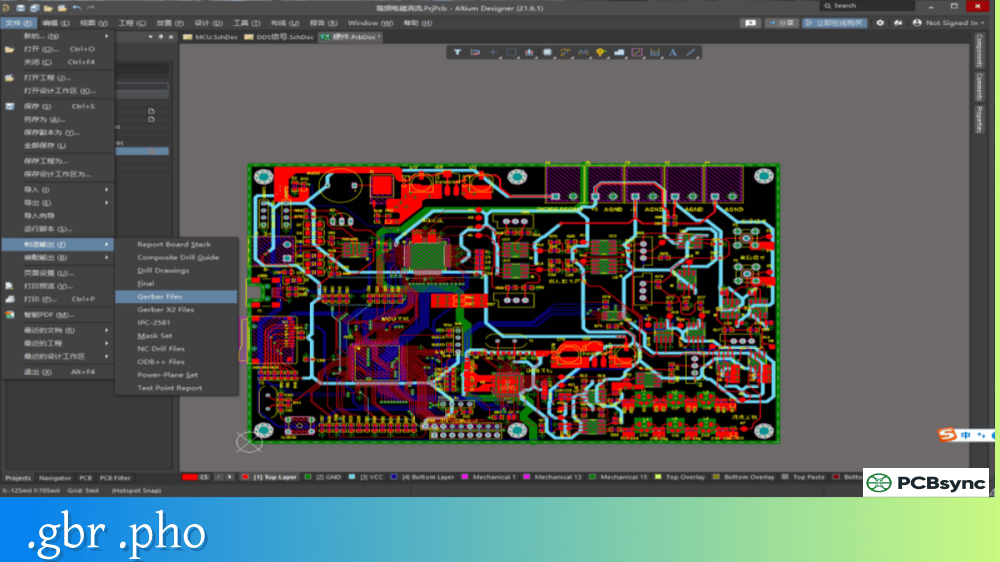
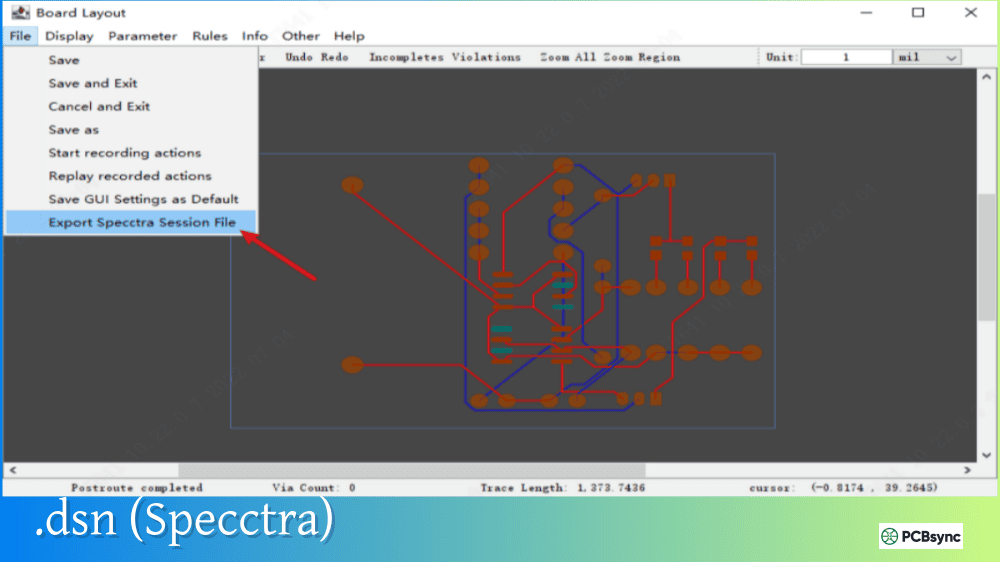
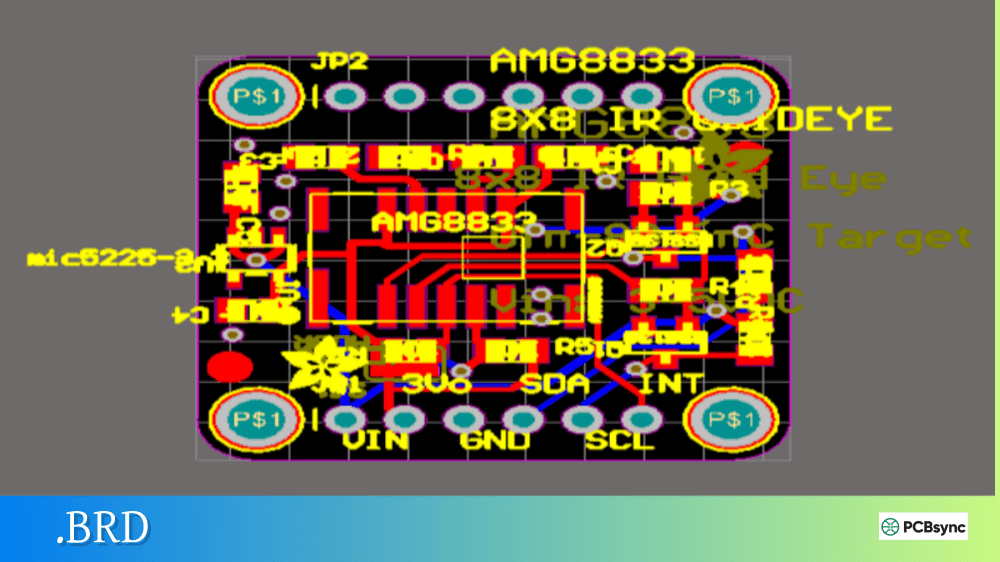
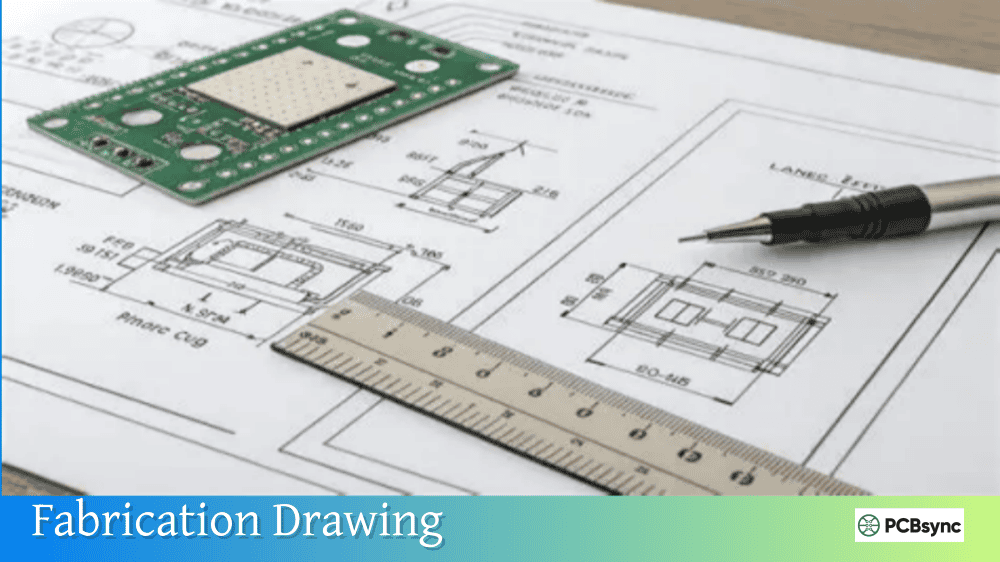
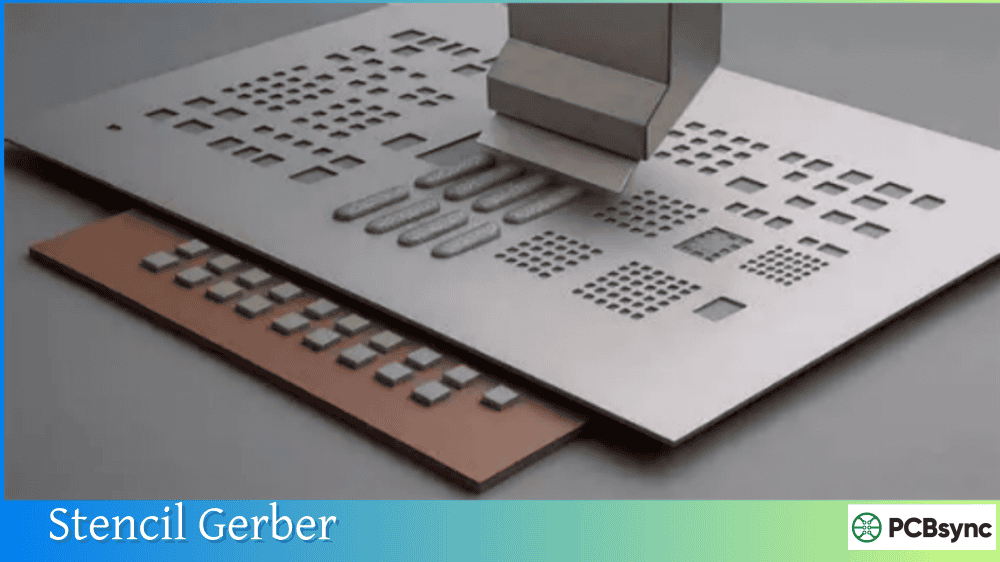
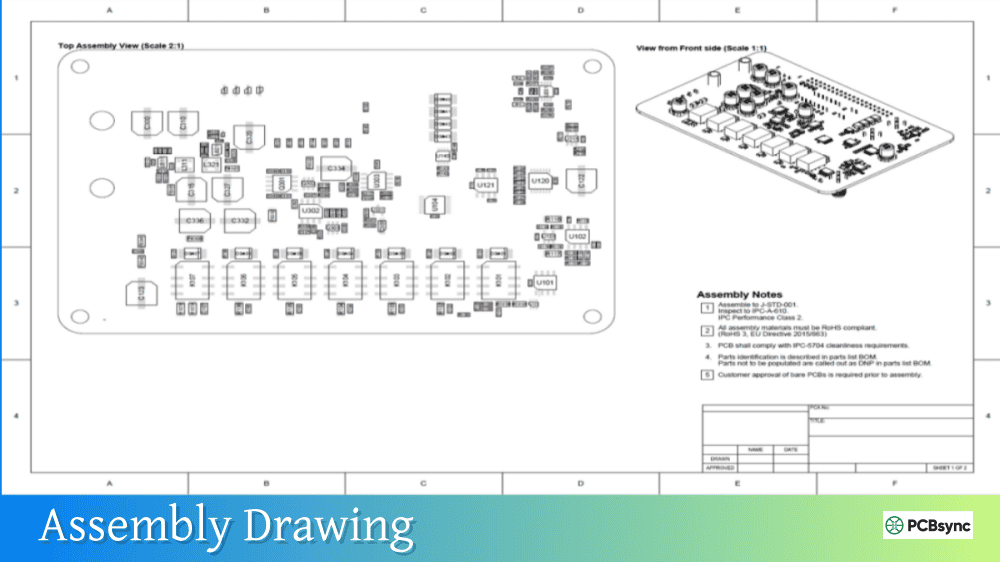
Notes: For PCB fabrication, we require PCB design file in Gerber RS-274X format (most preferred), *.PCB/DDB (Protel, inform your program version) format or *.BRD (Eagle) format. For PCB assembly, we require PCB design file in above mentioned format, drilling file and BOM. Click to download BOM template To avoid file missing, please include all files into one folder and compress it into .zip or .rar format.
What is a .SCH File? Schematic File Formats Compared
You’ve downloaded a reference design, opened a folder of design files, and found a .SCH file. Now what? The frustrating reality is that .SCH is one of the most overloaded file extensions in electronics design—used by EAGLE, KiCad (legacy versions), OrCAD, ExpressSCH, TINA, gEDA, and several other EDA tools, each with completely different internal formats.
This guide explains what .SCH files are, how to identify which program created your file, and how to open or convert schematic files between different EDA platforms.
A .SCH file is a schematic document containing the logical design of an electronic circuit. It stores component symbols, electrical connections (wires), net labels, power ports, and design parameters that define how components connect to form a working circuit.
The problem? At least ten different EDA programs use the .SCH extension, and their file formats are completely incompatible with each other. A .SCH file from EAGLE won’t open in ExpressSCH, and a KiCad legacy .SCH file won’t work in OrCAD. Before you can open a .SCH file, you need to identify which program created it.
Common .SCH File Types
Program
Format Type
Identifying Feature
EAGLE (v6+)
XML text
Starts with <?xml and contains <!DOCTYPE eagle
EAGLE (pre-v6)
Binary/proprietary
Binary data, not human-readable
KiCad (v5 and earlier)
ASCII text
Starts with EESchema Schematic File Version
OrCAD Capture
Binary
Proprietary format, requires OrCAD
ExpressSCH
Binary
Proprietary format, 7-63 KB typical size
TINA
Proprietary
Circuit simulation data
gEDA
ASCII text
Starts with v followed by version number
P-CAD
Proprietary
Discontinued software
Qucs
ASCII text
Contains simulation parameters
How to Identify Your .SCH File Type
The quickest way to identify which program created a .SCH file is to open it in a text editor like Notepad++ or VS Code. The first few lines reveal the format immediately.
Identification by File Header
First Line Contents
Source Program
<?xml version=”1.0″ encoding=”utf-8″?>
EAGLE 6.0+
EESchema Schematic File Version 4
KiCad 5.x
EESchema Schematic File Version 2
KiCad 4.x
v 20130925 2
gEDA/gschem
Binary/unreadable characters
OrCAD, ExpressSCH, or EAGLE pre-v6
If the file opens as readable text, you can usually identify the format. If it shows binary garbage, you’re dealing with a proprietary binary format that requires the original application to open.
EAGLE .SCH Files
EAGLE (now part of Autodesk Fusion 360) is one of the most common sources of .SCH files, particularly in hobbyist and Arduino communities.
EAGLE Format Versions
Version
Format
Notes
EAGLE 6.0+
XML
Human-readable, importable by KiCad
EAGLE pre-6.0
Binary
Requires EAGLE or conversion
EAGLE 7.x
XML
Compatible with KiCad import
EAGLE 9.x
XML
May need legacy export for some tools
Modern EAGLE .SCH files (version 6 and later) use XML format, making them readable in any text editor and importable by other EDA tools. The XML structure includes component definitions, wire connections, and sheet properties in a hierarchical format.
KiCad used the .SCH extension for schematic files through version 5.x. Starting with KiCad 6.0, the new S-expression format uses the .kicad_sch extension instead.
KiCad Schematic Format History
KiCad Version
Extension
Format
4.x and earlier
.sch
Legacy ASCII
5.x
.sch
Legacy ASCII (Version 4)
6.0+
.kicad_sch
S-expression
7.0+
.kicad_sch
S-expression (enhanced)
KiCad Legacy .SCH Structure
EESchema Schematic File Version 4EELAYER 30 0EELAYER END$Descr A4 11693 8268encoding utf-8Sheet 1 1Title “My Schematic”Date “2023-01-15″Rev “1.0”Comp “”$EndDescr$CompL Device:R R1U 1 1 5F8A1234P 3500 2500F 0 “R1” H 3570 2546 50 0000 L CNNF 1 “10k” H 3570 2455 50 0000 L CNN$EndCompWire Wire Line 3500 2350 3500 2200$EndSCHEMATC
Legacy KiCad .SCH files are plain ASCII text with a clear structure—coordinates in mils (1/1000 inch), component definitions between $Comp and $EndComp tags, and wires defined by coordinate pairs.
OrCAD and Other Binary .SCH Formats
Several programs use binary formats for their .SCH files, making them unreadable without the original software.
Binary .SCH Format Programs
Program
Developer
Notes
OrCAD Capture
Cadence
Professional tool, expensive
ExpressSCH
ExpressPCB
Free, but proprietary format
P-CAD
Altium (discontinued)
Legacy designs only
CIRCAD
Holophase
Niche PCB software
For binary .SCH files, you typically need either:
The original software that created the file
A conversion tool specific to that format
Export the file to a common interchange format from the original software
How to Open .SCH Files
Opening a .SCH file requires matching the file format to compatible software.
Converting schematic files between formats is often necessary when migrating between EDA tools or collaborating with engineers using different software.
Conversion Paths
From
To
Method
EAGLE
KiCad
KiCad Import Wizard
EAGLE
Altium
Altium Import Wizard
KiCad Legacy
KiCad 6+
Open in KiCad 6+ (auto-converts)
KiCad
EAGLE
Export to intermediate format
OrCAD
Altium
Altium Import Wizard
Any
PDF
Print/Export from original software
Online Conversion Tools
Tool
URL
Supported Formats
Schematics.io
schematics.io
EAGLE, OrCAD, EDIF
Altium2KiCad
www2.futureware.at/KiCad
Altium to KiCad
EasyEDA
easyeda.com
Multiple formats
Conversion Best Practices
When converting .SCH files between formats:
Verify component mappings: Symbol libraries differ between tools—ensure all components map correctly
Check connections: Confirm all wires and nets transferred properly
Review hierarchical sheets: Multi-sheet designs may need manual reconnection
Run ERC: Electrical Rules Check catches conversion errors
Compare visually: Open both original and converted files side-by-side
.SCH vs Other Schematic Extensions
Understanding alternative schematic file extensions helps when working across different EDA ecosystems.
Schematic File Extension Comparison
Extension
Program
Format Type
Open Source
.sch
Multiple (EAGLE, KiCad legacy, etc.)
Varies
Varies
.kicad_sch
KiCad 6+
S-expression text
Yes
.SchDoc
Altium Designer
OLE compound/ASCII
No
.dsn
OrCAD
Binary
No
.asc
LTspice
ASCII text
Free
.schem
Various
Varies
Varies
When to Use Each Format
Use Case
Recommended Format
Open-source projects
.kicad_sch (KiCad 6+)
Hobbyist/Arduino projects
EAGLE .sch (XML)
Professional/enterprise
.SchDoc (Altium) or .dsn (OrCAD)
SPICE simulation
.asc (LTspice)
Maximum compatibility
Export to PDF for viewing
Troubleshooting .SCH File Issues
Common problems when working with .SCH files and their solutions.
Problem Resolution Guide
Problem
Likely Cause
Solution
File won’t open
Wrong software for format
Identify format via text editor, use correct tool
“Binary file” error in KiCad
Pre-v6 EAGLE file
Open in EAGLE, save as XML, re-import
Missing components
Library not available
Obtain original libraries or remap symbols
Garbled characters
Encoding mismatch
Convert file encoding to UTF-8
Import fails silently
Unsupported format version
Try exporting to legacy format from source
Hierarchical links broken
File paths changed
Update sheet references manually
Useful Resources for .SCH Files
Software Downloads
Software
Platform
Cost
URL
KiCad
Windows, Mac, Linux
Free
kicad.org
EAGLE/Fusion 360
Windows, Mac
Free/Subscription
autodesk.com
EasyEDA
Web, Desktop
Free
easyeda.com
ExpressSCH
Windows
Free
expresspcb.com
gEDA
Linux
Free
geda-project.org
Conversion and Viewing Tools
Tool
Purpose
URL
Schematics.io
Online viewer/converter
schematics.io
Altium2KiCad
Altium to KiCad conversion
github.com/thesourcerer8/altium2kicad
eagle-to-kicad
EAGLE ULP conversion scripts
github.com/lachlanA/eagle-to-kicad
Documentation
Resource
Description
KiCad Documentation
File format specifications
EAGLE DTD
XML schema for EAGLE files
FileInfo.com
General file extension database
Frequently Asked Questions About .SCH Files
How do I know which program created my .SCH file?
Open the .SCH file in a text editor like Notepad++ or VS Code. If the file is readable text, look at the first few lines. EAGLE XML files start with <?xml, KiCad legacy files start with EESchema Schematic File Version, and gEDA files start with v followed by a date. If the file shows binary garbage (random characters), it’s likely from OrCAD, ExpressSCH, or an older EAGLE version, and you’ll need the original software to open it.
Can KiCad open EAGLE .SCH files?
Yes, KiCad 7 and later can import EAGLE .SCH files directly through File → Import Non-KiCad Project → EAGLE Project. However, this only works with EAGLE XML format files (version 6.0 and later). Binary EAGLE files from earlier versions must first be opened in EAGLE and saved in XML format, or exported as EAGLE 7.x legacy format. KiCad will import both the schematic and associated board file together.
Why won’t my .SCH file open in any program?
The .SCH extension is used by many different programs with incompatible formats. If your file won’t open, you’re likely trying to use the wrong software. First identify the file format using a text editor, then obtain the correct software. If the file is from ExpressSCH, you must use ExpressSCH—there’s no conversion path available. For OrCAD files, you need OrCAD Capture or Altium Designer’s import function.
How do I convert .SCH files to PDF for sharing?
The most reliable method is opening the .SCH file in its native application and using File → Print or File → Export to create a PDF. Most EDA tools include PDF export functionality. If you don’t have the original software, try importing into a compatible tool first (like importing EAGLE into KiCad), then export to PDF from there. Online tools like Schematics.io can also convert some .SCH formats to image files.
What’s the difference between .SCH and .kicad_sch files?
The .SCH extension was used by KiCad through version 5.x and used a simple ASCII format with components and wires defined in a flat text structure. Starting with KiCad 6.0, the new .kicad_sch extension uses S-expression format (nested parenthetical syntax similar to Lisp), which is more structured and supports advanced features like embedded symbols and better hierarchical design handling. KiCad 6+ can open legacy .SCH files and automatically converts them to the new format.
Conclusion
The .SCH extension’s use across multiple incompatible EDA tools makes it one of the most confusing file types in electronics design. The key to working with .SCH files is identification—once you know which program created the file, you can choose the appropriate software to open it or find a conversion path to your preferred tool.
For new projects, consider using formats with better interoperability: KiCad’s .kicad_sch format is open and well-documented, EAGLE’s XML format is widely importable, and Altium’s ASCII .SchDoc option provides broad third-party tool support. When sharing designs, including a PDF export alongside native files ensures anyone can at least view the schematic regardless of their software.
The EDA landscape continues evolving, with tools like KiCad adding better import capabilities for proprietary formats. Check your specific tool’s current import options—today’s incompatible format may become tomorrow’s seamless import.
Inquire: Call 0086-755-23203480, or reach out via the form below/your sales contact to discuss our design, manufacturing, and assembly capabilities.
Quote: Email your PCB files to Sales@pcbsync.com (Preferred for large files) or submit online. We will contact you promptly. Please ensure your email is correct.
Notes: For PCB fabrication, we require PCB design file in Gerber RS-274X format (most preferred), *.PCB/DDB (Protel, inform your program version) format or *.BRD (Eagle) format. For PCB assembly, we require PCB design file in above mentioned format, drilling file and BOM. Click to download BOM template To avoid file missing, please include all files into one folder and compress it into .zip or .rar format.