Inquire: Call 0086-755-23203480, or reach out via the form below/your sales contact to discuss our design, manufacturing, and assembly capabilities.
Quote: Email your PCB files to Sales@pcbsync.com (Preferred for large files) or submit online. We will contact you promptly. Please ensure your email is correct.
Notes: For PCB fabrication, we require PCB design file in Gerber RS-274X format (most preferred), *.PCB/DDB (Protel, inform your program version) format or *.BRD (Eagle) format. For PCB assembly, we require PCB design file in above mentioned format, drilling file and BOM. Click to download BOM template To avoid file missing, please include all files into one folder and compress it into .zip or .rar format.
Quartus Prime Software: Download, Installation & Tutorial Guide (All Versions)
If you’ve spent any time working with Intel or Altera FPGAs and CPLDs, you know that Quartus Prime (formerly Altera Quartus) is the backbone of the entire development workflow. I’ve been using this software since the Quartus II days, and while the branding has changed several times—from Altera to Intel and now back to Altera—the core functionality remains essential for anyone designing with programmable logic devices.
This comprehensive guide covers everything you need to know about Intel Quartus software, from downloading the right version for your hardware to navigating the installation process and getting your first design compiled. Whether you’re working with legacy Quartus 13.1 projects, modern Quartus Prime 20.1 designs, or somewhere in between, you’ll find practical guidance here.
Quartus Prime is a multiplatform integrated development environment (IDE) for designing, compiling, and programming Intel (formerly Altera) FPGAs, CPLDs, and SoCs. The software handles everything from design entry through synthesis, place-and-route, timing analysis, and device programming.
The tool supports multiple design entry methods including VHDL, Verilog, SystemVerilog, and schematic capture. For those of us who’ve worked with both Xilinx Vivado and Intel Quartus, the workflows are conceptually similar, though the interface details differ significantly.
Key Features of Quartus Prime
The software includes several critical components for FPGA development:
Synthesis Engine: Converts HDL code to gate-level netlists optimized for target devices
Fitter: Performs placement and routing within the FPGA fabric
Timing Analyzer: Validates timing constraints using industry-standard SDC format
Platform Designer (Qsys): System integration tool for connecting IP cores
Signal Tap Logic Analyzer: On-chip debugging without external equipment
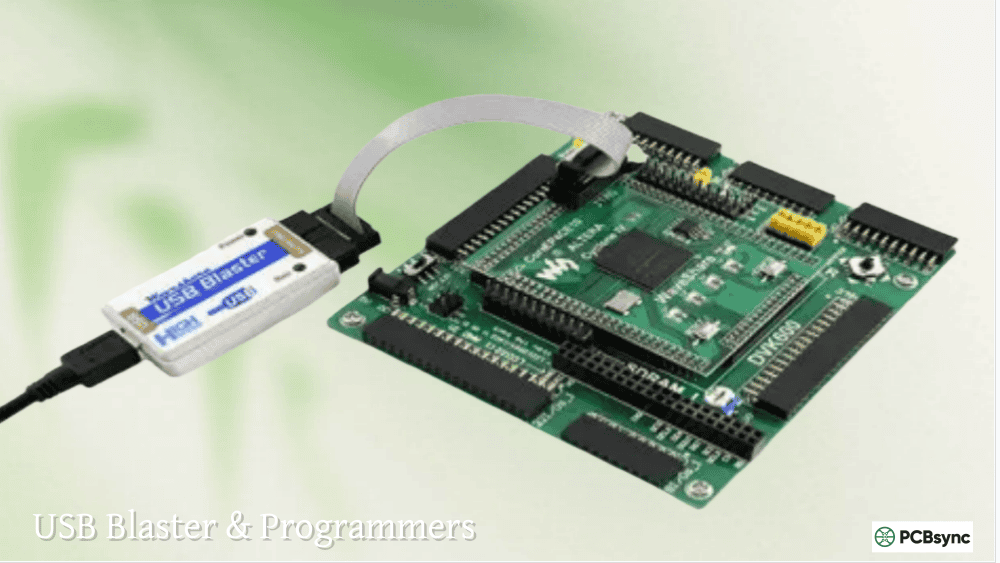
Programmer: Downloads configurations to target hardware via USB-Blaster or JTAG
Quartus Prime Editions: Lite, Standard, and Pro Compared
One of the first decisions you’ll face is choosing which edition to install. Intel offers three distinct versions, each targeting different device families and feature requirements.
Feature
Quartus Prime Lite
Quartus Prime Standard
Quartus Prime Pro
Price
Free
Paid Subscription
Paid Subscription
License Required
No
Yes
Yes
MAX II/V CPLDs
✓
✓
—
MAX 10 FPGAs
✓
✓
—
Cyclone IV/V
✓
✓
—
Cyclone 10 LP
✓
✓
—
Cyclone 10 GX
—
—
✓ (Free)
Arria II
Limited
✓
—
Arria V/10
—
✓
✓
Stratix IV/V
—
✓
—
Stratix 10
—
—
✓
Agilex
—
—
✓
Partial Reconfiguration
—
Optional
✓
Design Partitioning
—
✓
✓
Register Retiming
—
✓
✓
When to Use Quartus Prime Lite Edition
For hobbyists, students, and engineers working with cost-optimized devices, Quartus Prime Lite is often sufficient. The free edition supports:
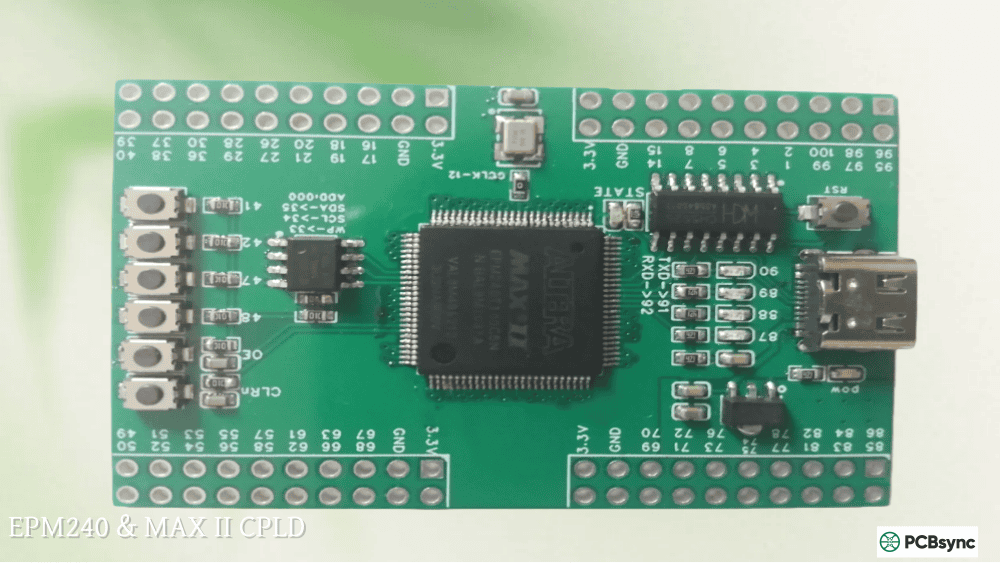
MAX II and MAX V CPLD Quartus development
MAX 10 FPGA designs
Cyclone IV GX/E devices
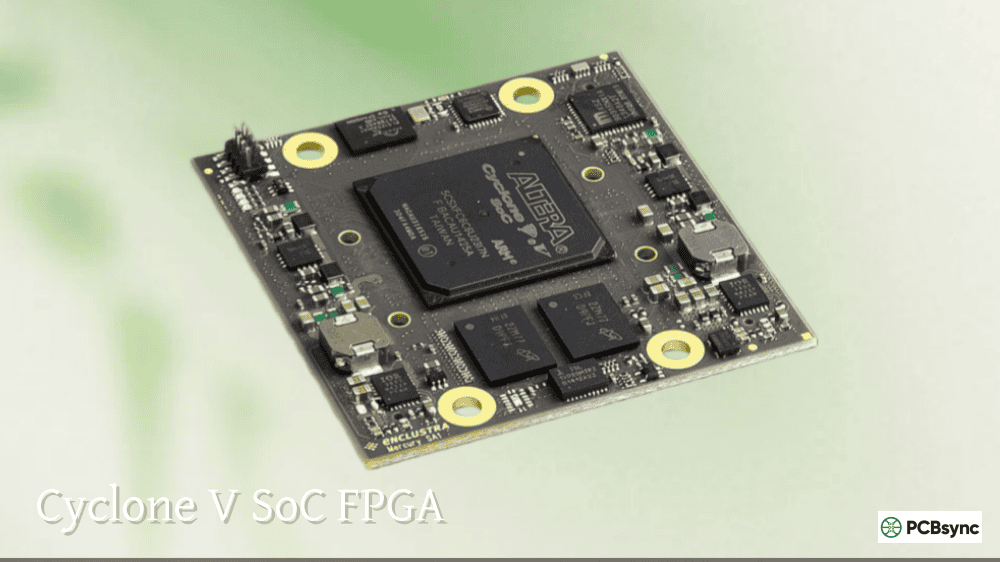
Cyclone V devices
Cyclone 10 LP devices
The main limitations involve advanced optimization features and support for high-end device families. If you’re designing with Cyclone or MAX devices for production, Lite edition can handle most requirements without licensing costs.
Understanding Quartus Price and Licensing
The Quartus price varies significantly based on your needs. Here’s the general breakdown:
License Type
Approximate Cost
Notes
Quartus Prime Lite
Free
No license file required
Quartus Prime Standard
~$2,995/year
Subscription model
Quartus Prime Pro
~$3,995/year
Required for Stratix 10, Agilex
Node-locked vs Floating
Varies
Floating licenses cost more
For many PCB engineers like myself, the Lite edition covers 90% of what we need. I only reach for Standard when a client specifically requires Arria or Stratix devices.
Downloading Quartus Prime Software
Current Versions Download Links
Intel maintains the official download center at their FPGA software portal. Here are direct paths to the most commonly needed versions:
Quartus Prime 20.1: Last version with ModelSim-Intel FPGA Edition (before Questa transition)
Quartus Prime 18.1: Stable release with broad device support
Quartus Prime 17.0: Good for Cyclone IV/V and MAX 10 development
Legacy Quartus II Version Availability
Finding older Altera Quartus versions has become challenging since Intel deprecated many downloads in March 2020. Here’s what’s currently available:
Version
Status
Supported Devices
Quartus 13.1
Archived but available
Cyclone II/III/IV/V, MAX II
Quartus 13.0 SP1
Still downloadable
Cyclone II/III/IV/V
Quartus 12
Discontinued
SOPC Builder support
Quartus 9.1
Discontinued
Cyclone I/II/III
Quartus 15.0
Limited availability
MAX 10, Cyclone IV/V
For Quartus 13.1 and earlier versions supporting legacy devices like Cyclone II, check the archived downloads section or contact your Intel FAE. The Internet Archive has preserved some versions for educational purposes.
Select your desired edition (Lite, Standard, or Pro)
Choose your operating system (Windows or Linux)
Select download method:
Web Installer: Smaller initial download, fetches components as needed
Complete Download: Single large file (~15-25GB depending on edition)
Individual Files: Download only specific components
Create or sign into your Intel account
Accept license agreements and begin download
For Quartus Prime 18.1 and Quartus Prime 20.1, I recommend the complete download option if you have stable internet. The web installer can be frustrating on slower connections.
Installing Quartus Prime on Windows
System Requirements
Before installation, verify your system meets these requirements:
Component
Minimum
Recommended
OS
Windows 10 64-bit
Windows 10/11 64-bit
RAM
8 GB
32 GB or more
Disk Space
30 GB
100+ GB (with device support)
Display
1024×768
1920×1080 or higher
Processor
Intel/AMD 64-bit
Multi-core recommended
Windows Installation Steps
Extract the installer if downloaded as a compressed archive
Run setup.bat or the main executable as Administrator
Accept the license agreement
Select installation directory: Avoid paths with spaces (e.g., use C:\intelFPGA\23.1 not C:\Program Files\Intel FPGA)
Choose components:
Quartus Prime (required)
Device support files for your target FPGAs
ModelSim or Questa simulator (highly recommended)
Nios II EDS if developing embedded systems
Allow sufficient disk space (verify before proceeding)
Complete installation and install USB-Blaster drivers when prompted
Installing Device Support Separately
If you selected a minimal installation, you can add device support later:
Open Quartus Prime
Go to Tools → Install Devices
Select device families to add
Follow the device installer wizard
This approach saves disk space by installing only what you need for current projects.
Installing Quartus Prime on Linux
Linux Distribution Support
Intel officially supports:
Red Hat Enterprise Linux 7/8
CentOS 7/8
Ubuntu 18.04/20.04/22.04
SUSE Linux Enterprise 12/15
For Arch Linux users, the AUR provides packages like quartus-free that handle dependencies automatically.
Required Dependencies
Before installing on Ubuntu/Debian systems, install these 32-bit libraries:
The Nios II Embedded Design Suite provides tools for developing software on Intel’s soft-core processor. Key components include:
Eclipse-based IDE for C/C++ development
BSP (Board Support Package) editor
GCC-based compiler toolchain
Debugging and profiling tools
Note: Intel announced Nios II discontinuation in 2023, with Nios V (RISC-V based) as the successor. However, Nios2EDS remains important for maintaining existing designs.
Installing Eclipse IDE for Nios II
Starting with Quartus 19.1, Eclipse IDE requires manual installation:
Download Eclipse CDT 8.8.1 (Mars.2) from Eclipse archives
Extract to a folder named eclipse_nios2
Navigate to <quartus_path>/nios2eds/bin/
Extract eclipse_nios2_plugins.zip to your Eclipse folder
Copy the configured Eclipse folder to <quartus_path>/nios2eds/bin/eclipse_nios2
Creating a Nios II System with Platform Designer
Open Tools → Platform Designer (formerly Qsys)
Add a clock source component
Add Nios II processor (select appropriate variant)
Add on-chip memory for program storage
Add JTAG UART for console output
Connect clock and reset signals
Assign base addresses
Generate HDL output
Instantiate the generated system in your top-level design
Quartus Version History and Device Support Matrix
Understanding which Quartus version supports your hardware is crucial for legacy projects:
Development board documentation and reference designs
OpenCores
Open-source IP cores compatible with Quartus
Intel FPGA YouTube
Official video tutorials
Archived Software Sources
For discontinued versions like Quartus 9.1 or Quartus 12, consider:
Internet Archive (archive.org) – Educational preservation
University mirrors – Check your institution’s software portal
Intel FAE request – For legitimate production needs
Troubleshooting Common Issues
License Errors
Problem: “License file not found” or validation errors
Solutions:
Verify LM_LICENSE_FILE environment variable
Check license file matches your NIC ID
Ensure firewall allows FlexLM communication
For Questa, confirm you obtained the correct license type
USB-Blaster Not Detected
Problem: Programmer cannot find hardware
Solutions:
Reinstall USB-Blaster drivers from <quartus>/drivers/usb-blaster
On Linux, verify udev rules are correctly configured
Try a different USB port (preferably USB 2.0)
Check Device Manager for driver conflicts
Compilation Failures
Problem: Design fails timing or resource constraints
Solutions:
Review the Compilation Report for specific failures
Use Timing Analyzer to identify critical paths
Consider Design Space Explorer for optimization
Verify pin assignments don’t conflict with dedicated pins
Frequently Asked Questions (FAQs)
Is Quartus Prime Lite free for commercial use?
Yes, Quartus Prime Lite Edition is completely free for both personal and commercial use. There are no licensing restrictions on products developed using the Lite edition. The main limitations involve device support (no Stratix, limited Arria) and absence of some advanced optimization features.
Can I use Quartus Online without installing software?
Intel does not currently offer a full Quartus Online cloud-based development environment. However, you can use:
Intel DevCloud for oneAPI FPGA development
CPUlator (web-based Nios II simulator)
Various university-hosted remote access systems
For full Quartus functionality, local installation remains necessary.
Which Quartus version should I use for MAX II CPLDs?
For MAX II CPLD development, Quartus 13.1 is the recommended version as it provides full feature support without the overhead of newer releases. Quartus Prime Lite (current versions) also supports MAX II, though some users prefer the lighter footprint of 13.x for simple CPLD projects.
How do I migrate from ModelSim to Questa?
The migration from ModelSim Quartus to Questa-Intel FPGA is largely push-button:
Obtain a free Questa license from Intel’s licensing portal
Install Questa alongside or instead of ModelSim
Most simulation scripts require minimal changes
The primary difference is the license requirement for Questa Starter Edition
What happened to Altera Quartus after Intel acquisition?
Intel acquired Altera in December 2015 for $16.7 billion. The software was rebranded from “Altera Quartus” to “Intel Quartus Prime.” In 2024, Intel announced spinning off its FPGA business as a standalone company under the Altera brand, meaning future releases may return to “Altera Quartus” branding while maintaining compatibility with existing Intel Quartus projects.
Advanced Quartus Features for Power Users
Design Space Explorer II
For designs struggling to meet timing or resource goals, the Design Space Explorer II (DSE) tool automates the optimization process. DSE iterates through various compiler settings to find optimal configurations:
Open Tools → Design Space Explorer II
Select optimization goal (Performance, Area, Power, or Balanced)
Launch exploration and let DSE run through combinations
Review results and apply best settings to your project
From my experience, DSE can recover 10-15% of Fmax improvements on challenging designs, though it requires significant computation time.
Signal Tap Logic Analyzer
The embedded Signal Tap logic analyzer is invaluable for debugging FPGA behavior in real hardware. Unlike traditional oscilloscopes, Signal Tap captures internal signals without requiring external I/O pins:
Open Tools → Signal Tap Logic Analyzer
Add signals to monitor by browsing the design hierarchy
Set sample depth based on available memory resources
Compile the design with Signal Tap enabled
Connect to hardware and arm the trigger
View captured waveforms for analysis
Signal Tap consumes FPGA resources proportional to channel count and sample depth. Plan for approximately 1-5% logic overhead depending on configuration.
Without proper SDC constraints, the Timing Analyzer cannot accurately report design performance. I’ve seen many designers skip this step and then wonder why their 100MHz design works at room temperature but fails in production.
Incremental Compilation
For large designs, incremental compilation dramatically reduces iteration time by preserving unchanged portions of the design:
Subsequent compilations reuse placement for unmodified partitions
This feature saved me countless hours on a recent Cyclone V project where the core logic was stable but the peripheral interfaces changed frequently during board bring-up.
PCB Design Considerations for Quartus-Based Systems
As someone who works on both FPGA firmware and PCB layout, I want to share some practical hardware considerations that affect your Quartus designs.
Power Supply Requirements
Intel FPGAs typically require multiple voltage rails with specific sequencing:
Rail
Typical Voltage
Notes
VCCINT
1.1V – 1.2V
Core logic (highest current)
VCCIO
1.2V – 3.3V
I/O banks (varies by standard)
VCCPLL
1.1V – 1.2V
PLL analog supply (sensitive)
VCCA
2.5V
Transceiver analog
Use the Power Estimator tool in Quartus early in your design to properly size regulators and thermal solutions. I’ve seen boards fail thermal qualification because someone estimated power based on a partially-utilized design.
Pin Planning Strategy
Before placing components on your PCB, use Quartus Pin Planner to optimize I/O allocation:
Group related signals in the same I/O bank
Place high-speed interfaces near dedicated pins
Reserve dedicated clock inputs for system clocks
Consider PCB routing when assigning pin locations
Verify I/O standard compatibility within banks
A well-planned pin assignment in Quartus can simplify your PCB layout significantly, reducing layer count and improving signal integrity.
Migrating Between Quartus Versions
Upgrading Projects to Newer Quartus
When upgrading a project to a newer Quartus Prime version:
Backup your project completely before any migration
Open the project in the new Quartus version
Accept prompts to upgrade project files
Recompile and check for deprecated features
Review IP Core compatibility (may require regeneration)
Verify timing results haven’t degraded
Quartus generally maintains backward compatibility, but IP cores often require regeneration when crossing major version boundaries (e.g., 18.1 to 20.1).
Downgrading or Maintaining Legacy Versions
Sometimes you need to maintain older Quartus II versions for legacy projects:
Install multiple Quartus versions in separate directories
Use version-specific project files (.qpf, .qsf)
Consider virtual machines for very old versions (Quartus 9.1, etc.)
Document version dependencies in your project README
I maintain three Quartus installations on my development machine: 13.1 for Cyclone II legacy projects, 18.1 for stable production work, and the latest for new development.
Scripting and Automation with Tcl
Quartus Tcl Scripting Basics
Quartus supports extensive automation through Tcl scripting. Common uses include:
For professional development, integrate Quartus into your build system:
Use quartus_sh command-line interface
Create scripts for synthesis, fitting, and timing analysis
Parse compilation reports for pass/fail criteria
Archive programming files as build artifacts
This approach ensures reproducible builds and catches regressions early in the development cycle.
Conclusion
Quartus Prime remains the essential tool for Intel/Altera FPGA development, from simple CPLD projects using MAX II devices to complex SoC designs on Agilex. While the learning curve can be steep, the software provides everything needed for professional FPGA design under one roof.
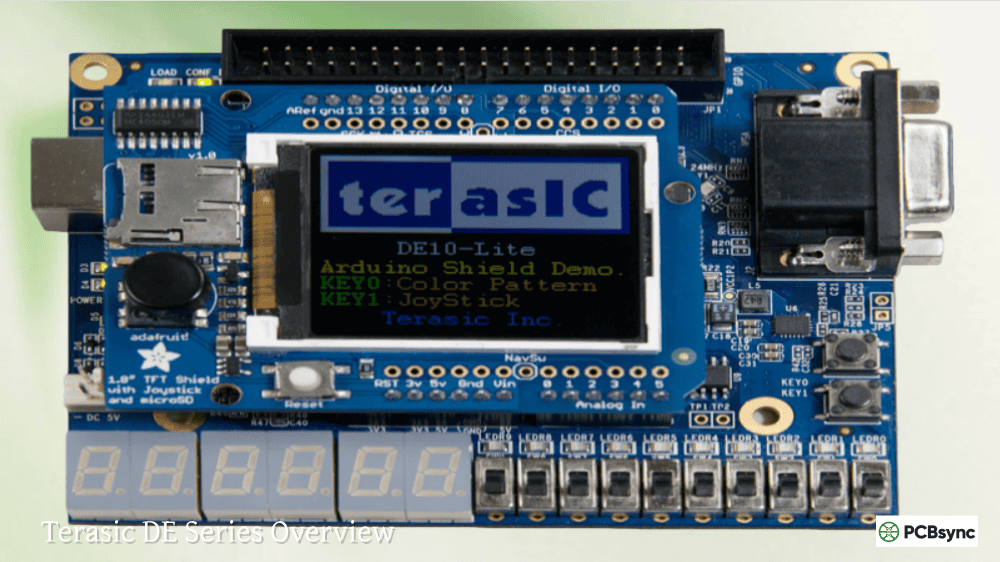
For those starting out, I recommend beginning with Quartus Prime Lite and a cost-effective development board like the DE10-Lite (MAX 10) or Cyclone IV-based alternatives. As your projects grow more complex, you can evaluate whether the Standard or Pro editions provide enough additional value to justify the Quartus price.
The transition from ModelSim to Questa and the eventual Nios II to Nios V migration represent ongoing evolution in the toolchain. Staying current with releases while maintaining archived versions for legacy projects is simply part of working with programmable logic devices—a balance between innovation and long-term support that every hardware engineer learns to navigate.
Whether you’re downloading Quartus 13.1 for a legacy Cyclone II project, setting up Quartus Prime 20.1 for the last ModelSim-compatible environment, or working with the latest release for cutting-edge Agilex designs, this guide should provide the foundation you need to be productive with Intel’s FPGA development tools.
Meta Description Suggestion:
“Complete guide to Intel Quartus Prime software: download links for all versions (Lite, Standard, Pro), installation tutorials for Windows/Linux, ModelSim/Questa setup, Nios II EDS configuration, and legacy Quartus II support. Includes device compatibility tables and FAQs.”
Alternative Meta Description (155 characters):
“Download & install Quartus Prime software: complete guide covering all versions from Quartus 9.1 to 25.x, ModelSim setup, Nios II EDS, CPLD/FPGA tutorials & FAQs.”
Inquire: Call 0086-755-23203480, or reach out via the form below/your sales contact to discuss our design, manufacturing, and assembly capabilities.
Quote: Email your PCB files to Sales@pcbsync.com (Preferred for large files) or submit online. We will contact you promptly. Please ensure your email is correct.
Notes: For PCB fabrication, we require PCB design file in Gerber RS-274X format (most preferred), *.PCB/DDB (Protel, inform your program version) format or *.BRD (Eagle) format. For PCB assembly, we require PCB design file in above mentioned format, drilling file and BOM. Click to download BOM template To avoid file missing, please include all files into one folder and compress it into .zip or .rar format.