Inquire: Call 0086-755-23203480, or reach out via the form below/your sales contact to discuss our design, manufacturing, and assembly capabilities.
Quote: Email your PCB files to Sales@pcbsync.com (Preferred for large files) or submit online. We will contact you promptly. Please ensure your email is correct.
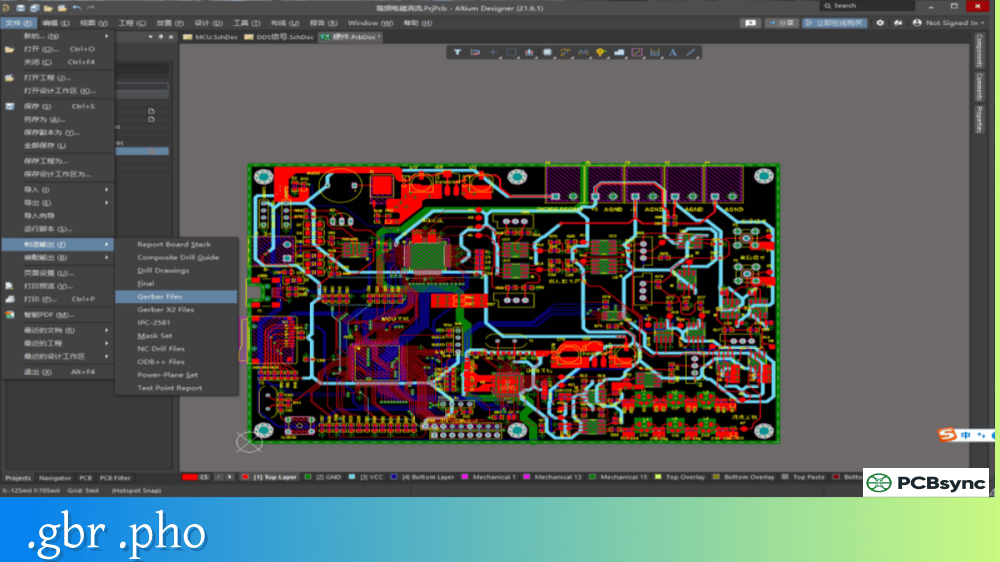
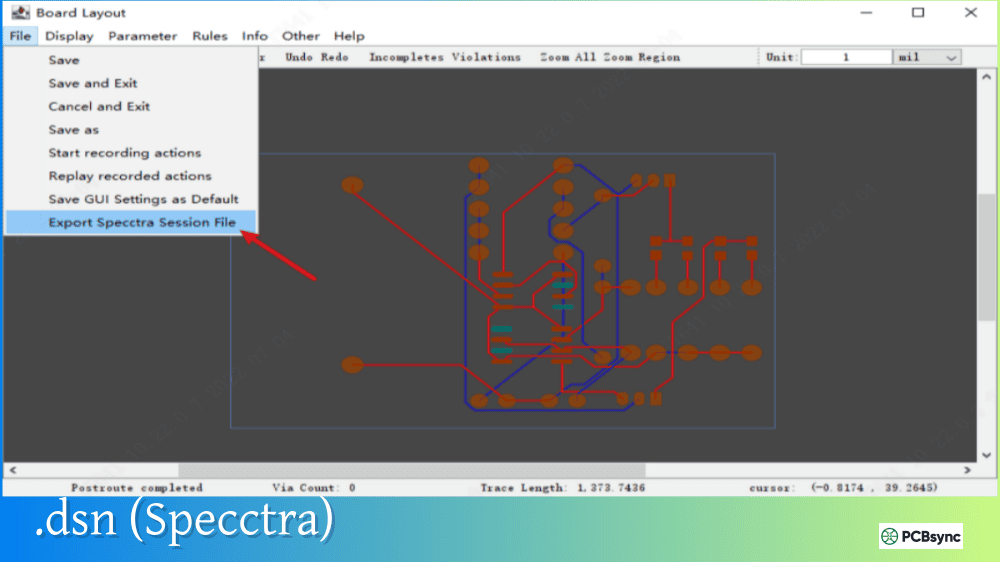
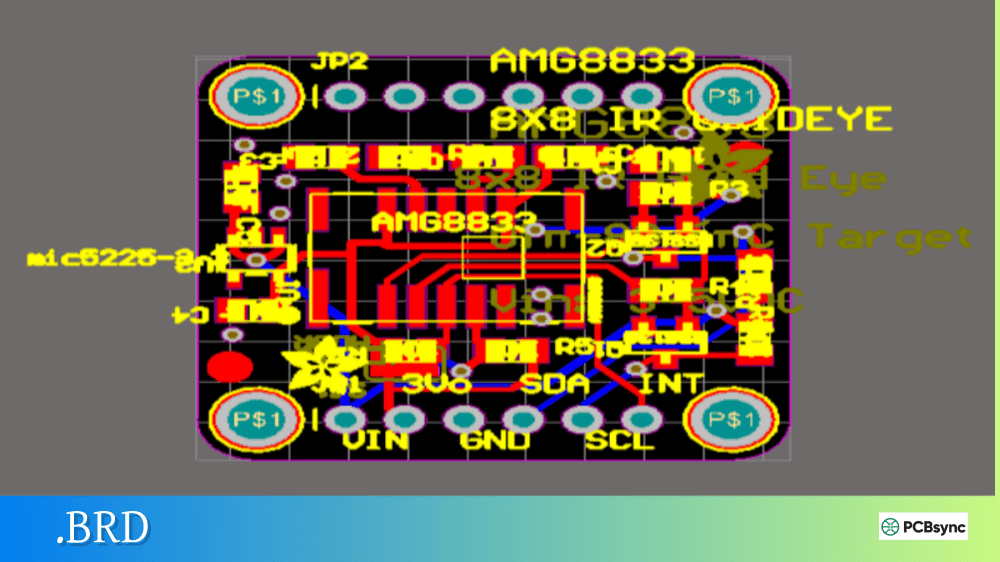
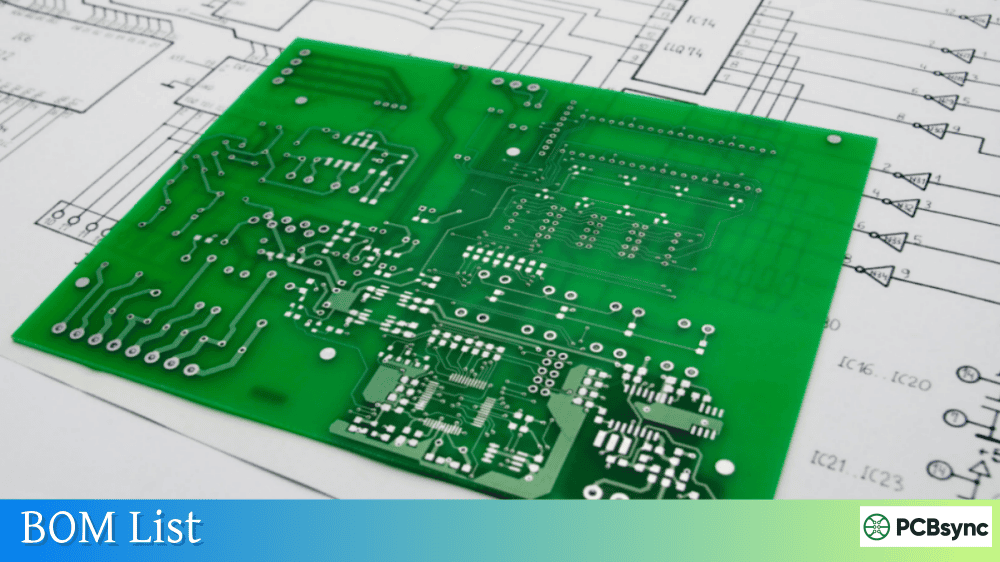
Notes: For PCB fabrication, we require PCB design file in Gerber RS-274X format (most preferred), *.PCB/DDB (Protel, inform your program version) format or *.BRD (Eagle) format. For PCB assembly, we require PCB design file in above mentioned format, drilling file and BOM. Click to download BOM template To avoid file missing, please include all files into one folder and compress it into .zip or .rar format.
What is .PrjPcb? Altium Designer Project File Explained
If you work in PCB design, you’ve almost certainly encountered the .PrjPcb file extension. As someone who has spent years designing circuit boards in Altium Designer, I can tell you that understanding this project file format is fundamental to organizing and managing your PCB designs effectively. This guide will walk you through everything you need to know about .PrjPcb files, from their basic structure to advanced project management techniques.
A .PrjPcb file is the master project file created by Altium Designer, the industry-leading PCB design software developed by Altium Limited. This file serves as the central hub that ties together all the documents and settings required to design and manufacture a printed circuit board.
The .PrjPcb file itself doesn’t contain your actual schematic drawings or PCB layouts. Instead, it functions as an organizational container that references all the individual design documents, stores project-level parameters, and maintains configuration settings. Think of it as the table of contents for your entire PCB design project.
What Information Does a .PrjPcb File Store?
The .PrjPcb file is an ASCII text file that stores several critical pieces of information for your project. Here’s what you’ll find inside:
Content Type
Description
Document References
Links to all schematic (.SchDoc) and PCB (.PcbDoc) files in the project
Project Parameters
Custom parameters like revision number, project name, author, and company information
Output Settings
Configuration for generating manufacturing files like Gerbers and drill files
Design Rule Settings
References to electrical rule checks and design constraints
Variant Definitions
Assembly variant configurations for different product versions
Version Control Info
Status information when the project is under version control
Search Paths
Locations where Altium looks for libraries and other referenced files
The .PrjPcb File in Context: Altium Designer File Types
To properly understand the .PrjPcb file, it helps to see how it fits within the broader Altium Designer file ecosystem. Every Altium project consists of multiple file types working together.
Core Altium Designer File Extensions
Extension
File Type
Purpose
.PrjPcb
PCB Project File
Master project file that organizes all design documents
.PrjPcbStructure
Project Structure File
Stores project hierarchy information (flat or hierarchical)
.SchDoc
Schematic Document
Contains circuit schematic drawings
.PcbDoc
PCB Document
Contains the physical PCB layout
.SchLib
Schematic Library
Stores schematic symbols
.PcbLib
PCB Library
Stores component footprints
.IntLib
Integrated Library
Compiled library containing symbols, footprints, and models
.OutJob
Output Job File
Defines output generation settings for manufacturing
.PrjPcbVariants
Variants File
Stores design variant definitions
When you create a new PCB project in Altium Designer, the software automatically generates a .PrjPcb file. As you add schematics, PCB layouts, and other documents, the .PrjPcb file is updated to reference these new files.
How to Create and Open .PrjPcb Files
Working with .PrjPcb files is straightforward once you understand the basic procedures.
Creating a New .PrjPcb Project
Launch Altium Designer
Navigate to File → New → Project
Select PCB Project from the available project types
Enter a project name and select a storage location
Click Create to generate your new .PrjPcb file
For users connected to Altium 365 or an Altium On-Prem Enterprise Server, you can also specify workspace parameters and version control options during project creation.
Opening an Existing .PrjPcb File
Opening a .PrjPcb file is simple:
In Altium Designer, select File → Open Project
Navigate to the folder containing your .PrjPcb file
Select the file and click Open
The project will load in the Projects panel, showing all linked documents
Important Note: The .PrjPcb file only contains references to other files. If you move a project to a new location, make sure all associated files (.SchDoc, .PcbDoc, libraries, etc.) are moved together to maintain the project structure.
Configuring Project Options in .PrjPcb Files
One of the most powerful features of the .PrjPcb file is its ability to store project-level configuration. Access these settings through Project → Project Options in Altium Designer.
Key Project Settings Stored in .PrjPcb
Parameters Tab: Project-level parameters are stored directly in the .PrjPcb file and can be used throughout your design documents. These parameters appear as special strings on schematics (using =ParameterName syntax) and on PCB layouts (using .ParameterName syntax).
Common project parameters include:
Project name and revision
Company name and address
Engineer name and contact information
Approval dates and signatures
Custom project-specific data
Error Reporting Tab: This section defines which electrical rule checks (ERC) should be performed during project compilation. Violation severity levels can be set to No Report, Warning, Error, or Fatal Error.
Class Generation Tab: Controls how net classes and component classes are automatically generated from schematic data when transferring to the PCB.
Comparator Tab: Configures how Altium Designer compares schematic and PCB documents to identify differences during synchronization.
Importing and Converting .PrjPcb Files
A common question among PCB designers is whether .PrjPcb files can be opened without Altium Designer or converted to other formats.
Can You Open .PrjPcb Without Altium Designer?
The .PrjPcb file format is proprietary to Altium Designer. While the file itself is ASCII text and can be viewed in any text editor, you cannot properly open or edit the associated design documents without Altium Designer or a compatible tool.
However, there are several alternatives:
Method
Capability
Limitations
KiCad Import
Can import .PcbDoc and .SchDoc files
Project file not directly imported; requires individual file import
Altium2KiCad Converter
Converts PCB and schematic files
Project structure not preserved
OrCAD Translator
Imports Altium projects with ASCII files
Requires ASCII format export from Altium
CircuitMaker
Opens Altium formats
Limited compared to full Altium Designer
Altium Viewer
View designs online
Read-only access
Converting .PrjPcb to Other Formats
To migrate an Altium project to another EDA tool:
Export individual files: Export schematics and PCB layouts in formats supported by your target software (such as ASCII Altium format for OrCAD import)
Use conversion tools: Third-party tools like altium2kicad can convert design files
Recreate the project structure: In your target software, create a new project and import the converted files
Keep in mind that complex designs with advanced features may not convert perfectly. Always verify the imported design thoroughly.
Working with .PrjPcb Files in Version Control
Modern PCB development teams often use version control systems to manage their designs. The .PrjPcb file plays a crucial role in this workflow.
.PrjPcb and Git/SVN Integration
When using Altium Designer with version control:
The .PrjPcb file tracks the project structure and should always be committed
The .PrjPcbStructure file is regenerated automatically and typically should be excluded from version control
Changes to project settings are reflected in the .PrjPcb file, making them trackable
For teams using Altium 365, the .PrjPcb file integrates with the cloud-based version control system, allowing seamless collaboration and design history tracking.
Best Practices for Version-Controlled Projects
Always commit the .PrjPcb file when making project changes
Use meaningful commit messages that describe project-level modifications
Keep related files together in the same repository
Consider adding .PrjPcbStructure to your .gitignore file since it’s auto-generated
Troubleshooting Common .PrjPcb Issues
Even experienced PCB designers occasionally encounter problems with project files. Here are solutions to common issues.
“File Type Not Recognized” Error
This typically occurs when:
The file extension has been changed or corrupted
You’re trying to open a newer format in an older Altium version
The file association in Windows has been lost
Solution: Ensure Altium Designer is properly installed and updated. Right-click the .PrjPcb file, select “Open With,” and choose Altium Designer.
Missing Document References
If documents appear missing when you open a project:
Verify all referenced files exist in the expected locations
Check that relative paths haven’t been broken by moving files
Use the Project panel to manually re-add missing documents
Project Won’t Compile
Compilation errors often relate to:
Missing or incorrect component footprint links
Electrical rule violations
Incomplete net connections
Review the Messages panel for specific error details and address each issue systematically.
.PrjPcb files are native to Altium Designer and can only be fully opened with Altium Designer software. However, CircuitMaker (Altium’s free community tool) and CircuitStudio can also work with these project files. For viewing purposes only, Altium offers web-based viewers through the Altium 365 platform.
Can I edit a .PrjPcb file in a text editor?
Yes, the .PrjPcb file is stored in ASCII format, and you can view or even edit it in any text editor. The file contains structured data in a readable format starting with [Design] headers. However, directly editing this file is not recommended because improper modifications can corrupt your project. Always use Altium Designer’s built-in tools to make changes to project settings.
What’s the difference between .PrjPcb and .PrjPcbStructure files?
The .PrjPcb file is the main project file that stores document references, project parameters, and configuration settings. The .PrjPcbStructure file is an auxiliary file that specifically stores information about the project hierarchy (whether the design is flat or uses hierarchical sheets). The structure file is automatically regenerated when you open or compile the project, so it doesn’t need to be manually maintained.
How do I share a .PrjPcb project with someone else?
To share an Altium project properly, you need to include all associated files, not just the .PrjPcb file. The best approach is to use Altium’s Project Packager feature (File → Project Packager), which creates a ZIP archive containing all project files, libraries, and dependencies. Alternatively, if both parties have access to Altium 365, you can share projects directly through the cloud workspace.
Why are my schematic and PCB files not showing in the project?
If documents aren’t appearing under your .PrjPcb project in the Projects panel, the file references may be broken. This commonly happens when files are moved without updating the project. To fix this, right-click on the project name, select “Add Existing to Project,” and browse to locate the missing files. Altium will update the .PrjPcb file with the new paths.
Conclusion
The .PrjPcb file is the backbone of every Altium Designer PCB project. While it may seem like just another file in your project folder, understanding its role and how to work with it effectively can significantly improve your design workflow and team collaboration.
From storing project parameters that propagate across all your design documents to maintaining the relationships between schematics, PCB layouts, and output configurations, the .PrjPcb file keeps everything organized and synchronized. Whether you’re working solo or as part of a larger engineering team using version control, proper management of your project files ensures smooth design iterations and reliable manufacturing outputs.
For PCB designers new to Altium Designer, take time to explore the Project Options dialog and understand how project-level settings flow through your design. For experienced users, consider implementing project templates that standardize your .PrjPcb configurations across multiple designs, saving time and ensuring consistency.
Inquire: Call 0086-755-23203480, or reach out via the form below/your sales contact to discuss our design, manufacturing, and assembly capabilities.
Quote: Email your PCB files to Sales@pcbsync.com (Preferred for large files) or submit online. We will contact you promptly. Please ensure your email is correct.
Notes: For PCB fabrication, we require PCB design file in Gerber RS-274X format (most preferred), *.PCB/DDB (Protel, inform your program version) format or *.BRD (Eagle) format. For PCB assembly, we require PCB design file in above mentioned format, drilling file and BOM. Click to download BOM template To avoid file missing, please include all files into one folder and compress it into .zip or .rar format.