Inquire: Call 0086-755-23203480, or reach out via the form below/your sales contact to discuss our design, manufacturing, and assembly capabilities.
Quote: Email your PCB files to Sales@pcbsync.com (Preferred for large files) or submit online. We will contact you promptly. Please ensure your email is correct.
Notes: For PCB fabrication, we require PCB design file in Gerber RS-274X format (most preferred), *.PCB/DDB (Protel, inform your program version) format or *.BRD (Eagle) format. For PCB assembly, we require PCB design file in above mentioned format, drilling file and BOM. Click to download BOM template To avoid file missing, please include all files into one folder and compress it into .zip or .rar format.
How to Install EasyEDA on Any Platform: Linux, Mac M1, Windows, Android & iPad
As a PCB engineer who’s been using various EDA tools for over a decade, I’ve found EasyEDA to be one of the most accessible schematic capture and PCB layout tools available today. Whether you’re a hobbyist designing your first Arduino shield or a professional creating complex multi-layer boards, getting EasyEDA running on your system is the first step. This guide covers everything you need to know about installing EasyEDA Linux, EasyEDA Mac, EasyEDA portable, and accessing it on mobile devices.
Why EasyEDA Stands Out for Cross-Platform PCB Design
Before diving into installation, let’s quickly address why EasyEDA has become so popular. The software offers both browser-based and desktop client options, which means you can work on your designs from virtually anywhere. The integration with JLCPCB and LCSC component libraries makes it incredibly convenient when you’re ready to move from design to manufacture. Plus, there are two versions available: EasyEDA Standard (free, perfect for hobby projects) and EasyEDA Pro (more advanced features for complex designs).
EasyEDA Version Comparison: Standard vs Pro
Before installation, understand which version suits your needs:
Feature
EasyEDA Standard
EasyEDA Pro
Price
Free
Free
Component Library
1M+ components
1M+ components
Max Design Size
~300 devices/1000 pads
5000+ components/10000 pads
Offline Mode
Semi-offline
Full offline available
Multi-sheet Schematics
Limited
Full support
Advanced Routing
Basic
Push-shove routing
Simulation
Basic SPICE
Enhanced SPICE
Best For
Hobbyists, Students
Professional Engineers
System Requirements Overview
Platform
Minimum Requirements
Windows
Windows 7+ (64-bit recommended), 4GB RAM, 500MB disk
Linux
64-bit kernel, 4GB RAM, libgconf-2 (Ubuntu 18+)
macOS
macOS 10.10+, Intel or Apple Silicon (M1/M2/M3)
Browser
Chrome, Firefox, Edge (latest versions)
Android/iPad
Modern browser with desktop mode
Installing EasyEDA on Windows
The Windows installation is the most straightforward option for most users. Here’s what I’ve found works best after setting this up on dozens of machines.
Method 1: Direct Download Installation
Navigate to the official download page at easyeda.com/page/download
Click on the Windows download button (choose 64-bit for most modern systems)
Run the downloaded .exe file
Follow the installation wizard, accepting the default options
Launch EasyEDA and sign in or create an account
Pro tip from my experience: Always install on your C: drive. I’ve seen issues on some machines when installed on secondary drives, particularly with the auto-backup features.
Method 2: Chocolatey Package Manager (For Power Users)
If you’re managing multiple Windows machines or prefer command-line installations, Chocolatey makes life easier:
powershell
choco install easyeda
This automatically handles updates and dependencies. To update later:
powershell
choco upgrade easyeda
Troubleshooting Windows Installation Issues
I’ve encountered a few common problems over the years:
White Screen on Startup: This usually indicates a firewall issue. Try these steps in order:
Temporarily disable Windows Firewall
If it works, add EasyEDA to your firewall whitelist
Run this command in an elevated Command Prompt: netsh winsock reset
Restart and try again
Slow Performance on Windows 7: EasyEDA Pro uses GPU rendering for PCB visualization. If you’re seeing black screens or sluggish performance, update your graphics drivers. If problems persist, Windows 10+ is recommended as EasyEDA has dropped official Win7 support.
EasyEDA Linux Installation: Ubuntu, Mint, and Other Distros
Running EasyEDA on Ubuntu or other Linux distributions requires a bit more work than Windows, but it’s absolutely worth it. Linux users tend to appreciate the lightweight nature of the app compared to alternatives like KiCad.
Method 1: Official Package Installation (EasyEDA Ubuntu)
This is the traditional method that works on most Debian-based distributions:
Download the Linux package from easyeda.com/page/download
Extract the zip file:
bash
unzip easyeda-linux-x64.zip -d ~/easyeda cd ~/easyeda/easyeda-linux-x64*
Run the installation script:
bash
sudo bash install.sh
The script creates the application in /opt/easyeda and adds a desktop entry.
Method 2: Flatpak Installation (Recommended for Easy EDA Linux)
Flatpak eliminates dependency headaches and works across virtually all Linux distributions. This is my preferred method these days:
bash
# Install Flatpak if you haven’t alreadysudo apt install flatpak# Add Flathub repositoryflatpak remote-add –if-not-exists flathub https://flathub.org/repo/flathub.flatpakrepo# Install EasyEDA Proflatpak install flathub com.easyeda.EasyEDAPro# Run EasyEDAflatpak run com.easyeda.EasyEDAPro
The Flatpak version is sandboxed and includes all dependencies, which means no more hunting for missing libraries.
Method 3: Non-Privileged Home Directory Installation
If you don’t have sudo access or prefer keeping applications in your home directory, modify the install script:
This library isn’t installed by default on newer Ubuntu versions. Fix it by installing the package:
bash
sudo apt install libgconf-2-4
Alternatively, locate the library from another installed application and create a symlink in the EasyEDA directory.
Icon Not Appearing in Launcher:
Make sure the .desktop file has correct paths. Edit /usr/share/applications/EASYEDA.desktop and verify the Exec and Icon paths point to the actual installation location.
EasyEDA Mac Installation: Intel and Apple Silicon M1/M2/M3
Installing EasyEDA Mac M1 machines (and M2, M3) has gotten much better since native ARM support was added. Here’s how to get it running on any Mac.
Standard Installation for EasyEDA for Mac
Download the appropriate version:
Intel Macs: easyeda-mac-x64.zip
Apple Silicon (M1/M2/M3): easyeda-pro-mac-arm64.zip
Unzip and drag the app to your Applications folder
Important for Apple Silicon users: Run this terminal command before first launch:
bash
xattr -cr /Applications/EasyEDA.app
Or for Pro version:
bash
xattr -cr ‘/Applications/EasyEDA Pro.app’
This removes the quarantine flag that causes macOS to report the app as “damaged.”
Homebrew Installation (EasyEDA Mac)
For Mac users who prefer package management, Homebrew offers the cleanest installation:
bash
brew install easyeda
This automatically handles Apple Silicon compatibility and updates.
Troubleshooting Mac Installation
“EasyEDA is damaged and can’t be opened” Error:
This is the most common issue on macOS Ventura and later. The xattr -cr command above should fix it. If not:
Open System Preferences → Security & Privacy → General
Look for a message about EasyEDA being blocked
Click “Open Anyway”
App Won’t Launch on M1 Mac:
Ensure you downloaded the ARM64 version. The Intel version will run through Rosetta but may have performance issues. Check your version by right-clicking the app → Get Info → check if it says “Apple” or “Intel” under “Kind.”
Apple Silicon Native Support Confirmation:
According to testing, EasyEDA Pro version 2.2.38+ has native Apple Silicon support. The standard edition runs via Rosetta 2 on M1/M2/M3 Macs but works fine for most projects.
EasyEDA Portable: Working Without Installation
For users who need to run EasyEDA from a USB drive or without administrative privileges, there are a couple of options.
Windows Portable Option
While there isn’t an official EasyEDA portable version, you can create a semi-portable setup:
Install EasyEDA on one machine
Copy the entire installation folder to a USB drive
Copy the Documents/EasyEDA-Pro folder (contains settings and local projects)
Run the executable directly from the USB
Note that you’ll still need internet connectivity for library access unless you’re using the full offline mode.
Browser-Based Alternative (True Portability)
The most portable option is using EasyEDA’s online editor at easyeda.com/editor or pro.easyeda.com/editor. This requires no installation and works on any computer with a modern browser.
This is where things get a bit tricky. There’s no native EasyEDA for Android app or official EasyEDA for Android APK. However, you can still access your designs on the go.
Browser-Based Access on Android
Open Chrome on your Android device
Navigate to easyeda.com/editor or pro.easyeda.com/editor
Request desktop site (three dots → Desktop site)
Sign in to your account
Limitations I’ve experienced:
The interface isn’t optimized for touch
Component placement is difficult without a mouse
Works best for viewing designs and making minor edits
Larger phones or tablets work better than small screens
EasyEDA Mobile Editor
EasyEDA does offer a limited mobile editor at easyeda.com/editor-mobile/. This provides basic viewing capabilities but lacks full editing features.
Using Android Tablets with External Peripherals
For a better experience on Android:
Connect a Bluetooth keyboard and mouse
Use a larger tablet (10″+ recommended)
Use the desktop browser version
Consider a Samsung DeX-compatible device for desktop-like experience
EasyEDA iPad Usage
Unfortunately, EasyEDA iPad support is officially unsupported. The EasyEDA team has confirmed in their forums that iPad support isn’t currently a priority. However, you have options.
One of the most common questions I get is about offline usage. Here’s how the modes work:
Teamwork Mode (Default)
Full cloud synchronization
All libraries and projects on server
Requires constant internet connection
Best for collaboration
Semi-Offline Mode
Projects stored locally
Libraries still cloud-based
Internet needed for library searches and schematic-to-PCB conversion
Good balance of local control and library access
Full Offline Mode (Pro Only)
All projects and libraries local
Built-in library of 10,000+ components
No collaboration features
Best for secure environments or unreliable internet
To switch modes: Top Menu → Settings → Desktop Client Setting → Running Mode
Frequently Asked Questions
Is EasyEDA really free?
Yes, both EasyEDA Standard and EasyEDA Pro are free to use. There’s no catch, though the tight integration with JLCPCB for manufacturing is clearly their business model. You’re not required to use JLCPCB, and Gerber export is fully functional for any manufacturer.
Can I use EasyEDA completely offline?
EasyEDA Pro offers a full offline mode with a built-in library of commonly used components. EasyEDA Standard requires internet for most operations, including library access and schematic-to-PCB conversion. Even in offline mode, you won’t have access to the full 1M+ component library.
How do I transfer projects between online and desktop versions?
Export your project using File → Save As → Local (creates a compressed project file), then import this file into the other version. The formats are compatible between online and desktop clients.
Is my design data secure in the cloud?
EasyEDA uses SSL encryption and AWS servers for data storage. You can set projects as private, and they offer local backup options. For highly sensitive designs, use the full offline mode and keep projects locally.
Why can’t I install EasyEDA on my iPad or Android tablet?
EasyEDA is built as a complex web application optimized for desktop browsers with mouse and keyboard input. Touch interfaces don’t work well with the precision needed for PCB design. The team has stated they’re focusing on improving the desktop experience before considering mobile apps.
Post-Installation Setup Tips
After installing EasyEDA on any platform, these configuration steps will improve your workflow.
Setting Up Your Component Library
One of EasyEDA’s biggest strengths is its massive component library. Here’s how to make the most of it:
Browse LCSC Integration: Every component in the library links directly to LCSC for procurement. When you place a component, you’ll see real-time stock levels and pricing.
Create a Personal Library: For components you use frequently, create a personal library folder. Go to Library → New Library → Personal Library.
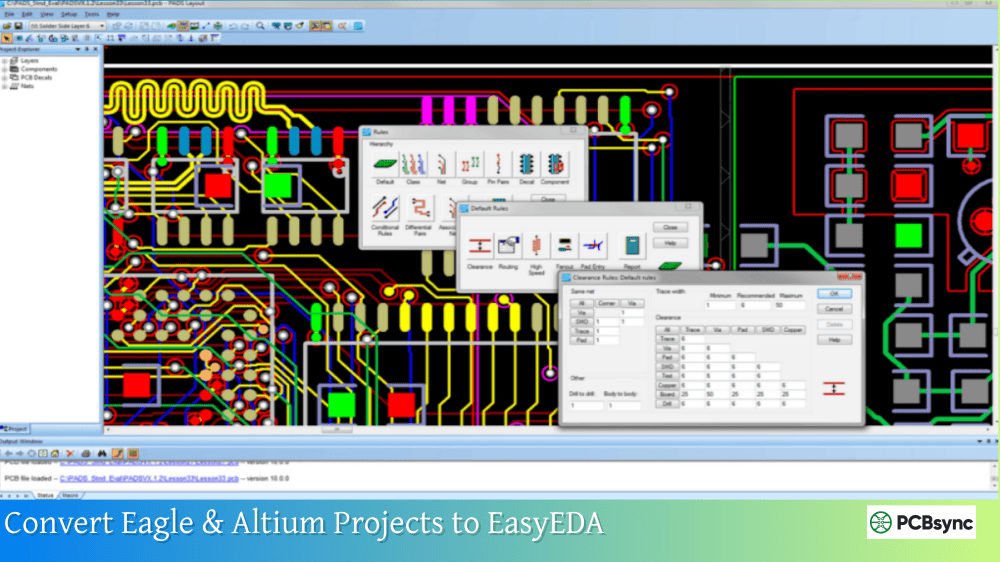
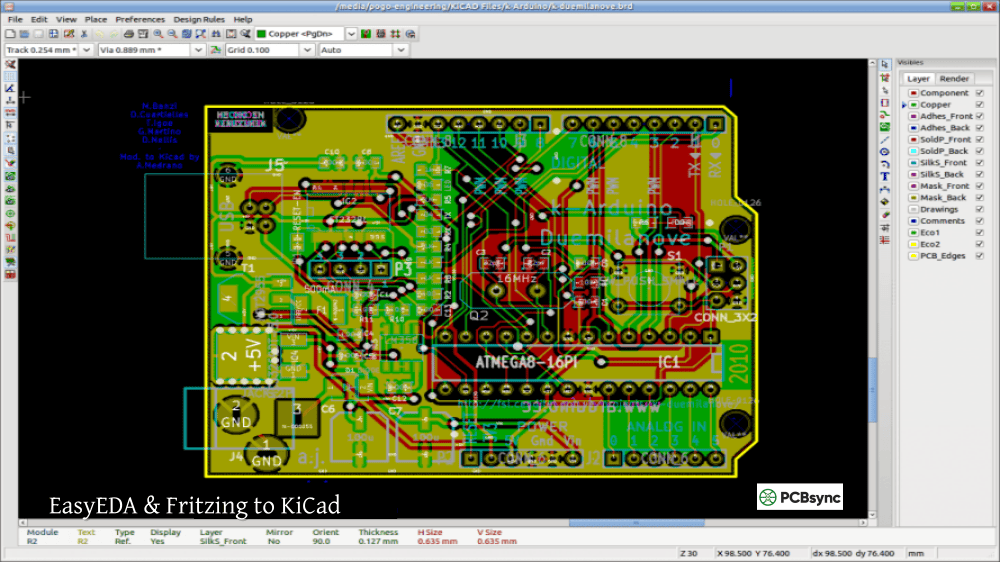
Import Existing Libraries: If you’re migrating from another EDA tool, EasyEDA supports imports from:
Altium Designer
Eagle
KiCad
LTspice
CircuitMaker
Configuring Auto-Backup
Data loss is every engineer’s nightmare. EasyEDA provides automatic backup, but make sure it’s configured properly:
Desktop Client Settings:
Top Menu → Settings → Desktop Client Setting
Set your backup directory (avoid system folders)
Backups save to project_backup subdirectory automatically
Recovery Process: If EasyEDA crashes mid-design:
Go to Advanced → Document Recovery
Select the timestamp closest to your last save
Review changes before restoring
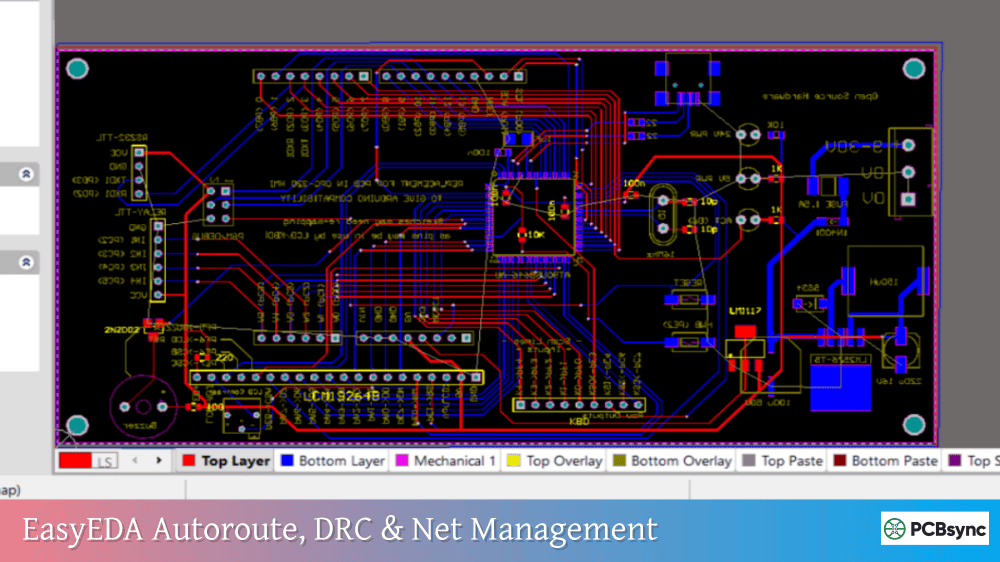
Setting Up Local Auto Router
The local auto router provides better performance than the online version. Here’s the setup:
Download EasyEDA-Router-latest.zip from the download center
Extract to a convenient location
In EasyEDA: Settings → Auto Router → Local Router Path
Point to the extracted router executable
The local router is particularly valuable for complex boards where the online router might time out.
Comparing EasyEDA to Alternatives
Since you’re researching EasyEDA Linux or EasyEDA Mac installation, you might be considering alternatives. Here’s my honest comparison based on years of using multiple tools:
EasyEDA vs KiCad
Aspect
EasyEDA
KiCad
Learning Curve
Very gentle
Steeper
Library Size
1M+ (cloud)
~20,000 (local)
Routing
Basic/Semi-auto
Push-shove (advanced)
Price
Free
Free/Open Source
Offline Use
Limited
Full
Manufacturing
JLCPCB integrated
Any manufacturer
Community
Active forums
Massive community
My take: KiCad wins for complex, multi-layer professional boards. EasyEDA wins for rapid prototyping and beginners who want to go from idea to manufactured board quickly.
EasyEDA vs Altium Designer
Altium is the industry gold standard, but costs thousands of dollars annually. EasyEDA covers 90% of what hobbyists and many professionals need, for free. If your employer isn’t paying for Altium, EasyEDA is a fantastic alternative.
EasyEDA vs Fusion 360 Electronics
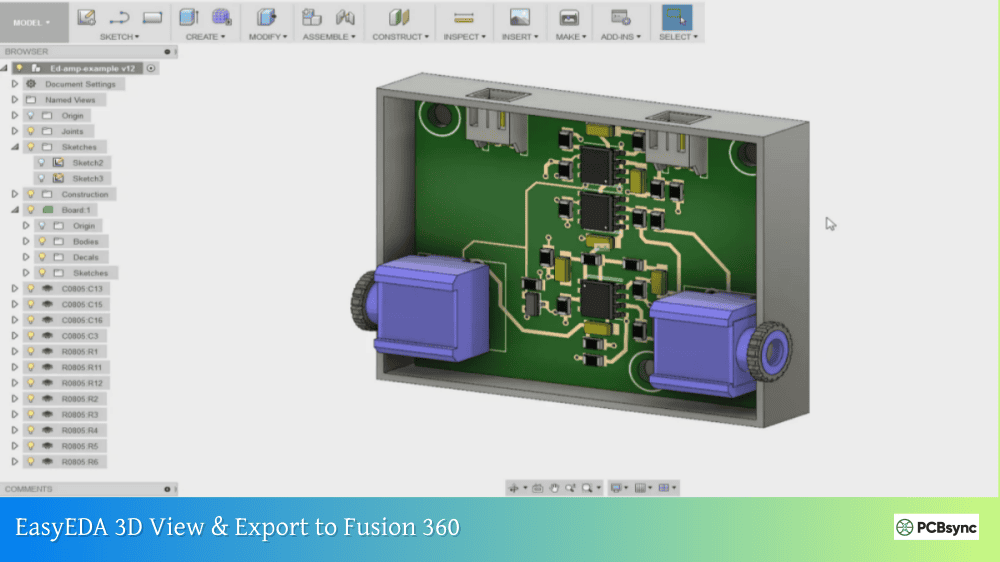
Fusion 360’s electronics module (formerly Eagle) has good mechanical integration but a steeper learning curve. EasyEDA is more focused purely on PCB design and excels at that single task.
Advanced Installation Scenarios
Running EasyEDA in a Virtual Machine
Sometimes you need isolation or a specific OS environment. Here’s what works:
VMware/VirtualBox:
Windows guests work well with 4GB+ RAM allocated
Enable 3D acceleration for PCB rendering
Linux guests may need VirtualBox Guest Additions for proper graphics
WSL2 (Windows Subsystem for Linux): WSL2 with GUI support can run the Linux version:
bash
# In WSL2 Ubuntusudo apt install libgconf-2-4# Then follow standard Linux installation
Performance is acceptable for smaller designs but may lag on complex boards.
This is useful for automated design rule checks or generating manufacturing files in a pipeline.
Network Installation for Teams
In corporate environments, you might need centralized deployment:
Download the installer to a network share
Create a deployment script with silent install flags (/VERYSILENT /SUPPRESSMSGBOXES)
Deploy via Group Policy or your configuration management tool
Consider the offline mode for air-gapped networks
Performance Optimization Tips
After installing EasyEDA, these tweaks can improve performance significantly.
Graphics Configuration
EasyEDA Pro uses GPU acceleration for PCB rendering. For optimal performance:
NVIDIA Users:
Open NVIDIA Control Panel
Manage 3D Settings → Program Settings
Add EasyEDA/EasyEDA Pro
Set preferred graphics processor to “High-performance NVIDIA processor”
AMD Users: Similar process in AMD Radeon Settings, adding EasyEDA to the Gaming profile.
Integrated Graphics: If you only have Intel integrated graphics, ensure drivers are updated. Performance will be acceptable for 2-layer boards but may struggle with 4+ layers and large copper pours.
Memory Considerations
EasyEDA can consume significant memory with large designs:
Close unnecessary browser tabs (the desktop client is essentially a browser)
For boards with 1000+ components, 16GB RAM is recommended
Enable virtual memory/swap space if you’re memory-constrained
Keeping EasyEDA Updated
The EasyEDA team releases updates frequently. Here’s how to stay current:
Desktop Client Updates
Currently, auto-update isn’t implemented. Check for updates manually:
Visit the download center
Compare version numbers
Download and install over the existing version
Your projects and settings are preserved during updates.
Browser Version
Always current. Simply refresh your browser or clear cache if you encounter issues after an update.
Flatpak Updates (Linux)
bash
flatpak update com.easyeda.EasyEDAPro
Homebrew Updates (Mac)
bash
brew upgrade easyeda
Frequently Asked Questions
Is EasyEDA really free?
Yes, both EasyEDA Standard and EasyEDA Pro are free to use. There’s no catch, though the tight integration with JLCPCB for manufacturing is clearly their business model. You’re not required to use JLCPCB, and Gerber export is fully functional for any manufacturer.
Can I use EasyEDA completely offline?
EasyEDA Pro offers a full offline mode with a built-in library of commonly used components. EasyEDA Standard requires internet for most operations, including library access and schematic-to-PCB conversion. Even in offline mode, you won’t have access to the full 1M+ component library.
How do I transfer projects between online and desktop versions?
Export your project using File → Save As → Local (creates a compressed project file), then import this file into the other version. The formats are compatible between online and desktop clients.
Is my design data secure in the cloud?
EasyEDA uses SSL encryption and AWS servers for data storage. You can set projects as private, and they offer local backup options. For highly sensitive designs, use the full offline mode and keep projects locally.
Why can’t I install EasyEDA on my iPad or Android tablet?
EasyEDA is built as a complex web application optimized for desktop browsers with mouse and keyboard input. Touch interfaces don’t work well with the precision needed for PCB design. The team has stated they’re focusing on improving the desktop experience before considering mobile apps.
What’s the difference between EasyEDA and LCEDA?
LCEDA is the Chinese version of EasyEDA, focused on domestic Chinese users with servers in China. EasyEDA is the international version with servers optimized for global access. Projects can be transferred between them, but you’ll need separate accounts.
Can I import my Eagle or KiCad projects?
Yes, EasyEDA supports importing from Eagle (.brd, .sch), KiCad, Altium Designer, and LTspice. The import isn’t always perfect, especially for complex designs with custom footprints, but it saves significant redrawing time.
Final Thoughts
Getting EasyEDA installed is just the beginning. Once you’re up and running, take time to explore the component library integration, simulation features, and the seamless path to PCB manufacturing. Whether you’re running EasyEDA Linux, EasyEDA Mac M1, or the Windows desktop client, the experience is remarkably consistent across platforms.
The lack of native mobile apps is disappointing for those of us who occasionally want to review designs on the go, but the browser-based option provides a reasonable workaround. For serious PCB work, stick with a proper desktop setup anyway, as the precision required for component placement and routing really demands a mouse and full-size display.
If you run into issues not covered here, the EasyEDA forum community is active and helpful. Most problems have been solved by someone before, and the official support team responds to questions regularly.
The PCB design landscape has changed dramatically in the last decade. Tools that once cost thousands are now free, and browser-based solutions mean you’re no longer tied to a specific workstation. EasyEDA represents this shift well, making professional-quality PCB design accessible to everyone from students to professional engineers. Get it installed, start designing, and join the growing community of makers bringing their electronic ideas to life.
Inquire: Call 0086-755-23203480, or reach out via the form below/your sales contact to discuss our design, manufacturing, and assembly capabilities.
Quote: Email your PCB files to Sales@pcbsync.com (Preferred for large files) or submit online. We will contact you promptly. Please ensure your email is correct.
Notes: For PCB fabrication, we require PCB design file in Gerber RS-274X format (most preferred), *.PCB/DDB (Protel, inform your program version) format or *.BRD (Eagle) format. For PCB assembly, we require PCB design file in above mentioned format, drilling file and BOM. Click to download BOM template To avoid file missing, please include all files into one folder and compress it into .zip or .rar format.