Inquire: Call 0086-755-23203480, or reach out via the form below/your sales contact to discuss our design, manufacturing, and assembly capabilities.
Quote: Email your PCB files to Sales@pcbsync.com (Preferred for large files) or submit online. We will contact you promptly. Please ensure your email is correct.
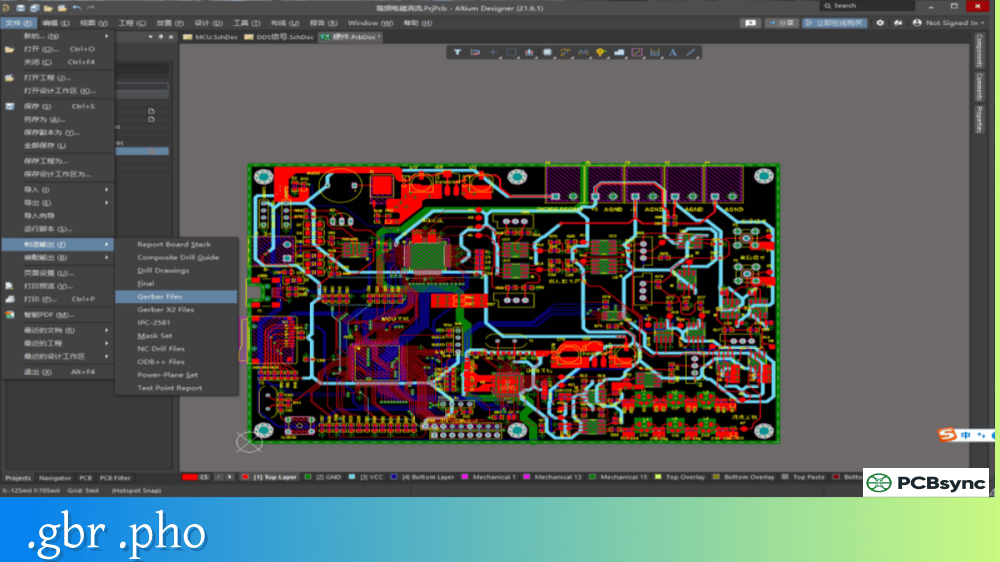
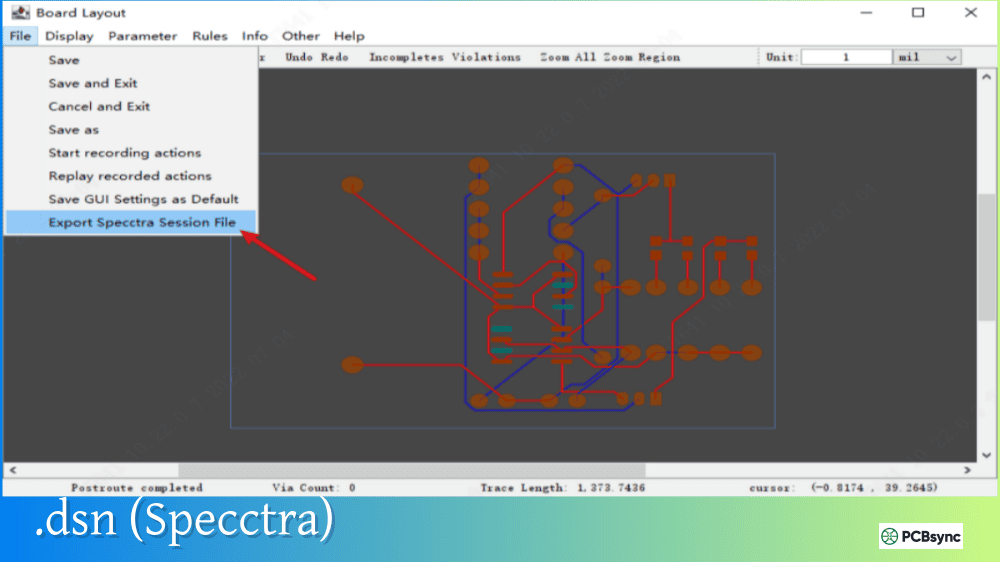
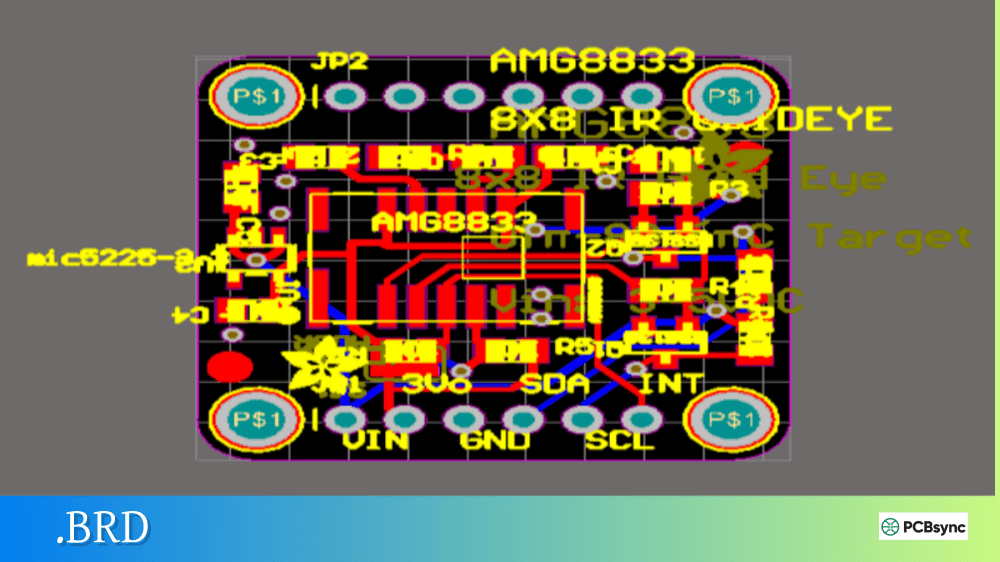
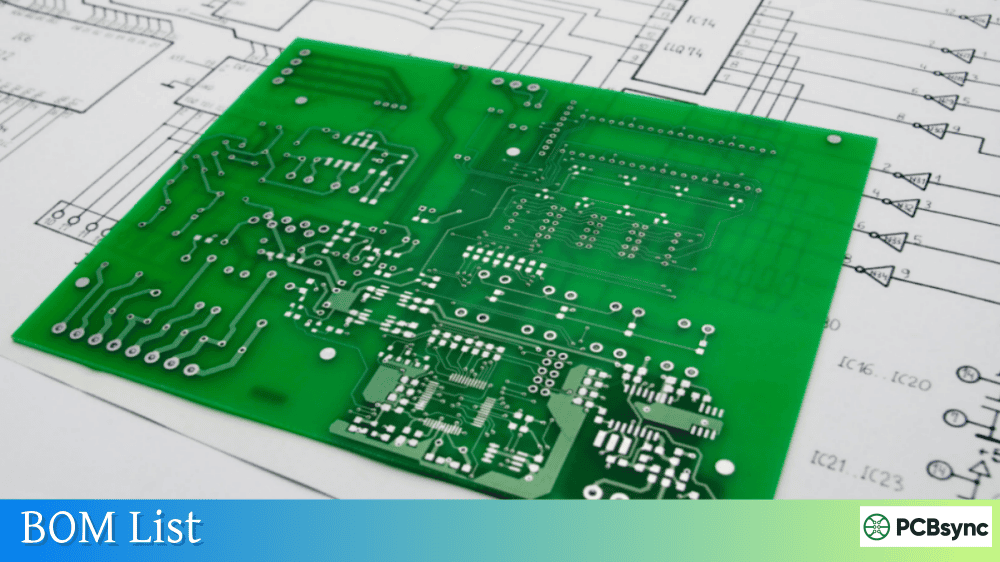
Notes: For PCB fabrication, we require PCB design file in Gerber RS-274X format (most preferred), *.PCB/DDB (Protel, inform your program version) format or *.BRD (Eagle) format. For PCB assembly, we require PCB design file in above mentioned format, drilling file and BOM. Click to download BOM template To avoid file missing, please include all files into one folder and compress it into .zip or .rar format.
What is DXF in PCB Design? CAD Drawing Exchange Format Explained
When your mechanical engineer sends over enclosure dimensions and your PCB needs to fit perfectly inside, you’re going to need more than just an email with measurements. That’s where .DXF files come in. The Drawing Exchange Format bridges the gap between mechanical CAD systems and PCB design tools, letting you import precise board outlines, cutouts, and mounting hole locations directly into your layout.
This guide explains what .DXF files are, how they’re used in PCB design, and how to work with them effectively in your ECAD workflow.
A .DXF file (Drawing Exchange Format) is a CAD data format developed by Autodesk for exchanging drawing information between different design applications. Originally created for AutoCAD, the format has become an industry standard for sharing 2D and 3D geometric data across virtually any CAD platform.
In PCB design, .DXF files serve as the communication bridge between mechanical and electrical engineering teams. While Gerber files handle the electrical layers and manufacturing data, DXF files carry the mechanical information—board shapes, enclosure constraints, mounting features, and physical boundaries that define how your PCB fits into its real-world environment.
The format stores data as vector graphics using geometric primitives like lines, arcs, circles, and polylines. This vector-based approach means .DXF files scale perfectly without losing precision—critical when you’re defining board dimensions down to fractions of a millimeter.
ASCII vs Binary DXF Formats
.DXF files come in two variants, each with different characteristics:
Format
File Size
Compatibility
Editable
ASCII
Larger (~25% more)
Universal
Yes, with text editor
Binary
Smaller
AutoCAD R10+
No
ASCII .DXF files are plain text and can be opened in any text editor for inspection or manual editing. Binary files are more compact and faster to process but require compatible CAD software to read. When exchanging files between different applications, ASCII format typically offers better compatibility.
Common Uses of DXF in PCB Design
.DXF files handle the mechanical aspects of PCB design that Gerber files don’t address. Understanding these applications helps you work more effectively with your mechanical design team.
Board Outline Import
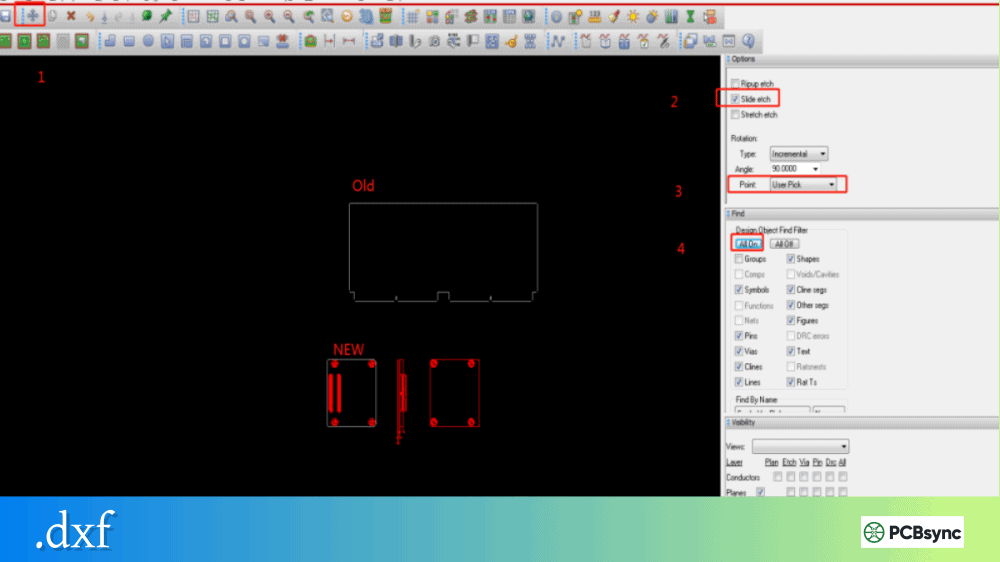
The most common use of .DXF in PCB design is importing board outlines from mechanical CAD systems. When your board must fit within a specific enclosure, the mechanical engineer creates the board boundary in their MCAD tool and exports it as a .DXF file for import into your PCB software.
This workflow eliminates manual dimension transcription errors and ensures the PCB matches the enclosure exactly. Complex shapes with curves, angles, and irregular boundaries that would be tedious to draw in PCB software can be imported in seconds.
Mechanical Features and Constraints
DXF Application
Description
Board Outline
External boundary defining PCB shape
Cutouts/Slots
Internal openings for connectors, displays, or airflow
Mounting Holes
Screw hole locations and sizes
Keep-Out Areas
Regions where components cannot be placed
Height Restrictions
Zones with component height limits
Connector Positions
Fixed locations for mechanical interfaces
Silkscreen and Graphics
.DXF files work well for importing complex graphics onto silkscreen layers—company logos, certification marks, or detailed graphics that would be difficult to create in PCB design software. The vector format preserves clean edges and precise dimensions.
Export for Mechanical Verification
The data flow works both directions. After completing your PCB layout, you can export .DXF files for mechanical engineers to verify clearances, check enclosure fit, and confirm that components don’t interfere with mechanical features. This bidirectional exchange catches integration problems before prototyping.
DXF File Structure
Understanding the basic structure of a .DXF file helps when troubleshooting import issues or manually inspecting file contents.
DXF Section Organization
Section
Contents
HEADER
Drawing settings, units, variables
CLASSES
Application-defined object classes
TABLES
Line types, layers, text styles
BLOCKS
Reusable symbol definitions
ENTITIES
Actual geometric objects (lines, arcs, circles)
OBJECTS
Non-graphical objects
THUMBNAILIMAGE
Preview image (optional)
For PCB import, the ENTITIES section contains the geometry you need—the lines, arcs, and circles that define your board outline and mechanical features. The HEADER section specifies units, which is critical for correct scaling during import.
DXF Entity Types in PCB Work
Entity
PCB Use
LINE
Straight board edges, slot sides
ARC
Curved board edges, rounded corners
CIRCLE
Mounting holes, round cutouts
POLYLINE
Complex continuous outlines
LWPOLYLINE
Lightweight polyline (modern format)
SPLINE
Smooth curves (may require conversion)
Most PCB design tools handle basic entities well but may have limitations with complex entities like splines. Converting splines to polyline approximations before import often resolves compatibility issues.
Importing DXF Files into PCB Software
Every major PCB design tool supports .DXF import, though the process varies slightly between applications.
Configure units (mm or mils) to match the source file
Map DXF layers to PCB layers (e.g., outline to Mechanical 1)
Click OK to import
After import, select the imported geometry and use Design → Board Shape → Define from selected objects to convert it to your board outline.
Import Process in KiCad
KiCad’s .DXF import works through the PCB Editor:
Open Pcbnew with your board
Select File → Import → Graphics
Choose your .dxf file
Set the target layer (Edge.Cuts for board outline)
Position the origin point
Click OK
Note that KiCad may not support complex DXF features like splines. Use LibreCAD or similar tools to explode polylines and convert splines to line segments before importing.
Layer Mapping Considerations
When importing .DXF files, proper layer mapping ensures geometry lands on the correct PCB layer:
DXF Content
Target PCB Layer
Board outline
Edge.Cuts / Board Outline
Mounting holes
Drill layer or Multi-layer
Keep-out zones
Keep-out layer
Silkscreen graphics
Top/Bottom Overlay
Mechanical reference
Mechanical layer
Exporting DXF from PCB Software
Exporting .DXF files from your PCB design enables mechanical engineers to work with your board data in their MCAD tools.
What to Export
Layer
Purpose for MCAD
Board Outline
Physical board boundary
Component Placement
Clearance checking
Mounting Holes
Hardware integration
Tall Components
Height envelope verification
Copper Pour Outlines
Shielding considerations
Export Best Practices
When exporting .DXF files for mechanical use:
Specify units clearly: Document whether the file uses millimeters or inches. Mismatched units are the most common cause of scaling problems.
Use ASCII format: ASCII .DXF files offer broader compatibility across different CAD systems.
Select appropriate version: AutoCAD R12/R14 format provides maximum compatibility. Newer versions may include unsupported features.
Include only necessary layers: Export only the layers the mechanical engineer needs, reducing file complexity and potential confusion.
.DXF is one of several formats for ECAD-MCAD data exchange. Understanding the alternatives helps you choose the right format for each situation.
Format Comparison
Format
Type
Strengths
Limitations
DXF
2D/3D
Universal compatibility
No component data
DWG
2D/3D
Native AutoCAD, feature-rich
Proprietary
IDF
PCB-specific
Component heights, placements
Less common
STEP
3D
Full 3D models
Large files
Parasolid
3D
Accurate solids
Limited support
When to Use DXF
.DXF is ideal for:
Simple board outline exchange
2D mechanical drawings
Silkscreen graphics import
Maximum software compatibility
Quick outline verification
Consider alternatives when:
You need component placement data (use IDF)
Full 3D model exchange is required (use STEP)
Working exclusively in AutoCAD ecosystem (use DWG)
Troubleshooting DXF Import Issues
Common problems when importing .DXF files and how to resolve them.
Common DXF Issues
Problem
Cause
Solution
Geometry scaled wrong
Unit mismatch
Verify source units, adjust import scale
Missing elements
Unsupported entities
Convert to basic entities in source CAD
Outline not closed
Gap in geometry
Use CAD tool to close polyline
Splines not importing
Entity not supported
Convert to polyline segments
Text appears garbled
Font incompatibility
Convert text to geometry
Layers missing
Mapping not configured
Set up layer mapping before import
Preparing DXF Files for Import
Before importing a .DXF file into PCB software:
Verify the file opens correctly in a DXF viewer or the source CAD tool
Check units are documented and match your expectations
Ensure outlines are closed with no gaps
Explode complex entities like blocks and polylines
Convert splines to polyline approximations
Remove unnecessary layers and geometry
Useful Resources for DXF Files
Free DXF Viewers
Tool
Platform
Notes
FreeCAD
Windows/Mac/Linux
Full CAD with DXF support
LibreCAD
Windows/Mac/Linux
2D CAD, good for cleanup
eDrawings
Windows/Mac
Autodesk viewer
QCAD
Windows/Mac/Linux
Community edition free
A360 Viewer
Web-based
Online Autodesk viewer
Documentation and Standards
Resource
URL
Autodesk DXF Reference
help.autodesk.com
DXF Specification Archive
autodesk.com/developer-network
LibreCAD Documentation
librecad.org
PCB Software DXF Guides
Resource
Description
Altium DXF Import/Export
altium.com/documentation
KiCad DXF Documentation
docs.kicad.org
Eagle DXF Guide
autodesk.com/eagle
Frequently Asked Questions About DXF Files
What is the difference between DXF and DWG files?
Both formats were created by Autodesk, but they serve different purposes. .DXF (Drawing Exchange Format) is an open interchange format designed for sharing data between different CAD applications. DWG is AutoCAD’s native proprietary format with more features but limited compatibility outside Autodesk products. For PCB design work, .DXF is typically preferred because of its universal support across both ECAD and MCAD platforms.
Can I use DXF files instead of Gerber for PCB manufacturing?
No, .DXF files cannot replace Gerber files for PCB fabrication. Gerber files contain the actual copper artwork, solder mask, and other electrical layer data that fabricators need to manufacture boards. .DXF files carry only mechanical geometry—board outlines, dimensions, and non-electrical features. Use DXF alongside Gerber files, not as a replacement. Some manufacturers accept .DXF for board outline definition, but Gerber remains essential for electrical layers.
Why does my DXF import at the wrong size?
Scaling problems occur when the import units don’t match the source file units. .DXF files don’t always explicitly specify units—the HEADER section may contain a $INSUNITS variable, but this isn’t always present or correct. Always verify units with whoever created the file. If you know the expected board dimensions, compare them to the imported result and calculate the necessary scale factor to correct any mismatch.
How do I create a closed board outline from a DXF file?
After importing a .DXF file, the geometry exists as individual line and arc segments. To create a proper board outline, select all the imported geometry that defines the boundary, then use your PCB software’s “define board shape from selection” function (exact command varies by software). If the outline fails to create, check for gaps between segments—even tiny gaps prevent the software from recognizing a closed boundary. Use your CAD tool to close any gaps before attempting to define the board shape.
What DXF version should I use for maximum compatibility?
For broadest compatibility across different PCB and mechanical CAD tools, use AutoCAD R12 or R14 ASCII format. These older versions use simpler entity types that virtually all .DXF readers support. Newer versions may include advanced features like splines or extended entity data that some PCB tools cannot interpret. When in doubt, use the oldest format version that contains the features you need.
Conclusion
.DXF files form an essential bridge between mechanical and electrical design teams. While they don’t replace Gerber files for manufacturing, they solve the critical problem of accurate mechanical data exchange—ensuring your PCB fits its enclosure, aligns with mounting hardware, and integrates properly with the complete product assembly.
Master the .DXF workflow and you’ll eliminate the coordinate transcription errors that cause mechanical fit problems. Import board outlines directly from your mechanical engineer’s CAD system, export your completed layout for verification, and catch integration issues before they reach the prototype stage.
The format may be decades old, but its universal compatibility keeps it relevant. Every PCB designer eventually needs to work with .DXF files, and understanding the format makes that collaboration smooth and error-free.
Inquire: Call 0086-755-23203480, or reach out via the form below/your sales contact to discuss our design, manufacturing, and assembly capabilities.
Quote: Email your PCB files to Sales@pcbsync.com (Preferred for large files) or submit online. We will contact you promptly. Please ensure your email is correct.
Notes: For PCB fabrication, we require PCB design file in Gerber RS-274X format (most preferred), *.PCB/DDB (Protel, inform your program version) format or *.BRD (Eagle) format. For PCB assembly, we require PCB design file in above mentioned format, drilling file and BOM. Click to download BOM template To avoid file missing, please include all files into one folder and compress it into .zip or .rar format.