Inquire: Call 0086-755-23203480, or reach out via the form below/your sales contact to discuss our design, manufacturing, and assembly capabilities.
Quote: Email your PCB files to Sales@pcbsync.com (Preferred for large files) or submit online. We will contact you promptly. Please ensure your email is correct.
Notes: For PCB fabrication, we require PCB design file in Gerber RS-274X format (most preferred), *.PCB/DDB (Protel, inform your program version) format or *.BRD (Eagle) format. For PCB assembly, we require PCB design file in above mentioned format, drilling file and BOM. Click to download BOM template To avoid file missing, please include all files into one folder and compress it into .zip or .rar format.
After designing dozens of IoT products using Espressif chips over the past six years, I can confidently say that the EasyEDA ESP32 workflow has become my go-to approach for rapid prototyping and even production-ready designs. The combination of free cloud-based PCB tools, an extensive component library, and seamless JLCPCB integration makes designing ESP32 EasyEDA and ESP8266 EasyEDA projects more accessible than ever before.
This guide covers everything you need to know to design custom PCBs around ESP32-WROOM modules, ESP8266 chips, and NodeMCU development boards—from selecting the right components to getting your boards manufactured.
When I first started designing ESP-based IoT devices back in 2018, I used KiCAD and Eagle. Both are capable tools, but Easy EDA ESP32 design offers several advantages that keep me coming back:
Massive Component Library: The EasyEDA library contains verified footprints for ESP32-WROOM-32, ESP32-WROOM-32E, ESP8266-12E, ESP8266-12F, and virtually every NodeMCU variant. Community members have contributed thousands of ESP-related modules, breakout boards, and reference designs.
RF Pre-certification Advantage: Using pre-certified modules like the ESP32-WROOM means you don’t need expensive RF testing for your final product. The EasyEDA library components match these certified module dimensions exactly, saving you from costly footprint errors.
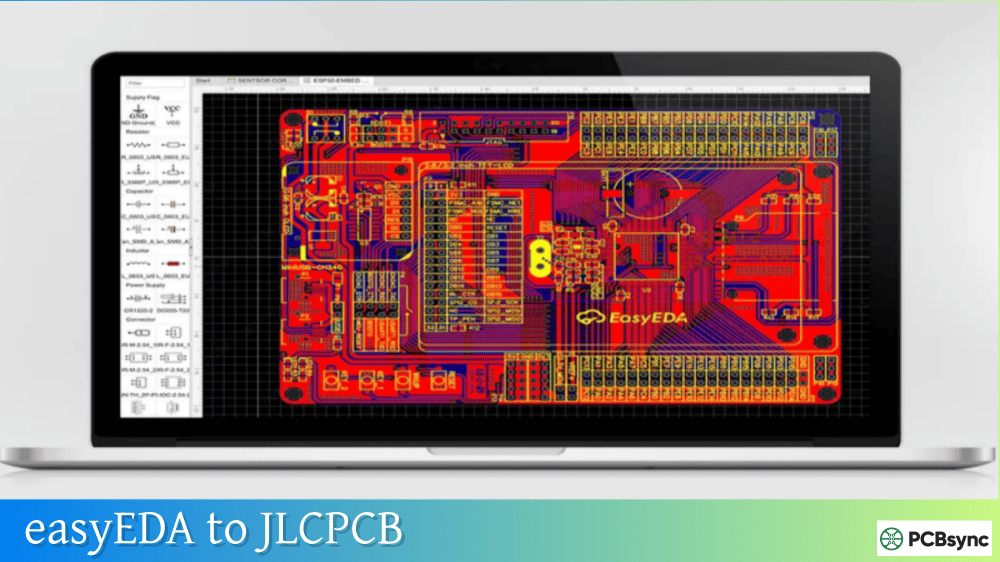
Integrated Manufacturing: One-click ordering to JLCPCB means you can go from schematic to physical boards in under a week. For EasyEDA ESP32 WROOM projects, this rapid turnaround is invaluable during development.
Free and Cloud-Based: No software installation, no license fees, and your projects are accessible from anywhere. Perfect for collaborative development teams.
Understanding ESP32 and ESP8266 Module Options
Before diving into PCB design, you need to understand the module options available in the EasyEDA ESP32 and EasyEDA ESP8266 libraries.
ESP32 Module Variants
Module
Flash
PSRAM
Antenna
Dimensions
Best For
ESP32-WROOM-32E
4-16MB
No
PCB
18×25.5mm
General IoT
ESP32-WROOM-32UE
4-16MB
No
U.FL
18×19.2mm
External antenna
ESP32-WROVER-E
4-16MB
8MB
PCB
18×31.4mm
Camera/display
ESP32-WROVER-IE
4-16MB
8MB
U.FL
18×31.4mm
High-performance
ESP32-PICO-D4
4MB
No
External
7×7mm
Compact designs
Recommendation: For most EasyEDA ESP32 WROOM projects, the ESP32-WROOM-32E is the best choice. It’s widely available, well-documented, and uses the latest silicon revision (which fixes bugs present in earlier versions).
ESP8266 Module Variants
Module
Flash
Antenna
Pins
Dimensions
Best For
ESP-12E
4MB
PCB
22
16×24mm
Most projects
ESP-12F
4MB
PCB
22
16×24mm
Improved antenna
ESP-12S
4MB
PCB
16
16×24mm
Simple applications
ESP-07
4MB
U.FL
16
17×16mm
External antenna
ESP-01
1MB
PCB
8
14.3×24.8mm
Basic WiFi
For NodeMCU ESP8266 EasyEDA designs, the ESP-12E and ESP-12F modules offer the best balance of features and pin availability.
Finding Components in the EasyEDA Library
The first step in any ESP32 EasyEDA or ESP8266 EasyEDA project is finding the right components. Here’s my search strategy:
Effective Library Search Terms
Search Term
Results
Use Case
“ESP32-WROOM-32E”
Module footprint
Custom boards
“ESP32 DevKit”
Development board
Carrier board design
“NodeMCU ESP32”
NodeMCU footprint
Shield design
“ESP8266-12E”
ESP-12E module
Custom ESP8266 boards
“NodeMCU ESP8266”
NodeMCU footprint
ESP8266 shields
“ESP32 programmer”
USB-serial circuits
Programming interface
Evaluating Component Quality
When selecting components from the EasyEDA NodeMCU or ESP32 libraries, check these criteria:
Open in Editor Count: Components with higher usage counts have been tested by more designers. Look for counts above 10 for critical components.
Schematic + Footprint: Ensure the component includes both a schematic symbol AND a PCB footprint. Some community parts are incomplete.
Pin Verification: Cross-reference pin numbers against official Espressif datasheets. I’ve encountered community parts with incorrect pin assignments.
3D Model Availability: Parts with 3D models help verify clearances, especially important for the antenna keepout zones on ESP modules.
ESP32 WROOM PCB Design Requirements
Designing a custom EasyEDA ESP32 WROOM board requires understanding specific electrical and RF requirements. Get these wrong, and your WiFi performance will suffer.
Critical Power Supply Considerations
The ESP32 is sensitive to power supply quality. During WiFi transmission, current draw can spike to 500mA or more, causing voltage drops that trigger brownout resets.
Requirement
Specification
Notes
Operating Voltage
3.0V – 3.6V
3.3V nominal
Peak Current
500mA+
During TX bursts
Brownout Threshold
2.43V – 2.8V
Configurable
Recommended Regulator
AMS1117-3.3 or better
Low dropout essential
Bulk Capacitor
100µF minimum
Near module power pins
Decoupling Capacitors
0.1µF + 10µF
At each power pin
Design Tip: I always add a 470µF electrolytic capacitor at the power input for ESP32 projects. This prevents the voltage sag during transmission bursts that causes mysterious resets.
Antenna Keepout Zone Requirements
The PCB antenna on ESP32-WROOM modules requires careful attention to the surrounding area. Placing copper, components, or traces near the antenna degrades WiFi performance significantly.
Zone
Requirement
Impact if Violated
Antenna Area
No copper on any layer
Signal loss, poor range
Side Clearance
15mm minimum
Detuned antenna
Below Antenna
Remove base PCB
Improved performance
Metal Housing
Keep 10mm distance
RF interference
When designing your EasyEDA ESP32 PCB, position the module at the board edge with the antenna extending beyond the main PCB area when possible.
Strapping Pin Configuration
ESP32 has several pins that determine boot behavior. Getting these wrong means your board won’t boot or won’t enter programming mode.
Pin
Default State
For Normal Boot
For Programming
GPIO0
Pull-up
HIGH
LOW
GPIO2
Pull-down
LOW/Floating
LOW/Floating
GPIO12
Pull-down
LOW
LOW
GPIO15
Pull-up
HIGH
Any
EN
–
HIGH
HIGH
Design Tip: Always include a button connected to GPIO0 (pulled to GND when pressed) for entering programming mode. Add another button for the EN (reset) pin.
ESP8266 NodeMCU PCB Design Guide
The EasyEDA NodeMCU design process shares many similarities with ESP32, but there are important differences to understand.
NodeMCU vs. Raw ESP8266 Module
When planning your NodeMCU EasyEDA project, decide whether to use a complete NodeMCU dev board or just the raw ESP-12E/12F module:
Approach
Advantages
Disadvantages
NodeMCU Module
USB programming included, easier
Larger, more expensive
ESP-12E/12F
Smaller, cheaper, more flexible
Requires external programmer
For production designs, using the raw ESP-12E module with your own USB-serial circuitry gives you complete control over the design and reduces cost.
Essential ESP8266 Boot Circuit
The ESP8266 EasyEDA boot circuit requires specific pin states:
Pin
Normal Boot
Programming Mode
GPIO0
HIGH (pull-up)
LOW
GPIO2
HIGH (pull-up)
HIGH
GPIO15
LOW (pull-down)
LOW
CH_PD/EN
HIGH
HIGH
RST
HIGH
HIGH (pulse LOW to reset)
The classic NodeMCU auto-programming circuit uses two transistors controlled by DTR and RTS signals from the USB-serial chip. This allows automatic entry into programming mode without pressing buttons.
Step-by-Step: Creating a Custom ESP32 Board in EasyEDA
Let me walk you through creating a complete EasyEDA ESP32 WROOM development board from scratch.
Phase 1: Schematic Setup
Create New Project:
Log into EasyEDA (free account)
Click “+ New Project” → name it “ESP32_Custom_Dev”
Create new schematic
Add the ESP32-WROOM-32E Module:
Press “L” for library
Search “ESP32-WROOM-32E”
Select a well-rated component with both symbol and footprint
Place in schematic center
Add Power Supply Circuit:
For a USB-powered board, you need:
USB Type-C or Micro-USB connector
3.3V voltage regulator (AMS1117-3.3 or similar)
Input protection (ESD diode recommended)
Bulk and decoupling capacitors
Add USB-Serial Interface:
For programming capability:
CP2102, CH340, or FT232 USB-serial chip
Auto-reset circuit (two transistors or dedicated IC)
USB data line protection
Add Boot Circuit:
GPIO0 button (programming mode)
Reset button (EN pin)
10kΩ pull-up resistors
Phase 2: PCB Layout
Board Setup:
Convert schematic to PCB
Set board dimensions (typical: 50×25mm for compact dev board)
Create a cutout or keepout zone around the antenna
No copper pour in antenna area (all layers)
No traces or vias within 15mm of antenna
Power Routing:
Use 20-40mil traces for main power (5V, 3.3V)
Add ground plane on bottom layer
Place thermal vias under LDO if using thermal pad package
Phase 3: Design Verification
Run DRC:
Check for clearance violations
Verify all nets are connected
Confirm no unrouted ratlines remain
Review Antenna Area:
Verify keepout zone is clear
Check no ground plane under antenna
Confirm module placement at board edge
3D Preview:
Verify component heights
Check connector accessibility
Confirm overall assembly appearance
Common Design Mistakes and Solutions
After reviewing hundreds of ESP32 EasyEDA and ESP8266 EasyEDA community projects, here are the most frequent issues:
Mistake 1: Ground Plane Under Antenna
Problem: Designer places continuous ground pour on bottom layer, extending under the ESP32 antenna area.
Solution: Create a keepout zone in the ground pour that matches the antenna area plus margins. Better yet, position the module so the antenna extends beyond the PCB edge entirely.
Mistake 2: Insufficient Power Supply Filtering
Problem: Using only small decoupling capacitors, causing brownout resets during WiFi transmission.
Solution: Add bulk capacitance (100-470µF) near the ESP32 module power pins, plus 0.1µF ceramic at each VDD pin.
Mistake 3: Wrong USB-Serial Auto-Reset Circuit
Problem: Board requires manual button presses to enter programming mode.
Solution: Implement the standard two-transistor auto-reset circuit that uses DTR and RTS signals. The NodeMCU reference design shows this correctly.
Problem: Board boots erratically or enters wrong mode.
Solution: Add explicit 10kΩ pull-up resistors to GPIO0 and GPIO2, and 10kΩ pull-down to GPIO15. Don’t rely on internal pull-ups for boot configuration.
Mistake 5: Using Outdated Module Versions
Problem: Using ESP32-WROOM-32 (original) instead of ESP32-WROOM-32E, leading to silicon bugs.
Solution: Always specify “E” suffix modules (ESP32-WROOM-32E, ESP32-WROVER-E) which use corrected silicon.
Manufacturing Your ESP32 or ESP8266 PCB
Generating Production Files
When your EasyEDA ESP32 or NodeMCU EasyEDA design is complete:
What’s the difference between ESP32-WROOM-32 and ESP32-WROOM-32E?
The “E” suffix indicates the use of newer ESP32-D0WD-V3 silicon, which fixes several bugs present in earlier chip revisions. The original ESP32-WROOM-32 (without suffix) uses older silicon with known issues including SPI flash compatibility problems and power-up sequence bugs. Always use ESP32-WROOM-32E for new designs—the price difference is negligible, and you’ll avoid frustrating debugging sessions caused by silicon errata. Both modules have identical pinouts and dimensions, so switching is straightforward.
Can I use the EasyEDA ESP8266 library parts for commercial products?
Yes, you can use EasyEDA library components for commercial products without licensing concerns. The footprints themselves aren’t copyrighted, and EasyEDA’s terms allow commercial use. However, verify that the footprint matches the official Espressif datasheet dimensions before production. More importantly, if you’re building a commercial product with WiFi, you need FCC/CE certification. Using pre-certified modules like ESP-12E or ESP32-WROOM-32E simplifies this process significantly—the RF portion is already certified, and you only need to test for unintentional emissions from your complete product.
How do I add the auto-programming circuit for NodeMCU in EasyEDA?
The auto-programming circuit requires two NPN transistors (typically 2N2222, S8050, or similar) that create a sequence where asserting DTR pulls GPIO0 low while RTS pulses the reset line. Search the EasyEDA library for “NodeMCU auto reset” or “ESP auto program” to find pre-built sub-circuits. Alternatively, use the USB-serial chips with built-in boot control like the CH340C or CP2104 which include this functionality. If using a basic USB-serial chip like CH340G, you must add the external transistors. The key is ensuring DTR controls GPIO0 and RTS controls EN (reset), with proper timing provided by RC networks.
Why does my ESP32 board keep resetting during WiFi operations?
This is almost always a power supply issue. The ESP32 can draw peaks of 500mA or more during WiFi transmission, causing voltage drops that trigger the brownout detector. Solutions include: adding bulk capacitance (100-470µF) near the ESP32 power pins, using a voltage regulator with adequate current capability (AMS1117-3.3 can supply 1A), ensuring power traces are wide enough (20mil minimum for 3.3V rail), and verifying your USB port or power supply can deliver sufficient current. You can also temporarily disable brownout detection in software to confirm this is the issue, but fixing the hardware is the proper solution.
What PCB specifications should I use for good WiFi performance?
For optimal WiFi performance in ESP32 or ESP8266 designs, use standard FR4 material with 1.6mm thickness. The critical factor is the antenna area: maintain at least 15mm clearance around the module’s PCB antenna with no copper on any layer (top, bottom, or inner layers). Position the module at the board edge so the antenna extends beyond the main PCB when possible. If designing with an external antenna (U.FL connector modules), route the RF trace with 50Ω controlled impedance—EasyEDA can calculate the required trace width based on your stackup. Avoid routing any traces near the antenna feed point, and keep digital signals (especially USB and UART) as far from the antenna as the board layout permits.
Advanced Design Techniques
Once you’ve mastered basic EasyEDA ESP32 and ESP8266 EasyEDA designs, these advanced techniques will help you create more professional products.
Multi-Layer PCB Design for ESP32
While two-layer boards work for most projects, four-layer designs offer significant advantages for complex EasyEDA ESP32 WROOM applications:
Layer
Function
Benefits
Top
Components, signals
Clean routing
Inner 1
Ground plane
Better EMI, return paths
Inner 2
Power plane
Low impedance power
Bottom
Signals, components
Additional routing
Four-layer boards cost more (roughly 2-3x) but provide better RF performance, improved power integrity, and easier routing for dense designs.
Battery-Powered ESP32 Design Considerations
For portable ESP32 EasyEDA projects, power management becomes critical:
Feature
Implementation
Power Savings
Deep Sleep
Wake on timer/GPIO
10µA typical
Light Sleep
Maintain WiFi connection
0.8mA typical
Modem Sleep
CPU active, WiFi off
20mA typical
Battery Monitor
ADC on voltage divider
System awareness
Low-dropout LDO
MCP1700 or similar
Higher efficiency
Design tip: Include a battery voltage divider connected to an ADC pin, allowing your firmware to monitor charge level and trigger low-battery warnings.
External Antenna Design for Extended Range
For applications requiring better range than the PCB antenna provides, use modules with U.FL connectors:
EasyEDA ESP32 WROOM modules with “U” suffix (like ESP32-WROOM-32UE) support external antennas. Key design considerations:
Use 50Ω coaxial cable or controlled-impedance PCB traces
Keep antenna cable as short as practical
Include proper strain relief for the U.FL connector
Consider antenna polarization for your use case
Real-World Project Examples
Project 1: WiFi Temperature Logger
A beginner-friendly NodeMCU ESP8266 EasyEDA project that logs temperature data to the cloud.
Components Required:
ESP-12E or ESP-12F module
AMS1117-3.3 voltage regulator
CH340G USB-serial chip
DHT22 temperature/humidity sensor
USB Type-C connector
Supporting passives
Design Highlights:
Compact 40×25mm board size
Single-sided component placement
USB power with optional battery backup
Sensor connected via JST connector
This project teaches fundamental ESP8266 EasyEDA design principles without overwhelming complexity.
Project 2: ESP32 Camera Board
An intermediate EasyEDA ESP32 WROOM project using the ESP32-WROVER module with PSRAM for camera applications.
Components Required:
ESP32-WROVER-E module (8MB PSRAM)
OV2640 camera module connector
3.3V 1A LDO (more current for camera)
MicroSD card slot
USB-C with power delivery
Design Highlights:
Four-layer PCB recommended
Careful power distribution for camera noise immunity
High-speed traces for camera data
Antenna positioned away from camera
Project 3: NodeMCU Relay Controller
A practical EasyEDA NodeMCU carrier board for home automation:
Components Required:
NodeMCU module socket
4× relay modules or discrete relays
Optocoupler isolation
Screw terminals for AC loads
Status LEDs
Design Highlights:
Clear separation between low-voltage and high-voltage sections
Proper creepage distances for mains voltage
Optocoupler isolation protects the ESP8266
Troubleshooting Common Issues
Board Won’t Boot
Symptom
Likely Cause
Solution
No response
EN pin floating
Add 10kΩ pull-up to EN
Stuck in reset
Brownout detection
Add bulk capacitor
Boot loop
GPIO12 high at boot
Add 10kΩ pull-down
Wrong boot mode
GPIO0/GPIO2 state
Check strapping pins
Poor WiFi Performance
Symptom
Likely Cause
Solution
Short range
Copper under antenna
Clear keepout zone
Intermittent
Power supply noise
Add filtering caps
No connection
Antenna damaged
Check soldering
Weak signal
Housing interference
Test without enclosure
Programming Failures
Symptom
Likely Cause
Solution
No serial port
USB-serial chip
Check driver, connections
Timeout errors
Wrong baud rate
Try 115200 bps
Stuck waiting
Auto-reset not working
Manually press boot button
Verify fails
Flash voltage wrong
Check GPIO12 state
Design Checklist for ESP32 and ESP8266 Projects
Before sending your EasyEDA ESP32 or ESP8266 EasyEDA design for manufacturing, verify these items:
Power Supply:
3.3V regulator sized for peak current (≥1A)
Bulk capacitor present (100µF+)
Decoupling capacitors at each power pin
Power traces adequately sized (≥20mil)
RF/Antenna:
No copper in antenna keepout zone (all layers)
Module positioned at board edge
15mm minimum clearance around antenna
No high-frequency signals near antenna
Boot Configuration:
GPIO0 pull-up (10kΩ) with button to GND
GPIO2 pull-up (10kΩ)
GPIO15 pull-down (10kΩ)
EN pull-up with reset button
Auto-reset circuit (if USB programming)
Programming Interface:
USB-serial chip connected correctly
TX/RX crossed to ESP module
DTR/RTS connected for auto-reset
USB ESD protection (recommended)
General:
DRC passed with no errors
All nets connected (no ratlines)
3D preview looks correct
Silkscreen readable and accurate
Conclusion
The EasyEDA ESP32 and ESP8266 EasyEDA workflow has made IoT hardware development accessible to everyone from hobbyists to professional engineers. The extensive component library, integrated manufacturing, and cloud-based convenience remove the traditional barriers to custom PCB design.
Whether you’re creating your first EasyEDA NodeMCU carrier board or designing a production-ready EasyEDA ESP32 WROOM product, the principles remain the same: respect the antenna keepout zones, provide clean stable power, configure the boot strapping pins correctly, and use modern module versions with fixed silicon.
Start with a simple design—perhaps a basic ESP32 breakout board with USB programming—and work your way up to more complex projects. The learning curve is gentler than you might expect, and the satisfaction of powering up a board you designed yourself never gets old.
The ESP32 and ESP8266 platforms continue to evolve, with new variants like ESP32-S3 and ESP32-C3 adding features like USB-OTG and RISC-V cores. The EasyEDA library keeps pace with these developments, ensuring you’ll have access to the latest modules as they become available.
Inquire: Call 0086-755-23203480, or reach out via the form below/your sales contact to discuss our design, manufacturing, and assembly capabilities.
Quote: Email your PCB files to Sales@pcbsync.com (Preferred for large files) or submit online. We will contact you promptly. Please ensure your email is correct.
Notes: For PCB fabrication, we require PCB design file in Gerber RS-274X format (most preferred), *.PCB/DDB (Protel, inform your program version) format or *.BRD (Eagle) format. For PCB assembly, we require PCB design file in above mentioned format, drilling file and BOM. Click to download BOM template To avoid file missing, please include all files into one folder and compress it into .zip or .rar format.