Inquire: Call 0086-755-23203480, or reach out via the form below/your sales contact to discuss our design, manufacturing, and assembly capabilities.
Quote: Email your PCB files to Sales@pcbsync.com (Preferred for large files) or submit online. We will contact you promptly. Please ensure your email is correct.
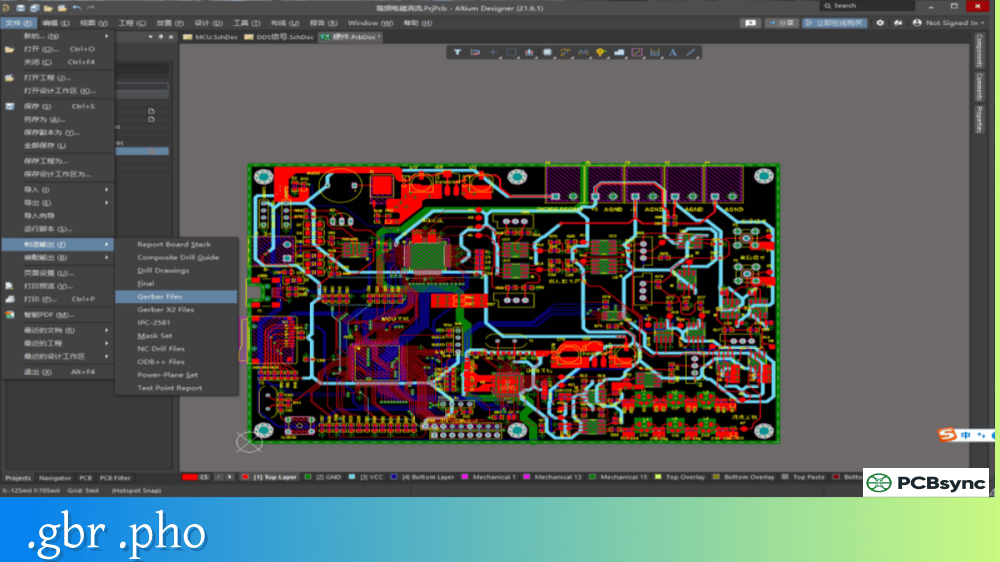
Notes: For PCB fabrication, we require PCB design file in Gerber RS-274X format (most preferred), *.PCB/DDB (Protel, inform your program version) format or *.BRD (Eagle) format. For PCB assembly, we require PCB design file in above mentioned format, drilling file and BOM. Click to download BOM template To avoid file missing, please include all files into one folder and compress it into .zip or .rar format.
What is a .BRD File? Eagle PCB File Format Explained
If you’ve downloaded an open-source hardware project or received PCB design files from a colleague, chances are you’ve encountered a .BRD file. This file format is fundamental to PCB design workflows, yet many engineers—especially those new to the field—aren’t sure what it contains or how to work with it.
I remember my first encounter with a .BRD file. A client sent me an Eagle design that needed modifications, and I spent an hour figuring out how to open it properly. That experience taught me the importance of understanding PCB file formats, and it’s why I’m writing this comprehensive guide to help you avoid the same confusion.
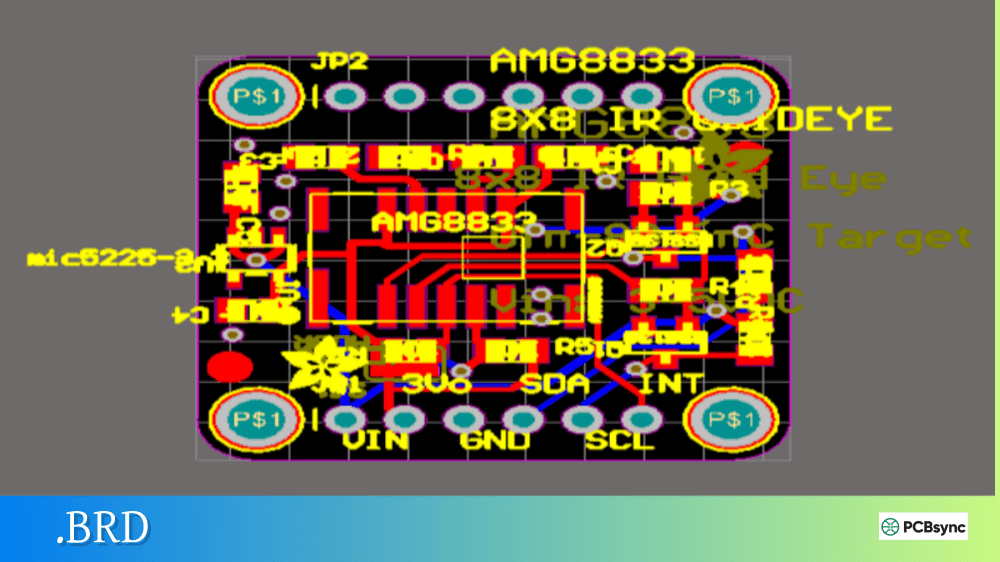
A .BRD file is a printed circuit board layout file created by Autodesk EAGLE (Easily Applicable Graphical Layout Editor). The file contains the complete physical design of a PCB, including component placement, copper traces, pads, vias, board outline, and layer definitions. The “.brd” extension stands for “board,” directly referencing its purpose as a board layout file.
While EAGLE is the most common application associated with .BRD files, other PCB design tools also use this extension. Cadence Allegro, KiCad (in older versions), and some legacy tools create their own versions of .BRD files. However, these formats are not interchangeable—an Allegro .BRD file won’t open in EAGLE, and vice versa.
The .BRD file works in conjunction with the .SCH (schematic) file in EAGLE projects. While the schematic defines the electrical connections between components, the .BRD file translates that into a physical layout that can be manufactured. Changes in one file directly affect the other through EAGLE’s forward and back-annotation features.
History of the Eagle .BRD Format
EAGLE was originally developed by CadSoft Computer GmbH, a German company founded in 1988. The software quickly gained popularity among hobbyists and professionals due to its affordable licensing and capable feature set. Autodesk acquired CadSoft in 2016, and EAGLE is now part of the Autodesk family of design tools.
The .BRD file format has evolved significantly over EAGLE’s history:
Version
Format Type
Year
Key Changes
Pre-6.0
Binary/Proprietary
Before 2011
Closed format, not human-readable
6.0+
XML-based
2011
Open, text-based, easily parseable
7.x
XML-based
2014
Enhanced features, same structure
8.x+
XML-based
2016
Autodesk integration, cloud features
9.x
XML-based
2018
Fusion 360 integration
The transition to XML format in version 6.0 was significant. Earlier .BRD files used a proprietary binary format that required EAGLE to interpret. The XML format is human-readable—you can open a modern .BRD file in any text editor and see the design data structured in readable tags and attributes.
What Information Does a .BRD File Contain?
An Eagle .BRD file stores comprehensive PCB design information organized in a hierarchical structure:
Board Geometry and Outline
The file defines the physical boundaries of the PCB, including the board outline, cutouts, and milling paths. This information is typically stored on Layer 20 (Dimension) in EAGLE.
Layer Definitions
EAGLE uses a numbered layer system, and the .BRD file contains data for each layer:
Layer Number
Name
Purpose
1
Top
Top copper layer
16
Bottom
Bottom copper layer
2-15
Inner layers
Internal copper for multilayer boards
17
Pads
Through-hole pad definitions
18
Vias
Via definitions
20
Dimension
Board outline
21
tPlace
Top silkscreen placement
22
bPlace
Bottom silkscreen placement
25
tNames
Top component names
26
bNames
Bottom component names
29
tStop
Top solder mask openings
30
bStop
Bottom solder mask openings
31
tCream
Top solder paste
32
bCream
Bottom solder paste
44
Drills
Drill hole definitions
45
Holes
Non-plated holes
46
Milling
Milling/routing paths
Component Placement
The .BRD file stores each component’s position (X, Y coordinates), rotation angle, and which side of the board it’s placed on (top or bottom). This data links back to the schematic through component reference designators.
Routing Information
All copper traces are defined with their start and end points, width, and layer. The file also contains information about trace segments, arcs, and any curved routing.
Design Rules
EAGLE stores design rules within the .BRD file, including minimum trace width, clearance requirements, via sizes, and other manufacturing constraints.
How to Open a .BRD File
Opening a .BRD file depends on what you need to do with it—view, edit, or convert for manufacturing.
Opening .BRD Files in Autodesk EAGLE
The native method for opening Eagle .BRD files:
Launch Autodesk EAGLE
Go to File → Open → Board
Navigate to your .BRD file and select it
The board layout opens in the Layout Editor
If the associated .SCH file is in the same directory, EAGLE will prompt you to open both files together, maintaining the schematic-to-board linkage.
Opening .BRD Files in Other Software
Software
Platform
Capability
Notes
Autodesk EAGLE
Windows, Mac, Linux
Full edit
Native application
Altium Designer
Windows
Import
Converts to .PcbDoc format
KiCad
Cross-platform
Limited import
May require conversion
EasyEDA
Web-based
Import
Supports XML format (v6+)
Fusion 360
Windows, Mac
Full edit
EAGLE integrated
Open Board Viewer
Linux
View only
For boardview files
Free Online .BRD Viewers
Several online tools let you view .BRD files without installing software:
Viewer
URL
Features
Altium 365 Viewer
altium.com/viewer
3D view, layer control, measurements
EasyEDA
easyeda.com
Import and basic editing
PCBWay Viewer
pcbway.com
Gerber preview from .BRD
Converting .BRD Files to Gerber Format
Most PCB manufacturers prefer Gerber files for production. Converting your Eagle .BRD file to Gerber format is essential before ordering boards.
Step-by-Step Gerber Export from EAGLE
Open your .BRD file in EAGLE
Run the drill configuration: File → Run ULP → drillcfg
Select “inch” as the output unit and click OK
Open the CAM Processor: File → CAM Processor
Load the Gerber job file: File → Open → Job
Select “gerb274x.cam” for 2-layer boards (or “gerb274x-4layer.cam” for 4-layer)
Click “Process Job” to generate Gerber files
Load “excellon.cam” and process again for drill files
Collect all output files into a ZIP archive
Gerber Files Generated from .BRD
A typical 2-layer board produces these files:
File Extension
Contents
.cmp or .gtl
Top copper layer
.sol or .gbl
Bottom copper layer
.stc or .gts
Top solder mask
.sts or .gbs
Bottom solder mask
.plc or .gto
Top silkscreen
.pls or .gbo
Bottom silkscreen
.drl or .xln
Drill file (Excellon format)
.gml or .gko
Board outline/milling
Direct .BRD Upload to Manufacturers
Some PCB fabricators accept Eagle .BRD files directly:
Manufacturer
Direct .BRD Support
OSH Park
Yes
PCBWay
Yes (with converter)
JLCPCB
Yes (with converter)
Eurocircuits
Yes
Seeed Studio
Yes
These manufacturers convert .BRD files internally using automated processes. While convenient, generating your own Gerbers gives you more control over the output and lets you verify the files before submission.
Importing .BRD Files into Other PCB Tools
If you need to migrate an Eagle design to another PCB tool, most major EDA packages support .BRD import.
Importing into Altium Designer
Altium provides a dedicated Eagle importer:
File → Import Wizard
Select “Import EAGLE Design Files and Libraries”
Choose your .BRD and .SCH files
Configure layer mapping if needed
Click Next to complete import
Review the generated .PcbDoc file
Altium supports EAGLE XML format files (version 6.4 and later). For older binary .BRD files, open them in EAGLE first and save in the newer format.
Importing into KiCad
KiCad can import Eagle designs through its built-in importer:
File → Import → Non-KiCad Project
Select “EAGLE schematic and board”
Choose your .BRD file
KiCad creates equivalent .kicad_pcb and .kicad_sch files
Note that some complex Eagle features may not translate perfectly to KiCad.
Older .BRD files (pre-version 6) use binary format that newer tools can’t read directly.
Solution: Open the file in an older EAGLE version (available from Autodesk archives), then save it in XML format using “Save As.”
Problem: Schematic and Board Don’t Match
Forward/back annotation errors cause mismatches between .SCH and .BRD files.
Solution: In EAGLE, run the ERC (Electrical Rule Check) and use Tools → Errors to identify inconsistencies. Run “ratsnest” to update the air wires.
Problem: Import Fails in Altium/KiCad
The importer may reject corrupted or incompatible files.
Solution: Verify the .BRD file opens correctly in EAGLE first. Check that it’s XML format (version 6+). Try exporting from EAGLE to a fresh file.
Problem: Missing Layers After Import
Some layers may not map correctly during import to other tools.
Solution: Configure layer mapping manually during the import process. Document your original layer assignments for reference.
.BRD File vs. Other PCB File Formats
Understanding how .BRD compares to other formats helps you choose the right workflow:
Format
Extension
Software
Open Format
Contains
Eagle Board
.brd
EAGLE
Yes (v6+)
Layout only
Eagle Schematic
.sch
EAGLE
Yes (v6+)
Schematic only
KiCad PCB
.kicad_pcb
KiCad
Yes
Layout only
Altium PCB
.PcbDoc
Altium
No
Layout only
Gerber
.gbr
Universal
Yes
Single layer image
ODB++
folder
Universal
Published
Complete design
The .BRD file is a design file, not a manufacturing file. It contains editable design data, while Gerber files are manufacturing outputs that describe the final board without design intelligence.
Useful Resources for Working with .BRD Files
Official Documentation
Resource
URL
Description
EAGLE User Manual
autodesk.com/eagle
Complete software documentation
EAGLE Forum
forums.autodesk.com
Community support
Autodesk Knowledge Base
knowledge.autodesk.com
Troubleshooting articles
Free Software Downloads
Software
URL
Platform
Autodesk EAGLE Free
autodesk.com/eagle
Windows, Mac, Linux
KiCad
kicad.org
Cross-platform
Open Board Viewer
github.com/OpenBoardView
Linux
Online Tools
Tool
URL
Purpose
Altium 365 Viewer
altium.com/viewer
Online PCB viewer
EasyEDA
easyeda.com
Web-based PCB design
PCBWay Gerber Viewer
pcbway.com
Manufacturing preview
Frequently Asked Questions
What software can open a .BRD file?
The primary software for opening Eagle .BRD files is Autodesk EAGLE, available for Windows, Mac, and Linux. Other options include Altium Designer (for import), Fusion 360 (which integrates EAGLE), KiCad (with import limitations), and EasyEDA (web-based). For viewing only, Altium 365 Viewer is a free online option that requires no installation.
Can I open a .BRD file without EAGLE?
Yes, but with limitations. For viewing, use free online tools like Altium 365 Viewer. For editing, you’ll need to import the file into another PCB design tool like KiCad or Altium Designer. Since EAGLE version 6+ uses XML format, you can also open the file in a text editor to view the raw design data, though this isn’t practical for design work.
How do I convert a .BRD file to Gerber for manufacturing?
Open the .BRD file in EAGLE, then use the CAM Processor (File → CAM Processor). Load the “gerb274x.cam” job file, click “Process Job” to generate Gerber files, then load “excellon.cam” and process again for drill files. Collect all generated files into a ZIP archive for your PCB manufacturer. Some manufacturers also accept .BRD files directly and convert them automatically.
What’s the difference between .BRD and .SCH files in EAGLE?
The .BRD file contains the physical PCB layout—component positions, copper traces, board outline, and manufacturing layers. The .SCH file contains the schematic diagram—symbols, electrical connections, and circuit logic. Both files are linked in an EAGLE project, and changes in one affect the other through forward and back-annotation. You need both files for a complete design, but only the .BRD file is used for PCB manufacturing.
Are all .BRD files compatible with each other?
No. While “.brd” is a common extension, different software uses incompatible formats. An Eagle .BRD file won’t open in Cadence Allegro, and an Allegro .BRD file won’t open in EAGLE. Even within EAGLE, older binary format files (pre-version 6) may not open in newer versions without conversion. Always verify which software created a .BRD file before attempting to open it, and use the appropriate tool for that specific format.
Best Practices for Managing .BRD Files
Working with .BRD files effectively requires good file management habits.
Version Control
Because modern Eagle .BRD files are XML-based text files, they work well with version control systems like Git. Tracking changes in your PCB designs helps you:
Revert to previous versions if design changes cause problems
Collaborate with team members without overwriting each other’s work
Document the evolution of your design over time
File Naming Conventions
Adopt consistent naming for your design files:
Include the project name and revision number: ProjectName_v1.2.brd
Keep .BRD and .SCH files with matching names in the same directory
Use underscores rather than spaces to avoid cross-platform issues
Backup Strategies
EAGLE creates automatic backup files with extensions like .b#1 through .b#9. Configure backup settings in Options → Backup to ensure you can recover from accidental changes or file corruption.
Working Effectively with .BRD Files
The .BRD file format has served the electronics industry well for decades. Whether you’re modifying an open-source design, collaborating with other engineers, or managing your own project archive, understanding how .BRD files work helps you navigate the PCB design workflow more effectively.
For new projects, EAGLE remains a solid choice due to its extensive library support, active community, and Fusion 360 integration. For opening legacy files or migrating designs, the XML-based format makes modern .BRD files accessible to a wide range of tools and workflows.
Remember that .BRD files are design files, not manufacturing files. Always generate proper Gerber outputs and verify them in a dedicated Gerber viewer before sending boards to fabrication. This extra step catches errors that could result in costly manufacturing mistakes.
The electronics design landscape continues to evolve, but the fundamental concepts behind .BRD files—defining physical layouts from electrical schematics—remain central to how we create the circuit boards that power our modern world.
Inquire: Call 0086-755-23203480, or reach out via the form below/your sales contact to discuss our design, manufacturing, and assembly capabilities.
Quote: Email your PCB files to Sales@pcbsync.com (Preferred for large files) or submit online. We will contact you promptly. Please ensure your email is correct.
Notes: For PCB fabrication, we require PCB design file in Gerber RS-274X format (most preferred), *.PCB/DDB (Protel, inform your program version) format or *.BRD (Eagle) format. For PCB assembly, we require PCB design file in above mentioned format, drilling file and BOM. Click to download BOM template To avoid file missing, please include all files into one folder and compress it into .zip or .rar format.