Inquire: Call 0086-755-23203480, or reach out via the form below/your sales contact to discuss our design, manufacturing, and assembly capabilities.
Quote: Email your PCB files to Sales@pcbsync.com (Preferred for large files) or submit online. We will contact you promptly. Please ensure your email is correct.
Notes: For PCB fabrication, we require PCB design file in Gerber RS-274X format (most preferred), *.PCB/DDB (Protel, inform your program version) format or *.BRD (Eagle) format. For PCB assembly, we require PCB design file in above mentioned format, drilling file and BOM. Click to download BOM template To avoid file missing, please include all files into one folder and compress it into .zip or .rar format.
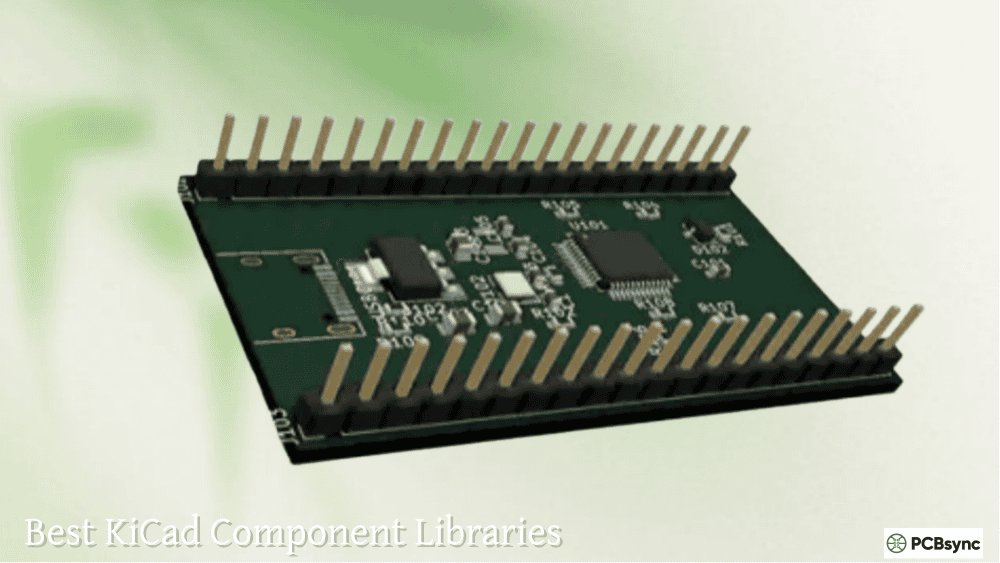
Best KiCad Component Libraries: SnapEDA, DigiKey, Mouser & More
Every PCB designer knows the frustration of needing a component that isn’t in KiCad’s default libraries. You’ve found the perfect microcontroller for your project, but now you’re staring down the barrel of creating a 64-pin QFN footprint from scratch. The datasheet dimensions are ambiguous, and you know from experience that footprint errors are among the most common causes of assembly failures.
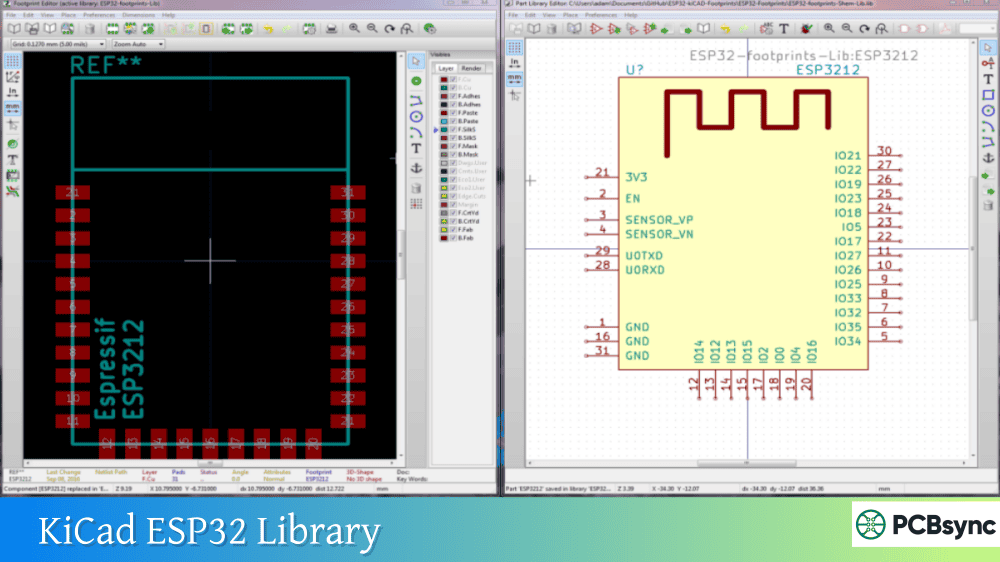
Third-party component libraries solve this problem by providing pre-made symbols, footprints, and 3D models for millions of electronic components. Services like SnapEDA KiCad libraries, DigiKey KiCad offerings, and Mouser KiCad integrations have transformed how designers work, saving hours of tedious library creation on every project.
This guide covers the best sources for KiCad component libraries, from distributor-backed platforms to community-driven repositories. Whether you’re looking for JLCPCB-compatible parts from LCSC KiCad libraries or maker-friendly modules from SparkFun KiCad collections, you’ll find the right source for your workflow.
KiCad ships with extensive official libraries maintained by the KiCad team, covering thousands of commonly used components. These libraries follow strict conventions and undergo community review, making them reliable for standard parts like resistors, capacitors, and popular ICs.
However, the official libraries can’t keep pace with the hundreds of thousands of components available from distributors. New parts appear daily, and specialized components often lack official support entirely. Creating symbols and footprints manually takes significant time, and errors in footprint dimensions directly translate to assembly failures and costly respins.
The Real Cost of Footprint Errors
Assembly houses report that footprint errors rank among the top causes of PCB manufacturing issues. A pad that’s 0.1mm too small might work in theory but fail during reflow due to insufficient solder paste. These problems are expensive to diagnose and fix, especially when you’ve already ordered components and stencils.
Third-party libraries address this by providing IPC-compliant footprints verified against manufacturer specifications. While no external source is perfect, using established libraries with verification processes significantly reduces risk compared to manual creation.
SnapEDA KiCad Libraries
SnapEDA (now SnapMagic Search) is arguably the most popular third-party component library service for KiCad users. The platform provides free symbols, footprints, and 3D models for millions of electronic components across all major EDA tools.
SnapEDA KiCad Features
Feature
Details
Component Count
Millions of parts
File Formats
KiCad 5, KiCad 6+, Eagle, Altium, OrCAD
3D Models
STEP and WRL formats
Standards
IPC-7351B footprints, IEEE-315 symbols
Verification
Three-step verification process
Custom Requests
1 business day delivery ($29)
The SnapEDA KiCad workflow is straightforward. Search for your part by manufacturer part number, download the ZIP file containing the symbol, footprint, and 3D model, then import into KiCad’s library manager. Each download includes properly linked files so the symbol automatically references the correct footprint.
Installing SnapEDA Libraries in KiCad
For KiCad 6 and later:
Extract the downloaded ZIP file (keep the folder structure intact)
Go to Preferences → Manage Symbol Libraries
Click the folder icon to browse and select the .kicad_sym file
Repeat for footprints: Preferences → Manage Footprint Libraries
Browse to the .pretty folder containing the .kicad_mod file
The Import-LIB-KiCad-Plugin (available through the Plugin and Content Manager) simplifies this process by automatically handling SnapEDA downloads along with files from other services like SamacSys and Ultra Librarian.
SnapEDA Quality Considerations
SnapEDA uses automated verification combined with manual review. While their footprints generally match datasheets well, always verify critical dimensions for high-density designs. Some user-uploaded content exists alongside professionally created libraries, so checking the verification status badge before downloading is worthwhile.
DigiKey KiCad Library
DigiKey maintains an official KiCad library created in-house by their applications engineering team. The KiCad DigiKey library takes an “atomic” approach, meaning each symbol represents a specific orderable part number rather than a generic component.
DigiKey KiCad Library Overview
Feature
Details
Repository
github.com/Digi-Key/digikey-kicad-library
Library Type
Atomic (one symbol per part number)
Organization
Follows DigiKey’s family taxonomy
Updates
Regular metadata updates
License
CC-BY-SA 4.0 (with exception)
The atomic library approach has advantages and disadvantages. Each component includes DigiKey part number metadata, making BOM generation and ordering seamless. However, the library doesn’t include basic passives like resistors and capacitors due to the impracticality of creating millions of individual symbols for every value.
Installing the DigiKey KiCad Library
Using Git keeps the library updated automatically:
In Eeschema, go to Preferences → Manage Symbol Libraries
Add the digikey-symbols folder
In PCBnew, add the digikey-footprints.pretty folder
DigiKey also maintains a Partner Library containing manufacturer-submitted components compiled into the same format.
Mouser KiCad Integration with SamacSys
Mouser Electronics provides KiCad libraries through their partnership with SamacSys Component Search Engine. The Mouser KiCad workflow uses the Library Loader application to automatically download and integrate components.
SamacSys KiCad Features
Feature
Details
Component Count
15+ million parts
Delivery Method
Library Loader application
3D Models
Included with downloads
Auto-Import
Direct integration with KiCad
Platforms
Windows (full), Linux/Mac (web download)
The SamacSys KiCad integration through Library Loader works differently from manual download services. After installation, the application monitors your downloads and automatically imports components into pre-configured KiCad libraries. This eliminates manual library management but requires the Library Loader software.
Setting Up SamacSys for KiCad
Download Library Loader from componentsearchengine.com
Install and configure for KiCad EDA
Note the library directory (default: C:\SamacSys_PCB_Library\KiCad)
Add SamacSys_Parts.kicad_sym to symbol libraries
Add SamacSys_Parts.pretty to footprint libraries
When browsing Mouser’s website, clicking the ECAD Model icon downloads the component directly into your Library Loader queue. The part then appears in your SamacSys library automatically.
Octopart KiCad Component Search
Octopart provides individual KiCad symbols and footprints as part of their extensive component search engine. The platform aggregates pricing and availability from multiple distributors while providing CAD models for many listed components.
Octopart KiCad Downloads
Octopart integrates with SnapEDA for its CAD model downloads, meaning parts found through Octopart often deliver SnapEDA-format libraries. The Octopart KiCad workflow involves searching for components, checking the CAD Models tab, and downloading in KiCad format.
The Common Parts Library, a curated list of commonly used components, provides a single consolidated library for popular parts. This library is particularly useful for hobby projects and prototypes where you want reliable, readily available components.
LCSC KiCad Libraries for JLCPCB Assembly
Designers using JLCPCB’s assembly service need components from LCSC’s parts database. Several tools bridge the gap between LCSC and KiCad, making it easier to use JLCPCB’s extensive parts library.
Convert EasyEDA/LCSC components to KiCad format with 3D models
JLCPCB-Kicad-Library
Pre-built library of basic/preferred parts
lcsc2kicad
Generate libraries from LCSC database
The most popular option is the kicad-jlcpcb-tools plugin by Bouni, available through KiCad’s Plugin and Content Manager. This plugin searches JLCPCB’s parts database directly within KiCad, assigns LCSC part numbers to footprints, and generates assembly-ready BOM and CPL files.
Using easyeda2kicad for LCSC Parts
The easyeda2kicad Python script converts any LCSC component to KiCad format:
This generates the symbol, footprint, and 3D model (in both WRL and STEP formats) for the specified LCSC part number. The script is particularly valuable because JLCPCB/LCSC maintains component libraries in EasyEDA format, and this tool bridges that gap.
JLCPCB Basic Parts Library
For the lowest assembly costs, JLCPCB’s basic parts incur no setup fees. The JLCPCB-Kicad-Library on GitHub provides pre-built symbols and footprints for these cost-effective components, making it easy to design assembly-friendly boards from the start.
Ultra Librarian KiCad Support
Ultra Librarian offers one of the largest verified component databases with support for over 30 CAD formats including KiCad. The platform emphasizes manufacturer-verified models and real-time supply chain data.
Ultra Librarian Features
Feature
Details
Component Count
16+ million verified models
Verification
Manufacturer-verified libraries
Supply Chain
Real-time pricing and availability
Formats
30+ CAD formats including KiCad
Access
Free downloads, premium features available
Ultra Librarian integrates with distributor websites and CAD tools, providing a consistent experience regardless of where you find your components. Their partnership with the KiCad project ensures ongoing compatibility with new KiCad versions.
SparkFun KiCad Libraries
SparkFun Electronics maintains official KiCad libraries for their products and commonly used components. The SparkFun KiCad library combines KiCad stock parts with SparkFun-unique footprints and 3D models.
SparkFun Library Installation
Method
Details
Plugin Manager
Search “SparkFun” in PCM, click Install
ZIP Download
Manual installation without PCM prefix
Git Clone
Stay updated with repository changes
The SparkFun approach prioritizes using KiCad stock symbols where appropriate while maintaining custom footprints that match their manufacturing processes. Each component includes internal SparkFun part numbers (PROD_ID) for their production workflow.
SparkFun Library Contents
The libraries include symbols and footprints for:
SparkFun breakout boards and modules
Common connectors and headers
Popular ICs and sensors
Development board footprints
For makers and prototypers, the SparkFun KiCad libraries provide quick access to footprints matching their retail products, simplifying carrier board design and integration projects.
Adafruit KiCad Support
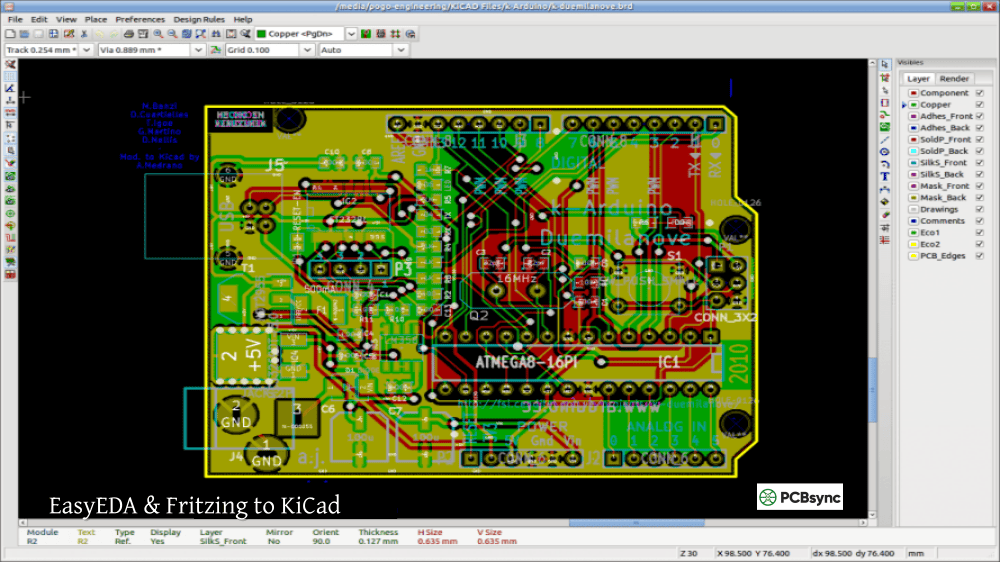
While Adafruit doesn’t maintain an official KiCad library, their Eagle libraries can be imported into KiCad. The Kicad Adafruit workflow involves converting Eagle files or using community-converted libraries.
Importing Adafruit Eagle Libraries
KiCad can import Eagle projects directly:
File → Import Non-KiCad Project → EAGLE Project
Select the .sch and .brd files
KiCad converts symbols and footprints automatically
Some older Adafruit Eagle files contain XML formatting issues. If you encounter errors, opening the file in Eagle and re-saving often resolves compatibility problems.
Community Adafruit Libraries
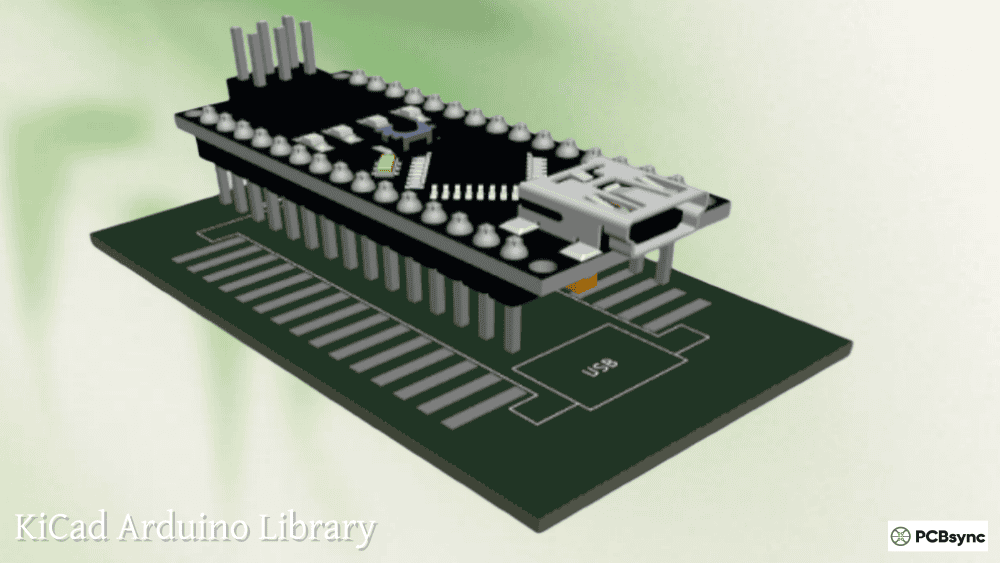
KiCad’s official Module footprint library includes several Adafruit boards:
Adafruit Feather form factor
HUZZAH ESP8266 breakouts
Various sensor modules
For other Adafruit products, creating footprints from the published mechanical drawings or using SnapEDA/Ultra Librarian typically yields faster results than Eagle conversion.
Import-LIB Plugin: Unified Library Management
The Import-LIB-KiCad-Plugin deserves special mention as a unified solution for managing third-party libraries. Available through KiCad’s Plugin and Content Manager, this plugin handles imports from multiple sources:
Supported Source
Status
SnapEDA
Works (v4, v6)
SamacSys
Works
Ultra Librarian
Works
Octopart
Works
LCSC/EasyEDA
Works
The plugin monitors a download folder and automatically imports new components with correct library linking. This dramatically simplifies the workflow when using multiple library sources.
Plugin Configuration
Install through Plugin and Content Manager
Configure the download watch folder
Set up library paths (KICAD_3RD_PARTY environment variable)
Add symbol and footprint library entries
Import existing downloads or enable folder monitoring
Not all third-party libraries are created equal. Understanding verification levels helps you make informed decisions about when to trust downloaded footprints.
Verification Levels by Source
Source
Verification Method
SnapEDA
Three-step verification, IPC standards
DigiKey
In-house engineering team
SamacSys
Manufacturer partnerships
Ultra Librarian
Manufacturer-verified
Community
Variable, user review
Best Practices for Third-Party Libraries
Always verify critical footprints by comparing to datasheet dimensions
Check 3D models in KiCad’s viewer before manufacturing
Prefer verified sources for production designs
Create your own library for frequently used, verified parts
Test with a 1:1 printout for new footprints on important projects
KiCad Library Resources and Downloads
Official and Distributor Libraries
Resource
URL
KiCad Official Libraries
kicad.github.io
DigiKey KiCad Library
github.com/Digi-Key/digikey-kicad-library
SparkFun KiCad Libraries
github.com/sparkfun/SparkFun-KiCad-Libraries
JLCPCB KiCad Library
github.com/CDFER/JLCPCB-Kicad-Library
Third-Party Library Services
Service
URL
SnapEDA/SnapMagic
snapeda.com
Ultra Librarian
ultralibrarian.com
SamacSys
componentsearchengine.com
Octopart
octopart.com
KiCad Plugins
Plugin
Purpose
Import-LIB-KiCad-Plugin
Multi-source library importer
kicad-jlcpcb-tools
JLCPCB/LCSC integration
easyeda2kicad
LCSC component converter
Frequently Asked Questions
Should I use third-party libraries or create my own footprints in KiCad?
For production designs, a hybrid approach works best. Use third-party libraries to save time, but verify critical footprints against datasheets before manufacturing. Build your own curated library of verified parts over time. For prototypes and hobby projects, third-party libraries from verified sources like SnapEDA KiCad or Ultra Librarian typically provide sufficient accuracy. The time savings outweigh the small risk of errors for non-critical applications.
How do I import DigiKey KiCad libraries into my project?
Clone or download the DigiKey KiCad library from GitHub. In KiCad’s Eeschema, go to Preferences → Manage Symbol Libraries and add the digikey-symbols folder. In PCBnew, add the digikey-footprints.pretty folder to your footprint libraries. Using Git clone allows easy updates when DigiKey releases new components. The library uses atomic parts with DigiKey part numbers embedded, making BOM generation straightforward.
What’s the best way to get LCSC components into KiCad for JLCPCB assembly?
Install the kicad-jlcpcb-tools plugin through KiCad’s Plugin and Content Manager. This plugin searches JLCPCB’s parts database directly within KiCad and assigns LCSC part numbers to your footprints. For individual components, the easyeda2kicad Python script converts any LCSC part to KiCad format including 3D models. The JLCPCB-Kicad-Library provides pre-built symbols for basic and preferred parts.
Can I use Mouser KiCad libraries on Linux without Library Loader?
Yes, though it requires manual downloads. The SamacSys Component Search Engine (which powers Mouser’s ECAD models) allows direct web downloads without Library Loader. Search for your component, select KiCad format, download the ZIP, and manually import into KiCad’s library manager. The Import-LIB-KiCad-Plugin simplifies this process by handling the import automatically when you drop downloaded ZIPs into your designated folder.
How do I maintain consistent libraries across multiple projects?
Use global libraries with an environment variable pointing to your library location. Set up KICAD_3RD_PARTY (or similar) in Preferences → Configure Paths, then reference libraries using ${KICAD_3RD_PARTY}/LibraryName. This allows moving libraries without breaking project references. For team environments, version control your custom libraries with Git and establish clear naming conventions. Third-party imports should go into designated folders (SnapEDA, SamacSys, etc.) to track their source.
Building an Efficient Library Workflow
The best library strategy combines multiple sources based on your needs. For JLCPCB assembly projects, prioritize LCSC KiCad tools. For general development, SnapEDA and Ultra Librarian cover most requirements. Distributor libraries from DigiKey and Mouser provide parts with integrated ordering information.
Whatever sources you choose, establish a consistent organization scheme. Keep third-party imports separate from custom libraries, verify footprints for production boards, and document which sources you’ve used. Over time, you’ll build a curated collection of verified parts that accelerates every new project.
The KiCad ecosystem continues to expand with better integration between component suppliers, library services, and the EDA tool itself. Plugins like Import-LIB increasingly blur the lines between different library sources, making it easier than ever to find and use the components you need.
Inquire: Call 0086-755-23203480, or reach out via the form below/your sales contact to discuss our design, manufacturing, and assembly capabilities.
Quote: Email your PCB files to Sales@pcbsync.com (Preferred for large files) or submit online. We will contact you promptly. Please ensure your email is correct.
Notes: For PCB fabrication, we require PCB design file in Gerber RS-274X format (most preferred), *.PCB/DDB (Protel, inform your program version) format or *.BRD (Eagle) format. For PCB assembly, we require PCB design file in above mentioned format, drilling file and BOM. Click to download BOM template To avoid file missing, please include all files into one folder and compress it into .zip or .rar format.