Inquire: Call 0086-755-23203480, or reach out via the form below/your sales contact to discuss our design, manufacturing, and assembly capabilities.
Quote: Email your PCB files to Sales@pcbsync.com (Preferred for large files) or submit online. We will contact you promptly. Please ensure your email is correct.
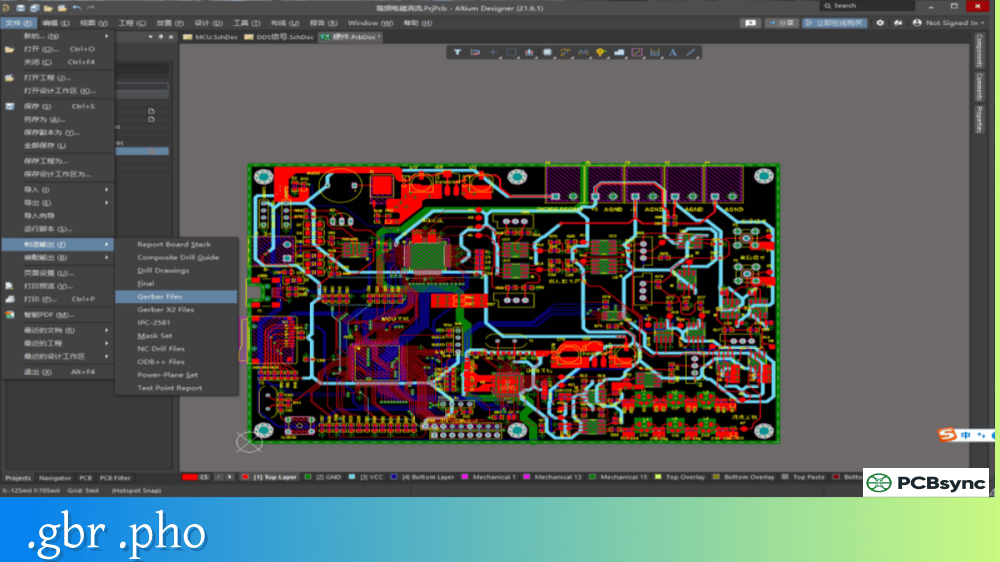
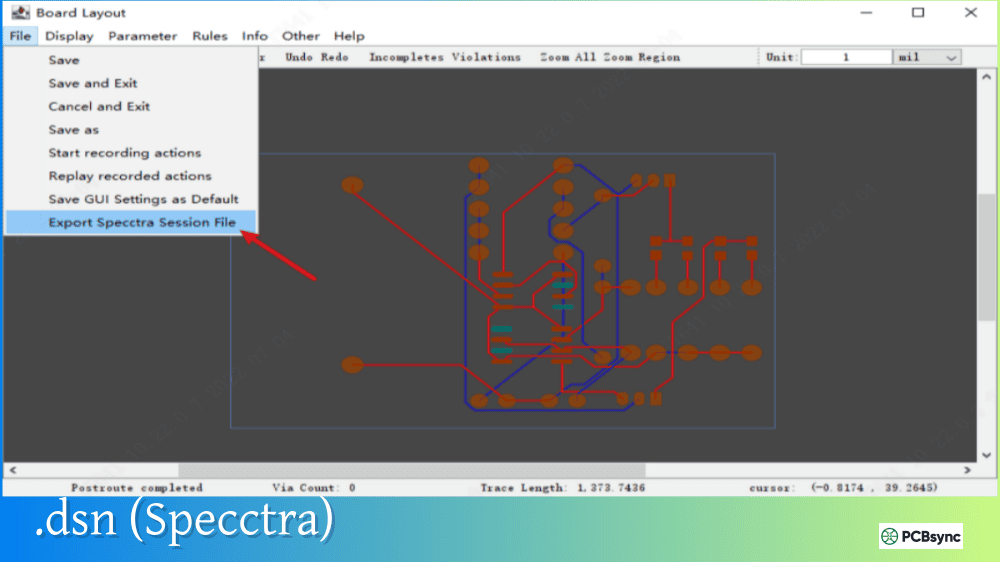
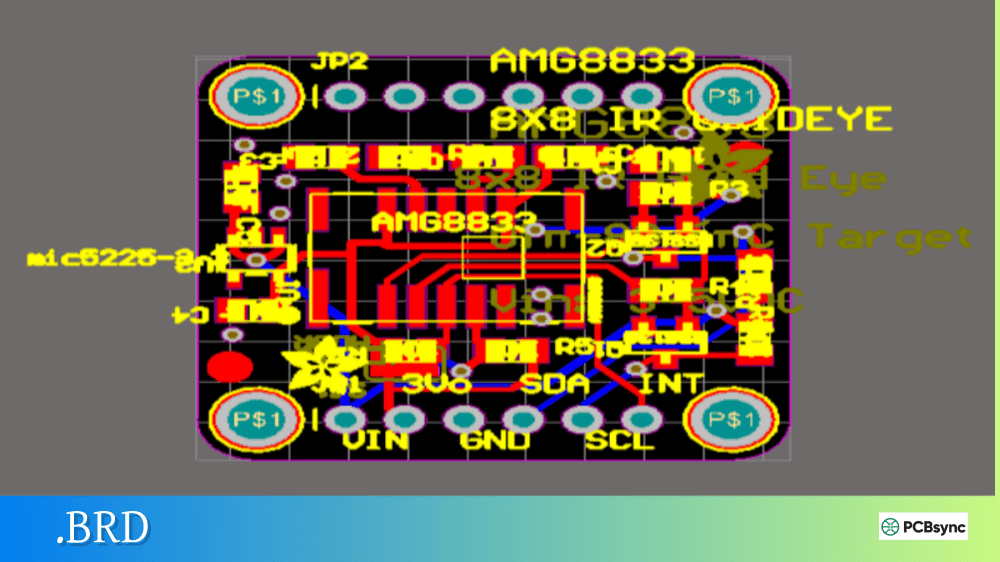
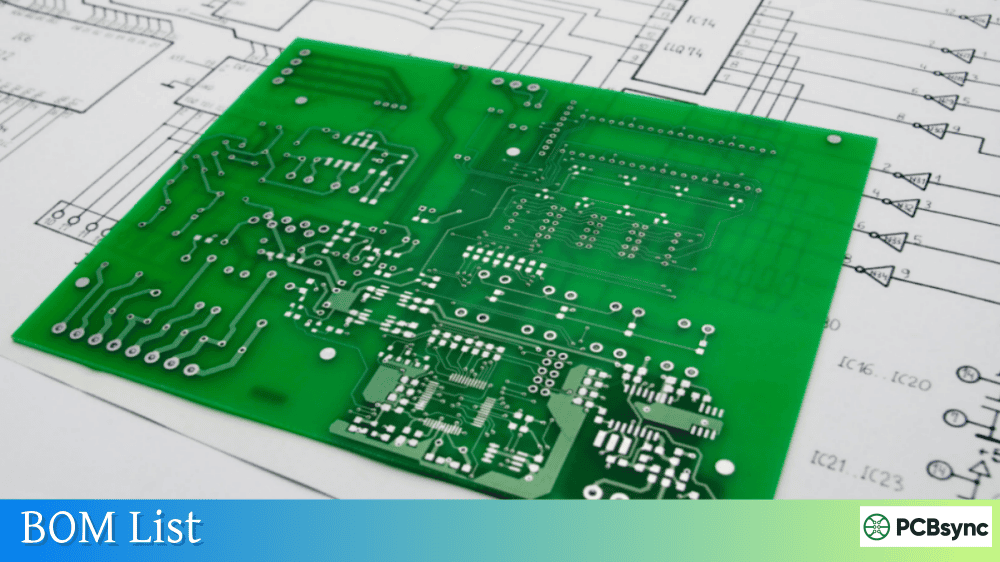
Notes: For PCB fabrication, we require PCB design file in Gerber RS-274X format (most preferred), *.PCB/DDB (Protel, inform your program version) format or *.BRD (Eagle) format. For PCB assembly, we require PCB design file in above mentioned format, drilling file and BOM. Click to download BOM template To avoid file missing, please include all files into one folder and compress it into .zip or .rar format.
If you’ve worked with PADS Layout or need to migrate designs between different EDA tools, you’ve likely encountered .ASC files. This text-based format serves as the universal export option for PADS PCB designs, enabling data exchange with other CAD systems without requiring access to PADS internal databases or source code.
This guide explains what .ASC files are, how to create them, and how to use them for design migration and collaboration.
A .ASC file (PADS ASCII format) is a text-based representation of a complete PADS PCB design database. Developed by Mentor Graphics (now Siemens), this format exports an entire design—including system parameters, parts lists, connectivity data, footprints, and routing—into a human-readable ASCII text file.
Unlike binary .PCB files that only PADS software can open, .ASC files can be imported by numerous third-party EDA tools including Altium Designer, Cadence Allegro, and CircuitWorks. This makes the format essential for design migration, collaboration with partners using different CAD platforms, and archiving designs in a vendor-neutral format.
The.ASC file format has evolved through multiple PADS versions, with each version adding support for new features. A typical file header identifies the format version:
!PADS-POWERPCB-V5.0-BASIC! DESIGN DATABASE ASCII FILE 1.0*PCB* GENERAL PARAMETERS OF THE PCB DESIGN
Contents of a PADS .ASC File
A complete .ASC file contains all the data needed to reconstruct a PCB design in another system.
Data Stored in .ASC Files
Data Category
Contents
General Parameters
Units, grid settings, layer definitions
Parts List
Component designators, values, footprints
Connectivity
Net names, pin connections
Placement
Component XY coordinates, rotation
Routing
Track widths, layer assignments, via definitions
Copper Pours
Pour outlines, thermal settings
Decals/Footprints
Pad stacks, silkscreen graphics
Because .ASC files are plain text, you can open them in any text editor to inspect contents, verify data, or make minor edits. This transparency makes troubleshooting import problems much easier than working with binary formats.
Creating .ASC Files from PADS Layout
Exporting a PADS design to .ASC format requires access to PADS Layout software. The binary .PCB files cannot be converted without the original application.
Export Process in PADS Layout
Step
Action
1
Open your design in PADS Layout
2
Select File → Export
3
Choose filename and location
4
Select output version (V5.0, V9.5, etc.)
5
Set Units to “Basic” (mils recommended)
6
Click OK to generate .ASC file
Important: When exporting for use with other CAD tools, use the “Basic” units setting. Some versions offer “Metric” or other options that may cause compatibility issues during import.
Supported PADS Versions
PADS Version
Compatibility Notes
PADS V5.0
Widely supported, maximum compatibility
PADS 2005.x
Good support in most importers
PADS 2007.x
Supported by Altium, Allegro
PADS V9.x
Modern format, check target tool support
PADS VX.1/VX.2
Latest format, may need older export version
For maximum compatibility when migrating to other tools, export using an older format version like V5.0 or V9.5. Newer format features may not translate correctly.
Importing .ASC Files into Other CAD Tools
The primary value of .ASC files lies in enabling design migration to other EDA platforms.
Import Support by Software
Target Software
Import Method
Altium Designer
File → Import Wizard → PADS ASCII
Cadence Allegro
File → Import → PADS
CircuitWorks
Direct import supported
EasyEDA Pro
Import Others → PADS
OrCAD
Third-party converters
Importing into Altium Designer
Altium provides robust .ASC import through its Import Wizard:
Select File → Import Wizard
Choose “PADS ASCII Design and Library Files”
Click Add and select your .ASC file
Follow wizard prompts to map layers and libraries
Complete import to generate Altium project files
Note: The PADS importer may not be installed by default. If missing, enable it through Extensions and Updates → Configure → Importers/Exporters → PADS.
Common Import Issues
Problem
Cause
Solution
Import fails
Corrupted source data
Re-export from PADS, verify file opens in PADS
Missing footprints
Library not included
Export and import library files separately
Layer mapping wrong
Different layer structure
Manually configure layer mapping
Units incorrect
Wrong export settings
Re-export with “Basic” units
Validating .ASC File Integrity
Before sending .ASC files to partners or importing into other tools, validate the export is complete and error-free.
The “ASCII-ing In” Test
PADS users have a well-known validation technique called “ASCII-ing in”:
Export your design to .ASC format
Create a new empty design in PADS Layout
Import the .ASC file back into PADS (File → Import)
Check for any errors or missing elements
If PADS reports errors during re-import, the source data may contain corruption that will also cause problems in other CAD systems. Fix the issues in your original design before exporting again.
.ASC vs Other PADS File Types
PADS uses several file extensions that are easily confused.
PADS File Format Comparison
Extension
Type
Description
.PCB
Binary
Native PADS Layout design file
.ASC
ASCII
Exported text-based design file
.TXT
ASCII
Exported schematic (PADS Logic)
.pd9
Binary
PADS decal/footprint library
.d
ASCII
Exported footprint library
Warning: PADS also uses .ASC extension for netlists exported from schematics. These netlist files look completely different from PCB design exports and cannot be used for design migration. Check the file header to confirm you have the correct type—PCB exports start with “!PADS-POWERPCB” while netlists have a different structure.
Some CAD service providers offer PADS to other format conversion if you don’t have access to PADS software. This can be useful when working with legacy designs or evaluation boards provided only in .PCB format.
Frequently Asked Questions About .ASC Files
Can I open a PADS .PCB file without PADS software?
No, binary .PCB files require PADS Layout to open. To use the design in other software, you need someone with a valid PADS license to export the design as an .ASC file first. Some manufacturers provide evaluation board designs in both formats—always look for the ASCII version when available.
Why does my .ASC import fail in Altium?
The most common cause is using a netlist .ASC file instead of a PCB design export. Open the file in a text editor and check the header—PCB exports start with “!PADS-POWERPCB” while netlists have a different format. Also verify the PADS importer extension is installed in Altium through Extensions and Updates.
What PADS version should I export for maximum compatibility?
For broadest compatibility across different CAD tools, export using PADS V5.0 or V9.5 format. While newer formats include more features, older format versions are better supported by third-party importers. Select the output version in the export dialog based on your target software’s documented compatibility.
Can I edit a .ASC file directly in a text editor?
Yes, .ASC files are plain text and can be edited. This is useful for simple changes like updating text strings or version information. However, making structural changes (moving components, editing connectivity) is risky without understanding the complete file format. Use CAD software for significant modifications.
How do I export PADS library footprints for use in other tools?
PADS library footprints (.pd9 files) must be exported separately from designs. In PADS Layout, use File → Export, set the filter to “Decals,” select the footprints you need, and export. This creates .d files that can be imported into other CAD systems alongside your .ASC design files.
Conclusion
The .ASC format bridges the gap between PADS and other PCB design ecosystems. Whether you’re migrating to a new CAD platform, collaborating with partners using different tools, or archiving designs in a vendor-neutral format, understanding PADS ASCII files helps you move design data reliably.
Remember that .ASC export requires PADS software—binary .PCB files cannot be converted without it. When exporting, use the “Basic” units setting and an older format version for maximum compatibility. And always validate your exports by re-importing them into PADS before sending to other systems.
Inquire: Call 0086-755-23203480, or reach out via the form below/your sales contact to discuss our design, manufacturing, and assembly capabilities.
Quote: Email your PCB files to Sales@pcbsync.com (Preferred for large files) or submit online. We will contact you promptly. Please ensure your email is correct.
Notes: For PCB fabrication, we require PCB design file in Gerber RS-274X format (most preferred), *.PCB/DDB (Protel, inform your program version) format or *.BRD (Eagle) format. For PCB assembly, we require PCB design file in above mentioned format, drilling file and BOM. Click to download BOM template To avoid file missing, please include all files into one folder and compress it into .zip or .rar format.