Inquire: Call 0086-755-23203480, or reach out via the form below/your sales contact to discuss our design, manufacturing, and assembly capabilities.
Quote: Email your PCB files to Sales@pcbsync.com (Preferred for large files) or submit online. We will contact you promptly. Please ensure your email is correct.
Notes: For PCB fabrication, we require PCB design file in Gerber RS-274X format (most preferred), *.PCB/DDB (Protel, inform your program version) format or *.BRD (Eagle) format. For PCB assembly, we require PCB design file in above mentioned format, drilling file and BOM. Click to download BOM template To avoid file missing, please include all files into one folder and compress it into .zip or .rar format.
Altium Designer PCB Design Tutorial: Step-by-Step Guide for Beginners
When someone asks me which PCB design software they should learn for a career in electronics, my answer depends on their goals. For hobbyists, KiCad or EasyEDA makes sense. But if you’re aiming for a job in professional product development—especially in aerospace, medical devices, or consumer electronics—Altium Designer is often the expectation.
I’ve used Altium for over eight years across dozens of commercial products. It’s not the cheapest option (not even close), but there’s a reason it dominates professional PCB design. The unified environment, the component management, the MCAD integration—everything works together in ways that save serious time on complex projects.
This tutorial walks you through Altium Designer from project creation to manufacturing files. By the end, you’ll have designed a complete PCB and understand the workflow that professionals use daily.
Altium Designer is a comprehensive PCB design platform developed by Altium Limited. Unlike some tools that separate schematic capture and PCB layout into different applications, Altium integrates everything into a single unified environment.
The software handles:
Schematic capture: Creating electrical diagrams with component symbols and connections
PCB layout: Physical placement of components and copper trace routing
Component management: Libraries with real-time supply chain data
Simulation: SPICE-based circuit simulation
Signal integrity: Analysis tools for high-speed design
MCAD integration: Bi-directional communication with SolidWorks, Fusion 360, and other mechanical CAD tools
Let’s address the elephant in the room: Altium Designer is expensive. Current pricing runs approximately $7,000+ per year for a subscription or $12,000+ for a perpetual license.
However, several options exist for those who can’t justify the full price:
License Type
Cost
Best For
Full Subscription
~$7,000/year
Professional engineers, companies
Perpetual License
~$12,000+
Long-term users, companies
Student License
Free (6 months)
University students
Trial
Free (15 days)
Evaluation
Students can apply for a free educational license through Altium’s academic program. If you’re learning, this is the way to go.
Setting Up Altium Designer
Before diving into design, let’s configure the environment properly.
Installation and Licensing
Download Altium Designer from altium.com. During installation, you’ll need to sign in to your Altium account and activate your license. The software requires a stable internet connection for initial activation, though offline work is possible afterward.
Connecting to Altium 365 Workspace
Modern Altium workflows leverage Altium 365, a cloud platform for component management, collaboration, and design sharing. While you can work offline with local libraries, connecting to a Workspace provides significant advantages:
Managed component libraries with verified footprints
Real-time collaboration with team members
Version control for design files
Supply chain data integration
For this tutorial, we’ll assume you’re connected to a Workspace with sample data. If you’re working standalone, the steps remain similar, but you’ll use local libraries.
Configuring Preferences
Before starting, configure your environment:
Go to DXP > Preferences
Under Data Management > File Types, verify file associations
Under Schematic > General, set your preferred sheet sizes
Under PCB Editor > General, configure display options
Under System > View, adjust grid and cursor settings
Take time to explore the preferences. Small adjustments—like enabling push-and-shove routing or setting default trace widths—pay dividends later.
Creating Your First Altium Project
Every Altium design begins with a project. The project container holds all related files: schematics, PCB layout, libraries, output configurations, and documentation.
Step 1: Create a New PCB Project
Select File > New > Project > PCB Project
A new project appears in the Projects panel (PCB_Project1.PrjPcb)
Right-click the project and select Save Project As
Choose a location and name your project meaningfully
For this tutorial, we’ll design a simple LED flasher circuit—the classic astable multivibrator using two transistors.
Step 2: Add a Schematic Sheet
Right-click your project in the Projects panel
Select Add New to Project > Schematic
A blank schematic sheet opens
Save it immediately (File > Save As) with a descriptive name
The schematic editor opens with a blank sheet. The main menu bar and toolbars adapt to schematic editing mode—this context-sensitive interface is one of Altium’s strengths.
Schematic Capture in Altium Designer
Schematic capture is where your circuit takes shape. You’ll place component symbols and connect them with wires to define electrical relationships.
Configuring the Schematic Sheet
Before placing components, set up your sheet:
Right-click on the sheet and select Document Options
Set the sheet size (Letter or A4 for simple designs)
Configure the title block with your information
Set the grid (typically 10 mil for placement)
Finding and Placing Components
Altium provides multiple ways to access components:
Manufacturer Part Search (recommended):
Open Components panel (View > Panels > Components)
Type a part number (e.g., “2N3904” for an NPN transistor)
Browse results showing availability, pricing, and datasheets
Drag the component onto your schematic
Workspace Libraries:
In the Components panel, select your Workspace
Browse or search the managed library
Place components directly
Local Libraries:
Access via Design > Browse Libraries
Search installed libraries
Place components
For our multivibrator, we need:
2× NPN transistors (2N3904)
2× Resistors (470Ω for LED current limiting)
2× Resistors (47kΩ for base bias)
2× Capacitors (10µF for timing)
2× LEDs
1× 2-pin header (power input)
Placing Components
To place a component:
Select the component in the Components panel
Drag it onto the schematic sheet, or click Place button
Press Spacebar to rotate before placing
Press X to flip horizontally, Y to flip vertically
Click to place
Pro tip: Press Tab before placing to edit component properties (designator, value, etc.) without placing first.
Wiring the Schematic
With components placed, connect them with wires:
Select Place > Wire or press Ctrl+W
Click to start a wire at a component pin
Click to add corners
Click on the destination pin to complete the connection
Press Esc to exit wire mode
Altium automatically creates electrical connections when wires touch pins at the proper points. Watch for the small “X” that indicates a valid connection point.
Good placement determines routing success. Strategy:
Place fixed components first: Connectors at board edges, LEDs where visible, mounting holes at corners
Place major components: ICs, transistors—the parts with the most connections
Place supporting components: Decoupling capacitors near ICs, resistors near their related components
Optimize: Minimize ratsnest line crossings
To move components:
Click and drag
Press Spacebar to rotate
Press L to flip to the opposite layer
Use View > Fit Board to see your entire layout.
Step 7: Routing
Connect components with copper traces:
Interactive Routing (recommended):
Select Route > Interactive Routing or press Ctrl+W
Click on a pad to start routing
Move the mouse to define the trace path
Click to place corners
Click on the destination pad to complete
Routing tips:
Press Spacebar to toggle trace angles (45° vs. 90°)
Press Shift+Spacebar to change corner modes
Press Tab to access routing options
Use Backspace to undo the last segment
Press + or – to change layers (through a via)
Push and Shove Routing: Enable in routing options to have traces push existing traces aside rather than blocking. This speeds up dense layouts significantly.
Step 8: Copper Pours (Ground Planes)
Add ground planes for better performance:
Select Place > Polygon Pour
Draw the polygon boundary
In the Polygon Pour dialog, set the Net to GND
Click OK, then Repour to fill
Ground planes reduce EMI, provide return paths for signals, and help with thermal management.
Step 9: Design Rule Check (DRC)
Verify your design before manufacturing:
Select Tools > Design Rule Check
Review the DRC report
Fix any violations (clearance errors, unconnected nets, etc.)
Common DRC errors:
Clearance violations (traces too close)
Unrouted nets (missing connections)
Silk screen over pads
Via too close to SMD pad
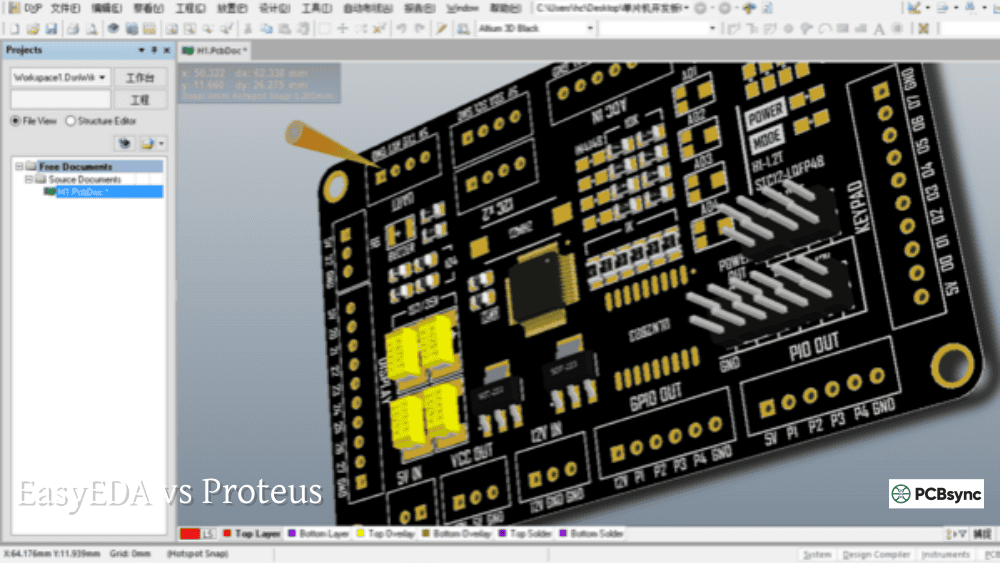
Step 10: 3D Visualization
Altium’s 3D view catches mechanical issues:
Press 3 or select View > 3D Layout Mode
Rotate with Shift + drag
Zoom with scroll wheel
Check component clearances and overall appearance
This view shows 3D models of components (if assigned) and reveals issues like colliding parts or wrong footprints.
Generating Manufacturing Output
Your design is complete. Now generate files for manufacturing.
File > Assembly Outputs > Pick and Place Files for component placement data
File > Assembly Outputs > Assembly Drawings for visual reference
Altium Designer Tips and Best Practices
After years of use, these practices save time and prevent problems.
Keyboard Shortcuts to Learn
Shortcut
Action
Ctrl+W
Interactive Routing
Ctrl+D
Open Preferences
P
Place menu
G
Set Grid
L
Flip component to other layer
Spacebar
Rotate component
Tab
Edit properties while placing
3
Toggle 3D view
Q
Toggle units (mm/mil)
Shift+S
Toggle single layer mode
Component Management Best Practices
Use Workspace-managed components when possible
Verify footprints against datasheets before layout
Include 3D models for mechanical verification
Keep BOMs current with supply chain data
Design Efficiency Tips
Create design rule templates for reuse
Use room definitions to group components
Set up output job files for consistent manufacturing data
Utilize project templates for common board types
Useful Resources for Altium Designer
Official Resources
Resource
URL
Description
Altium Documentation
altium.com/documentation
Complete reference
Altium Academy
academy.altium.com
Video courses
AltiumLive
altiumlive.com
Annual conference recordings
Community Resources
Resource
Description
Phil’s Lab (YouTube)
Excellent practical tutorials
Robert Feranec (YouTube)
High-speed design focus
Altium Forum
Official community support
Reddit r/PrintedCircuitBoard
Community discussion
Learning Path Recommendation
Complete the official Getting Started tutorial
Work through Phil’s Lab Altium beginner series
Design a simple project (LED flasher, sensor breakout)
Study the documentation for features you need
Tackle increasingly complex projects
Frequently Asked Questions
Is Altium Designer worth the cost?
For professionals whose work generates revenue, yes. The time savings on complex projects justify the investment. For hobbyists, free alternatives like KiCad offer most features you’ll need.
Can I run Altium Designer on Mac?
Not natively. Altium Designer is Windows-only. Mac users can run it via Boot Camp, Parallels, or VMware. Performance in virtual machines varies.
How does Altium compare to KiCad?
KiCad is free and capable, but Altium offers superior component management, better MCAD integration, more advanced routing tools, and professional support. For career development in certain industries, Altium experience is often expected.
Can I import designs from other tools?
Yes. Altium can import from EAGLE, KiCad, OrCAD, and other formats. Import quality varies—complex designs may need cleanup.
What’s the learning curve like?
Expect 2-4 weeks to become comfortable with basic operations, 2-3 months for proficiency, and 6+ months to master advanced features. The interface is logical once you understand the workflow.
Conclusion
Altium Designer is powerful, professional-grade software that rewards investment in learning. The unified environment, comprehensive feature set, and industry acceptance make it a valuable skill for electronics engineers.
Start simple. The LED flasher project in this tutorial demonstrates core workflows without overwhelming complexity. As you grow comfortable, explore advanced features: high-speed design rules, variant management, multi-board design, and simulation.
The cost barrier is real, but student licenses and trials provide entry points. If you’re serious about a career in electronics design, Altium proficiency opens doors.
Inquire: Call 0086-755-23203480, or reach out via the form below/your sales contact to discuss our design, manufacturing, and assembly capabilities.
Quote: Email your PCB files to Sales@pcbsync.com (Preferred for large files) or submit online. We will contact you promptly. Please ensure your email is correct.
Notes: For PCB fabrication, we require PCB design file in Gerber RS-274X format (most preferred), *.PCB/DDB (Protel, inform your program version) format or *.BRD (Eagle) format. For PCB assembly, we require PCB design file in above mentioned format, drilling file and BOM. Click to download BOM template To avoid file missing, please include all files into one folder and compress it into .zip or .rar format.