Inquire: Call 0086-755-23203480, or reach out via the form below/your sales contact to discuss our design, manufacturing, and assembly capabilities.
Quote: Email your PCB files to Sales@pcbsync.com (Preferred for large files) or submit online. We will contact you promptly. Please ensure your email is correct.
Notes: For PCB fabrication, we require PCB design file in Gerber RS-274X format (most preferred), *.PCB/DDB (Protel, inform your program version) format or *.BRD (Eagle) format. For PCB assembly, we require PCB design file in above mentioned format, drilling file and BOM. Click to download BOM template To avoid file missing, please include all files into one folder and compress it into .zip or .rar format.
Altium Designer Libraries Download: Complete Guide to Component Libraries
Nothing slows down a PCB design project faster than missing component libraries. I’ve lost count of the hours I’ve spent hunting for schematic symbols and footprints that should have been readily available. After fifteen years of working with Altium Designer, I’ve built a systematic approach to finding, downloading, and managing component libraries that has saved my team countless hours on every project.
This guide covers everything you need to know about Altium Designer libraries download sources, from official manufacturer libraries to community-built databases with hundreds of thousands of components. Whether you need a single footprint for an obscure sensor or want to set up a comprehensive library system for your entire engineering team, you’ll find the resources and methods here.
Before diving into download sources, it’s important to understand the different library formats Altium Designer supports. Each type has specific use cases, and knowing the differences helps you choose the right approach for your workflow.
File-Based Library Types
Library Type
Extension
Description
Best For
Schematic Library
.SchLib
Contains schematic symbols only
Simple projects, symbol sharing
PCB Library
.PcbLib
Contains PCB footprints and 3D models
Footprint distribution
Integrated Library
.IntLib
Compiled package with symbols, footprints, and models linked
Production use, portable projects
Library Package
.LibPkg
Source project for creating IntLib files
Library development
Database Library
.DbLib
Links to external database with component parameters
Enterprise component management
SVN Database Library
.SVNDbLib
Version-controlled database library
Team collaboration
Workspace Libraries (Altium 365)
Altium 365 introduces cloud-based managed libraries that store components in a centralized workspace. These aren’t traditional file downloads but provide version control, lifecycle management, and team collaboration features that file-based libraries cannot match. Components in your Altium 365 workspace are accessible through the Components panel and Explorer panel in Altium Designer.
Free Altium Designer Libraries Download Sources
The good news is that high-quality Altium Designer libraries are available for free from multiple sources. Here are the most reliable options I’ve used across hundreds of projects.
Celestial Altium Library
The Celestial Altium Library stands out as one of the most comprehensive free resources available. This open-source database library contains over 212,000 components with full parametric data, supplier links, and 3D models.
Key Features:
Cloud-hosted database requiring no local software installation
Production-proven footprints designed to manufacturer specifications
Correct pick-and-place centroid positions
Complete parametric data for filtering and searching within Altium
Datasheet links for every component
Beautiful 3D models built to manufacturer dimensions
Follow the setup instructions to connect your Altium Designer installation
Clone the GitHub repository for schematic symbols and PCB footprints
The Celestial Library is particularly valuable for passive components where you can filter by value, voltage, package size, and price to find the exact part you need. Major companies including NASA, SpaceX, Google, and BMW have used this library in their hardware development.
SnapMagic Search (formerly SnapEDA)
SnapMagic Search provides a massive online database of schematic symbols, footprints, and 3D models following IPC-7351B and IEEE-315 standards.
Key Features:
Millions of components from major manufacturers
Three-step verification process for model quality
Free downloads with 1-business-day delivery for missing parts
Search for your component by part number or description
Select the Altium Designer format
Choose between Install Library (adds to Libraries panel) or Direct Download
SnapMagic offers both .IntLib integrated libraries and .lia format files. For .lia files, you’ll need the P-CAD importer extension installed in Altium Designer.
Ultra Librarian
Ultra Librarian maintains a regularly updated catalog of millions of footprints available in over 30 CAD formats, including Altium Designer.
Key Features:
Direct integration with component distributors and manufacturers
Consistent quality across different component types
Available through participating distributors’ websites
Many component distributors like Digi-Key, Mouser, and Arrow partner with Ultra Librarian, so you can often download footprints directly from their product pages.
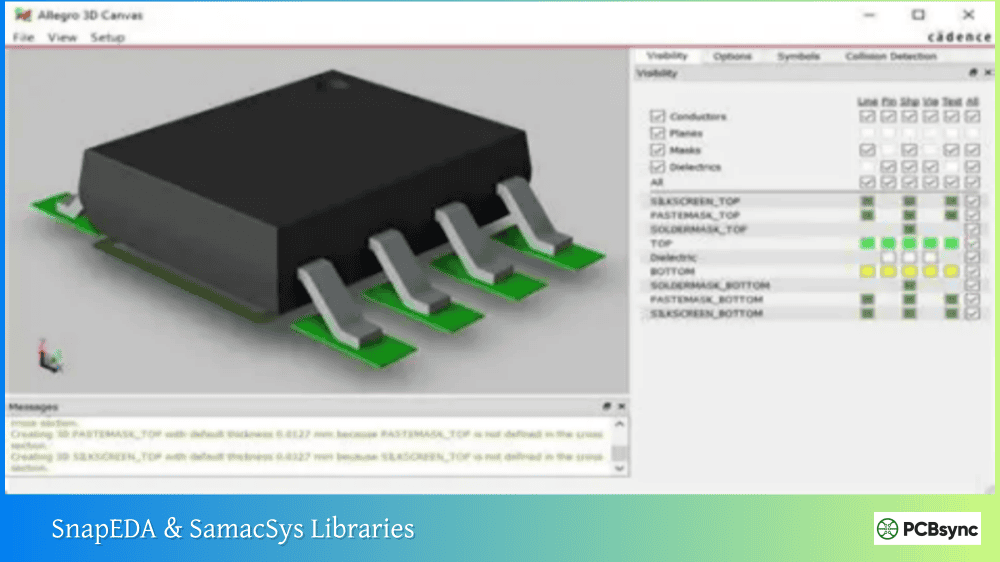
SamacSys / Component Search Engine
Component Search Engine provides the Library Loader tool that integrates directly into Altium Designer’s menu system.
Key Features:
Search and add components directly from within Altium Designer
Automatic library building as you add parts
Access to datasheets, pricing, and stock information
Run the installer, which adds a menu option to Altium Designer
Select “Symbols | Footprints | 3D Models” from the File menu
Search for parts and click “Add to Design”
The Library Loader places components directly into your schematic, automatically building the associated library files in the background.
Manufacturer Library Download Sources
Component manufacturers often provide official Altium Designer libraries for their products. These are typically the most accurate sources since they come directly from the people who designed the parts.
Major Manufacturer Libraries
Manufacturer
Library Availability
Notes
Texas Instruments
Via Ultra Librarian integration
Extensive analog and embedded ICs
Analog Devices
Direct download and Ultra Librarian
Precision analog components
STMicroelectronics
ST website and third-party tools
MCUs, power devices
Microchip
MPLAB ecosystem and third-party
PIC/AVR MCUs, analog
NXP
Direct download
Automotive, ARM processors
Infineon
Infineon website
Power semiconductors, sensors
ON Semiconductor
Via distributor sites
Discrete and power devices
Würth Elektronik
Direct download
Connectors, inductors, EMC
Molex
Direct download
Connectors
TE Connectivity
Direct download
Connectors, sensors
When downloading manufacturer libraries, verify that the footprint dimensions match the datasheet. I’ve occasionally found discrepancies in land pattern recommendations between library files and current datasheets, particularly for parts that have been updated since the library was created.
Installing Downloaded Libraries in Altium Designer
Once you’ve downloaded library files, you need to install them in Altium Designer to use the components. The process varies slightly depending on the library type.
Installing SchLib and PcbLib Files
Method 1: Through Components Panel
Open the Components panel (View > Panels > Components)
Click the menu icon and select “File-based Libraries Preferences”
Click “Install” and select “Install from file”
Browse to your downloaded .SchLib or .PcbLib file
Click Open to add the library
Method 2: Through Preferences Dialog
Go to Preferences (DXP > Preferences or keyboard shortcut)
Navigate to Data Management > File-based Libraries
Click the “Installed” tab
Click “Install” and browse to your library files
Installing Integrated Libraries (IntLib)
Integrated libraries install the same way as SchLib/PcbLib files. The key difference is that IntLib files contain both symbols and footprints in a single compiled package, so you only need to install one file per library.
Installing Database Libraries (DbLib)
Database libraries require additional setup since they connect to external data sources:
Ensure you have the appropriate database driver installed (typically Microsoft Access or SQL Server)
Install the DbLib file through Preferences > Data Management > File-based Libraries
Configure the database connection settings if prompted
The library will appear in your Components panel with access to all database records
For the Celestial Altium Library and similar cloud-hosted database libraries, follow the specific setup instructions provided by the library maintainers.
Migrating Libraries to Altium 365 Workspace
If your organization uses Altium 365, you can migrate downloaded libraries to your cloud workspace for centralized management and team access.
Using the Library Importer
Connect to your Altium 365 Workspace in Altium Designer
Go to File > Library Importer
Click “+ Library” or “Choose a File” to select your library files
Configure parameter mapping if needed
Click “Validate” to check for errors
Click “Import” to migrate components to your workspace
The Library Importer handles SchLib, PcbLib, IntLib, DbLib, and SVNDbLib files. During import, you can assign component categories, lifecycle definitions, and revision naming schemes.
Benefits of Workspace Libraries
Migrating to Altium 365 workspace libraries provides several advantages over file-based libraries:
Centralized Access: All team members access the same component data
Version Control: Track changes to components over time
Lifecycle Management: Define which components are approved for new designs
Where-Used Tracking: See every project using a specific component
Supply Chain Integration: Real-time pricing and availability data
Creating Your Own Component Libraries
Sometimes downloaded libraries don’t include the specific part you need. Altium Designer provides tools for creating components from scratch or using manufacturer data.
Using the IPC Compliant Footprint Wizard
For standard packages, the IPC Compliant Footprint Wizard generates accurate footprints quickly:
Create a new PCB Library (File > New > Library > PCB Library)
Select Tools > IPC Compliant Footprint Wizard
Choose the component package type (SOT, QFP, BGA, etc.)
Enter dimensions from the component datasheet
The wizard generates an IPC-compliant footprint with appropriate land patterns
Using Manufacturer Part Search
Altium Designer’s built-in Manufacturer Part Search panel accesses millions of components with supplier data:
Open the Manufacturer Part Search panel (View > Panels > Manufacturer Part Search)
Search by part number or parameters
Right-click on a component and select “Download as File Library”
The downloaded package includes SchLib and PcbLib files ready for use
This method is particularly efficient for common components where verified symbols and footprints already exist in Altium’s cloud database.
Library Management Best Practices
After years of managing component libraries across multiple organizations, I’ve developed practices that prevent common problems.
Frequently Asked Questions About Altium Designer Libraries Download
Where can I download free Altium Designer component libraries?
Several reliable sources offer free Altium Designer libraries download options. The Celestial Altium Library (altiumlibrary.com) provides over 212,000 components as an open-source database library. SnapMagic Search (snapeda.com) offers millions of symbols, footprints, and 3D models following IPC standards. Ultra Librarian and Component Search Engine also provide free downloads in Altium format. Additionally, many component manufacturers offer official libraries through their websites or distributor partners.
What’s the difference between SchLib, PcbLib, and IntLib files?
SchLib files contain schematic symbols only, while PcbLib files contain PCB footprints and 3D models. IntLib (Integrated Library) files are compiled packages that combine schematic symbols with their linked footprints and models into a single portable file. IntLib files verify symbol-to-footprint mapping during compilation and are recommended for production use since all component information is contained in one file that can be easily shared or moved with projects.
How do I install downloaded libraries in Altium Designer?
To install downloaded libraries, open the Components panel (View > Panels > Components), click the menu icon, and select “File-based Libraries Preferences.” Click “Install” then “Install from file” and browse to your downloaded library file (.SchLib, .PcbLib, .IntLib, or .DbLib). Alternatively, access Preferences > Data Management > File-based Libraries, click the “Installed” tab, and use the “Install” button to add library files. Once installed, components appear in your Components panel for placement.
Can I use libraries from other PCB design software in Altium Designer?
Yes, Altium Designer includes import capabilities for libraries from other EDA tools. Use the Import Wizard (File > Import Wizard) to convert libraries from OrCAD, PADS, Eagle, and other formats. The wizard translates schematic symbols, footprints, and database configurations into Altium-compatible formats. Some third-party library sources like SnapMagic and Ultra Librarian also offer downloads in multiple formats, so you can choose native Altium output directly.
How do I migrate my libraries to Altium 365 workspace?
Use the Library Importer in Altium Designer (File > Library Importer) while connected to your Altium 365 workspace. Click “+ Library” to select your existing SchLib, PcbLib, IntLib, or DbLib files. Configure parameter mapping, validate the library for errors, then click Import to migrate components to your cloud workspace. Once migrated, components are accessible through the Explorer panel and Components panel for any team member with workspace access privileges.
Final Thoughts on Altium Designer Libraries Download
Building a comprehensive component library takes time, but the investment pays dividends on every future project. Start with the free resources mentioned in this guide, particularly the Celestial Altium Library for passive components and SnapMagic Search for ICs and connectors. Supplement these with manufacturer-specific libraries for critical components.
The key to efficient library management is consistency. Whether you use file-based libraries, database libraries, or Altium 365 managed libraries, establish standards for your organization and stick to them. Validate downloaded components before production, maintain proper version control, and document your library structure so new team members can find what they need.
Most importantly, don’t recreate components that already exist. The hours you spend searching for existing libraries are almost always less than the hours needed to create components from scratch and verify their accuracy. Use the resources in this guide to find the Altium Designer libraries download sources that best fit your workflow, and get back to the actual work of designing great products.
This guide reflects library sources and methods current as of early 2026. Library websites and features may change over time, so verify current capabilities directly with each source.
Inquire: Call 0086-755-23203480, or reach out via the form below/your sales contact to discuss our design, manufacturing, and assembly capabilities.
Quote: Email your PCB files to Sales@pcbsync.com (Preferred for large files) or submit online. We will contact you promptly. Please ensure your email is correct.
Notes: For PCB fabrication, we require PCB design file in Gerber RS-274X format (most preferred), *.PCB/DDB (Protel, inform your program version) format or *.BRD (Eagle) format. For PCB assembly, we require PCB design file in above mentioned format, drilling file and BOM. Click to download BOM template To avoid file missing, please include all files into one folder and compress it into .zip or .rar format.