Inquire: Call 0086-755-23203480, or reach out via the form below/your sales contact to discuss our design, manufacturing, and assembly capabilities.
Quote: Email your PCB files to Sales@pcbsync.com (Preferred for large files) or submit online. We will contact you promptly. Please ensure your email is correct.
Notes: For PCB fabrication, we require PCB design file in Gerber RS-274X format (most preferred), *.PCB/DDB (Protel, inform your program version) format or *.BRD (Eagle) format. For PCB assembly, we require PCB design file in above mentioned format, drilling file and BOM. Click to download BOM template To avoid file missing, please include all files into one folder and compress it into .zip or .rar format.
There’s something almost magical about watching a circuit you’ve sketched on paper transform into a 3D model you can rotate, inspect, and eventually hold in your hands as a real manufactured board. That transition from abstract schematic to physical reality is what PCB CAD design is all about.
I remember my first PCB drawing—a simple LED driver done entirely with manual drafting tools. The tape for traces, the rub-on transfers for pads, the acetate sheets. It worked, but any mistake meant starting over. Modern CAD software has completely transformed this process, making it faster, more accurate, and honestly more enjoyable.
This guide walks you through PCB drawing and CAD design from schematic capture to 3D visualization. Whether you’re using KiCad, EasyEDA, Altium, or another tool, the fundamental concepts apply across all platforms.
PCB CAD (Computer-Aided Design) is the process of using specialized software to create the electronic schematics and physical layouts for printed circuit boards. The software handles tasks that would be impossible or impractical by hand—from maintaining thousands of electrical connections to calculating precise trace geometries for controlled impedance.
Modern PCB CAD software typically integrates several functions:
Schematic Capture: Creating the electrical diagram that shows how components connect
PCB Layout: Translating that schematic into physical component placements and copper traces
Design Rule Checking: Automatically verifying that your design can be manufactured
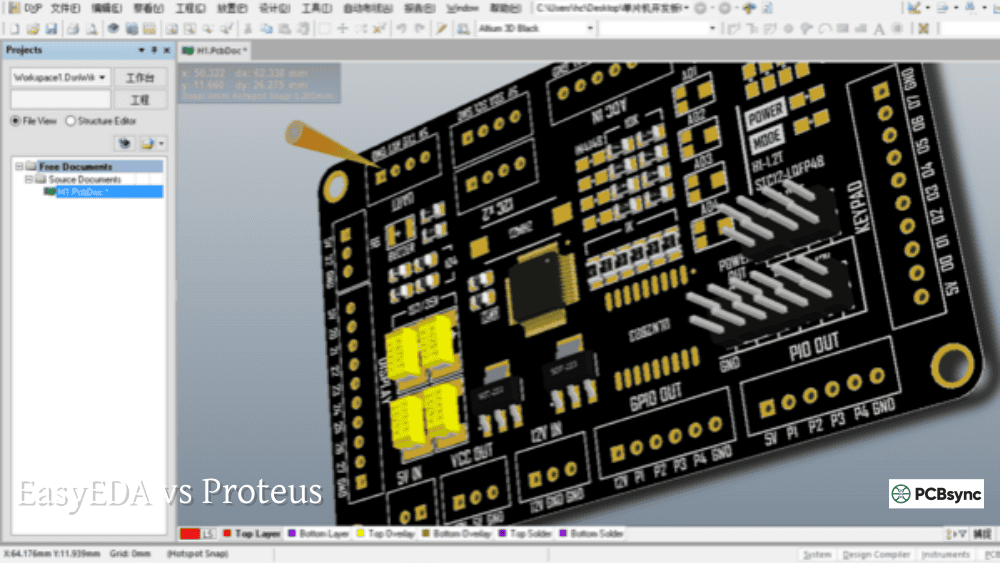
3D Visualization: Previewing how the finished board will look
Manufacturing Output: Generating the files fabricators need to build your board
The beauty of integrated CAD is that these functions work together. Change a connection in your schematic, and the layout knows about it. Move a component in 3D view, and the layout updates automatically.
The PCB Design Workflow
Every PCB design follows a similar workflow, regardless of which software you use. Understanding this flow helps you work more efficiently and catch problems early.
Step 1: Circuit Design and Schematic Capture
Before any PCB work begins, you need a working circuit design. This might come from your own development, application notes, reference designs, or existing products you’re improving.
Schematic capture converts your circuit into a formal electrical diagram. This isn’t just documentation—it’s the source of truth that your PCB layout will follow.
Key schematic practices:
Organize by function: Group related circuits together. Power supply in one area, microcontroller section in another, analog front-end separate from digital.
Use hierarchical sheets: For complex designs, break the schematic into multiple sheets organized by function. This keeps each sheet readable.
Consistent naming conventions: R1, R2, R3 for resistors. C1, C2, C3 for capacitors. Meaningful net names like VCC_3V3, UART_TX, SPI_MOSI.
Add design notes: Document non-obvious decisions directly on the schematic where future you (or your colleagues) will see them.
Step 2: Component Selection and Libraries
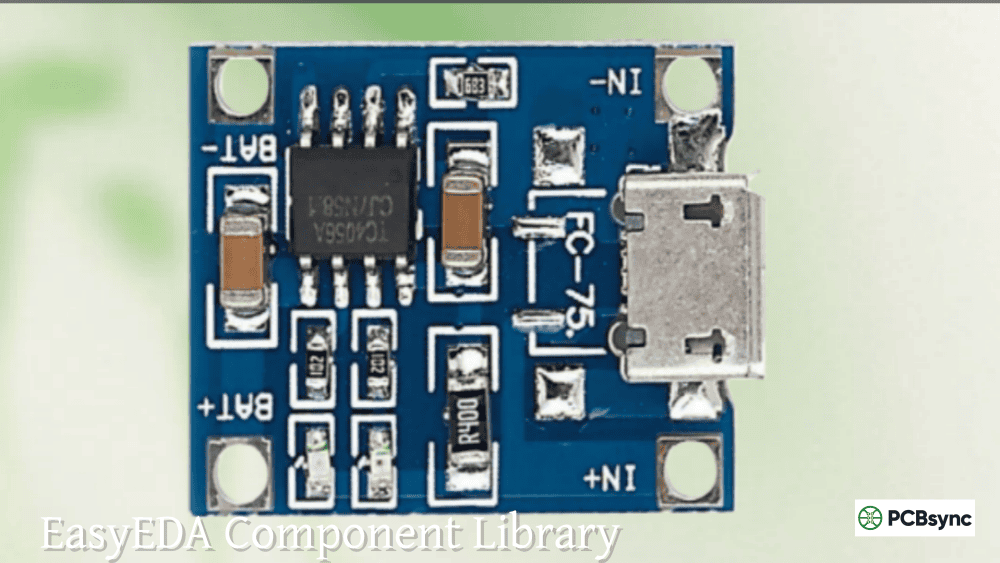
Every schematic symbol needs an associated PCB footprint—the physical land pattern the component solders to. This is where CAD libraries become critical.
Most software includes extensive built-in libraries, but you’ll inevitably need components that aren’t included. Options include:
Manufacturer libraries: Many component manufacturers provide official symbols and footprints for their parts
Community libraries: KiCad, EasyEDA, and others have community-contributed libraries
Library services: SnapEDA, Ultra Librarian, and similar services offer free downloads
Create your own: Sometimes you need to build custom symbols and footprints from datasheets
Critical rule: Always verify footprints against the actual component datasheet. Library errors are common and can render your board unusable. Pay special attention to:
Pin-to-pin spacing
Pad dimensions
Pin numbering (especially for ICs)
Thermal pad requirements
Step 3: Board Setup
Before placing components, configure your board parameters:
Board outline: Define the physical shape and size. Import DXF files if you have mechanical constraints.
Layer stack-up: Select number of layers and their arrangement (signal, ground, power).
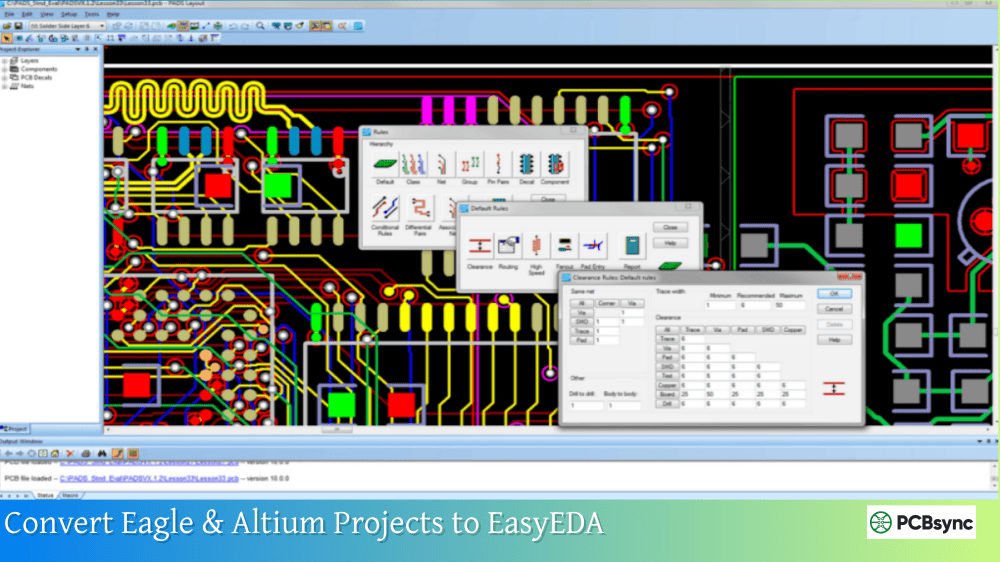
Design rules: Set minimum trace widths, clearances, via sizes, and other manufacturing constraints.
Grid settings: Configure placement and routing grids for efficient work.
Step 4: Component Placement
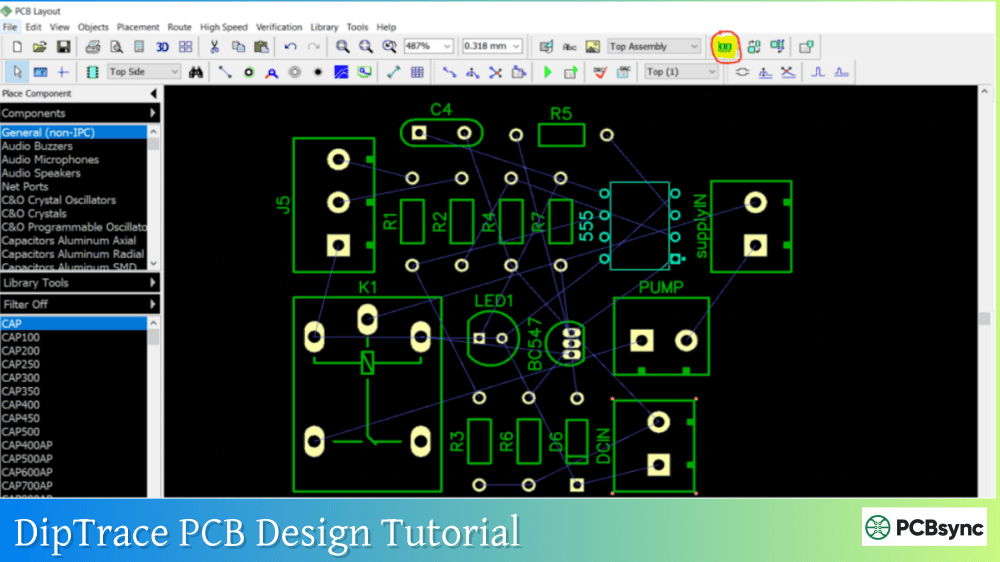
Import your schematic’s netlist into the layout tool. All your components appear, usually in a pile off to the side, connected by “ratsnest” lines showing required connections.
Placement strategy:
Fixed components first: Connectors, mounting holes, LEDs, buttons—anything with a defined position.
Critical components next: Processors, BGAs, RF circuits—parts with specific placement requirements.
Supporting components: Decoupling capacitors near their ICs, filter components near their signals.
Fill remaining space: General passive components where they fit.
Good placement makes routing easier. Bad placement makes routing a nightmare. Spend time here—it’s worth it.
Step 5: Routing
Connect everything with copper traces according to your schematic’s netlist. This is where your design becomes a real PCB.
Routing approaches:
Manual routing: You place every trace yourself. More control, more time-consuming. Essential for critical signals.
Interactive routing: Software assists with push-and-shove, length matching, differential pair routing. Best balance of control and efficiency.
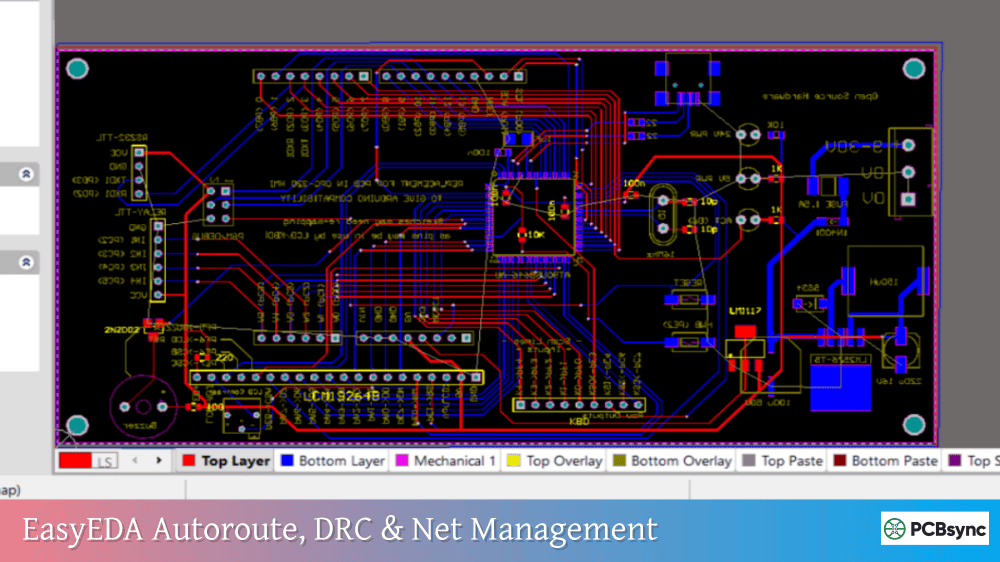
Auto-routing: Software routes everything automatically. Results vary from decent to terrible. Often useful as a starting point or for non-critical nets.
Most designs use a combination—manual routing for critical signals, assisted routing for general interconnects, perhaps auto-routing for simple fill-in work.
Step 6: Design Verification
Before generating manufacturing files, verify your design thoroughly:
Understanding the basic elements of PCB drawings helps you work effectively in any CAD tool.
Schematic Symbols
Schematic symbols are standardized graphical representations of components. They show electrical function, not physical appearance.
Component
Symbol Characteristics
Resistor
Zigzag line (US) or rectangle (EU/IEC)
Capacitor
Two parallel lines (non-polarized) or one curved (polarized)
Inductor
Series of loops
Diode
Triangle pointing to a line
Transistor
Three-terminal symbol with arrow indicating type
IC
Rectangle with pin numbers and names
Symbols connect via wires (drawn lines) at nodes (junction points). Net labels assign names to connections, allowing you to connect without drawing wires across the entire schematic.
PCB Footprints
Footprints define the physical interface between component and PCB:
Pads: Copper areas where component pins solder to the board
Paste layer: Defines where solder paste is applied (for SMD components)
Solder mask openings: Areas where solder mask is removed to expose copper
Silkscreen: Component outline and reference designator
Courtyard: Keep-out area around the component for clearance
Footprints come in two major categories:
Through-hole (THT): Components with wire leads that pass through holes in the board. Easier to solder manually, but larger and limit routing on inner layers.
Surface mount (SMD): Components that solder to pads on the board surface. Smaller, suitable for both sides, compatible with automated assembly.
Trace Geometry
Traces are the copper paths that carry electrical signals. Key parameters:
Width: Determined by current capacity and impedance requirements. Wider traces carry more current and have lower resistance.
Spacing: Minimum distance to adjacent traces. Affects crosstalk and manufacturing yield.
Angles: Use 45° angles or curves. Avoid 90° corners (can cause etching problems and signal issues at high frequencies).
Generic models: Basic shapes (resistors, capacitors, ICs) can be approximated with parametric models
Custom modeling: For unique parts, create models in FreeCAD, Fusion 360, or similar tools
3D File Formats
Format
Description
Common Use
STEP (.stp, .step)
Standard for exchanging 3D CAD data
MCAD integration, manufacturing
VRML (.wrl)
Web-based 3D format
Visualization, rendering
IDF (.idf, .emn)
Board exchange format
ECAD-MCAD transfer
STL (.stl)
Mesh format
3D printing enclosures
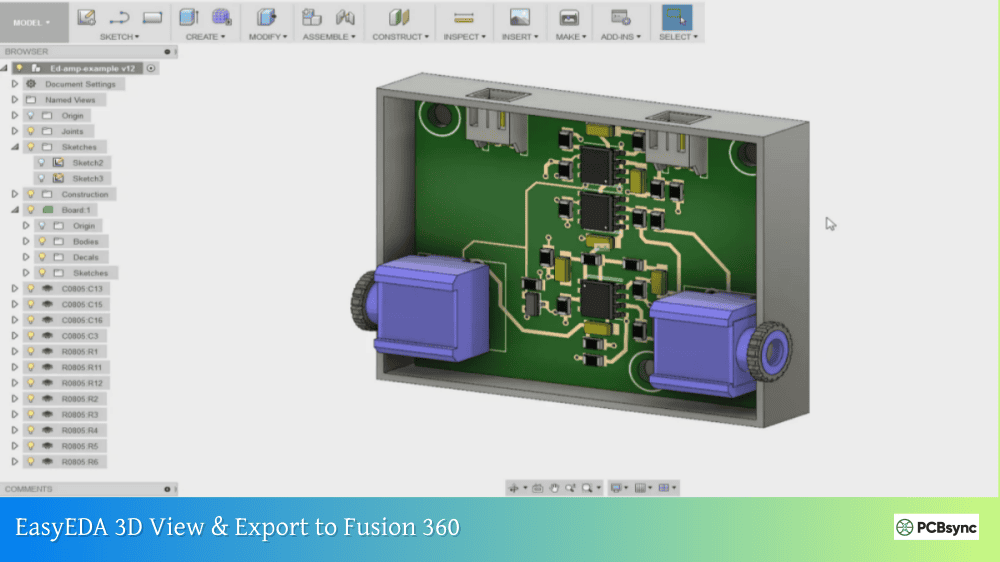
STEP is the most useful for mechanical integration—export your PCB as STEP and import it into SolidWorks, Fusion 360, or other MCAD software to design enclosures around your board.
Raytracing and Realistic Renders
Some tools (like KiCad’s raytracer) can produce photorealistic images of your PCB. These are excellent for documentation, marketing materials, or just verifying your design looks right before spending money on manufacturing.
Tips for good renders:
Use realistic component colors (don’t leave everything gray)
Set appropriate board thickness and copper weight
Choose realistic solder mask and silkscreen colors
Adjust lighting for clear visibility
Popular PCB CAD Software
Each tool has strengths and ideal use cases.
KiCad
Cost: Free, open source
Platform: Windows, Mac, Linux
Best for: Hobbyists, startups, professionals wanting powerful free tools
Strengths:
No artificial limitations on board size, layers, or components
Excellent 3D visualization with raytracing
Active community creating libraries and plugins
SPICE simulation integrated
Strong import/export capabilities
Limitations:
Learning curve steeper than some alternatives
Some advanced features require plugins
No official support (community-driven)
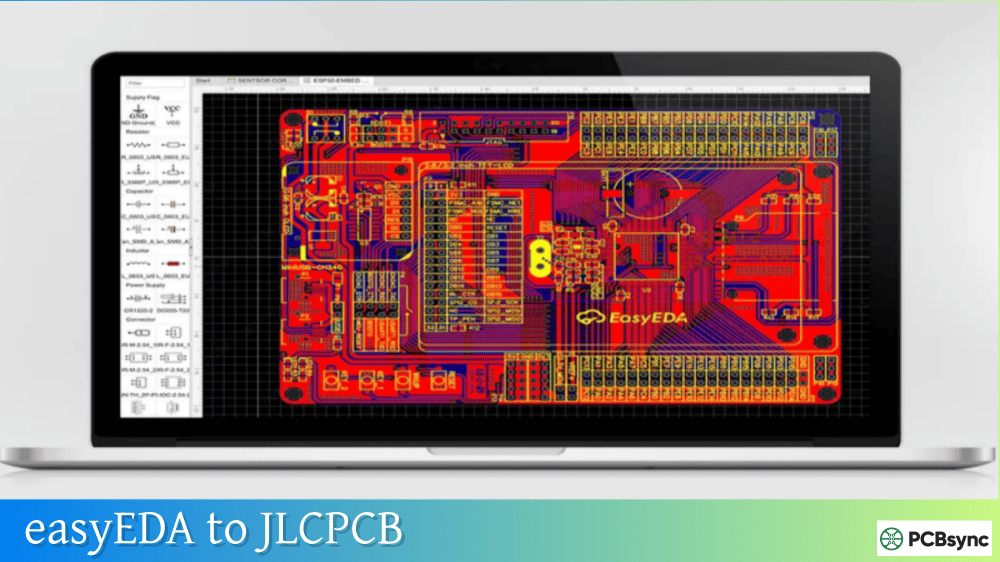
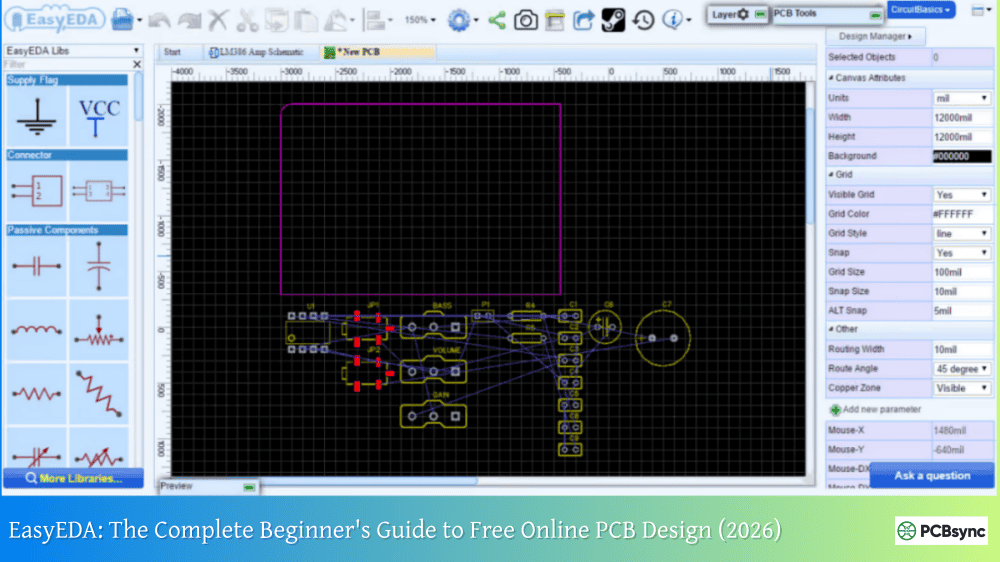
EasyEDA
Cost: Free (cloud-based)
Platform: Browser-based, also desktop version available
Best for: Beginners, quick prototypes, projects going to JLCPCB
Strengths:
Zero installation, works from any browser
Massive library linked to purchasable components (LCSC)
Direct integration with JLCPCB manufacturing
Very easy learning curve
Free 3D visualization and STEP export
Limitations:
Requires internet connection for full functionality
Your designs live on their servers
Less capable for complex high-speed designs
Limited offline options
Altium Designer
Cost: ~$7,000+/year subscription or $12,000+ perpetual license
Platform: Windows only
Best for: Professional teams, complex products, companies with budget
Strengths:
Industry-standard in many companies
Excellent MCAD integration (SolidWorks, etc.)
Advanced routing features (high-speed, differential pairs)
Real-time supply chain data
Unified design environment
Limitations:
Expensive
Windows only (virtual machines work but aren’t ideal)
Complex—takes time to master
Cadence OrCAD
Cost: Varies by configuration (professional pricing)
Platform: Windows, Linux
Best for: Enterprise, high-reliability designs, signal integrity work
Strengths:
Powerful simulation and analysis tools
Excellent for complex, high-speed designs
Industry standard in aerospace, defense, medical
Comprehensive signal integrity analysis
Limitations:
Expensive
Steep learning curve
Overkill for simple designs
Software Comparison Summary
Feature
KiCad
EasyEDA
Altium
OrCAD
Cost
Free
Free
$$$$
$$$$
Learning Curve
Medium
Low
High
High
3D Visualization
Excellent
Good
Excellent
Good
Layer Limit
None
None
None
None
MCAD Integration
Good
Basic
Excellent
Good
Component Libraries
Good
Excellent
Excellent
Good
Best For
General use
Beginners
Professionals
Enterprise
Practical Tips for Better PCB Drawings
From years of experience, here’s what actually matters.
Schematic Tips
One sheet, one function: Keep schematics modular. Power supply on its own sheet. Each functional block separate.
Signal flow: Inputs on the left, outputs on the right. Power at top, ground at bottom. This isn’t arbitrary—it’s how people read schematics.
Don’t connect four wires at a junction: Use T-connections only. Four-way junctions are ambiguous (is it connected or a crossover?).
Label everything: Net names for every important signal. Reference designators visible. Add notes explaining non-obvious design choices.
Layout Tips
Place before you route: Time spent on good placement saves ten times as much in routing. Don’t rush to start traces.
Critical signals first: Route clocks, high-speed buses, and sensitive analog first while you have maximum routing freedom.
Think in 3D: Will that capacitor clear the connector above it? Will the heatsink hit the enclosure? Check 3D view frequently.
Design for manufacturing: Talk to your fabricator. Use their preferred specs. Run their DFM check if available.
3D Visualization Tips
Update models regularly: Don’t wait until the end. Check 3D view throughout layout to catch problems early.
Check component heights: Especially for designs in enclosures. Tall electrolytic capacitors, connectors, and heatsinks are common trouble spots.
Verify mounting holes: Are they in the right place? Do they clear components? Is the keepout correct?
Export STEP early: If you’re designing an enclosure, export the board STEP file early and iterate the mechanical design alongside the electrical design.
Useful Resources for PCB CAD Design
Learning Resources
Resource
Type
Best For
Phil’s Lab (YouTube)
Video tutorials
KiCad, professional techniques
Contextual Electronics
Paid courses
Comprehensive PCB education
Robert Feranec (YouTube)
Video tutorials
High-speed design
KiCad Getting Started
Official docs
KiCad beginners
EasyEDA Tutorials
Official docs
EasyEDA beginners
Component Libraries
Source
Format
Cost
SnapEDA
Multiple formats
Free
Ultra Librarian
Multiple formats
Free
SamacSys
Multiple formats
Free
Component Search Engine
Multiple formats
Free
Manufacturer websites
Varies
Free
Design Tools
Tool
Purpose
Saturn PCB Toolkit
Trace width, via current, impedance calculations
Online Gerber Viewer
Verify manufacturing files
FreeroUTING
Java-based autorouter for KiCad
KiKit
KiCad panelization automation
Frequently Asked Questions
Which PCB CAD software should I start with?
For beginners, start with KiCad or EasyEDA. Both are free, both are capable of professional work, and skills transfer between tools. KiCad if you want deeper control and offline work; EasyEDA if you want the fastest path to ordered boards.
Do I need to create my own component libraries?
Not usually for common components. Use built-in libraries and download models from services like SnapEDA. Create custom libraries only when necessary—for proprietary parts, unusual packages, or company-specific symbols.
How important is 3D visualization really?
Very important for anything going into an enclosure. Moderately important for open boards. The earlier you catch mechanical conflicts, the cheaper they are to fix. Getting into the habit of checking 3D view regularly prevents expensive surprises.
Can I design PCBs on a Mac or Linux?
Yes. KiCad runs natively on Mac, Linux, and Windows. EasyEDA works in any browser. Altium is Windows-only but can run in virtual machines on Mac/Linux with mixed results.
How do I handle components not in the library?
First, search component library services (SnapEDA, Ultra Librarian). If not available, download the datasheet and create the symbol and footprint yourself. Pay careful attention to pin spacing and pad dimensions—verify against the recommended land pattern in the datasheet.
Conclusion
PCB CAD design has evolved from a specialized skill requiring expensive software to something accessible to anyone with a computer and willingness to learn. The tools keep getting better—more intuitive interfaces, better 3D visualization, smarter automation.
The fundamental workflow remains constant: capture your schematic, set up your board, place components thoughtfully, route connections carefully, verify everything, and generate manufacturing files. Master this workflow in any tool, and you can adapt to any other.
Start simple. Your first board doesn’t need to be perfect—it needs to work well enough to teach you something. Build that simple LED blinker, that Arduino shield, that breakout board. Each design teaches you something the previous one didn’t.
The magic of watching your 3D model turn into a real, physical PCB never gets old. That journey from idea to schematic to layout to manufactured board is one of the most satisfying experiences in electronics. Modern CAD tools make it more accessible than ever.
Inquire: Call 0086-755-23203480, or reach out via the form below/your sales contact to discuss our design, manufacturing, and assembly capabilities.
Quote: Email your PCB files to Sales@pcbsync.com (Preferred for large files) or submit online. We will contact you promptly. Please ensure your email is correct.
Notes: For PCB fabrication, we require PCB design file in Gerber RS-274X format (most preferred), *.PCB/DDB (Protel, inform your program version) format or *.BRD (Eagle) format. For PCB assembly, we require PCB design file in above mentioned format, drilling file and BOM. Click to download BOM template To avoid file missing, please include all files into one folder and compress it into .zip or .rar format.