Inquire: Call 0086-755-23203480, or reach out via the form below/your sales contact to discuss our design, manufacturing, and assembly capabilities.
Quote: Email your PCB files to Sales@pcbsync.com (Preferred for large files) or submit online. We will contact you promptly. Please ensure your email is correct.
Notes: For PCB fabrication, we require PCB design file in Gerber RS-274X format (most preferred), *.PCB/DDB (Protel, inform your program version) format or *.BRD (Eagle) format. For PCB assembly, we require PCB design file in above mentioned format, drilling file and BOM. Click to download BOM template To avoid file missing, please include all files into one folder and compress it into .zip or .rar format.
EasyEDA 3D View & Export to Fusion 360/SolidWorks for Enclosure Design: The Complete PCB Engineer’s Guide
If you’ve spent hours designing a PCB in EasyEDA only to realize you need a proper 3D model for your enclosure design, you’re not alone. As someone who’s been through this process countless times, I can tell you that the workflow from EasyEDA to mechanical CAD tools like Fusion 360 and SolidWorks isn’t always straightforward—but it’s absolutely doable once you understand the options available.
This guide walks you through everything you need to know about using EasyEDA 3D view features, exporting your designs, and getting them into professional CAD tools for enclosure design. Whether you’re a hobbyist building your first project case or a professional engineer working on production enclosures, this comprehensive guide has you covered.
Before diving into exports, let’s talk about what EasyEDA actually offers for 3D visualization. The EasyEDA 3D view feature has improved significantly over the years, though there are still important distinctions between the Standard and Pro versions.
EasyEDA Standard 3D View Features
EasyEDA Standard provides a built-in 3D preview that renders your PCB with components. The system supports importing 3D models in WRL (VRML) and OBJ formats, which you can bind to footprints using the 3D Model Manager (Tools → 3D Model Manager).
Key features include:
Real-time 3D PCB preview with component models
Ability to import custom WRL and OBJ 3D models
Layer visibility controls for top, bottom, and internal layers
Board color customization to simulate different solder mask colors
Component height visualization based on footprint attributes
The EasyEDA 3D preview is activated using the keyboard shortcut or through the View menu. You can rotate the view by holding the left mouse button and pan by holding the right mouse button—standard CAD navigation that feels familiar to most engineers.
EasyEDA Pro 3D View Enhancements
EasyEDA Pro significantly expands on these capabilities. The Pro version introduced a more robust 3D engine built on WebGL, capable of handling PCB designs with tens of thousands of pads without performance issues.
Feature
EasyEDA Standard
EasyEDA Pro
3D Preview
Yes
Yes (Enhanced)
Supported Import Formats
WRL, OBJ
WRL, OBJ, STEP, STP
Export to OBJ
Yes
Yes
Export to STEP
No
Yes
Export 3D Shell
No
Yes (STL, STEP, OBJ)
Auto-generate Component Models
Limited
Yes (Height-based)
Multiple Board Support
No
Yes
The Pro version also includes the 3D Shell feature, which allows you to design simple enclosures directly within EasyEDA—a significant time-saver for quick prototyping projects.
Exporting 3D Models from EasyEDA
Now let’s get into the practical side of things. The export process differs between EasyEDA Standard and Pro, and understanding these differences is crucial for choosing the right workflow.
EasyEDA Standard OBJ Export Process
In EasyEDA Standard, the primary 3D export option is the OBJ format. Here’s how to do it:
There’s a critical caveat here: the OBJ file exported from EasyEDA Standard uses a non-standard format that embeds material data within the file itself. This means you’ll often need to process it before importing into other CAD software.
To split the OBJ file properly:
Download EasyEDA’s OBJ splitter tool from their documentation
Run the tool on your exported file
This generates separate MTL (material) and standard OBJ files
The split files can then be opened in FreeCAD, Blender, or other 3D software
One issue you’ll encounter: the exported unit is 0.01 inch (mil). If your CAD software uses millimeters, you’ll need to scale the imported model by 0.254 to get correct dimensions.
EasyEDA Pro STEP Export Workflow
If you have access to EasyEDA Pro, the EasyEDA to Fusion 360 and EasyEDA to SolidWorks workflow becomes much more straightforward thanks to native STEP support.
The STEP export process:
Open your PCB in EasyEDA Pro
Go to File → Export → 3D File
Select STEP as the file type
Choose export options:
PCB Only: Just the bare board
PCB + Component Model: Full assembly with all components
Click Export
Important considerations for STEP export:
Components must have STEP format 3D models bound to their footprints for complete export
Components without 3D models can auto-generate simple cubic shapes based on their Height property
If component models fail to load during export, a prompt will appear letting you reload or skip them
For components that don’t have STEP models bound, EasyEDA Pro can automatically generate placeholder geometry based on the component’s rectangular footprint outline and height attribute. This isn’t perfect, but it gives you something to work with for enclosure clearance checks.
EasyEDA Pro 3D Shell Export
One of the most practical features in EasyEDA Pro for enclosure design is the built-in 3D Shell functionality. This allows you to create simple enclosures directly in EasyEDA and export them for 3D printing.
To create a 3D shell:
Navigate to Place → 3D Shell → Outline
Draw the enclosure outline around your PCB
Configure shell properties:
Type: Upper/Lower shell or Push cover
Overall height of shell
PCB height from bottom surface
Wall thickness
Inner height alignments
Preview using View → 3D Shell Preview
Export via File → Export → 3D Shell File
Shell export formats include STL, STEP, and OBJ. For 3D printing, STL is typically the preferred format since most print services and slicers work best with STL files.
Importing EasyEDA Designs into Fusion 360
Getting your EasyEDA design into Fusion 360 requires different approaches depending on which export format you’re working with. Let me walk you through both scenarios.
EasyEDA to Fusion 360 via STEP (Pro Users)
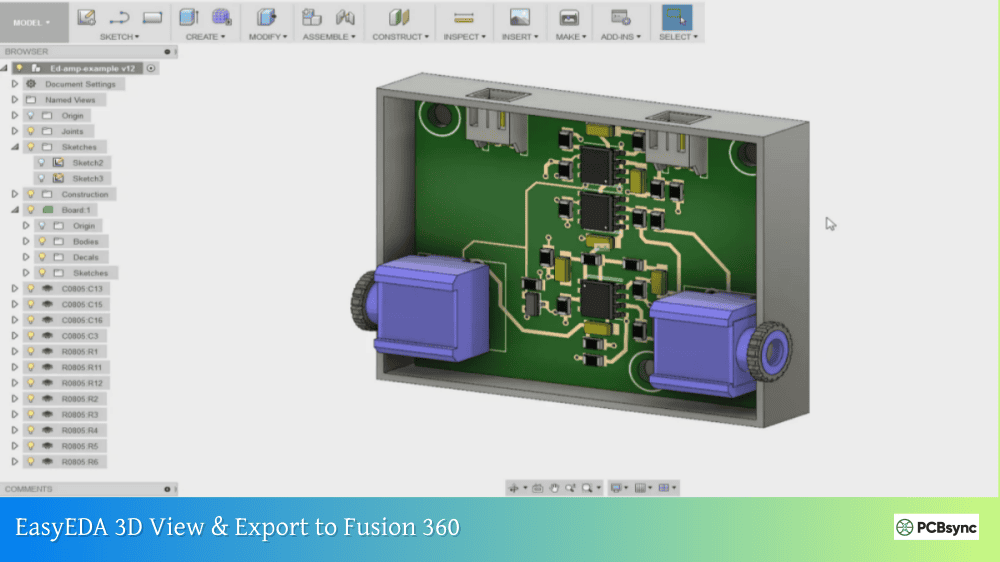
If you exported a STEP file from EasyEDA Pro, the import process is straightforward:
Open Fusion 360
Go to File → Insert → Insert MESH or Import
Navigate to your STEP file
Click OK to import
The STEP file imports as a component with proper dimensions and structure. You can immediately start designing your enclosure around it.
EasyEDA to Fusion 360 via OBJ (Standard Users)
The OBJ workflow requires more steps but is definitely workable:
Method 1: Direct OBJ Import
Split the EasyEDA OBJ file into standard OBJ + MTL files
In Fusion 360, go to Insert → Insert Mesh
Navigate to your OBJ file
After import, scale the mesh by 0.254 (Tools → Scale)
Note: OBJ imports as mesh geometry, not solid bodies
Direct STL upload from EasyEDA Pro for seamless ordering
Frequently Asked Questions
Can I export STEP files directly from EasyEDA Standard?
No, EasyEDA Standard only supports OBJ export for 3D models. STEP export requires EasyEDA Pro. However, you can use intermediate tools like FreeCAD or CAD Assistant to convert OBJ to STEP, though the result will be mesh-based rather than true solid geometry.
Why are my component 3D models missing after STEP export from EasyEDA Pro?
Components only appear in STEP exports if they have STEP format 3D models bound to their footprints. Components with only WRL or OBJ models won’t export with the board. Check Tools → 3D Model Manager to verify model bindings. You can also enable auto-generation of placeholder models based on the Height attribute.
How do I fix the scale problem when importing EasyEDA OBJ into Fusion 360?
EasyEDA Standard exports OBJ files in units of 0.01 inches (mils). When importing into Fusion 360 (which typically uses mm), scale the imported mesh by 0.254. In Fusion 360, use Modify → Scale and enter 0.254 as the scale factor.
Can I design enclosures directly in EasyEDA without exporting to another CAD tool?
Yes, EasyEDA Pro includes a 3D Shell feature that lets you create simple rectangular enclosures with configurable wall thickness, height, and mounting features. Access it via Place → 3D Shell → Outline. For complex enclosure designs with curves, snap-fits, or intricate features, you’ll still need dedicated CAD software like Fusion 360 or SolidWorks.
What’s the best workflow for 3D printing an enclosure designed around my EasyEDA PCB?
The recommended workflow depends on your EasyEDA version:
EasyEDA Pro: Use the built-in 3D Shell feature to create a basic enclosure, then export directly as STL. Upload to JLC3DP or your preferred 3D printing service.
EasyEDA Standard: Export your board outline as DXF, import into Fusion 360 or FreeCAD, design your enclosure around the imported outline, then export as STL for printing.
Conclusion
The path from EasyEDA 3D view to a finished enclosure in Fusion 360 or SolidWorks has gotten significantly smoother with EasyEDA Pro’s STEP export capability. While EasyEDA Standard users face more hurdles with OBJ conversions and workarounds, the workflow is still achievable with the right tools and techniques.
For anyone serious about ECAD-MCAD collaboration, upgrading to EasyEDA Pro is worth considering just for the STEP export functionality alone. The ability to export a complete 3D PCB assembly directly into your mechanical CAD tool eliminates hours of manual work and reduces errors in enclosure design.
Whatever your setup, the key is understanding what each export format provides and using the right intermediate tools when direct import isn’t possible. With the workflows outlined in this guide, you should be able to get any EasyEDA design into Fusion 360 or SolidWorks and create professional enclosures for your projects.
Inquire: Call 0086-755-23203480, or reach out via the form below/your sales contact to discuss our design, manufacturing, and assembly capabilities.
Quote: Email your PCB files to Sales@pcbsync.com (Preferred for large files) or submit online. We will contact you promptly. Please ensure your email is correct.
Notes: For PCB fabrication, we require PCB design file in Gerber RS-274X format (most preferred), *.PCB/DDB (Protel, inform your program version) format or *.BRD (Eagle) format. For PCB assembly, we require PCB design file in above mentioned format, drilling file and BOM. Click to download BOM template To avoid file missing, please include all files into one folder and compress it into .zip or .rar format.