Inquire: Call 0086-755-23203480, or reach out via the form below/your sales contact to discuss our design, manufacturing, and assembly capabilities.
Quote: Email your PCB files to Sales@pcbsync.com (Preferred for large files) or submit online. We will contact you promptly. Please ensure your email is correct.
Notes: For PCB fabrication, we require PCB design file in Gerber RS-274X format (most preferred), *.PCB/DDB (Protel, inform your program version) format or *.BRD (Eagle) format. For PCB assembly, we require PCB design file in above mentioned format, drilling file and BOM. Click to download BOM template To avoid file missing, please include all files into one folder and compress it into .zip or .rar format.
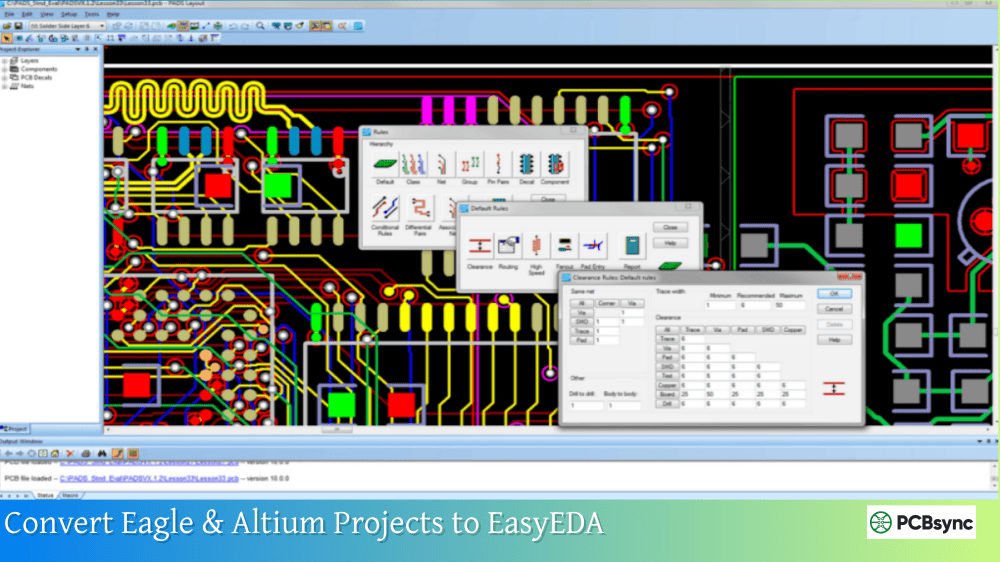
Convert Eagle & Altium Projects to EasyEDAConvert Eagle & Altium Projects to EasyEDA (And Vice Versa)
Over my fifteen years designing PCBs professionally, I’ve accumulated projects across nearly every major EDA platform. Eagle files from 2012, Altium projects for corporate clients, and now increasingly, designs in EasyEDA for JLCPCB production. The ability to convert between Eagle to EasyEDA, manage EasyEDA Eagle workflows, and handle EasyEDA to Altium migrations has become essential to my practice.
This guide covers practical conversion methods in all directions—importing legacy Eagle designs into EasyEDA, bringing Altium projects over for quick prototyping, and exporting EasyEDA designs back to these professional tools when needed.
Before diving into the technical details, let’s understand why Eagle to EasyEDA and Altium conversions matter.
Common Conversion Scenarios
Scenario
Direction
Typical Reason
Legacy project revival
Eagle → EasyEDA
Eagle files from discontinued version
Quick prototyping
Altium → EasyEDA
JLCPCB’s one-click ordering
Corporate handoff
EasyEDA → Altium
Client requires Altium deliverables
Library migration
Eagle → EasyEDA
Moving established component libraries
Team collaboration
Any direction
Different team members use different tools
Cost reduction
Altium → EasyEDA
Eliminating expensive software licenses
Platform Strengths Comparison
Feature
Eagle
Altium Designer
EasyEDA
Cost
$15-100/month
$7,000+ perpetual
Free
Installation
Required
Required
Browser-based
Learning curve
Moderate
Steep
Gentle
Component library
Good
Excellent
Massive (LCSC)
Manufacturing integration
Limited
Manual
One-click JLCPCB
Collaboration
Limited
Good
Cloud-native
Advanced features
Good
Excellent
Basic-moderate
Understanding these differences helps you decide when to convert and which tool to use for each project type.
Eagle to EasyEDA: Complete Import Guide
EasyEDA provides native support for importing Eagle files, making Eagle to EasyEDA conversion relatively straightforward.
Supported Eagle Versions
Eagle Version
EasyEDA Support
Notes
v6.0+
Full support
Direct import
v7.x
Full support
Recommended
v9.x
Full support
Best compatibility
Pre-v6.0
Not supported
Binary encrypted format
Fusion 360
Full support
Export as Eagle first
Important: Eagle files prior to version 6.0 use encrypted binary formats that EasyEDA cannot read directly. If you have older files, open them in a newer Eagle version (or Fusion 360) and save as v7.x format before importing.
Step-by-Step Eagle to EasyEDA Import
For EasyEDA Standard:
Log into EasyEDA
Go to File → Import → Eagle
Select your Eagle file (.sch for schematic, .brd for PCB)
Choose import options:
“Import File Only” – imports design without extracting libraries
“Import File and Extract Libs” – imports and saves components to your library
Wait for processing (may take 30-60 seconds for complex designs)
Review the imported project
For EasyEDA Pro:
Open EasyEDA Pro
Go to Start Page → Quick Start → Import Other → Import EAGLE
Importing Altium projects into EasyEDA enables you to leverage the LCSC component library and JLCPCB manufacturing integration for existing Altium designs.
Preparing Altium Files for Import
Altium files require preparation before EasyEDA can import them:
Open your project in Altium Designer
Go to File → Save As
Select “Altium Advanced Schematic ASCII (*.SchDoc)” for schematics
Select “PCB ASCII File (*.PcbDoc)” for PCB layouts
Compress the exported files into a ZIP archive
Critical: The ASCII format is essential. EasyEDA cannot read Altium’s default binary format for all versions.
Altium to EasyEDA Import Process
Using EasyEDA Standard:
Go to File → Import → Altium Designer
Select your ZIP file containing ASCII exports
Wait for conversion (large files may take several minutes)
Review imported design
Using EasyEDA Pro Format Converter (Recommended):
Download the EasyEDA Pro Format Converter
Open the converter application
Select Altium Designer as source format
Upload your ZIP file
Convert and download the EasyEDA format
Import into EasyEDA Pro via File → Import → EasyEDA (Professional)
Altium Import Limitations
Element
Import Support
Notes
Schematic symbols
Yes
Minor position shifts possible
PCB footprints
Yes
Irregular pads convert to composite
Copper pours
Partial
May need manual rebuild
Design rules
No
Must recreate in EasyEDA
3D models
No
Re-assign from LCSC library
Multi-channel designs
Partial
May require manual adjustment
Inner layer planes
Partial
Reconstruction often needed
EasyEDA to Altium Export
When clients or employers require Altium deliverables, EasyEDA supports direct EasyEDA to Altium export.
Copper Pour Rebuild: In Altium, go to Tools → Polygon Pours → Repour All, then save the file.
EasyEDA to Altium Limitations
Element
Export Support
Action Required
Copper fills
No
Repour in Altium
Design rules
No
Recreate manually
Inner electrical layers
Partial
Manual adjustment needed
Images in schematic
No
Re-add in Altium
Some layer mappings
Partial
May export to mechanical layers
Warning: EasyEDA’s Altium export is beta functionality. Always verify thoroughly before manufacturing. Altium version 17 provides best compatibility; version 19+ may have issues.
EasyEDA to Eagle: The Indirect Route
Unlike the other conversions, EasyEDA to Eagle is not directly supported. However, there’s a workaround:
Indirect Conversion Method
Export from EasyEDA to Altium format (.schdoc, .pcbdoc)
Open the Altium files in Altium Designer
Export from Altium to Eagle format
Alternatively, use the Gerber files approach:
Generate Gerber files from EasyEDA
Import Gerbers into Eagle (limited—layout reference only)
Eagle files before version 6.0 use an encrypted binary format that EasyEDA cannot read directly. You’ll need to open these files in a newer version of Eagle (or Autodesk Fusion 360, which now includes Eagle functionality) and save them as version 7.x or later format. After conversion to the newer format, EasyEDA can import them normally. If you don’t have access to newer Eagle software, Fusion 360 offers a free hobbyist license that includes Eagle functionality—use that to convert your legacy files.
Why are my copper pours missing after exporting from EasyEDA to Altium?
This is a known limitation of the EasyEDA to Altium export functionality. Copper area fill data does not transfer during export. After opening the exported file in Altium Designer, you must manually rebuild all polygon pours by going to Tools → Polygon Pours → Repour All. This is an extra step, but the underlying pour boundaries and net assignments are preserved—only the fill rendering needs regeneration. Always verify that pours are correct after rebuilding before manufacturing.
Is there a way to export from EasyEDA directly to Eagle format?
No, EasyEDA does not support direct EasyEDA to Eagle export. The Eagle to EasyEDA path is one-way only. If you need to provide files to someone using Eagle, your best option is to export to Altium format first, then have the recipient convert from Altium to Eagle (Altium supports Eagle export). Alternatively, for manufacturing purposes, simply provide Gerber files instead—these are universally accepted and avoid format conversion issues entirely.
What happens to my LCSC part numbers when I export to Altium?
LCSC part numbers stored in EasyEDA component attributes will export as component parameters in Altium. However, the direct link to LCSC inventory and JLCPCB assembly services is lost—that integration only works within EasyEDA. If you’re exporting specifically for JLCPCB manufacturing, stay in EasyEDA to use the one-click ordering feature. If you must work in Altium, manually verify that component parameters include the LCSC numbers so you can reference them when ordering parts.
Can I convert between EasyEDA Standard and EasyEDA Pro formats?
Yes, EasyEDA Standard and Pro can exchange projects. Export from Standard using File → Export → EasyEDA Source (JSON format), then import into Pro. Going from Pro to Standard, use similar export/import flow, though some Pro-specific features may not translate perfectly to Standard. The EasyEDA Pro Format Converter tool can also help with batch conversions between editions and when migrating from other platforms like Eagle or Altium.
Troubleshooting Conversion Problems
Even with proper preparation, conversions sometimes encounter issues. Here’s how to resolve the most common problems.
Eagle Import Failures
Error Message
Cause
Solution
“Unsupported file type”
Pre-v6.0 format
Convert in Fusion 360 first
“Unexpected error while converting”
Corrupted or incompatible file
Re-export from Eagle, try different version
“Upload file with error: 1”
Large library file
Split library, import in parts
Missing components after import
Libraries not embedded
Use “Import and Extract Libs” option
Altium Import/Export Issues
Problem
Diagnosis
Fix
Chinese characters garbled
Encoding issue
Save as UTF-8 in text editor
Import timeout
File too large (>100MB)
Split into smaller projects
Undefined shapes error
Unsupported primitives
Manually recreate affected elements
Net connectivity lost
Net name mismatch
Check for underscore replacements
General Conversion Problems
Symptom
Common Cause
Resolution
Footprints misaligned
Origin point differences
Adjust placement manually
Traces missing
Layer mapping issues
Check layer assignments
Design rule violations
Rules didn’t transfer
Recreate rules in target tool
3D view empty
3D models not converted
Re-assign from target library
Batch Conversion Strategies
When migrating multiple projects or large component libraries, batch processing saves significant time.
Eagle Library Batch Import
For large Eagle libraries:
In EasyEDA, use File → Import → Eagle
Select multiple .lbr files at once
Choose “Import File and Extract Libs”
Libraries appear in your personal component library
Organize into folders for easy access
Project Migration Workflow
For migrating an entire project portfolio:
Step
Action
Time Estimate
1
Inventory all projects
1-2 hours
2
Categorize by source version
30 minutes
3
Convert older formats if needed
Variable
4
Import in batches of 5-10
2-3 hours
5
Verify each conversion
15-30 min each
6
Document any issues
Ongoing
Using EasyEDA Pro Format Converter
The Format Converter tool excels at batch operations:
Prepare all source files in a folder
ZIP each project separately
Run converter for each format type
Import converted files into EasyEDA Pro
Batch verify using DRC
Conclusion
The ability to convert between Eagle to EasyEDA, manage EasyEDA Eagle migrations, and handle EasyEDA to Altium exports gives you tremendous flexibility in your PCB design workflow. You can leverage legacy Eagle libraries, tap into LCSC’s massive component database, take advantage of JLCPCB’s integrated manufacturing, and still deliver Altium files when clients require them.
The key to successful conversions is understanding each platform’s limitations and building verification steps into your workflow. Never trust a conversion blindly—always run DRC, verify critical footprints, rebuild copper pours, and compare against the original before committing to manufacturing.
For new projects, consider where the design will ultimately be manufactured and who needs to access it. If JLCPCB production is the goal, starting in EasyEDA saves conversion hassles. If corporate Altium workflows are required, EasyEDA can still serve as a rapid prototyping tool with export capability.
The PCB design tool landscape continues to evolve, but the need for interoperability remains constant. Master these conversion techniques, and you’ll never be locked into a single platform again.
Inquire: Call 0086-755-23203480, or reach out via the form below/your sales contact to discuss our design, manufacturing, and assembly capabilities.
Quote: Email your PCB files to Sales@pcbsync.com (Preferred for large files) or submit online. We will contact you promptly. Please ensure your email is correct.
Notes: For PCB fabrication, we require PCB design file in Gerber RS-274X format (most preferred), *.PCB/DDB (Protel, inform your program version) format or *.BRD (Eagle) format. For PCB assembly, we require PCB design file in above mentioned format, drilling file and BOM. Click to download BOM template To avoid file missing, please include all files into one folder and compress it into .zip or .rar format.