Inquire: Call 0086-755-23203480, or reach out via the form below/your sales contact to discuss our design, manufacturing, and assembly capabilities.
Quote: Email your PCB files to Sales@pcbsync.com (Preferred for large files) or submit online. We will contact you promptly. Please ensure your email is correct.
Notes: For PCB fabrication, we require PCB design file in Gerber RS-274X format (most preferred), *.PCB/DDB (Protel, inform your program version) format or *.BRD (Eagle) format. For PCB assembly, we require PCB design file in above mentioned format, drilling file and BOM. Click to download BOM template To avoid file missing, please include all files into one folder and compress it into .zip or .rar format.
Creating schematic symbols and PCB footprints from scratch is one of the most tedious parts of electronics design. You pull up the datasheet, measure pin spacing, draw the symbol, verify the pad dimensions, add the 3D model—and an hour later you’ve made exactly one component. Multiply that by dozens of parts per project, and you’ve lost days to library creation instead of actual design work.
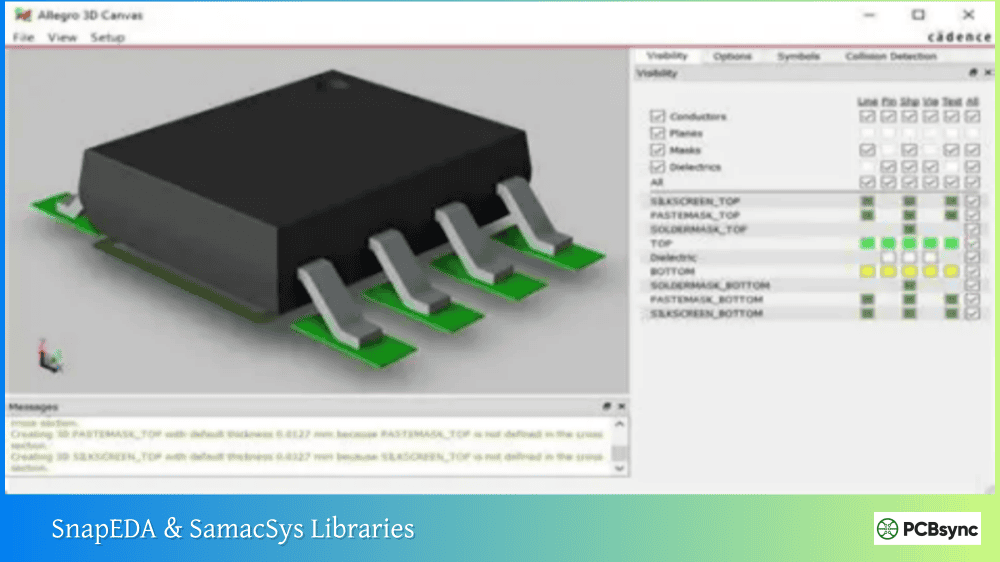
SnapEDA & SamacSys libraries changed my workflow completely. These free online databases contain millions of verified components ready to drop directly into Altium Designer. Instead of spending hours building a QFN-48 package from scratch, I search for the part number, click download, and I’m back to routing traces within minutes. This guide shows you exactly how to set up and use both platforms effectively.
Before we get into the setup details, let’s address the obvious question: why bother with external libraries when Altium has its own Manufacturer Part Search?
The Component Library Challenge
Altium’s built-in Manufacturer Part Search is excellent, but it doesn’t have everything. Newer components, less popular parts, and specialized connectors often aren’t available. When you need a component that’s not in the database, you have three options: create it manually, wait for someone else to add it, or use third-party libraries like SnapEDA and SamacSys.
Benefits of SnapEDA & SamacSys Libraries
Benefit
Description
Time savings
Download complete components in seconds instead of creating them in hours
IPC compliance
Footprints follow IPC-7351B standards for manufacturing reliability
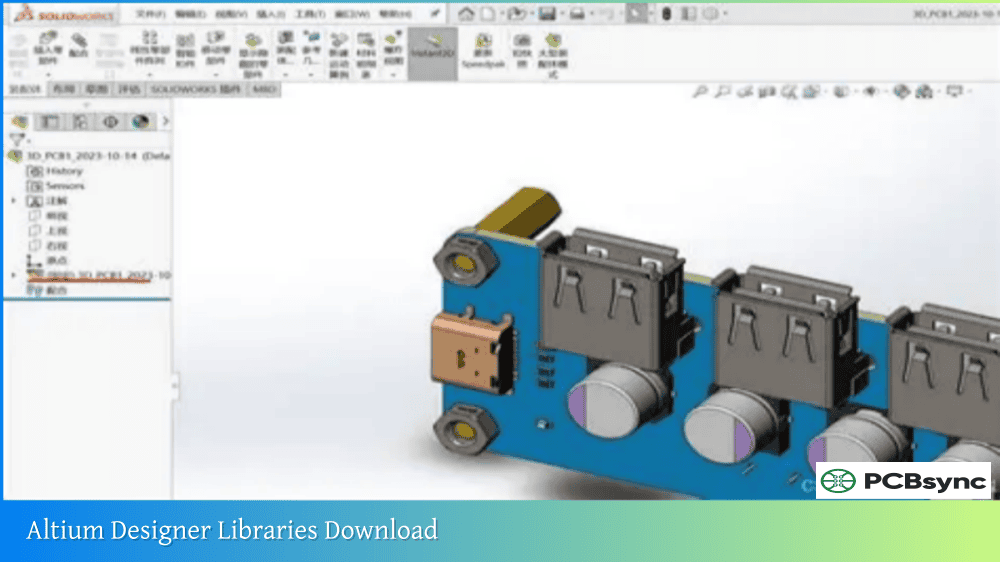
3D models included
Most components come with STEP models for mechanical verification
Free to use
Both platforms offer free downloads for individual engineers
Regular updates
New components added daily as manufacturers release parts
Both services create missing components, often within 24 hours
Quality Considerations
I’ll be honest—I was skeptical about third-party libraries at first. After getting burned by incorrect footprints from other sources early in my career, I verified everything manually. But both SnapEDA and SamacSys have proven reliable over hundreds of components. Their libraries follow IPC standards, include verification processes, and I’ve never had a manufacturing issue traced back to their footprints.
That said, I still recommend spot-checking critical dimensions against the datasheet for high-reliability designs. It takes two minutes and provides peace of mind.
SnapEDA vs SamacSys: Understanding the Differences
Both platforms serve the same purpose but have different strengths. Understanding these helps you choose the right tool for each situation.
Platform Comparison
Feature
SnapEDA
SamacSys (Component Search Engine)
Component count
Millions
15+ million
Altium plugin
Yes (dedicated plugin)
Yes (Library Loader)
Direct website download
Yes (.IntLib, .zip)
Yes (multiple formats)
Custom part requests
InstaPart ($29, 24-hour delivery)
Free part requests
3D models
Most parts
Most parts
Standards
IPC-7351B, IEEE-315
IPC-7351B
Distributor integration
Octopart data
Mouser partnership
Account required
Yes (free)
Yes (free)
When to Use Each Platform
Use SnapEDA when:
You need a quick download without installing software
The part isn’t in SamacSys database
You want to place components directly onto schematics via plugin
You need urgent custom parts (InstaPart delivers in 24 hours)
Use SamacSys when:
You prefer integrated search within Altium’s interface
You want free custom part requests
You’re already using Mouser for procurement
You need to download multiple parts efficiently
In practice, I use both. SamacSys Library Loader stays installed for everyday searching, and I visit SnapEDA’s website when I can’t find something locally or need their plugin features.
Setting Up the SnapEDA Plugin for Altium Designer
The SnapEDA plugin lets you search and download components directly within Altium Designer without switching to a web browser.
After installation, the Library Loader appears in multiple locations:
File → Symbols | Footprints | 3D Models
Tools → Symbols | Footprints | 3D Models
The first time you open Library Loader, you’ll need to enter your SamacSys account credentials.
Using Library Loader to Add Components
Open a schematic in Altium Designer
Go to File → Symbols | Footprints | 3D Models
The Library Loader window opens with a search box
Enter a part number (e.g., “ADP1613”)
Select a component from the search results
Click Add to Design to place on your schematic
The component automatically goes into a SamacSys library file (SamacSys_Parts.SchLib and SamacSys_Parts.PcbLib) in your project folder, ready for immediate use.
Library Loader Configuration Options
Setting
Location
Purpose
Download folder
Installation wizard
Sets where ECAD models are saved
Auto-place option
Login & Settings
Controls whether components place automatically
Library path
Altium project settings
Where component libraries are stored
Downloading Components Directly from Websites
Sometimes you might prefer downloading from the websites directly rather than using plugins—perhaps you’re preparing libraries in advance or the plugin isn’t cooperating.
IPC-7351B: Surface mount design and land pattern standard
IEEE-315: Graphic symbols for electrical diagrams
ISO 10303-21: STEP file format for 3D models
Frequently Asked Questions About SnapEDA & SamacSys Libraries
Are SnapEDA and SamacSys components really free?
Yes, both platforms offer free downloads for individual engineers and small teams. They generate revenue through partnerships with component manufacturers and distributors, who pay for the marketing exposure when engineers download their parts. You can download unlimited components without paying anything. The only paid service is SnapEDA’s InstaPart, which costs $29 if you need a custom part created within 24 hours. SamacSys offers free part requests, though delivery time varies.
How do I know if a downloaded footprint is accurate?
Both SnapEDA and SamacSys create footprints following IPC-7351B standards and include verification processes. SnapEDA uses a combination of automated tools and manual review. SamacSys collaborates with PCB manufacturers on their design rules. For standard components like resistors, capacitors, and common ICs, the libraries are highly reliable. For critical applications, always verify key dimensions against the component datasheet’s recommended land pattern before sending boards to fabrication.
Can I use these libraries in commercial products?
Yes, both platforms allow commercial use of their downloaded libraries. There are no licensing restrictions preventing you from using SnapEDA or SamacSys components in products you sell. The components become part of your design files like any other library element. However, you cannot redistribute the library files themselves as a standalone product—they’re for use in your designs, not for reselling as libraries.
What if the component I need isn’t in either database?
Both platforms offer part request services. SnapEDA’s InstaPart service delivers custom components within 24 hours for $29, and the part then becomes free for the entire community. SamacSys accepts free part requests through their website, though delivery time isn’t guaranteed. You can also use Altium’s built-in IPC Compliant Footprint Generator to create standard package footprints manually, or use the Component Wizard for complete component creation.
Do I need both plugins installed, or should I choose one?
I recommend having both available. SamacSys Library Loader works great as your primary tool because it integrates directly into Altium’s menus and handles most common components. Keep SnapEDA as a backup for parts you can’t find in SamacSys, or use their website for quick one-off downloads. The plugins don’t conflict with each other, so there’s no downside to having both installed. Different parts are available on each platform, so having both options maximizes your coverage.
Best Practices for Working with Third-Party Libraries
After using SnapEDA & SamacSys libraries extensively, here are the workflow practices that have served me well:
Standardize your library structure. Create consistent folder locations for downloaded components. This makes it easier to find parts later and prevents duplicate downloads.
Verify before production. For new components, especially fine-pitch packages, spend two minutes comparing pad dimensions against the datasheet before ordering PCBs. It’s much cheaper than discovering errors after fabrication.
Keep local copies. Don’t rely on re-downloading from the internet. Save components to your local library structure so they’re available offline and won’t disappear if a website changes.
Document your sources. Add a note in the component description indicating where it came from (SnapEDA, SamacSys, or custom). This helps when troubleshooting footprint issues later.
Update periodically. Component libraries occasionally get corrections. Check for updated versions of critical components every few months, especially if you’re doing a board respin.
The time savings from using SnapEDA and SamacSys are substantial—what used to take hours now takes minutes. More importantly, the standardized, verified footprints reduce manufacturing risk compared to hastily created custom libraries. Set up both tools, establish good library management habits, and get back to what matters: designing great electronics.
Inquire: Call 0086-755-23203480, or reach out via the form below/your sales contact to discuss our design, manufacturing, and assembly capabilities.
Quote: Email your PCB files to Sales@pcbsync.com (Preferred for large files) or submit online. We will contact you promptly. Please ensure your email is correct.
Notes: For PCB fabrication, we require PCB design file in Gerber RS-274X format (most preferred), *.PCB/DDB (Protel, inform your program version) format or *.BRD (Eagle) format. For PCB assembly, we require PCB design file in above mentioned format, drilling file and BOM. Click to download BOM template To avoid file missing, please include all files into one folder and compress it into .zip or .rar format.