Inquire: Call 0086-755-23203480, or reach out via the form below/your sales contact to discuss our design, manufacturing, and assembly capabilities.
Quote: Email your PCB files to Sales@pcbsync.com (Preferred for large files) or submit online. We will contact you promptly. Please ensure your email is correct.
Notes: For PCB fabrication, we require PCB design file in Gerber RS-274X format (most preferred), *.PCB/DDB (Protel, inform your program version) format or *.BRD (Eagle) format. For PCB assembly, we require PCB design file in above mentioned format, drilling file and BOM. Click to download BOM template To avoid file missing, please include all files into one folder and compress it into .zip or .rar format.
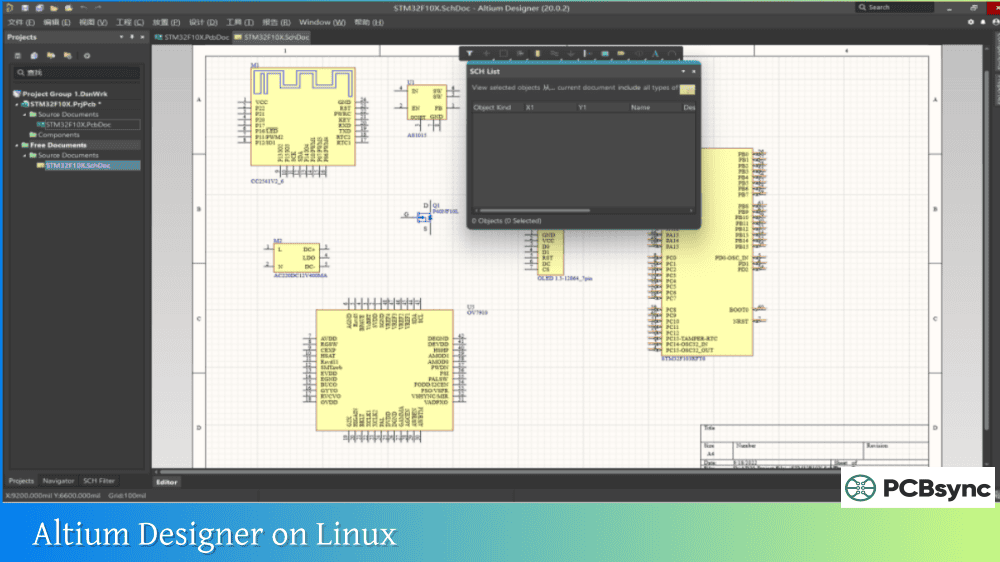
As a PCB engineer who switched to Linux about five years ago, the question I get asked most often is how I handle Altium Designer. The reality is straightforward but often misunderstood: Altium Designer does not have a native Linux version, and there’s no indication that Altium plans to develop one. However, thousands of engineers successfully run Altium Designer on Linux every day using virtualization.
This guide covers everything you need to know about running Altium Designer on Linux, specifically Ubuntu. I’ll walk through the most reliable installation methods, performance expectations, troubleshooting tips, and when it makes sense to consider native Linux alternatives instead.
No. Altium Designer is exclusively a Windows application. According to Altium’s official documentation, the software is validated only for Windows 11 (64-bit) and Windows 10 (64-bit). There is no native Linux build, no macOS version, and no announced plans for cross-platform support.
The technical reason behind this limitation is Altium’s graphics engine. Altium Designer is built on DirectX 11, Microsoft’s proprietary graphics API. This architectural decision provides excellent performance with gaming-class graphics cards but permanently ties the software to the Windows ecosystem.
What Altium Says About Running on Linux
Altium’s Knowledge Base acknowledges that users run their software on non-Windows platforms through virtualization. Their official position states that running Altium Designer on virtual machines and emulators is “not supported,” meaning you may experience unexpected performance issues, and technical support may be limited for VM-related problems.
Despite this disclaimer, Altium has published guides showing how to run Altium Designer on Linux using VirtualBox, suggesting they recognize the demand from the Linux engineering community.
Methods for Running Altium Designer on Linux
There are several approaches to running Altium Designer on Linux, each with different trade-offs in terms of performance, reliability, and complexity.
Method
Reliability
Performance
Complexity
Cost
VirtualBox
High
Good
Medium
Free
VMware Workstation
High
Very Good
Medium
$199+
Wine
Low
Variable
High
Free
Cloud VM (AWS/Azure)
High
Excellent
Medium
Pay-per-use
Remote Desktop
High
Network-dependent
Low
Varies
Method 1: VirtualBox (Recommended for Most Users)
Oracle VirtualBox is the most popular method for running Altium Designer on Linux. It’s free, open-source, and well-documented. Altium themselves recommend this approach in their official resources.
VirtualBox creates a complete Windows environment inside your Linux system, allowing you to run Altium Designer as if you were on a native Windows machine. The main advantages are cost (free) and the ability to switch between Linux and Windows applications without restarting.
Method 2: VMware Workstation
VMware Workstation Pro offers better performance than VirtualBox, particularly for graphics-intensive operations like Altium’s 3D PCB viewer. The trade-off is cost, as VMware Workstation Pro requires a license purchase.
Many professional engineers prefer VMware because its DirectX support is more mature, resulting in fewer graphics glitches and better overall stability when working with complex designs.
Method 3: Wine (Limited Support)
Wine is a compatibility layer that allows Windows applications to run directly on Linux without a full virtual machine. While some engineers have successfully run older versions of Altium Designer (version 16 and earlier) using Wine, this approach is not reliable for modern versions.
The primary issue is DirectX 11 support. Wine’s DirectX implementation is incomplete, which causes problems with Altium’s graphics engine. Unless you specifically need to run an older Altium version, I don’t recommend the Wine approach.
Method 4: Cloud-Based Windows VM
If your local hardware isn’t powerful enough for virtualization, running Altium on a cloud-based Windows VM (Amazon WorkSpaces, Azure Virtual Desktop, or similar) is a viable option. You access the Windows environment through remote desktop from your Linux machine.
This approach provides native Windows performance since the VM runs on dedicated server hardware. The downside is ongoing costs and dependency on network connectivity.
Step-by-Step: Installing Altium Designer on Ubuntu with VirtualBox
This installation guide uses Ubuntu 24.04 LTS, though the process is similar for other Ubuntu versions and Debian-based distributions.
Prerequisites
Before starting, ensure your system meets these requirements:
Requirement
Minimum
Recommended
Ubuntu Version
22.04 LTS
24.04 LTS
RAM
16 GB
32 GB
Storage
100 GB free
250 GB SSD
CPU
Intel Core i5 / AMD Ryzen 5
Intel Core i7 / AMD Ryzen 7
Graphics
Any with 3D support
Dedicated GPU
You’ll also need a valid Windows 11 license and an Altium Designer license or subscription.
Step 1: Install VirtualBox on Ubuntu
Open a terminal and add the VirtualBox repository, then install the software:
bash
# Update package listsudo apt update# Install required dependenciessudo apt install -y software-properties-common# Download and install VirtualBox# For Ubuntu 24.04, download the .deb package from virtualbox.orgwget https://download.virtualbox.org/virtualbox/7.0.14/virtualbox-7.0_7.0.14-161095~Ubuntu~noble_amd64.deb# Install the downloaded packagesudo dpkg -i virtualbox-7.0_7.0.14-161095~Ubuntu~noble_amd64.deb# Fix any dependency issuessudo apt –fix-broken install
After installation, add your user to the vboxusers group:
bash
sudo usermod -aG vboxusers $USER
Log out and log back in for the group change to take effect.
Step 2: Download Windows 11 ISO
Download the Windows 11 disk image from Microsoft’s official website. You’ll need the 64-bit version. Save the ISO file to a location you can easily access, such as your Downloads folder.
Step 3: Create a New Virtual Machine
Launch VirtualBox and click “New” to create a new virtual machine. Configure the following settings:
Basic Settings:
Name: Altium-Windows11 (or your preference)
Type: Microsoft Windows
Version: Windows 11 (64-bit)
Hardware Settings:
Base Memory: 8192 MB minimum (16384 MB recommended)
Processors: 4 CPUs minimum (6-8 recommended)
Enable EFI: Yes (required for Windows 11)
Hard Disk:
Create a virtual hard disk now
VDI (VirtualBox Disk Image)
Dynamically allocated
Size: 80 GB minimum (120 GB recommended)
Step 4: Configure VM Settings for Altium Performance
Before installing Windows, adjust these settings for better Altium Designer performance:
Display Settings:
Video Memory: 256 MB (maximum)
Graphics Controller: VBoxSVGA
Enable 3D Acceleration: Yes
System Settings:
Enable PAE/NX: Yes
Enable Nested VT-x/AMD-V: Yes (if available)
Storage:
Attach the Windows 11 ISO to the virtual optical drive
Step 5: Install Windows 11
Start the virtual machine and proceed with Windows 11 installation:
Boot from the ISO and select your language preferences
Click “Install now”
Enter your Windows product key (or select “I don’t have a product key” for later activation)
Select Windows 11 Pro (recommended for development work)
Accept the license terms
Choose “Custom: Install Windows only”
Select the virtual hard disk and click Next
Wait for installation to complete (typically 20-45 minutes)
After Windows boots, complete the initial setup wizard with your Microsoft account or local account.
Step 6: Install VirtualBox Guest Additions
Guest Additions significantly improve performance and usability. From the VirtualBox menu:
Click Devices > Insert Guest Additions CD image
Open File Explorer in Windows and run the VBoxWindowsAdditions installer
Follow the prompts and restart Windows when complete
Guest Additions enables:
Seamless mouse integration
Shared folders between Linux and Windows
Better display scaling
Improved graphics performance
Step 7: Download and Install Altium Designer
Inside the Windows virtual machine:
Open Microsoft Edge and navigate to altium.com/products/downloads
Run the installer as Administrator (right-click > Run as administrator)
Follow the installation wizard, selecting your preferred components
Launch Altium Designer after installation completes
Activate your license through the AltiumLive portal
Step 8: Optimize Altium Designer for Virtual Machine Performance
Within Altium Designer, adjust these settings for better VM performance:
Preferences > PCB Editor > Display:
Reduce 3D surface detail level
Disable “Show generic models” if 3D view is slow
Preferences > System > General:
Disable unnecessary background services
Reduce auto-save frequency if performance is impacted
General Tips:
Close unused panels to reduce GPU load
Use simplified component 3D models for large designs
Take VirtualBox snapshots before major updates
Performance Expectations for Altium Designer on Linux
Running Altium Designer on Linux through virtualization works well for most design tasks, but performance varies depending on your hardware and the complexity of your designs.
Task
Performance Level
Notes
Schematic Capture
Excellent
No noticeable difference from native
PCB Layout
Very Good
Smooth for most designs
Interactive Routing
Good
Minor lag on complex boards
3D PCB Viewer
Fair to Good
Depends on GPU and driver support
Polygon Repours
Fair
Slower on complex multi-layer boards
Design Rule Checks
Good
CPU-bound, benefits from more cores
Output Generation
Very Good
Gerber, drill files generate quickly
The 3D PCB viewer typically shows the most noticeable performance difference compared to native Windows. If your workflow relies heavily on 3D visualization, consider allocating more video memory and ensuring 3D acceleration is properly enabled.
Troubleshooting Common Issues
DirectX Errors in VirtualBox
If Altium displays “DirectX 10 is not supported” or similar errors:
Ensure 3D Acceleration is enabled in VM settings
Verify Guest Additions are installed correctly
Try increasing Video Memory to 256 MB
Update VirtualBox to the latest version
Poor Graphics Performance
For sluggish display or low frame rates:
Install the latest VirtualBox Guest Additions
Enable 3D acceleration in display settings
Allocate more video memory (up to 256 MB)
Consider switching to VMware Workstation for better DirectX support
License Activation Problems
If Altium fails to activate or loses license:
Ensure the VM has internet connectivity
Check that Windows firewall isn’t blocking Altium
Verify your AltiumLive credentials are correct
Contact Altium support if hardware ID issues persist
Shared Folder Access Issues
If shared folders between Linux and Windows aren’t working:
Reinstall Guest Additions
Run VirtualBox as administrator when configuring shares
Use VirtualBox’s shared folder feature rather than network shares
If the complexity of virtualization seems excessive for your needs, several professional-grade PCB design tools run natively on Linux.
KiCad
KiCad is the most capable free, open-source PCB design software available. It runs natively on Linux, Windows, and macOS.
Feature
KiCad
Altium Designer
Cost
Free
$350+/month subscription
Linux Support
Native
Virtualization only
Max Layers
32
Unlimited
3D Viewer
Yes
Yes
Simulation
Basic SPICE
Integrated SPICE
Cloud Collaboration
No (use Git)
Altium 365
Component Libraries
Community + custom
Extensive built-in
KiCad handles most professional PCB design tasks and has improved dramatically in recent years. Many engineers use KiCad for personal projects and smaller professional work while maintaining Altium for enterprise projects.
Frequently Asked Questions About Altium Designer on Linux
Can I run Altium Designer natively on Ubuntu or other Linux distributions?
No, Altium Designer does not have a native Linux version and runs only on Windows. To use Altium Designer on Linux, you must run Windows through virtualization software like VirtualBox or VMware Workstation, which creates a Windows environment inside your Linux system. Altium has not announced any plans to develop a native Linux version, so virtualization remains the only option for the foreseeable future.
Is VirtualBox or VMware better for running Altium Designer on Linux?
Both work well, but VMware Workstation Pro generally provides better performance, particularly for Altium’s 3D PCB viewer and other graphics-intensive features. VMware’s DirectX implementation is more mature, resulting in fewer visual glitches. However, VirtualBox is free and works reliably for most design tasks. If you primarily do schematic capture and 2D PCB layout, VirtualBox is sufficient. If you heavily use 3D visualization or work with very complex designs, VMware’s better graphics performance may justify the cost.
Why doesn’t Wine work well with Altium Designer?
Altium Designer relies heavily on DirectX 11 for its graphics engine, and Wine’s DirectX implementation is incomplete. While older versions of Altium (version 16 and earlier) have been successfully run under Wine by some users, modern versions encounter significant compatibility issues. Common problems include missing 3D views, graphical glitches, crashes when opening certain panels, and license activation failures. The effort required to troubleshoot Wine issues typically exceeds the effort of setting up a proper virtual machine.
How much RAM should I allocate to the virtual machine for Altium Designer?
Allocate at least 8 GB of RAM to the virtual machine for basic functionality, though 16 GB provides a much better experience for professional work. Your host Linux system also needs RAM for its own operations, so ensure your total system RAM is at least 16 GB (for 8 GB VM allocation) or 32 GB (for 16 GB VM allocation). Insufficient RAM causes slow performance, excessive disk swapping, and potential crashes when working with complex designs or multiple projects simultaneously.
Should I switch from Altium Designer to KiCad if I use Linux?
This depends on your specific requirements. If your employer mandates Altium Designer, you need Altium 365 collaboration features, or you’re working with existing Altium project files, running Altium through virtualization makes sense. If you have flexibility in tool choice, KiCad is a capable native Linux alternative that handles most professional PCB design tasks without virtualization complexity. Many engineers use both: KiCad for personal and smaller projects, and Altium for enterprise work. Consider your specific workflow, team requirements, and design complexity when making this decision.
Final Thoughts on Altium Designer on Linux
Running Altium Designer on Linux is entirely possible, though it requires running Windows through virtualization. For most engineers, VirtualBox provides a free, reliable solution that works well for professional PCB design work. The performance is good enough for typical design tasks, though the 3D viewer and very complex operations may be somewhat slower than native Windows.
The key to success is proper setup: allocate sufficient RAM, enable 3D acceleration, install Guest Additions, and take snapshots before major updates. With these steps completed, many engineers work full-time with Altium Designer on Linux-based systems without significant issues.
If virtualization seems like too much overhead for your needs, KiCad and other native Linux tools have matured significantly and may serve your requirements without the added complexity. The best choice depends on your specific workflow, team requirements, and whether Altium-specific features are essential to your work.
This guide reflects software versions and methods current as of early 2026. VirtualBox, VMware, and Altium Designer receive regular updates that may affect compatibility and performance.
Inquire: Call 0086-755-23203480, or reach out via the form below/your sales contact to discuss our design, manufacturing, and assembly capabilities.
Quote: Email your PCB files to Sales@pcbsync.com (Preferred for large files) or submit online. We will contact you promptly. Please ensure your email is correct.
Notes: For PCB fabrication, we require PCB design file in Gerber RS-274X format (most preferred), *.PCB/DDB (Protel, inform your program version) format or *.BRD (Eagle) format. For PCB assembly, we require PCB design file in above mentioned format, drilling file and BOM. Click to download BOM template To avoid file missing, please include all files into one folder and compress it into .zip or .rar format.