Inquire: Call 0086-755-23203480, or reach out via the form below/your sales contact to discuss our design, manufacturing, and assembly capabilities.
Quote: Email your PCB files to Sales@pcbsync.com (Preferred for large files) or submit online. We will contact you promptly. Please ensure your email is correct.
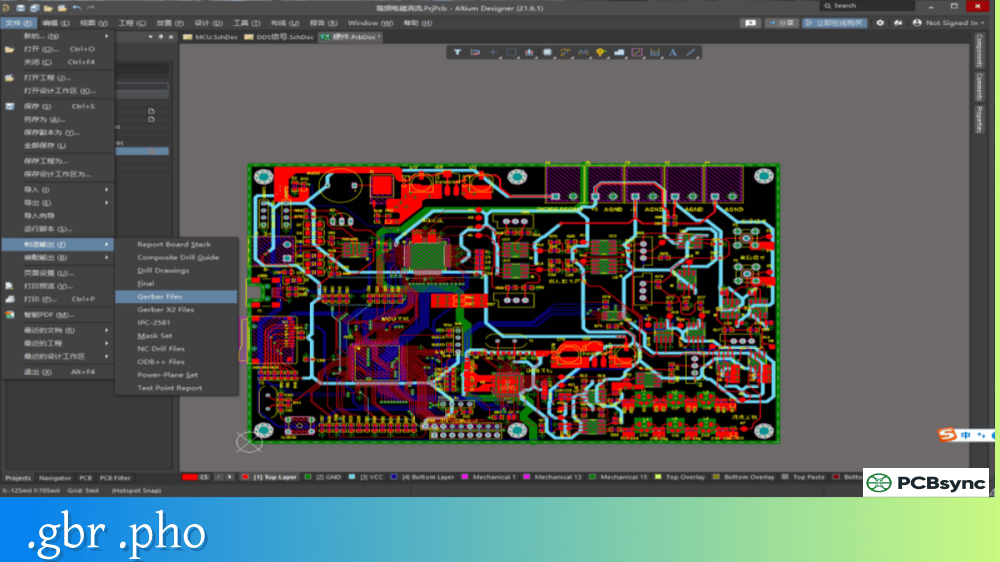
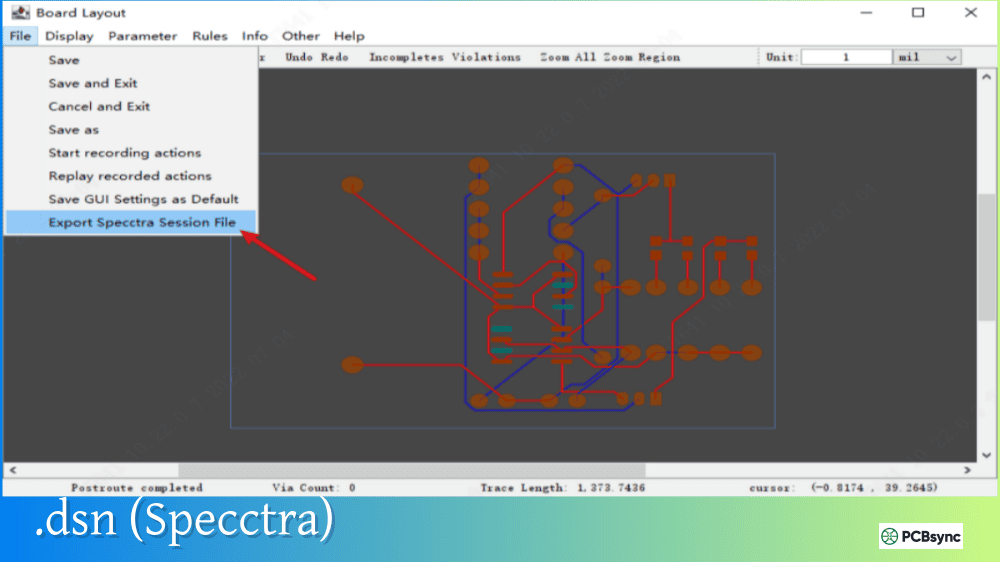
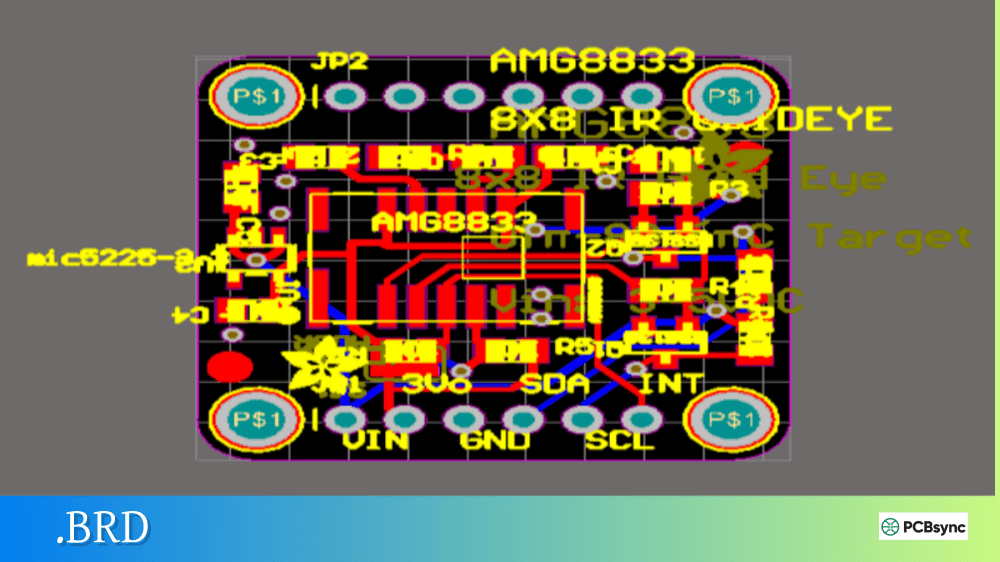
Notes: For PCB fabrication, we require PCB design file in Gerber RS-274X format (most preferred), *.PCB/DDB (Protel, inform your program version) format or *.BRD (Eagle) format. For PCB assembly, we require PCB design file in above mentioned format, drilling file and BOM. Click to download BOM template To avoid file missing, please include all files into one folder and compress it into .zip or .rar format.
If you’ve been working in PCB design for any length of time, you’ve likely encountered IGES files when exchanging 3D models with mechanical engineers or searching for component models online. While newer formats like STEP have become more popular, IGES remains one of the most widely supported 3D CAD exchange formats in the industry. Understanding when and how to use .igs files can save you significant headaches when collaborating across different design tools.
This guide explains everything PCB engineers need to know about the IGES format, its role in electronics design, and how it compares to modern alternatives.
IGES stands for Initial Graphics Exchange Specification. It’s a vendor-neutral file format developed to enable the digital exchange of CAD data between different software systems. IGES files use the extensions .igs or .iges and store data in ASCII text format, making them readable by virtually any CAD application.
The format was born out of necessity in the late 1970s when the U.S. Air Force realized that defense contractors were wasting millions of dollars trying to convert CAD files between incompatible systems. Major industry players including Boeing, General Electric, and the National Bureau of Standards (now NIST) collaborated to create a common exchange format. The first official IGES version was released in 1980 as ANSI standard Y14.26M.
What Data Can IGES Files Store?
IGES files are capable of storing various types of geometric and product data:
Data Type
Description
2D Geometry
Lines, arcs, curves, and drawing elements
3D Surfaces
NURBS surfaces, B-spline surfaces, and trimmed surfaces
Wireframes
3D wireframe representations of models
Solid Models
Basic solid geometry (limited support)
Annotations
Dimensions, text, and drawing notes
Colors and Layers
Visual attributes and organizational data
Circuit Diagrams
Basic schematic information
The format excels at representing surface geometry, which is why it became widely adopted in industries like aerospace, automotive, and manufacturing. However, IGES primarily stores surface models rather than true solid models, which creates some limitations for modern engineering workflows.
IGES in PCB Design Workflows
For PCB designers, IGES files serve several important purposes in the design and manufacturing process.
3D Component Models
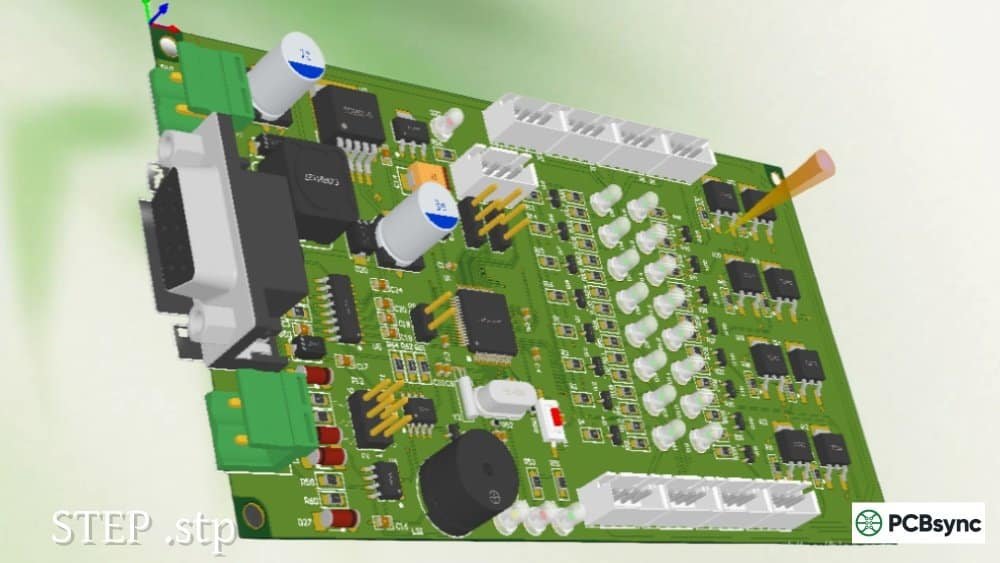
Many component manufacturers and third-party libraries provide 3D models in IGES format. These models can be imported into your PCB design software and associated with component footprints to enable 3D visualization and clearance checking. While STEP models are generally preferred for new designs, you’ll still encounter plenty of legacy .igs files in component libraries.
ECAD to MCAD Exchange
When sharing your PCB design with mechanical engineers for enclosure design or system integration, IGES provides a common language that both ECAD and MCAD tools understand. Most PCB design software can export board assemblies to IGES format, allowing mechanical CAD programs like SolidWorks, CATIA, or Inventor to import the 3D representation.
Legacy System Compatibility
Because IGES has been around since 1980, it enjoys near-universal support across CAD applications. If you’re working with older design files or collaborating with partners using legacy software, IGES often provides the best compatibility path.
IGES vs STEP: Key Differences
As a PCB engineer, you’ll frequently need to choose between IGES and STEP formats. Understanding their differences helps you make the right choice for each situation.
Comparison of IGES and STEP Formats
Feature
IGES
STEP
Model Type
Primarily surfaces
True solid models
First Released
1980
1994
Last Updated
1996 (v5.3)
Ongoing (AP 242)
Assembly Support
Limited
Full support
File Size
Generally smaller
Generally larger
Data Integrity
May have gaps/errors
More reliable
PMI/GD&T Support
No
Yes (newer versions)
Industry Preference
Legacy/simple models
Modern workflows
When to Use IGES
IGES remains appropriate in several scenarios:
Simple component models: For basic package shapes that don’t require solid model features, IGES files work perfectly well and often have smaller file sizes.
Legacy compatibility: When working with older CAD systems or partners who haven’t upgraded to STEP support, IGES provides the fallback option.
Surface-based designs: For designs where surface geometry is the primary concern rather than solid model analysis, IGES handles the job adequately.
When to Use STEP
STEP is generally the better choice for:
Complex assemblies: STEP maintains proper part hierarchy and relationships.
Manufacturing workflows: Modern CNC and fabrication processes prefer solid models.
ECAD/MCAD integration: STEP’s AP 242 protocol specifically addresses electronics integration.
Ongoing projects: STEP continues to evolve, while IGES development stopped in 1996.
Common IGES Limitations and Challenges
Working with IGES files isn’t always smooth sailing. Here are the issues you’re likely to encounter:
Surface Gaps and Errors
Since IGES represents surface models rather than true solids, imported files frequently have gaps between surfaces. These gaps can cause problems in downstream applications that expect watertight geometry. You may need to use repair tools to stitch surfaces together before the model is usable.
Missing or Incorrect Features
Different CAD systems interpret IGES data slightly differently, leading to what the industry calls “flavorings.” A model exported from one system may not import identically into another. Spline curves sometimes get converted to polylines, and complex features may be simplified or lost entirely.
No Assembly Information
IGES lacks robust support for assembly structures. When you import an IGES file containing multiple parts, they often come in as a single monolithic surface rather than separate, manipulable components.
No Modern Data Types
IGES cannot carry Model-Based Definition (MBD) or Product Manufacturing Information (PMI) data. As the industry moves toward embedding dimensions, tolerances, and notes directly in 3D models, this limitation becomes increasingly significant.
Software Tools for Working with IGES Files
Whether you need to view, edit, or convert IGES files, plenty of options are available.
PCB Design Software with IGES Support
Software
IGES Import
IGES Export
Notes
Altium Designer
Yes
Yes
Full 3D body support
KiCad + FreeCAD
Via StepUp
Via StepUp
Requires FreeCAD workbench
OrCAD/Allegro
Yes
Yes
Through IDX workflow
PADS
Yes
Yes
3D component models
Proteus
Yes
Yes
MCAD data exchange
Free IGES Viewers and Converters
Tool
Type
Features
FreeCAD
Desktop software
View, edit, convert to STEP/STL
IGS Viewer
Desktop software
Free viewing, basic navigation
gCAD3D
Desktop software
Open source, conversion tools
3DViewerOnline
Online tool
No installation, measurements
eMachineShop Viewer
Online tool
Free viewing and analysis
CAD Exchanger
Desktop/Online
Professional conversion
Resources for IGES Component Models
Finding quality IGES models for your PCB components can be challenging. Here are reliable sources:
Many semiconductor and component manufacturers offer 3D models directly on their websites. Companies like Texas Instruments, STMicroelectronics, Microchip, and Littelfuse provide downloadable .igs files for many of their parts. Always verify dimensions against the datasheet when using any downloaded model.
When IGES doesn’t meet your needs, conversion is straightforward with the right tools.
IGES to STEP Conversion
Most CAD applications can convert IGES to STEP directly:
Open the IGES file in FreeCAD, Fusion 360, or similar software
Check for and repair any surface gaps or errors
Export as STEP (AP 214 or AP 203)
Verify the output in your target application
IGES to STL for 3D Printing
If you need to 3D print an enclosure prototype or fixture:
Import the IGES file into your CAD software
Convert surfaces to a solid if necessary
Export as STL with appropriate mesh resolution
Process in your slicer software
Be aware that converting from IGES to mesh formats like STL is a one-way process. The mathematical precision of the original surfaces is replaced with triangular approximations.
Frequently Asked Questions About IGES Files
What’s the difference between .igs and .iges file extensions?
There is no functional difference between .igs and .iges extensions. Both refer to the same IGES file format. The shorter .igs extension originated from older operating systems that limited file extensions to three characters. Modern systems accept either extension interchangeably.
Can I edit an IGES file directly?
While IGES files are stored in ASCII text format and technically readable in any text editor, editing them manually is impractical and risky. The file structure is complex, and incorrect modifications will corrupt the geometry. Always use proper CAD software to edit IGES models.
Why does my IGES file look wrong after import?
IGES import issues typically stem from surface gaps, different interpretation of geometry between CAD systems, or unsupported entity types. Try using a different import application, adjusting import settings, or running geometry repair tools. If problems persist, request a STEP file from the original source instead.
Is IGES still relevant for modern PCB design?
While STEP has become the preferred format for ECAD/MCAD exchange, IGES remains relevant for legacy compatibility, simple component models, and situations where STEP isn’t available. Many component libraries still include IGES models, and the format’s universal support makes it a useful fallback option.
How do I convert IGES to STEP for free?
FreeCAD is the most accessible free option for IGES to STEP conversion. Open the .igs file in FreeCAD, verify the geometry imported correctly, then export using File → Export and selecting STEP format. Online converters like CAD Exchanger also offer limited free conversions.
Conclusion
IGES has served the CAD industry well for over four decades, providing a common language for exchanging 3D design data across different software platforms. For PCB designers, understanding IGES helps you work effectively with legacy component models, collaborate with mechanical engineering teams, and troubleshoot import/export issues.
That said, the format’s age shows in its limitations. Surface-based geometry, lack of assembly support, and no modern PMI capabilities mean STEP is usually the better choice for new projects. When you have the option, prefer STEP for ECAD/MCAD exchange and 3D component models. Keep IGES in your toolkit for backward compatibility and situations where it’s the only available format.
The key is knowing when each format makes sense. Use IGES when you must, use STEP when you can, and your 3D PCB design workflows will run much more smoothly.
Inquire: Call 0086-755-23203480, or reach out via the form below/your sales contact to discuss our design, manufacturing, and assembly capabilities.
Quote: Email your PCB files to Sales@pcbsync.com (Preferred for large files) or submit online. We will contact you promptly. Please ensure your email is correct.
Notes: For PCB fabrication, we require PCB design file in Gerber RS-274X format (most preferred), *.PCB/DDB (Protel, inform your program version) format or *.BRD (Eagle) format. For PCB assembly, we require PCB design file in above mentioned format, drilling file and BOM. Click to download BOM template To avoid file missing, please include all files into one folder and compress it into .zip or .rar format.